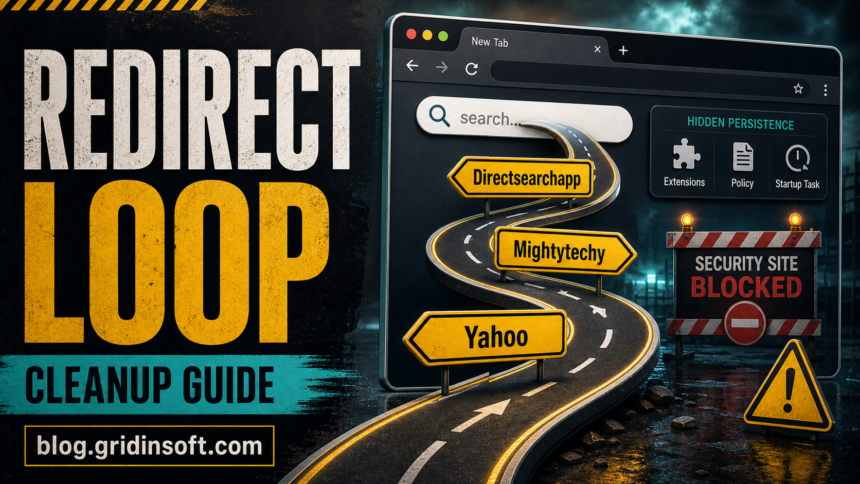
A browser hijacker should be removed when search results, new tabs, notifications, or security websites change without your clear consent. If Google searches jump through pages such as Directsearchapp.com, Mightytechy.com, or Yahoo before you reach the result, do not stop at a browser reset. A reset can hide the symptom while an extension, browser policy, proxy, DNS change, startup task, or synced setting restores it.
For a concrete installed-app example, see the Chrone Browser by iStart removal checklist, which shows how to handle a misspelled browser entry without confusing it with legitimate Chrome or Firefox.
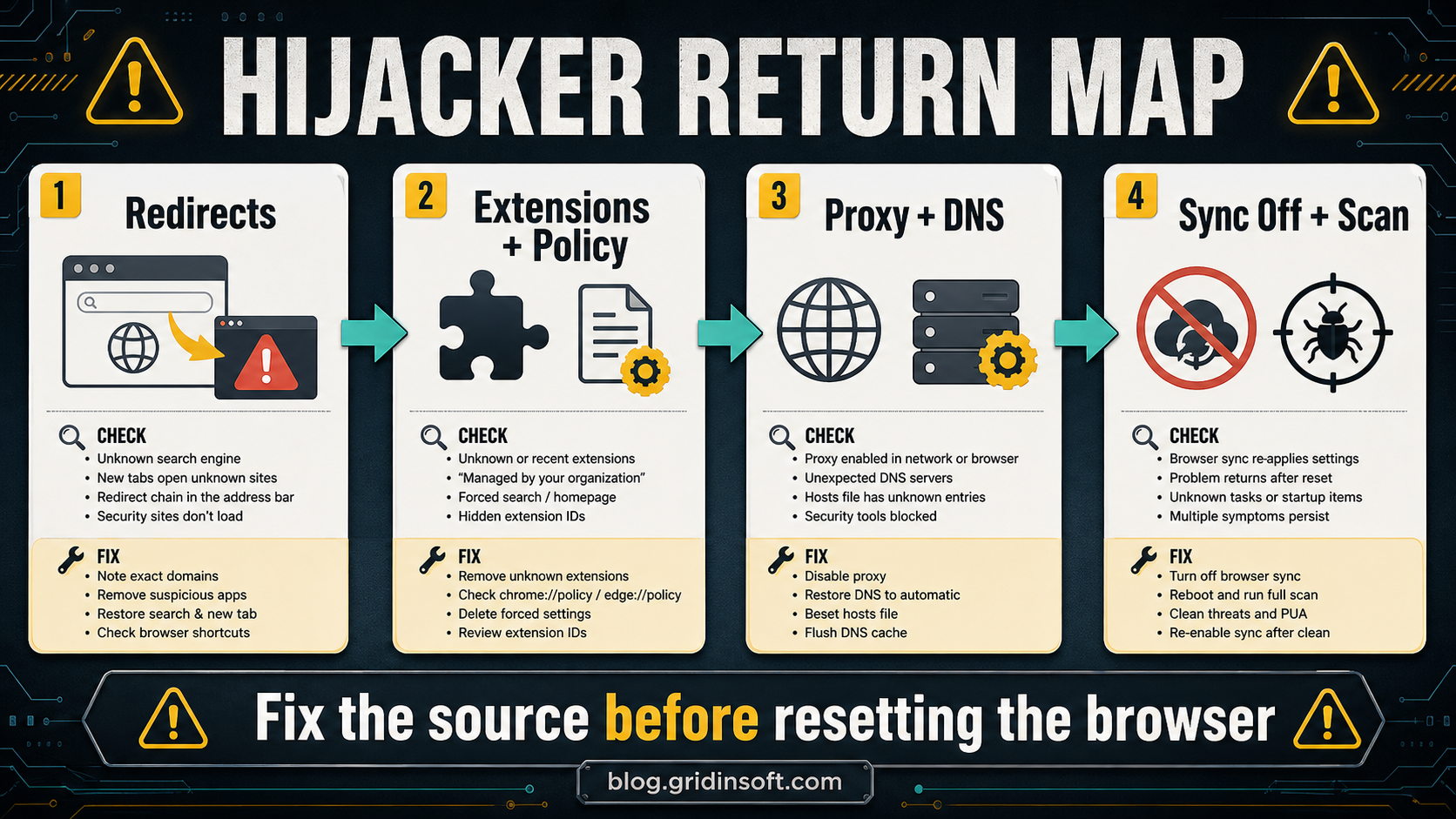
Start by writing down the exact domain in the address bar, then clean the source in this order: remove suspicious extensions, check browser policies, disable unknown proxy or DNS settings, scan Windows for bundled PUA/adware, reboot, and only then sign back into browser sync. This page is the broad cleanup hub; if you see a named redirect domain, use the exact-domain guide linked below first. If the named domain is sogou.com or 123.sogou.com, use the Adware:Win32/Sogou removal guide for the exact alert and redirect cleanup path. For the Yahoo-style chain that flashes mobility-search.com or mobilisearch.com, follow the Mobility-search.com cleanup steps before returning to this hub.
If the named domain is pdftools.store or ipqcr.pdftools.store, use the PDFTools redirect cleanup guide first, then return here if the redirect keeps coming back after extension, search, and policy checks.
For the older DNSUnlocker-style case where ads and DNS resolver changes appear together, use the DNSUnlocker adware cleanup steps before doing a final browser reset.
Remove the hijacker if the change was not intentional, if a security site is blocked, if the redirect returns after reboot, or if Defender/security software reports a PUA. Treat the browser profile as untrusted until the restoring component is gone.
Fast triage: what changed?
| Symptom | Most likely source to check first |
|---|---|
Search opens Directsearchapp.com, Mightytechy.com, Yahoo, or another unwanted search page. |
Unknown extension, forced search provider, browser shortcut, or a Chromium policy. |
| Malwarebytes, Gridinsoft, Microsoft, or other security websites do not load. | Proxy/DNS/hosts-file change, malicious extension, or local PUA trying to slow cleanup. |
| Resetting Chrome or Edge helps for one session, then the hijacker returns. | Browser sync, extension sync, scheduled task, startup entry, or companion app. |
Defender shows PUA:Win32, PUABundler, or PUADlManager. |
Bundled installer, download manager, driver tool, fake browser, or adware component. For the exact PUA:Win32/Softcnapp alert, check false-positive clues before allowing the file. |
Browser hijacker cleanup order
- Disconnect browser sync before cleaning. In Chrome, Edge, Firefox, and other synced browsers, pause sync or sign out first. Otherwise an unwanted extension, search engine, or setting can come back from the cloud after you reset the local profile.
- Remove suspicious extensions in every browser. Check
chrome://extensions,edge://extensions, and Firefox add-ons. Remove anything you did not choose, anything installed on the same day the redirects started, and extensions with vague names such as search, coupons, templates, recipes, PDF tools, or “safe browsing” helpers. - Check browser policies. Open
chrome://policyandedge://policy. If you see policies controlling search, homepage, extensions, or startup pages on a home PC, remove the related app and clean the policy source before resetting the browser. - Restore search, new tab, homepage, and shortcuts. Remove unknown search engines, restore the default provider, delete suspicious startup pages, and inspect browser shortcut targets for extra URLs after
chrome.exe,msedge.exe, orfirefox.exe. If the redirect name is Freshy, follow the Freshy Search removal guide after deleting the generic search shortcut. - Fix proxy, DNS, and hosts-file changes. Disable unknown proxy settings, restore DNS to automatic or a trusted resolver, flush DNS cache, and check whether the hosts file contains security-site entries that block cleanup pages. If Windows names the hosts file as SettingsModifier:Win32/PossibleHostsFileHijack, inspect the hosts entries before allowing the Defender alert.
- Uninstall recent PUA sources. Remove recently added downloaders, fake browsers, driver updaters, PDF tools, media players, coupon apps, and cracked installers. Then check Startup Apps, Task Scheduler, installed services, and folders under
%LOCALAPPDATA%,%APPDATA%, and%TEMP%. If the returning item is a Mail.Ru/MRAC service such asmracsvc.exeor drivermracdrv.sys, use the MRAC service cleanup guide before deleting driver files. - Run a full malware/PUA scan, reboot, and scan again if symptoms return. A browser reset removes visible settings, but it does not prove the companion app, scheduled task, or bundled module is gone.
When a hijacker blocks security pages or comes back after a reset, the visible browser setting is usually only the front end of the problem. A full Gridinsoft Anti-Malware scan can check for hidden files, scheduled tasks, startup entries, bundled apps, browser changes, and persistence that keep recreating redirects.
If redirects, notifications, extensions, homepage changes, or managed policies return after browser cleanup, the source is often outside the browser: an installed app, policy, scheduled task, or startup entry. For an unwanted Chromium-style browser with OB updater services and AppData leftovers, use the OneBrowser removal checklist before resetting your main browser again.
Directsearchapp.com, Mightytechy.com, and blocked security sites
This cluster is worth treating as a stronger warning sign than a simple changed search engine. Users often notice a chain like this: a normal Google query opens a different search page, the address bar flashes through unfamiliar domains, Yahoo appears as the final search provider, and malware-removal websites fail to load. That combination points to more than a preference change.
Use this short branch before a normal browser reset:
- Record every domain that appears in the address bar during the redirect, including subdomains.
- Search installed extensions by install date and remove anything that controls search, coupons, new tabs, templates, PDF conversion, recipes, weather, or “safe search”.
- Check
chrome://policyandedge://policyfor forced extensions or search-provider policies. - Open Windows proxy settings and turn off unknown manual proxies.
- Restore DNS settings, then run
ipconfig /flushdnsfrom an elevated Command Prompt. - Check
C:\Windows\System32\drivers\etc\hostsfor security-site blocks. - Scan Windows before signing back into browser sync or reinstalling extensions.
If the unwanted program is PC App Store and its window blocks the desktop, use the PC App Store stuck-window and uninstall steps. Removing the app and cancelling an account subscription are separate tasks.
Use a specific guide when the name is known
Use this hub for broad cleanup and source tracing. Use a narrower guide first when the browser shows a named domain, app, extension, or Defender detection. If the route mentions bestfreemaps.com or s1search.co, use the Get Maps & Driving Directions hijacker removal guide before the broader browser reset. If the route starts with newspulsenow.net or passes through skwhatlaybeyo.org, use the Newspulsenow.net redirect guide first. If the named extension is Rainbow Blocker or the blocked endpoint is api.rainbowblocker.com, start with the Rainbow Blocker removal guide.
If the named destination is find-it.pro and it replaces every new tab or returns after sign-in, use the Find-it.pro redirect removal checklist for the exact Chrome, Edge, Firefox, sync, and recurrence path.
Exact workflow for Nextgeeker.com, Direct App Search behavior, search settings, browser policies, notification permissions, and Windows PUA cleanup.
Use when Search-crown.com returns through sync, policy, unwanted extensions, or changed search settings.
Use when the redirect points to Fusebase Search or an extension-driven fake search provider.
Use when Search-fine.com is the visible forced search provider.
Use when the Easy Search extension or Easysearching.net changes new-tab/search behavior.
Use when Chrome shows Travel-now.cc or subdomains such as brvpcr.travel-now.cc.
Use when Ace Browser, AceLauncher, Yahoo redirects, or Ace Browser Shield are present.
Use when a rogue Chromium-style browser becomes default or arrives through a bundle.
When Defender names a PUA
PUA detections are source-sensitive. A utility from an official vendor site is different from a same-looking installer that arrived from an ad, torrent, crack, fake update, or bundle. If Microsoft Defender names a family, start with the exact detection guide:
- PUADlManager:Win32/OfferCore – bundled installers and unwanted offers.
- PUADlManager:Win32/OnePlatform – download-manager style PUA behavior.
- PUA:Win32/MyWebSearch – toolbar/search hijacker cleanup.
- PUA:Win32/Conduit – browser hijacker meaning and removal.
- PUABundler:Win32/DriverPack – driver-bundle cleanup and leftover checks.
After the browser reset
A reset is the final cleanup step, not the first proof that the machine is clean. After you remove the source, reset the affected browser, reboot, and test with sync still disabled. If the redirect no longer appears, re-enable sync carefully and avoid restoring old extensions in bulk. If Firefox alone keeps restoring homepage, search, proxy, or privacy settings after restart, check whether a user.js file is reapplying those preferences before wiping the whole profile. If the redirect returns only after sync, remove the bad extension or setting from the synced account before using that browser profile again.
If the browser opens multiple unwanted tabs rather than only changing search, compare the broader symptom with our browser opens multiple tabs by itself guide. If notifications are the visible symptom, the Recheck.co.in ads removal guide shows the site-permission branch before deeper adware cleanup.
FAQ
Is a browser hijacker the same as a virus?
Not always. A hijacker may not self-spread like a classic virus, but it can redirect searches, inject ads, install unwanted extensions, weaken privacy, block security websites, or reinstall settings through a companion app.
Why does a browser hijacker return after I reset Chrome or Edge?
The restoring source is usually still present. Check browser sync, extensions, browser policies, startup entries, scheduled tasks, proxy/DNS settings, and recently installed apps before resetting the browser again.
Should I sign back into Chrome or Edge sync immediately?
No. Keep sync off until redirects stop after a reboot and a scan. If the hijacker returns only after sync is enabled, remove the bad extension or setting from the synced account first.
Should I allow a PUA in Microsoft Defender?
Only if you clearly trust the source and accept the behavior. For most users, removal is safer when the file came from a bundle, torrent, crack, fake update, unknown installer, or a browser change you did not request.
References
- Microsoft. “What is a browser hijacker and how can you remove one?” Microsoft 365 Life Hacks, accessed June 14, 2026. https://www.microsoft.com/en-us/microsoft-365-life-hacks/privacy-and-safety/what-is-browser-hijacker-how-remove
- Google. “Remove unwanted ads, pop-ups & malware.” Google Chrome Help, accessed June 14, 2026. https://support.google.com/chrome/answer/2765944
For current exact-domain notification-spam examples, see our Matrixgrowthforge.com browser notification cleanup and Ellinfituns.com ads cleanup; the same permission and extension checks apply to many PUA redirect cases.