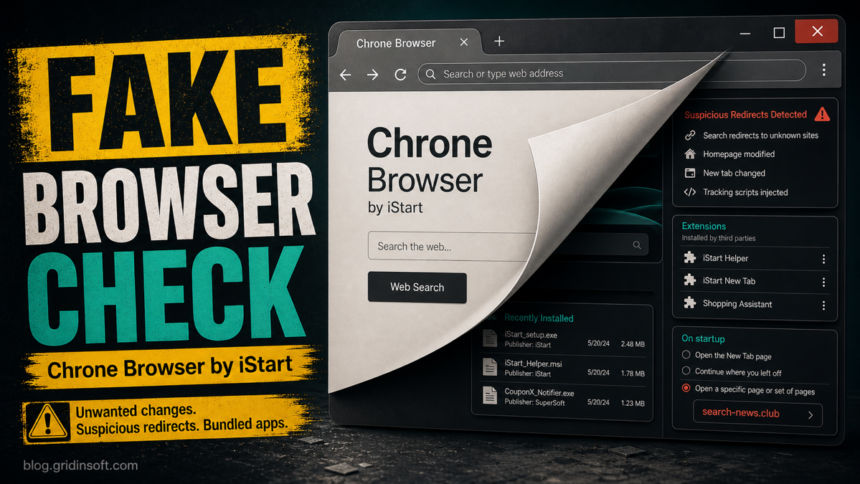
Chrone Browser by iStart should not be treated as normal Google Chrome. The misspelled name, the unknown publisher wording, and the reports of related browser changes make it a suspicious unwanted-browser entry. If it appeared after another installer, changed search or homepage settings, or added extensions you did not choose, remove it and then check every browser profile for leftovers.
The safest approach is not to panic or delete random folders first. Uninstall the visible app, reset the browser changes it made, remove unknown extensions and notification permissions, then scan Windows for bundled adware or PUA components that can bring the browser back.
What is Chrone Browser by iStart?
Chrone Browser appears to be an unwanted browser or browser-like bundle published under the iStart name. Users report seeing entries such as Chrone Browser by iStart or Firefox Browser by iStart in the installed-apps list. That wording matters: legitimate Chrome and Firefox installations are not normally shown as iStart-published apps.
There is not enough public evidence to say every iStart-branded browser entry is the same malware family. Treat it as a potentially unwanted program when any of these signs are present:
- It appeared without a clear install choice.
- Your default browser, homepage, new tab page, or search engine changed.
- Searches pass through unknown pages before reaching results.
- New extensions, shopping helpers, coupon tools, or “new tab” add-ons appeared.
- Browser notifications, pop-ups, or startup pages keep returning after removal.
- The app reinstalls after reboot or after another “free” program updates.
This is the same cleanup lane as other unwanted Chromium-based browsers and search hijackers, but the exact name deserves its own check because people search for Chrone Browser iStart removal after seeing that specific installed-program entry.
Should you remove Chrone Browser?
Remove Chrone Browser by iStart if you did not intentionally install it, if the publisher name is unfamiliar, or if it changed browser behavior. A legitimate browser does not need to mimic another browser name, force search traffic through unknown pages, or arrive as a side offer in another installer.
| What you see | What to do |
|---|---|
| Normal Chrome or Firefox from the official vendor | Keep it if the publisher, path, and behavior match the real browser you installed. |
| “Chrone Browser” or “Firefox Browser by iStart” | Uninstall it and check for search, extension, notification, and startup leftovers. |
| Search redirects, unknown new tab, or pop-ups | Clean the browser profile and scan for bundled adware or a companion app. |
| The browser returns after reboot | Check Startup apps, Task Scheduler, services, and recently installed programs. |
How to remove Chrone Browser by iStart
Work through the steps in order. If one browser looks clean but another still opens unwanted pages, repeat the browser-specific parts for Chrome, Edge, Firefox, Brave, Opera, or any Chromium-based browser installed on the PC.
1. Uninstall the visible iStart browser app
- Open Settings > Apps > Installed apps.
- Search for Chrone, iStart, Firefox Browser by iStart, and other apps installed on the same date.
- Uninstall the suspicious entry first, then remove related coupon, search, shopping, new-tab, or browser-assistant apps you do not recognize.
- Restart Windows before deciding the cleanup is finished.
If the uninstall button is missing or fails, do not download a random “removal tool” from search results. Reboot into normal Windows, close the suspicious browser in Task Manager, and remove the entry again. If it still fails, scan first and then remove leftover files after the scan identifies the related components.
2. Reset default browser, homepage, search, and new tab settings
After uninstalling the app, open each browser you actually use and check the settings it can change:
- Default browser: set your intended browser back as default in Windows Settings.
- Search engine: remove unknown search providers and choose the one you trust.
- On startup: delete unknown pages that open automatically.
- New tab/homepage: remove iStart, unknown search pages, or coupon portals.
- Sync: pause browser sync temporarily if bad extensions or settings reappear across devices.
If Chrome, Edge, or another Chromium browser says it is managed by your organization on a personal PC, check browser policies before assuming the visible app was the only problem. Policy-based hijackers can restore search settings after a normal reset.
3. Remove unknown extensions and notification permissions
Open the extensions/add-ons page in every browser and remove anything tied to iStart, new tab replacement, coupons, shopping, search, PDF conversion, “safe browsing,” or unknown helpers. Then check site permissions for notifications and remove sites you do not recognize.
Notification permissions are easy to miss. A user may remove Chrone Browser but still receive fake virus alerts or redirect pop-ups because a site was allowed to send notifications. If that is the symptom, follow the browser notification cleanup guide as well.
4. Check startup entries, scheduled tasks, and recent installers
Unwanted browsers often arrive with a companion updater or bundled installer. Check these places after uninstalling the visible app:
- Task Manager > Startup apps: disable suspicious iStart, browser assistant, updater, coupon, or search entries.
- Task Scheduler: look for recently created tasks that launch a browser, updater, script, or unknown executable at logon.
- Services: inspect unknown services installed on the same date.
- Downloads and recent apps: review free installers, cracks, converters, codec packs, and download managers installed before the browser appeared.
Do not delete every unknown Windows task blindly. If you are unsure, export or screenshot the entry first, then verify the file path and digital signature. The goal is to remove the unwanted bundle, not break legitimate browser or Windows update tasks.
5. Scan for bundled PUA/adware leftovers
If Chrone Browser changed search settings, added extensions, or came back after removal, the visible browser may not be the only component. A loader, scheduled task, browser policy, extension, or bundled app can recreate the same symptoms.
Run a full Gridinsoft Anti-Malware scan after the manual checks. Let it detect PUA/adware components, browser changes, startup entries, and suspicious leftovers, then reboot and scan again if redirects or pop-ups return.
If redirects, notifications, extensions, homepage changes, or managed policies return after browser cleanup, the source is often outside the browser: an installed app, policy, scheduled task, or startup entry.
Scan browser hijacker leftoversWhat if Chrone Browser comes back?
If the app or browser changes return after reboot, look for the component that restores them. The most common causes are a bundled updater, a scheduled task, a browser policy, sync restoring a bad extension, or another unwanted app installed on the same day.
Use this order:
- Disconnect from suspicious downloads and avoid reopening the installer that brought the browser in.
- Remove unknown apps installed on the same date as Chrone Browser.
- Check browser policies and remove unknown extensions again.
- Disable suspicious startup items and scheduled tasks only after checking their file paths.
- Scan with Gridinsoft Anti-Malware and reboot.
- If passwords were typed into redirected pages, change those account passwords from a clean browser session.
For a broader cleanup flow, use the browser hijacker removal guide. If an extension returns after deletion, follow the extension keeps reinstalling itself workflow. For fake alerts after the app is gone, remove unwanted permissions with the browser notification cleanup guide.
How to avoid unwanted browser bundles
- Download browsers only from the official vendor website or the built-in app store.
- Choose custom installation and decline optional search, coupon, PDF, cleaner, or browser offers.
- Avoid cracked software, fake codec packs, and download managers that wrap the real installer.
- Review the publisher name before allowing a browser-like app to become the default browser.
- Keep a short list of browsers you actually use, and remove lookalike browsers you did not choose.
FAQ
Is Chrone Browser the same as Google Chrome?
No. The name Chrone Browser is not the normal Google Chrome installed-program name. Treat it as suspicious when it is published by iStart, appears unexpectedly, or changes browser settings.
Is iStart always malware?
Not every iStart-labeled component should be described as confirmed malware without evidence. For this cleanup, the practical issue is unwanted behavior: bundled installation, search redirects, changed homepage or new tab pages, unknown extensions, and persistence after uninstall.
Should I reset every browser?
Reset only the browsers that show changes or contain unknown extensions, search engines, startup pages, or notification permissions. If the same change appears across browsers, scan Windows for a companion app or scheduled task.
Do I need to change passwords?
Change passwords if you typed credentials into redirected pages, installed additional files from pop-ups, or saw account-login pages opened through the suspicious browser. If the browser only appeared in the apps list and you removed it before using it, focus on cleanup and monitoring first.
References
- Microsoft Support. “Uninstall or remove apps and programs in Windows.” Microsoft, accessed July 8, 2026. https://support.microsoft.com/en-us/windows/uninstall-or-remove-apps-and-programs-in-windows-4b55f974-2cc6-2d2b-d092-5905080eaf98
- Google Chrome Help. “Remove unwanted ads, pop-ups & malware.” Google, accessed July 8, 2026. https://support.google.com/chrome/answer/2765944
- Mozilla Support. “Disable or remove Add-ons.” Mozilla, accessed July 8, 2026. https://support.mozilla.org/en-US/kb/disable-or-remove-add-ons