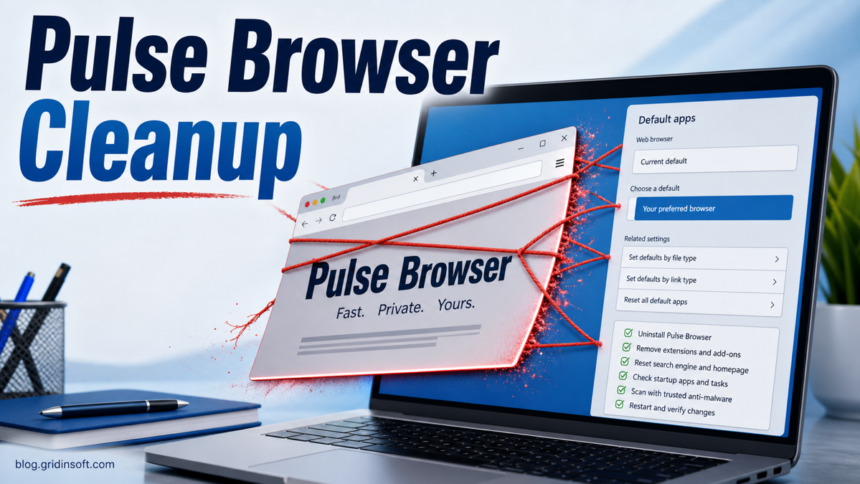
Pulse Browser is best treated as a potentially unwanted browser when it appears without a clear install choice, changes browser defaults, returns after uninstall, or is detected as PUP.Win64.PulseBrowser.dd!c. That detection usually points to a Pulse Browser installer or bundled setup file, often a generic setup.exe saved in Downloads, not to a normal browser preference by itself. If you did not deliberately install Pulse Browser, remove it before using the PC for logins, payments, or email.
Quick check: should you remove Pulse Browser?
- Remove it if Pulse Browser became your default browser after another installer, ad, download page, or “recommended” setup option.
- Remove it if search, homepage, new tab, shortcuts, or notifications changed at the same time.
- Scan the PC if uninstall fails, the browser comes back after reboot, or other unknown apps/extensions appeared with it.
- Do not call it a confirmed trojan from the name alone. Treat it as a PUA/unwanted-browser case unless a specific file is separately detected as malware.
| Item | Pulse Browser / pulsebrowser.com |
| Most accurate label | Potentially unwanted browser or unwanted application when installed through bundling or without informed consent |
| Common symptoms | Default-browser change, search/homepage replacement, AI-browser marketing page, startup relaunch, unknown extensions, browser reset not sticking |
| Gridinsoft signal | Gridinsoft’s URL reputation report classifies pulsebrowser.com as an unwanted application distributor.1 |
| Detection alias to recognize | PUP.Win64.PulseBrowser.dd!c on a Pulse Browser installer, Pulse_browser_setup.exe, or a generic setup.exe downloaded from an untrusted source |
| Best first action | Uninstall Pulse Browser, reset affected browsers, remove leftovers, then scan for bundled PUA. |
What is Pulse Browser?
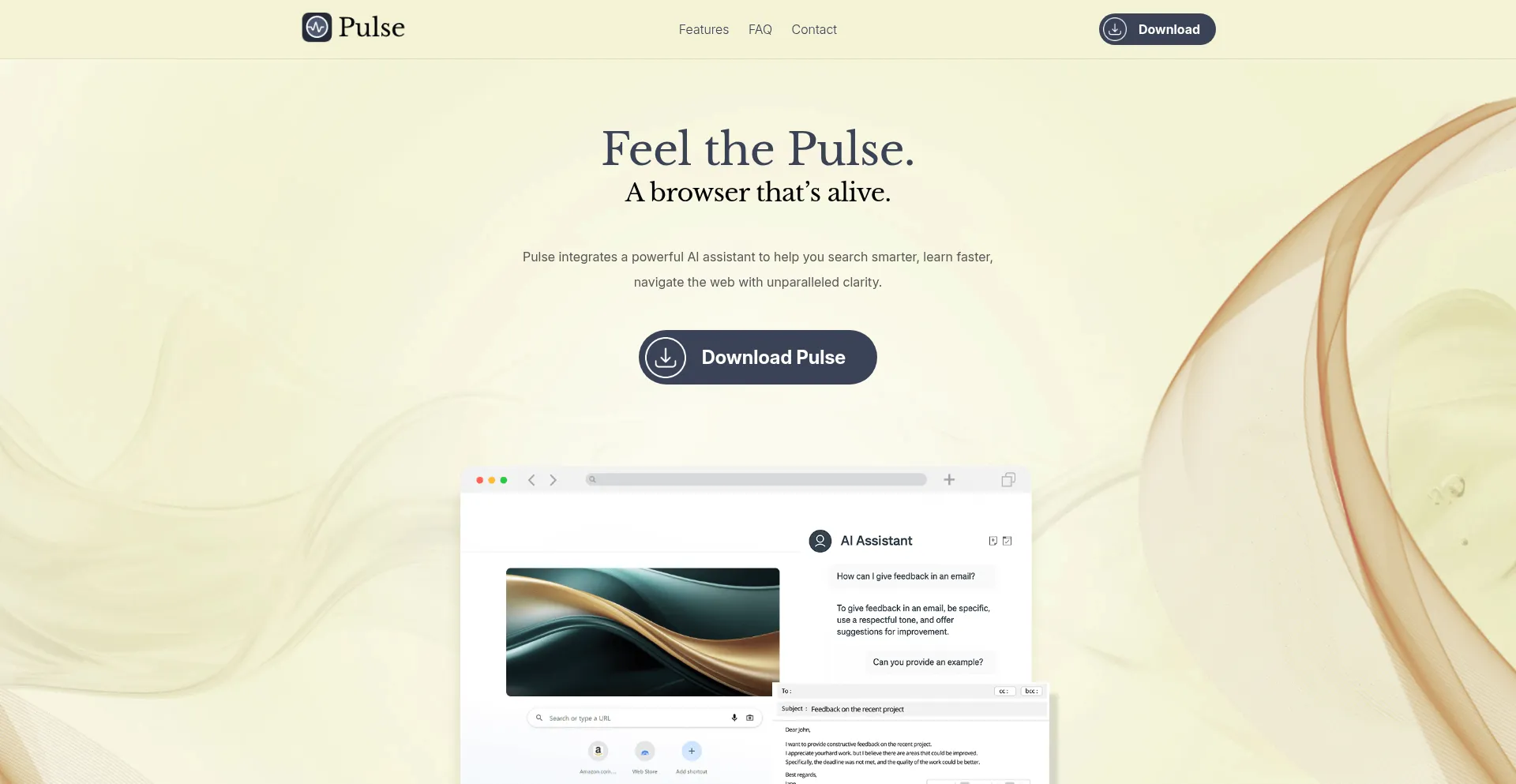
Pulse Browser presents itself as a browser with an AI assistant and a download flow. That marketing does not automatically prove malware, but it also does not make the installation trustworthy. A browser becomes a security problem when it arrives through an unrelated installer, pushes itself as default, adds extensions, changes search settings, or keeps returning after the user removes it.
The safer wording is this: Pulse Browser is a potentially unwanted browser when it was not intentionally installed or when it changes browser behavior without clear consent. In that situation, remove it the same way you would handle a browser hijacker or bundled PUA.
Why Pulse Browser looks like a PUA risk
Pulse Browser needs caution because it sits in a common unwanted-browser lane: a Chromium-style browser is offered as a useful upgrade, then users discover that defaults, search, startup behavior, or extensions changed. Gridinsoft’s reputation report currently flags pulsebrowser.com as an unwanted application distributor, which supports treating the download path as risky rather than neutral.1
That does not mean every file named Pulse is a password stealer. The right response is to verify how it got there, remove the browser and companion pieces, and scan for other bundled apps before using the PC for sensitive accounts.
What PUP.Win64.PulseBrowser.dd!c means
PUP.Win64.PulseBrowser.dd!c is a detection name for a Pulse Browser-related installer or bundled component. Read it as a warning about how the file arrived and what it may change: default browser, search provider, startup behavior, extensions, or companion PUA. It is not a reason to panic or assume password theft from the label alone.
| If you saw this | PUP.Win64.PulseBrowser.dd!c, PUP.Win64.PulseBrowser, PulseBrowser, or a Pulse Browser warning from a security tool |
| Common installer clues | %USERPROFILE%\Downloads\setup.exe, Pulse_browser_setup.exe, pulse-browser.installer.exe, or a download page opened from an ad or software bundle |
| Folder clues after install | %LocalAppData%\PulseSoftware\PulseBrowser\Application\pulsebrowser.exe or a PulseSoftware/PulseBrowser updater, startup app, or scheduled task |
| Safe decision | Do not allow or restore the installer just because it has a browser name. Remove Pulse Browser first, then check whether browser settings and startup entries stay clean after reboot. |
How to recognize Pulse Browser updater and startup entries
Pulse Browser persistence entries usually identify themselves through both a PulseSoftware path and a versioned task or startup value. The browser version, Windows user SID, and task GUID can change, so match the command path and publisher instead of copying one exact suffix.4
| Scheduled updater task | A task under \PulseSoftware\PulseBrowserUpdater\ whose name begins PulseBrowserUpdaterTaskUser and whose action runs %LOCALAPPDATA%\PulseSoftware\PulseBrowserUpdater\{version}\updater.exe. |
| Startup task | A task beginning PulseBrowserStartup, often followed by a user SID, whose action opens %LOCALAPPDATA%\PulseSoftware\PulseBrowser\Application\pulsebrowser.exe. |
| Registry startup value | Under HKCU\Software\Microsoft\Windows\CurrentVersion\Run, a value beginning PulseBrowserUpdaterTaskUser may launch the versioned updater with --wake. |
| App Paths or default-app mapping | A normal browser executable should not unexpectedly resolve to a file under PulseSoftware. Treat that mismatch as a reason to restore the trusted browser registration and Windows defaults, not as permission to delete unrelated registry keys. |
| Safe action | Open the task or startup entry and verify its full command first. Disable or remove it only when the action points to the PulseSoftware installation you are removing; leave unrelated Chromium, Microsoft, vendor, and Windows tasks alone. |
Do not delete every entry under Windows App Paths. If a trusted browser name unexpectedly points to PulseSoftware, export the exact key before any manual change, reinstall or repair the browser you intend to keep, and set it again under Settings -> Apps -> Default apps. This is safer than guessing which registry values Windows still needs.
Signs Pulse Browser should be removed
- Pulse Browser opens instead of Chrome, Edge, Firefox, or your usual browser.
- Windows default apps show Pulse Browser as the web browser even though you did not choose it.
- Search, homepage, new tab, or browser shortcuts changed after a download.
- You see unknown extensions, notification permissions, or “managed by your organization” messages.
- Pulse or an updater launches at startup.
- Uninstall works for a while, but Pulse Browser or redirects come back after reboot.
- Gridinsoft or another security tool detects a related installer, bundled app, browser policy, or startup item.
How to remove Pulse Browser safely
- Close Pulse Browser and the installer page. Do not install a second “helper,” driver updater, codec, or cleanup tool from the same download path.
- Uninstall Pulse Browser from Windows. Open Settings -> Apps -> Installed apps, search for
Pulse,Pulse Browser, and apps installed on the same date, then choose Uninstall. Microsoft documents this normal Windows uninstall path for unwanted apps.2 - Reset the default browser. Go to Settings -> Apps -> Default apps and set Chrome, Edge, Firefox, or another trusted browser back as the web browser.
- Remove unknown extensions. In Chrome or Edge, open the extensions page and remove anything installed at the same time as Pulse Browser. In Firefox, check Add-ons and themes.
- Check search, homepage, and startup pages. Restore the search engine and startup page you actually use. If Chrome settings were changed, Google’s reset-settings flow can restore defaults after the unwanted app is removed.3
- Check shortcuts and browser policies. Remove strange URLs appended after browser shortcuts. If settings say the browser is managed, check for policy leftovers from the unwanted installer.
- Check the exact startup entries and scheduled tasks. In Task Scheduler, expand the
PulseSoftwarefolder and inspect entries beginningPulseBrowserUpdaterTaskUserorPulseBrowserStartup. In Task Manager Startup apps and the current-user Run key, verify the full command. Disable an entry only when it points to%LocalAppData%\PulseSoftware; version and user suffixes vary. - Delete only clear leftovers. After uninstall, look under
%LocalAppData%,%AppData%, andC:\Program Filesfor Pulse Browser or PulseSoftware folders. If the flagged file was%USERPROFILE%\Downloads\setup.exe, delete that installer too after confirming it belongs to the Pulse Browser download chain. Do not delete random system files. - Run a full Gridinsoft Anti-Malware scan. This is important when Pulse arrived through a bundle,
PUP.Win64.PulseBrowser.dd!cflagged the installer, search redirects return, or you see other PUA symptoms. A normal uninstall may miss companion apps, policies, startup entries, or adware files. - Reboot and verify. Confirm Pulse Browser does not return, your normal browser remains default, and search settings stay fixed.
If Pulse Browser was installed from a bundle or a detected setup.exe, the visible browser may be only one part of the chain. A scan should check for bundled apps, startup entries, browser policies, scheduled tasks, and adware files that can bring the symptoms back.
If redirects, notifications, extensions, homepage changes, or managed policies return after browser cleanup, the source is often outside the browser: an installed app, policy, scheduled task, or startup entry.
Scan for Pulse Browser leftoversReset Chrome, Edge, or Firefox after uninstall
Do not reset the browser first if Pulse Browser or a companion app is still installed. The same app can restore the unwanted setting. After uninstall and scan, reset only the affected browser:
- Chrome: Settings -> Reset settings -> Restore settings to their original defaults.3
- Edge: Settings -> Reset settings -> Restore settings to their default values.
- Firefox: Help -> More troubleshooting information -> Refresh Firefox. This keeps essential profile data while removing add-ons and customizations.
If redirects or pop-ups continue after the reset, use the broader PUA and browser hijacker removal guide to check sync, notification permissions, browser policies, and shortcuts. For similar unwanted-browser patterns, compare the Ace Browser removal guide and Carbonate Browser safety check.
If you choose manual troubleshooting and Chrome still says “Managed by your organization” on your personal PC, use our Chrome policy-check guide to identify which policy is active before changing it. On a work or school device, contact your administrator rather than removing organizational policies.
Is Pulse Browser a virus?
Pulse Browser is not something to label as a virus from the name alone. A virus infects or replicates files; a PUA usually changes settings, arrives through bundling, or creates unwanted behavior. If the installer is detected, if the browser keeps returning, or if suspicious extensions appear with it, treat the whole install chain as unsafe and remove it.
| Likely low-risk sign | You intentionally downloaded it, it is easy to uninstall, no browser settings changed, and no security tool flags related files. |
| PUA sign | It appeared after another installer, became default, changed search/homepage, added extensions, or opened at startup. |
| Malware sign | Security tools detect related files, unknown tasks relaunch it, accounts show suspicious activity after use, or other malware symptoms appear. |
What if you used Pulse Browser for passwords?
If you signed into email, banking, crypto, Steam, Discord, PayPal, or work accounts while the unwanted browser was active, clean the PC first and then change passwords from a trusted browser. Also revoke active sessions where the account offers that option. Do not change passwords from the same browser session you are trying to remove.
Most Pulse Browser cases are about unwanted browser behavior, not proven credential theft. Still, password cleanup is reasonable when the install source was suspicious or when a scan finds bundled malware.
How to avoid unwanted browsers
- Download browsers only from the vendor you intended to use, not from ads, fake update buttons, quiz pages, or software bundles.
- Choose custom install mode and decline extra browsers, search tools, coupon extensions, VPN trials, and “recommended” utilities.
- Keep your normal browser updated and use built-in password and safe-browsing warnings.
- Review default apps after any surprise install.
- Scan downloaded installers before running them, especially when they came from a redirect or download portal.
FAQ
Should I uninstall Pulse Browser?
Yes, uninstall it if you did not intentionally install it, if it changed your default browser or search settings, or if it arrived through another installer. Then reset affected browsers and scan for bundled PUA.
Why does Pulse Browser keep coming back?
Usually because a companion app, startup entry, scheduled task, browser policy, or extension is reinstalling or restoring it. Remove Pulse Browser first, then check startup apps, extensions, policies, and run a full scan.
Is pulsebrowser.com safe?
Gridinsoft’s reputation report currently classifies pulsebrowser.com as an unwanted application distributor. That is enough reason to avoid downloading from it and to remove Pulse Browser if it appeared unexpectedly.
Do I need to reset Windows?
Usually no. Start with uninstall, browser reset, startup/policy checks, and a malware scan. Consider Windows recovery only if malware damage, account compromise, or persistent reinfection remains after cleanup.
References
- Gridinsoft. “Pulsebrowser.com Website Reputation Report.” Gridinsoft Online Virus Scanner, accessed May 28, 2026. https://gridinsoft.com/online-virus-scanner/url/pulsebrowser-com
- Microsoft Support. “Uninstall or remove apps and programs in Windows.” Microsoft, accessed May 28, 2026. https://support.microsoft.com/windows/uninstall-or-remove-apps-and-programs-in-windows-4b55f974-2cc6-2d2b-d092-5905080eaf98
- Google Chrome Help. “Reset Chrome settings to default.” Google, accessed May 28, 2026. https://support.google.com/chrome/answer/3296214?hl=en
- Doctor Web. “Trojan.DownLoader49.36098.” Dr.Web Malware Description Library, added March 7, 2026; accessed August 2, 2026. https://vms.drweb.com/virus/?i=32376757