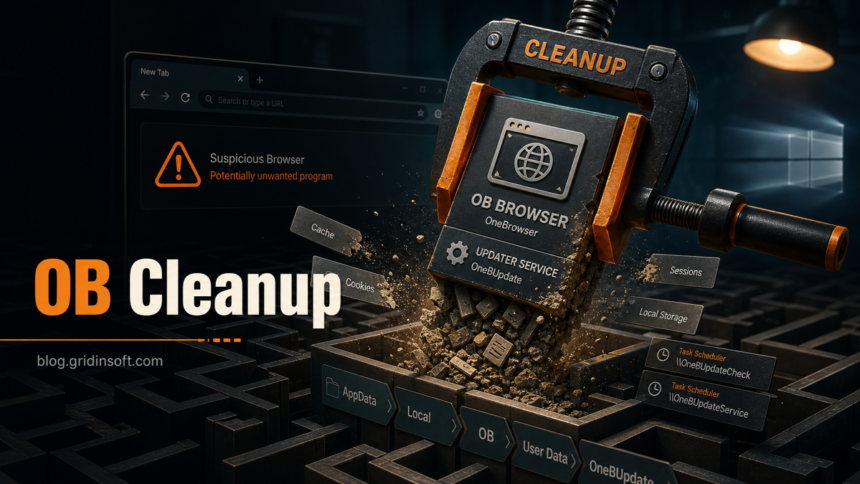
OneBrowser can leave its OneBUpdate updater behind after you uninstall the visible browser. Under a confirmed OB/OIB installation, an updater service or scheduled task can restore its files. Removing only the browser shortcut or one folder may not finish the job.
Start with Gridinsoft Anti-Malware to scan for OneBrowser components and clean detected items. Review the results, apply cleanup, then restart and check whether OB/OIB or its updater returns. You can begin without editing the registry or hunting through services yourself. The manual checklist below remains available for confirmed leftovers.
Gridinsoft Anti-Malware detects OneBrowser/OB components and lets you review and clean flagged items. Start with a system scan, then restart and check for returning browser files or updater activity.
Free 6-day full trial for eligible new users, including cleanup. Email activation; no credit card required.
Download Gridinsoft Anti-Malware for Windows
Gridinsoft detects PUP.FPL.OneBrowser.dd, PUP.Win32.OneBrowser.dd!c, and PUP.rHeur.OneBrowser.dd around OB Browser components such as %LocalAppData%\OB\, %LocalAppData%\OB\OneBUpdate\OneBUpdateService.exe, and browser-profile leftovers. Recent OIB-style variants can also expose %ProgramFiles(x86)%\OIB\Application\, oibrowser.exe, oibupdate, chrome_elf.dll, chrome_proxy.exe, or notification_helper.exe under the unwanted browser folder. A complete cleanup may also need to check install folders, uninstall entries, updater services, scheduled tasks, and firewall rules. That is why the useful cleanup path is a full OneBrowser/OIBrowser remediation checklist, not just “clear AppData.”
Quick answer
- Easiest path: run a Gridinsoft Anti-Malware scan, quarantine OneBrowser/OB detections, reboot, and run a second scan to confirm they do not return.
- Manual path: remove OB, OneBrowser, or OneBrowser Update from Windows Installed apps. If it is missing there, check Programs and Features or use Microsoft’s uninstall troubleshooter before deleting files.
- Persistence checks: look for
OneBUpdateService.exe,onebupdate,obupdate,oibupdate, and the scheduled taskOBUpdateorC:\Windows\System32\Tasks\OneBUpdate. - Leftovers: remove only confirmed OB/OIB folders such as
%ProgramFiles(x86)%\OB\,%ProgramFiles(x86)%\OIB\, and%LocalAppData%\OB\after the browser and updater are stopped.
Choose the cleanup path
Start with a Gridinsoft scan
- Download and install Gridinsoft Anti-Malware. Update its detection database. Eligible new users can activate the free trial using the code sent by email.
- Run a Full Scan. Review detections for OneBrowser, OB/OIB, its updater, and other unwanted software. Match the reported paths to the browser installation.
- Apply cleanup to the unwanted detections. Review the actions before proceeding. Back up needed bookmarks before removing browser-profile data; do not carry unwanted extensions into your clean browser.
- Restart and check. Confirm that the browser no longer opens unexpectedly and its updater does not return. Rescan if files or services reappear.
You do not need to complete the registry and service checklist before scanning. If a confirmed leftover remains, use the matching manual section below or contact support from the app.
Optional manual removal
Manual removal is possible, but it is more error-prone. You need to confirm every item before deleting it: the installed app entry, updater services, scheduled tasks, %ProgramFiles(x86)%\OB\, %ProgramFiles(x86)%\OIB\, %LocalAppData%\OB\, uninstall keys, app-path keys, and any firewall rules that point to an OB or OIB executable. Do not delete registry branches or system task folders broadly.
What is OneBrowser or OB Browser?
OneBrowser is a Chromium-style browser/PUP family that can leave a browser profile, updater components, uninstall entries, services, scheduled tasks, and browser data behind. On a live PC, users usually notice it because OneBrowser, OB, or OIBrowser appears in installed apps, because OneBUpdateService.exe, OBUpdateService.exe, oibupdate, or another update service keeps running, or because a security tool detects OneBrowser-related files after the user thought the program was gone.
Do not treat every browser-profile file as malicious by itself. Files such as Local State, Crashpad, ShaderCache, chrome_elf.dll, chrome_proxy.exe, or component_crx_cache are normal Chromium-style names in the right vendor path. The problem is ownership and persistence: if those files sit under an unwanted OB/OIB browser folder, clean the app and its updater path rather than deleting random cache folders from Chrome or Edge.
What is OneBUpdate and why does it return?
OneBUpdate is the updater/persistence component associated with the OneBrowser or OB Browser install. Check the relationship by path and service name rather than filename alone. A process such as %LocalAppData%\OB\OneBUpdate\OneBUpdateService.exe, a onebupdate service, or C:\Windows\System32\Tasks\OneBUpdate task inside the same OB install is part of this cleanup lane. Remove the parent browser first, then disable the confirmed updater before deleting its folder. If the service or task returns after reboot, run a full scan instead of repeating file deletion.
If OneBrowser appeared with AlsulicsApplication
OneBrowser and AlsulicsApplication do not need to be the same program to have arrived through the same installer. If they appeared on the same day or after the same download, uninstall both visible apps and treat the remaining service, task, extension, and browser changes as one bundled-cleanup incident.
Finish the OneBrowser steps on this page, then use the AlsulicsApplication removal guide for AlsulicsService.exe, the Alsulics folder, and its separate browser/task leftovers. After both flows, reboot and confirm that OneBUpdate, AlsulicsService, their folders, and any unknown extension do not return; if they do, run a full scan rather than repeating one-file deletion.
Manual removal: uninstall OB or OneBrowser first
The following sections are an alternative manual route or a fallback for remaining symptoms after scanning. They are not mandatory extra steps after successful cleanup.
Open Settings -> Apps -> Installed apps and search for OB, OIB, OneBrowser, OIBrowser, One Browser, or OneBrowser Update. If an uninstall entry is present, use it before manual deletion. Close browsers and save work first because the uninstaller may close an OB/OIB process or updater.
If you see OneBrowser or other suspicious applications that you don't remember installing, you should remove them as well.
- Right-click the Start button and select Installed Apps (or Apps & Features).
- Scroll through the list to find OneBrowser or any other unfamiliar program.
- Click the three dots (...) next to it and select Uninstall.
- Open Finder and go to the Applications folder.
- Locate OneBrowser or any app you don't recognize.
- Drag it to the Trash.
- Empty the trash to remove it permanently.
- Go to Settings > Apps > See all apps.
- Find OneBrowser or any suspicious app in the list.
- Tap on it and select Uninstall.
If OneBrowser is missing from Installed apps or Windows says it cannot find the uninstaller, also check Control Panel -> Programs and Features. For a broken entry, use Microsoft’s Program Install and Uninstall troubleshooter rather than downloading an unknown third-party uninstaller. Continue with the service, task, and folder checks only when the remaining item clearly points to OB, OIB, OneBrowser, or OneBUpdate.
If OneBrowser remains under Settings -> Apps -> Default apps after uninstall, first set a trusted installed browser as the default for web links. Reboot and scan again. A stale name can remain because browser capability or file-association registration survived the uninstall; do not search the registry and delete every result. Export a backup and remove only entries that clearly point to the missing OB/OneBrowser executable, or leave registry cleanup to the scanner.
After uninstalling, reboot once. A reboot releases locked files and makes persistence checks clearer. If the entry refuses to uninstall, disappears without removing files, or reappears after reboot, continue with the updater, task, and folder checks below.
Stop OneBrowser updater services and tasks
OneBrowser cleanup often fails when an updater is still active. Check Services, Task Scheduler, and the task file before deleting folders. OneBrowser/OIBrowser-related names to check include:
HKLM\SYSTEM\ControlSet001\Services\onebupdateHKLM\SYSTEM\ControlSet001\Services\obupdateHKLM\SYSTEM\ControlSet001\Services\oibupdate%LocalAppData%\OB\OneBUpdate\OneBUpdateService.exeHKLM\SOFTWARE\Microsoft\Windows NT\CurrentVersion\Schedule\TaskCache\Tree\OBUpdateC:\Windows\System32\Tasks\OneBUpdate
If you are not comfortable editing services or tasks manually, scan instead of experimenting in the registry. If you do check manually, prefer viewing first. In an elevated Command Prompt, these read-only checks are safer than deleting keys immediately:
sc query onebupdate
sc query obupdate
sc query oibupdate
schtasks /Query /TN OBUpdate
If those entries exist after the OneBrowser/OIBrowser uninstall, stop the service or disable the task before deleting folders. Do not remove unrelated Windows services. Similar-looking names that do not contain OB, OIB, OneBrowser, or OneBUpdate should be verified before action.
Files and folders to check
Only remove these paths when they clearly belong to OneBrowser/OB Browser/OIBrowser and after the app, updater, and browser processes are closed. Replace environment variables with your own Windows paths; do not delete the parent AppData, Program Files, or User Data folder.
| Location | What it means |
%ProgramFiles(x86)%\OB\ |
Main OB install folder. |
%ProgramFiles(x86)%\OB\Application\ |
Application tree that may contain versioned Chromium-style files. |
%ProgramFiles(x86)%\OB\Application\137.0.7151.69\Installer\setup.exe |
Installer component; remove with the app, not by launching it. |
%ProgramFiles(x86)%\OB\Application\137.0.7151.69\Installer\chrome.7z |
Bundled archive in the OB application tree. |
%ProgramFiles(x86)%\OB\Application\137.0.7151.69\chrome_pwa_launcher.exe |
Chromium-style launcher under the OB install path. |
%ProgramFiles(x86)%\OB\Application\137.0.7151.69\notification_helper.exe |
Notification helper under the OB install path. |
%ProgramFiles(x86)%\OIB\Application\[version]\oibrowser.exe |
OIBrowser executable; unwanted when it belongs to the same unrequested browser install. |
%ProgramFiles(x86)%\OIB\Application\[version]\chrome_elf.dll |
Chromium runtime DLL; suspicious only when the parent folder is the unwanted OIB browser. |
%ProgramFiles(x86)%\OIB\Application\[version]\chrome_proxy.exe |
Chromium proxy launcher under the OIB install path. |
%ProgramFiles(x86)%\OIB\Application\[version]\notification_helper.exe |
Notification helper under the OIB install path. |
%ProgramFiles(x86)%\OB\Application\137.0.7151.69\eventlog_provider.dll |
Chromium event-log component; treat it as an OB leftover only when the path is inside the OB application tree. |
%ProgramFiles(x86)%\OB\Application\137.0.7151.69\Extensions\external_extensions.json |
External extension configuration that should not remain for an unwanted browser. |
%LocalAppData%\OB\OneBUpdate\OneBUpdateService.exe |
User-level updater executable that can explain why OB files return after reboot. |
%LocalAppData%\OB\ |
User-level OB browser data root. |
%LocalAppData%\OB\User Data\ |
OB browser profile data, not Chrome or Edge profile data. |
Common OB user-profile leftovers under %LocalAppData%\OB\User Data\ include:
Local StateVariationsBrowserMetrics\Crashpad\metadata,Crashpad\settings.dat, andCrashpad\reports\*.dmpShaderCache\,GrShaderCache\, andGraphiteDawnCache\component_crx_cache\
Those paths help confirm that the leftovers belong to OB Browser or OIBrowser. They are not a reason to delete the same-named folders from a legitimate Chrome, Edge, Brave, or Vivaldi profile.
Match detections to the OB path
Recent OneBrowser cleanup cases can show several Gridinsoft names for the same unwanted browser family, including PUP.FPL.OneBrowser.dd, PUP.Win32.OneBrowser.dd!c, and PUP.rHeur.OneBrowser.dd. Use the detection together with the path. A hit under %LocalAppData%\OB\, %LocalAppData%\OB\OneBUpdate\, %ProgramFiles(x86)%\OB\Application\, or %ProgramFiles(x86)%\OIB\Application\ supports OneBrowser/OIBrowser cleanup; a similar Chromium cache filename under Chrome, Edge, Brave, or Vivaldi should be checked by browser name, publisher, and install time before deletion.
Registry keys that can confirm persistence
Use the registry as a confirmation source, not as the first cleanup step. Export a backup of any key before deleting it, and avoid broad search-and-delete actions. OneBrowser-related keys to look for include:
HKLM\SOFTWARE\WOW6432Node\OBHKCU\SOFTWARE\OIBHKLM\SOFTWARE\WOW6432Node\OIBHKLM\SOFTWARE\WOW6432Node\Microsoft\Windows\CurrentVersion\Uninstall\OBHKLM\SOFTWARE\WOW6432Node\Microsoft\Windows\CurrentVersion\Uninstall\OB|UninstallStringHKU\...\SOFTWARE\Microsoft\Windows\CurrentVersion\Uninstall\OB|UninstallStringHKLM\SOFTWARE\WOW6432Node\Microsoft\Windows\CurrentVersion\Uninstall\OneBrowserHKLM\SOFTWARE\WOW6432Node\Microsoft\Windows\CurrentVersion\Uninstall\OneBrowser|UninstallStringHKLM\SOFTWARE\Microsoft\Windows\CurrentVersion\App Paths\OneBrowser.exeHKLM\SOFTWARE\Microsoft\Windows\CurrentVersion\App Paths\OneBrowser.exe|(Default)HKLM\SOFTWARE\Microsoft\Windows\CurrentVersion\App Paths\oibrowser.exeHKLM\Software\Microsoft\Active Setup\Installed Components\{7D2B3E1D-D096-4594-9D8F-A6667F12E0AC}
Firewall-rule leftovers may also appear under HKLM\SYSTEM\ControlSet001\Services\SharedAccess\Parameters\FirewallPolicy\FirewallRules. Treat random firewall-rule GUIDs carefully: confirm that the value points to an OB or OneBrowser executable before removing it. GUIDs by themselves are not enough to identify a malicious rule.
Check browser extensions and profiles
After removing OneBrowser itself, check Chrome, Edge, Firefox, and any browser you actually use. Look for unknown extensions, forced search engines, startup pages, notification permissions, and “managed by your organization” policies you did not set. Do not mark the extension ID bojobppfploabceghnmlahpoonbcbacn as malicious by name alone; current public results associate that exact ID with Malwarebytes Browser Guard, so verify the extension name, publisher, source, and install time before action.
- Launch Chrome.
- Click the three dots (...) in the top right corner.
- Select Extensions > Manage Extensions.
- Click Remove next to the extension you want to delete.
Quick Access: Type chrome://extensions/ in the address bar.
- Open Safari.
- In the menu bar, click Safari and select Settings (or Preferences).
- Click on the Extensions tab.
- Select the extension and click Uninstall.
- Click the menu button, select Add-ons and themes.
- Go to the Extensions tab.
- Click the three dots (...) next to the extension and select Remove.
Quick Access: Type about:addons in the address bar.
- Launch Microsoft Edge.
- Click the three dots (...) in the top right corner.
- Select Extensions.
- Find the extension and click Remove.
Quick Access: Type edge://extensions/ in the address bar.
- Launch Brave browser.
- Click the menu icon > Extensions.
- Find the extension and click Remove.
Quick Access: Type brave://extensions/ in the address bar.
- Launch Opera.
- Click the Opera logo in the top left corner.
- Select Extensions > Extensions.
- Click the X or Remove button next to the extension.
Quick Access: Type opera://extensions/ in the address bar.
Open Extensions/Add-ons again and remove any entry linked to OneBrowser or clearly out of place.
If search or homepage settings still change after removing OB, follow the broader browser hijacker removal guide. If the symptom is extra tabs opening by themselves, use the multiple-tabs troubleshooting flow. If OneBrowser arrived with a cleaner, optimizer, archive, or bundle installer, check the PUP cleanup pattern for system utilities as well.
Scan for leftovers that make OneBrowser return
If %ProgramFiles(x86)%\OB\, %ProgramFiles(x86)%\OIB\, %LocalAppData%\OB\, onebupdate, obupdate, oibupdate, or OBUpdate returns after reboot, treat the case as more than leftover cache. A full Gridinsoft Anti-Malware scan can check for detections, hidden files, startup entries, scheduled tasks, bundled apps, browser changes, and persistence that a manual uninstall may miss.
When the scan is complete, quarantine detections, reboot, and scan again if the same files or tasks return. If the browser stored important bookmarks or passwords, export only what you need before deleting the OB profile and do not import extensions or settings wholesale into a clean browser.
What not to delete
- Do not delete the parent
%LocalAppData%,%ProgramFiles(x86)%, orC:\Windows\System32\Tasksfolder. - Do not delete Chrome, Edge, Brave, or Firefox
User Datafolders just because OB has a folder with the same Chromium-style names. - Do not run
setup.exefrom the OB installer folder to “repair” the browser unless you intentionally want it installed. - Do not remove firewall rules by GUID until the rule value points to an OB or OneBrowser executable.
- Do not trust a browser extension or updater because its name looks familiar; check publisher, path, and install source.
FAQ
Is OneBrowser a virus?
OneBrowser is better handled as a potentially unwanted browser/PUP. It may not behave like a classic file-infector virus, but it can leave updater, task, browser-profile, and registry artifacts that should be removed if you did not intentionally keep the browser.
Can I delete %LocalAppData%\OB?
Yes, but only after OneBrowser, OB Browser, and related updater processes are closed or uninstalled. If you delete the folder while onebupdate, obupdate, or OBUpdate is still active, the folder may return.
Is OIBrowser the same cleanup problem as OneBrowser?
Treat it as the same cleanup lane when the files sit under an unwanted %ProgramFiles(x86)%\OIB\Application\ folder or the oibupdate service appears with the OB/OneBrowser install. Do not delete unrelated Chromium files just because they share names such as chrome_elf.dll or chrome_proxy.exe.
Is OneBUpdateService.exe safe?
Treat it as unwanted when it sits under %LocalAppData%\OB\OneBUpdate\ or another confirmed OB path and appears after a OneBrowser install. Stop the updater only after uninstalling or quarantining the parent OB browser, then reboot and verify that the service, task, and folder do not return.
Why does OneBrowser come back after reboot?
The usual causes are an updater service, scheduled task, uninstall entry that failed, bundled companion app, or browser policy/extension that was not removed. Check services, Task Scheduler, startup entries, and the OB install folder before repeating the same deletion.
Should I remove the registry keys manually?
Only if you have confirmed the app is removed and the keys clearly belong to OneBrowser or OB. Export a backup first. If registry editing is uncomfortable or the entries return, scan instead of manually deleting more keys.
Why is OneBrowser still listed under Default apps?
The browser files may be gone while a capability or file-association registration remains. Set a trusted browser as the default, reboot, and confirm that no OB or OneBUpdate service, task, or executable remains. Do not mass-delete registry search results; remove only a backed-up entry that clearly points to the missing OneBrowser executable.
Is bojobppfploabceghnmlahpoonbcbacn part of OneBrowser?
Do not assume that exact extension ID is unwanted. Current public results associate it with Malwarebytes Browser Guard. Use it as a reminder to verify extension identity, publisher, source, and install time instead of treating every unfamiliar ID as malware.
References
- Microsoft Learn. “sc query.” Microsoft, accessed June 25, 2026. https://learn.microsoft.com/en-us/windows-server/administration/windows-commands/sc-query
- Microsoft Learn. “schtasks query.” Microsoft, accessed June 25, 2026. https://learn.microsoft.com/en-us/windows-server/administration/windows-commands/schtasks-query
- Microsoft Support. “Fix problems that block programs from being installed or removed.” Microsoft, accessed July 12, 2026. https://support.microsoft.com/en-us/windows/deployment/install-upgrade/fix-problems-that-block-programs-from-being-installed-or-removed