If Find-it.pro opens whenever you create a new tab, the visible website is usually the destination, not proof of which component caused the redirect. The source may be an unwanted extension, changed search or startup setting, browser sync, a forced policy, a modified shortcut, or a bundled Windows app. Pause browser sync, record the affected profile and extension IDs, remove the restoring source, and reset the browser only after those checks.
Use the symptom to choose the first check
- One browser profile only: check extensions, search/new-tab settings, and sync first.
- Every browser on the PC: check installed apps, shortcuts, Startup Apps, Task Scheduler, proxy, and DNS.
- Returns after sign-in: test with sync paused and a clean local profile.
- Cannot remove an extension: inspect
chrome://policyoredge://policyand confirm the device is not legitimately managed.
Is Find-it.pro the virus?
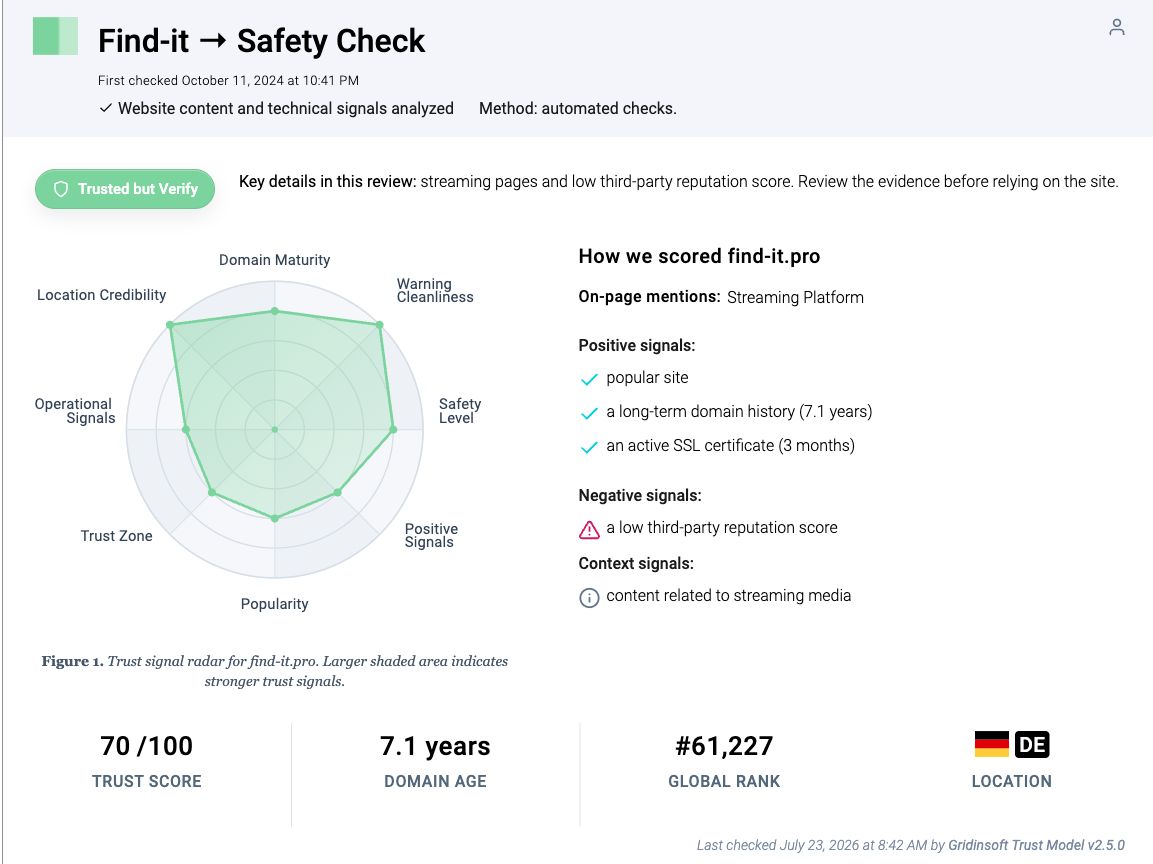
Do not use the domain name alone as a malware diagnosis. Gridinsoft’s Find-it.pro reputation report, last checked July 23, 2026, currently gives the domain 70/100 and labels it “Trusted but Verify.” The report also shows a 7.1-year domain history, public traffic visibility, one negative reputation signal, and zero flags from the three displayed security providers. That is a point-in-time domain assessment, not a clean bill of health for the browser component that forces a visit.
A page can be unflagged while an unwanted extension still chooses it as the new-tab or search destination. The important question is whether you selected that behavior. If Find-it.pro replaced your normal new-tab page, appears after every search, returns after removal, or arrived with an unknown download, treat the local browser change as unwanted until you identify its source.
| What you observe | Likely source and next action |
|---|---|
| Find-it.pro opens only in one Chrome or Edge profile | Disable that profile’s extensions, pause sync, and test a clean local profile. |
| The redirect begins after signing back into the browser | Sync or profile import may be restoring an extension, search provider, or startup page. |
| The Remove button is missing or the browser says it is managed | Check policy pages; on a work or school device, ask the administrator before changing policies. |
| Chrome, Edge, and Firefox all open the same page | Look outside one profile: installed apps, shortcuts, startup tasks, proxy, or DNS. |
| The redirect returns after reboot | A companion app, scheduled task, service, or startup entry may be recreating the setting. |
Record the clues before removing anything
Open the affected browser’s extension page and note the extension name, ID, permissions, install source, and whether removal is disabled. Also record when the problem happens: a new tab, an address-bar search, browser startup, Windows sign-in, or only after sync resumes. These details separate a browser-profile problem from Windows-level persistence.
- Chrome: open
chrome://extensionsandchrome://policy. - Edge: open
edge://extensionsandedge://policy. - Firefox: open
about:addons, then test Troubleshoot Mode. - Check browser shortcut properties for a URL added after the executable path.
- Sort Windows installed apps by install date and compare them with the day the redirect began.
Do not delete every policy or extension blindly. Legitimate work, school, parental-control, and security software can manage browsers. On a personal PC, an unexpected policy becomes suspicious when it forces a search provider, homepage, startup URL, or extension and returns after you remove it. Gridinsoft’s managed-browser policy guide explains how to distinguish legitimate management from a hijacker.
If the address you actually see is hp-quicker.com, use the Hp-quicker.com removal guide for that search-redirect case. Similar symptoms do not mean the two domains share the same installed component.
Remove Find-it.pro from Chrome and Edge
- Pause sync or sign out temporarily. Keep bookmarks and passwords, but do not let another signed-in profile immediately restore the setting while you clean it.
- Disable every nonessential extension. Test a new tab. If the redirect stops, re-enable known extensions one at a time. Remove the item that restores it, especially vague search, PDF, coupon, video, “safe browsing,” or download helpers you did not intentionally install.
- Check the new-tab, search, home, and startup settings. Delete Find-it.pro or another unknown URL from startup pages and restore the search provider you chose. Microsoft notes that Edge extensions can change the new-tab page and recommends checking both the new-tab setting and extensions.[2]
- Inspect policies. On a personal device, look for forced extension, search-provider, homepage, or startup-URL policies. Remove the app or extension that created the policy before clearing the policy itself.
- Check shortcuts and profile import. Remove extra URLs after the Chrome or Edge executable target. In Edge, make sure profile import is not copying the unwanted Chrome extension back.
- Reset settings last. Chrome’s reset restores the default search engine, homepage, new-tab page, startup tabs, content settings, extensions, and themes without deleting saved bookmarks or passwords.[1] A reset does not remove a forced policy or Windows app that writes the change again.
- Launch Chrome.
- Click the three dots (...) in the top right corner.
- Select Extensions > Manage Extensions.
- Click Remove next to the extension you want to delete.
Quick Access: Type chrome://extensions/ in the address bar.
- Open Safari.
- In the menu bar, click Safari and select Settings (or Preferences).
- Click on the Extensions tab.
- Select the extension and click Uninstall.
- Click the menu button, select Add-ons and themes.
- Go to the Extensions tab.
- Click the three dots (...) next to the extension and select Remove.
Quick Access: Type about:addons in the address bar.
- Launch Microsoft Edge.
- Click the three dots (...) in the top right corner.
- Select Extensions.
- Find the extension and click Remove.
Quick Access: Type edge://extensions/ in the address bar.
- Launch Brave browser.
- Click the menu icon > Extensions.
- Find the extension and click Remove.
Quick Access: Type brave://extensions/ in the address bar.
- Launch Opera.
- Click the Opera logo in the top left corner.
- Select Extensions > Extensions.
- Click the X or Remove button next to the extension.
Quick Access: Type opera://extensions/ in the address bar.
Open Extensions/Add-ons again and remove any entry linked to find-it-pro or clearly out of place.
If an extension disappears and then returns, use the deeper returning-extension checklist before reinstalling the browser. Reinstallation often preserves the same profile or restores it at sign-in, so it can reproduce the redirect without explaining the cause.
Remove Find-it.pro from Firefox
- Open
about:addons, disable all extensions, and test a new tab. - Start Firefox in Troubleshoot Mode. Mozilla says this mode temporarily disables extensions, applies the default theme, and turns off hardware acceleration; if the redirect stops, an extension or customization is the likely cause.[3]
- Remove the responsible add-on, then check the homepage, new-window, new-tab, and default-search settings.
- If the setting still returns, inspect the profile for an unwanted
user.jsfile or use Firefox Refresh. Refresh removes extensions and modified preferences while preserving essential data such as bookmarks and passwords. - Create a clean Firefox profile if Refresh does not isolate the problem. Test it before copying settings or add-ons from the old profile.
If Firefox is the only affected browser and Troubleshoot Mode fixes it, focus on the profile and add-ons. If the redirect also appears in Chromium browsers or after Windows startup, continue with the system checks below.
If Find-it.pro returns after reset
A temporary fix followed by the same redirect is the strongest clue that the visible setting was not the source. Work through these persistence points in order:
- Keep sync paused. Test a local browser profile with no extensions. If it stays clean until sign-in, review synchronized extensions and imported settings before enabling sync again.
- Uninstall recently added software. Remove unknown media players, downloaders, PDF tools, coupon apps, browser helpers, fake updates, cracked-software companions, and “search protection” tools installed near the start of the problem.
- Review Startup Apps and Task Scheduler. Look for entries that launch a browser, script, updater, or executable from an unfamiliar folder. Do not delete a task only because its name is unfamiliar; inspect its action and path first.
- Check all browser shortcuts. A shortcut can launch a legitimate browser and append a website URL, causing the same page to open at every start.
- Check proxy and DNS only when the symptom fits. If multiple browsers or devices redirect, review Windows proxy settings and the router’s DNS configuration. One affected profile usually points elsewhere.
If you see find-it-pro or other suspicious applications that you don't remember installing, you should remove them as well.
- Right-click the Start button and select Installed Apps (or Apps & Features).
- Scroll through the list to find find-it-pro or any other unfamiliar program.
- Click the three dots (...) next to it and select Uninstall.
- Open Finder and go to the Applications folder.
- Locate find-it-pro or any app you don't recognize.
- Drag it to the Trash.
- Empty the trash to remove it permanently.
- Go to Settings > Apps > See all apps.
- Find find-it-pro or any suspicious app in the list.
- Tap on it and select Uninstall.
For the wider sequence across policies, proxy, DNS, tasks, profiles, and bundled PUA, use the browser hijacker removal hub. If the main symptom is a storm of tabs rather than a replaced new-tab page, follow the multiple-tabs troubleshooting guide.
Manual browser cleanup can remove the visible redirect while a companion app, scheduled task, startup item, forced policy, or bundled module remains. When the page returns after reboot, affects several browsers, or started after an installer ran, use a full Gridinsoft Anti-Malware scan to check for PUA, adware, hidden files, browser changes, and persistence. Remove detections, reboot, and test a local browser profile again before resuming sync.
Do you need to change passwords?
A redirect by itself does not prove that passwords were stolen. Change important passwords from a clean device when you also installed an extension or program, entered credentials on an unfamiliar page, granted an extension broad access to all sites, downloaded and ran a suggested file, or saw unrecognized account sessions. Clean the affected device first, then sign out other sessions and replace passwords for email, banking, work, social media, gaming, and password-manager accounts as appropriate.
If you only saw Find-it.pro open and did not install, run, allow, or submit anything, focus on removing the source and monitoring accounts. Do not claim compromise from the domain name alone.
Confirm the redirect is gone
- Reboot the computer.
- Open each browser with sync still paused and create several new tabs.
- Search from the address bar and restart each browser once.
- Confirm there are no unknown extensions, forced policies, startup URLs, or appended shortcut URLs.
- Resume sync only after the local test stays clean. If the redirect returns at that moment, review the synchronized profile instead of repeating the same reset.
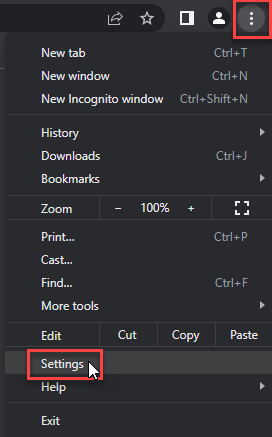
- Tap on the three dots (...) in the top right corner and Choose Settings.
- Choose Reset and Clean up and Restore settings to their original defaults.
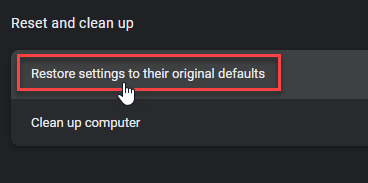
- Tap Reset settings.
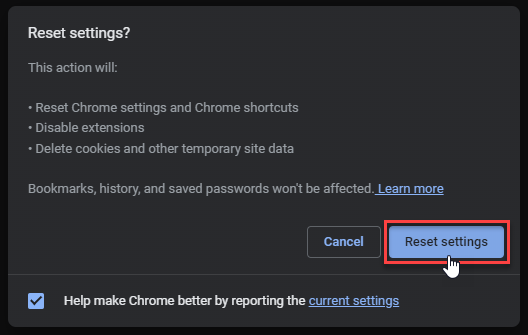
Quick Access: Type chrome://settings/reset in the address bar.
- Open Safari.
- In the menu bar, click Safari > Clear History.
- Select all history and click Clear History.
- Go to Safari > Settings (or Preferences).
- Click the Privacy tab and select Manage Website Data... > Remove All.
- In the Advanced tab, check Show features for web developers.
- In the menu bar, select Develop > Empty Caches.
- Launch Brave browser.
- Click the menu icon in the top right corner and select Settings.
- Click Additional settings > Reset settings.
- Tap Restore settings to their original defaults.
- Confirm by clicking Reset settings.
Quick Access: Type brave://settings/reset in the address bar.
- In the upper right corner tap the three-line icon and Choose Help.
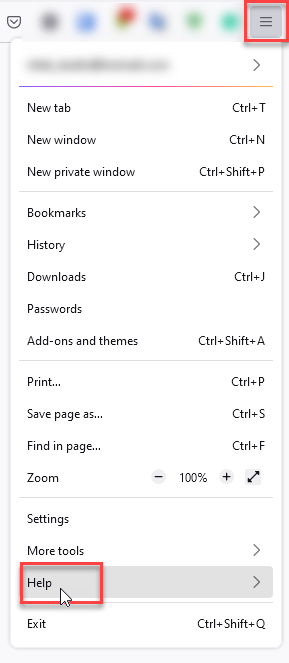
- Choose More Troubleshooting Information.
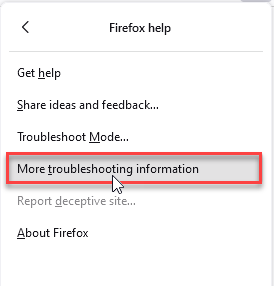
- Choose Refresh Firefox... then Refresh Firefox.
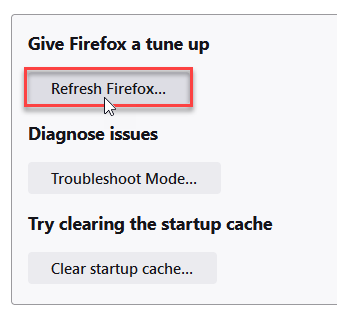
Quick Access: Type about:support and click Refresh Firefox.
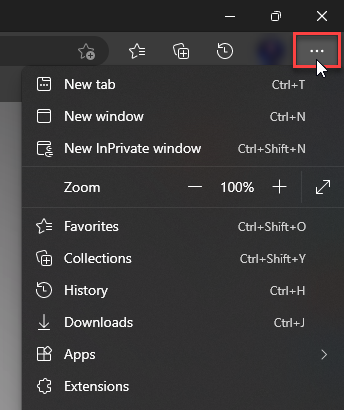
- Tap the three dots.
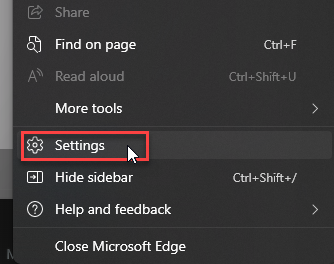
- Choose Settings.
- Tap Reset Settings, then Click Restore settings to their default values.
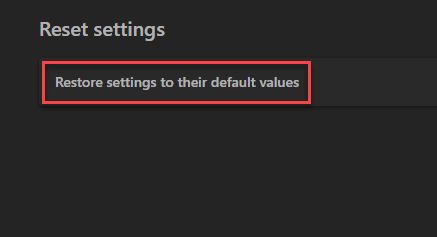
Quick Access: Type edge://settings/reset in the address bar.
- Launch the Opera browser.
- Click the Opera menu button in the top left corner and select Settings.
- Scroll down to the Advanced section in the left sidebar and click Reset and clean up.
- Click Restore settings to their original defaults.
- Click Reset settings to confirm.
Quick Access: Type opera://settings/reset in the address bar.
After reset, verify that find-it-pro is no longer set as your default search engine or homepage.
FAQ
Why does Find-it.pro open on every new tab?
An extension, new-tab setting, synced profile, forced policy, or companion app is selecting the site. The domain in the address bar identifies the destination, not the restoring component.
Can Find-it.pro come back through Chrome or Edge sync?
Yes. A synchronized extension or setting can return after sign-in. Pause sync, clean and test a local profile, then review what the account restores before enabling sync again.
Why did reinstalling the browser not remove the redirect?
The reinstall may preserve the old profile or restore it from sync. A Windows app, policy, shortcut, or scheduled task can also rewrite browser settings after the new installation.
Should I delete all Chrome or Edge policies?
No. Policies can be legitimate on managed devices. On a personal PC, record the policy name and source, remove the unwanted extension or app that created it, and delete only the confirmed unwanted policy.
Does a 70/100 domain score mean the redirect is safe?
No. It is a current reputation signal for the website, not approval of an extension or program that sends you there without consent. An unwanted redirect still needs cleanup even when the destination is not currently flagged as malware.
References
- Google Chrome Help. “Reset Chrome settings to default.” Google, accessed July 23, 2026. support.google.com/chrome/answer/3296214
- Microsoft Support. “Microsoft Edge Extensions: Frequently Asked Questions.” Microsoft, accessed July 23, 2026. support.microsoft.com/en-us/edge/microsoft-edge-extensions-frequently-asked-questions
- Mozilla Support. “Troubleshoot extensions, themes and hardware acceleration issues to solve common Firefox problems.” Mozilla, updated June 12, 2026; accessed July 23, 2026. support.mozilla.org/en-US/kb/troubleshoot-extensions-themes-to-fix-problems