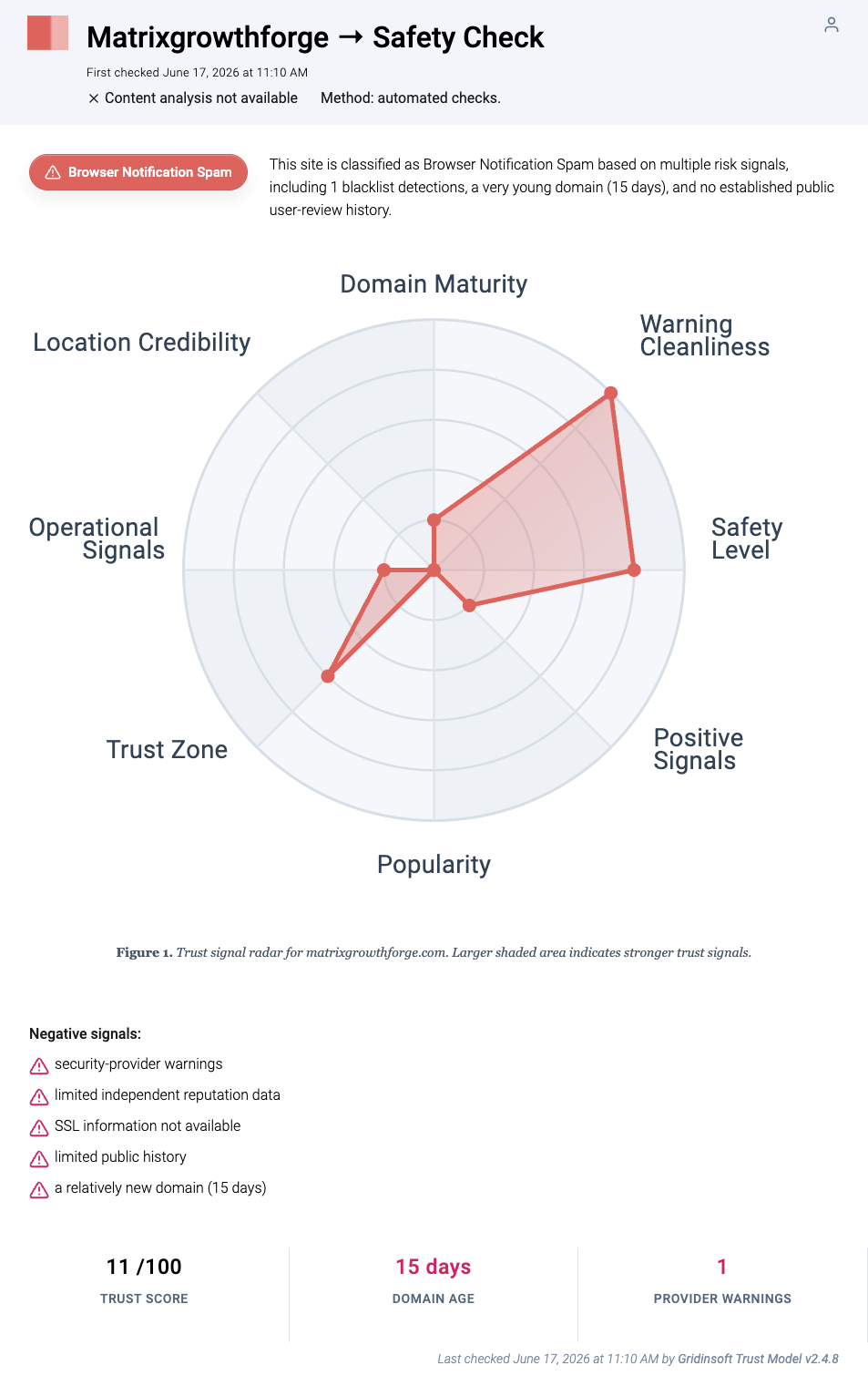
Matrixgrowthforge.com is a browser notification spam domain, not a site you should keep in your allowed notification list. If its ads or security warnings appear on your desktop, remove the site’s notification permission first, then check extensions, browser policy, startup items, and recent downloads if the pop-ups return. Gridinsoft’s Website Reputation Checker classifies the domain as Browser Notification Spam with an 11/100 trust score and a very young domain signal.
What Is Matrixgrowthforge.com?
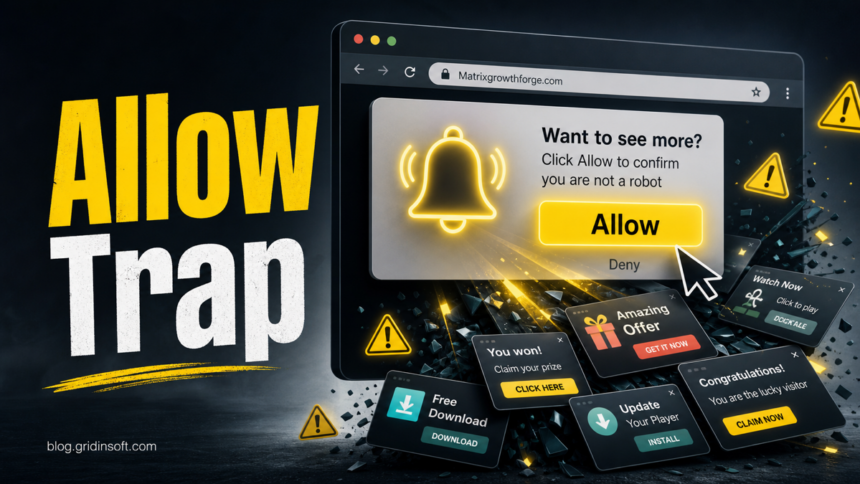
Matrixgrowthforge.com is tied to the common fake-verification notification trick. A page may ask you to click Allow to prove you are not a robot, continue to a file, watch a video, or close a warning. That permission lets the browser show Matrixgrowthforge.com notifications later, even after the original tab is gone.
The Gridinsoft scanner report for Matrixgrowthforge.com lists Browser Notification Spam, an 11/100 trust score, one provider warning, limited public history, and a 15-day domain-age signal. Those signals do not prove that every affected computer has a full malware infection, but they are enough reason to revoke the permission and inspect the path that brought the site into the browser.
Related Growthforge Notification-Spam Domains
Matrixgrowthforge.com is not the only generated domain using this flow. Gridinsoft’s scanner currently classifies Worthilininence.com, Ascendgrowthforge.com, Forgegrowthrise.com, Primagrowthforge.com, Risecoregrowth.com, Growthlaunchpoint.com, Ascendscaleforge.com, Corematrixpin.com, Digitalmeshweb.co.in, Woonceome.com, Cgre-defender.pro, Juntautororia.com, Uncythathfal.com, Vantanetworktin.com, and Protectsignalarc.co.in as browser notification spam or deceptive pop-up-ad sources. Their page designs and notification messages vary, but the safe response is the same: do not click the alert, revoke the site’s notification permission, and investigate further only if redirects or browser changes continue.
- Worthilininence.com — black page with an Allow to verify prompt. Notifications may claim a Trojan, identity risk, or a disabled firewall and show Scan and Fix. Do not use the button; block the domain and remove its permission.
- Ascendgrowthforge.com — dark fake reCAPTCHA page. A fake Chrome banner may say License expired or that hackers control the browser, with Scan Now and Block Malware buttons. Chrome does not require such a license renewal; dismiss the notification and revoke permission.
- Forgegrowthrise.com — fake human-verification flow. Alerts may claim that files were encrypted, antivirus stopped working, or Gmail data leaked. A browser notification cannot inspect local files or a Gmail account. Close it, remove permission, and verify the account only through Google’s real account page if you clicked through.
- Primagrowthforge.com — fake CAPTCHA and a fabricated Google Windows Defender warning. Notifications may say a virus was caught and offer Scan PC or Block virus now. Google does not operate Microsoft Defender, and the notification did not scan the computer. Do not interact with it.
- Risecoregrowth.com — dark fake reCAPTCHA and an Allow prompt. Alerts may imitate Windows Update, claim Google found infected items, or say a Google login was compromised. A site notification cannot inspect Windows or your Google account. Revoke permission and verify any account warning only at the real provider site.
- Growthlaunchpoint.com, Ascendscaleforge.com, and Corematrixpin.com — Google-style unusual-traffic or fake CAPTCHA pages. The notification may say Chrome License expired, Hackers control your Chrome, or Clean your PC before it spreads, then offer Scan Now or Block Malware. Chrome has no paid license that a website notification can renew; close the alert and remove permission.
- Digitalmeshweb.co.in — fake CAPTCHA followed by a multi-virus warning. Messages such as Critical threats found, Fix All, or Clean Device are scare buttons, not scan results. Do not press them; revoke the site’s notification permission and scan only if a download, extension, or app was installed.
- Woonceome.com — black fake robot check. Notifications imitate Windows Defender, claim that a scan found several threats, and offer Remove threats or a security report. The website did not run a Defender scan; close the alert and remove its permission.
- Cgre-defender.pro — fake reCAPTCHA checkbox. Windows-style alerts may say the PC is at risk, viruses were detected, or Defender cannot fix them. Spelling mistakes are another warning sign. Do not use the alert button; revoke permission and open Windows Security directly if you need to review a real alert.
- Juntautororia.com — dark fake CAPTCHA on randomized subdomains. Notifications may claim that several viruses were found and invite you to open a security report. The report is part of the lure, not a local scan result. Block the sending hostname and remove other unfamiliar variants from the same period.
- Uncythathfal.com — black robot check on randomized subdomains. Fake Windows notices use phrases such as Critical Error, Found harmful viruses (3)!, or SYSTEM ERROR! and ask you to scan the PC. Close the notification and revoke permission instead of following the scan link.
- Vantanetworktin.com — fake reCAPTCHA and Chrome-style alert. The alert may say License expired, claim a Google login was compromised, or tell you to Clean your PC before it spreads, with Scan and Learn more buttons. Chrome does not verify logins or licenses through website notifications.
- Protectsignalarc.co.in — black fake CAPTCHA on randomized subdomains. Notifications impersonate McAfee, claim its license expired, and show Activate Protection or Show Details. McAfee is not associated with this notification campaign. Do not enter payment details; remove permission and visit the vendor only through a known official address if you need to check a real subscription.
A notification can display alarming text, but it does not prove that a Trojan exists or that files were encrypted. It does prove that the site received browser permission. If the warning imitates antivirus software, compare it with our fake virus alert checks. If you only visited the page and did not allow notifications, download a file, or run anything, use the separate guide on malware risk from visiting a website instead of assuming an infection.
Common Symptoms
- Desktop notifications mention Matrixgrowthforge.com, fake security alerts, encryption warnings, download offers, or system scans.
- A page asks you to press Allow after a fake CAPTCHA, video, file download, or human-verification message.
- Pop-ups appear from Chrome, Edge, Firefox, or another browser after the original page is closed.
- Clicking an alert opens ads, fake antivirus pages, tech-support warnings, surveys, or unrelated login pages.
- New extensions, changed search settings, extra tabs, or a
Managed by your organizationmessage appeared around the same time.
Remove Matrixgrowthforge.com Notifications
Start with browser permissions. Microsoft Edge and Mozilla Firefox document notification control as a per-site permission, and Chromium-based browsers follow the same model: remove Matrixgrowthforge.com from the allowed notification list instead of clicking the ads [2] [3].
- Open the browser that shows the alerts.
- Open Settings, then the privacy, site settings, cookies/site permissions, or permissions section.
- Open Notifications.
- Find
matrixgrowthforge.comor one of the related variant domains shown above, then choose Block, Remove, or Deny. - Remove other unfamiliar allowed domains from the same time period.
- Check Pop-ups and redirects and block suspicious allowed sites there too.
- Restart the browser and confirm that no new Matrixgrowthforge.com alerts appear.
If Matrixgrowthforge.com keeps showing unwanted pop-ups, you likely granted it permission to send notifications. To stop them, you need to revoke that permission in your browser settings.
- Copy and paste this into the address bar:
chrome://settings/content/notifications - Scroll down to the Allowed to send notifications list.
- Find Matrixgrowthforge.com.
- Click the three dots (...) next to it and select Remove (or Block).
- Open Safari and go to Settings (or Preferences).
- Click the Websites tab and select Notifications on the left.
- Find Matrixgrowthforge.com in the list on the right.
- Select it and click Remove (or change "Allow" to "Deny").
- Copy and paste this into the address bar:
about:preferences#privacy - Scroll down to Permissions and click Settings... next to Notifications.
- Type Matrixgrowthforge.com in the search bar or find it in the list.
- Select the site and click Remove Website.
- Copy and paste this into the address bar:
edge://settings/content/notifications - Look under the Allow section.
- Find Matrixgrowthforge.com.
- Click the three dots (...) next to it and select Remove (or Block).
- Copy and paste this into the address bar:
brave://settings/content/notifications - Scroll to the Allowed to send notifications list.
- Find Matrixgrowthforge.com.
- Click the three dots (...) and select Remove (or Block).
- Copy and paste this into the address bar:
opera://settings/content/notifications - Check the Allowed to send notifications list.
- Find Matrixgrowthforge.com.
- Click the three dots next to it and select Remove.
Check Extensions, Search, And Policy
If Matrixgrowthforge.com returns after permission cleanup, look for the browser component that keeps opening the spam chain. Remove recent extensions you did not deliberately choose, especially download helpers, video players, coupon tools, PDF converters, fake VPNs, search helpers, and cracked-software companions.
Restore the homepage, new-tab page, and default search engine. On personal Chrome or Edge installs, open chrome://policy or edge://policy; suspicious forced extensions, homepage rules, or notification rules can keep unwanted domains alive. Also inspect browser shortcuts and remove any URL appended after the browser executable path.
For the broader cleanup path, use our guides on disabling browser push notifications, PUA and browser hijacker removal, and fixing a browser that opens multiple tabs by itself.
- Launch Chrome.
- Click the three dots (...) in the top right corner.
- Select Extensions > Manage Extensions.
- Click Remove next to the extension you want to delete.
Quick Access: Type chrome://extensions/ in the address bar.
- Open Safari.
- In the menu bar, click Safari and select Settings (or Preferences).
- Click on the Extensions tab.
- Select the extension and click Uninstall.
- Click the menu button, select Add-ons and themes.
- Go to the Extensions tab.
- Click the three dots (...) next to the extension and select Remove.
Quick Access: Type about:addons in the address bar.
- Launch Microsoft Edge.
- Click the three dots (...) in the top right corner.
- Select Extensions.
- Find the extension and click Remove.
Quick Access: Type edge://extensions/ in the address bar.
- Launch Brave browser.
- Click the menu icon > Extensions.
- Find the extension and click Remove.
Quick Access: Type brave://extensions/ in the address bar.
- Launch Opera.
- Click the Opera logo in the top left corner.
- Select Extensions > Extensions.
- Click the X or Remove button next to the extension.
Quick Access: Type opera://extensions/ in the address bar.
Open Extensions/Add-ons again and remove any entry linked to Matrixgrowthforge.com or clearly out of place.
Check Windows If Pop-Ups Keep Returning
Many Matrixgrowthforge.com cases are solved by revoking one notification permission. Escalate to Windows checks when the alerts started after a free utility, browser extension, game mod, codec, downloader, fake update, or cracked app.
- Uninstall unfamiliar apps installed shortly before the first Matrixgrowthforge.com alert.
- Disable unknown Startup apps in Task Manager.
- Review Task Scheduler for jobs that open a browser, updater, script, or unknown executable.
- Check browser shortcuts for extra URLs after the executable path.
- Temporarily pause browser sync if the same extension or setting returns on multiple devices.
- Run a full security scan if you clicked a fake warning, installed an extension, or opened a file from the redirect chain.
- Tap on the three dots (...) in the top right corner and Choose Settings.

- Choose Reset and Clean up and Restore settings to their original defaults.

- Tap Reset settings.

Quick Access: Type chrome://settings/reset in the address bar.
- Open Safari.
- In the menu bar, click Safari > Clear History.
- Select all history and click Clear History.
- Go to Safari > Settings (or Preferences).
- Click the Privacy tab and select Manage Website Data... > Remove All.
- In the Advanced tab, check Show features for web developers.
- In the menu bar, select Develop > Empty Caches.
- Launch Brave browser.
- Click the menu icon in the top right corner and select Settings.
- Click Additional settings > Reset settings.
- Tap Restore settings to their original defaults.
- Confirm by clicking Reset settings.
Quick Access: Type brave://settings/reset in the address bar.
- In the upper right corner tap the three-line icon and Choose Help.

- Choose More Troubleshooting Information.

- Choose Refresh Firefox... then Refresh Firefox.

Quick Access: Type about:support and click Refresh Firefox.
- Tap the three dots.

- Choose Settings.

- Tap Reset Settings, then Click Restore settings to their default values.

Quick Access: Type edge://settings/reset in the address bar.
- Launch the Opera browser.
- Click the Opera menu button in the top left corner and select Settings.
- Scroll down to the Advanced section in the left sidebar and click Reset and clean up.
- Click Restore settings to their original defaults.
- Click Reset settings to confirm.
Quick Access: Type opera://settings/reset in the address bar.
After reset, verify that Matrixgrowthforge.com is no longer set as your default search engine or homepage.
When To Scan For Adware Leftovers
If the only action was clicking Allow, permission removal may be enough. If Matrixgrowthforge.com keeps returning, a loader, extension, scheduled task, shortcut change, or bundled app may be recreating the browser state. In that case, run a full Gridinsoft Anti-Malware scan, remove detections, reboot, and scan again if the alerts come back.
If redirects, notifications, extensions, homepage changes, or managed policies return after browser cleanup, the source is often outside the browser: an installed app, policy, scheduled task, or startup entry.
Scan for adware leftoversIf You Clicked An Alert Or Entered Data
Do not follow links inside the Matrixgrowthforge.com notifications. Close the tab and return to the original service by typing its address yourself. If you entered a password, payment card, crypto wallet phrase, or remote-support code, change affected passwords from a clean browser session, enable multi-factor authentication, revoke unknown sessions, and contact the provider or bank if payment details were exposed.
How To Avoid Similar Allow-Button Traps
- Do not allow notifications to download a file, watch a video, pass a CAPTCHA, or remove a warning.
- Keep browser notifications blocked by default and allow only sites you recognize.
- Avoid fake download buttons on streaming, torrent, adult, crack, and converter pages.
- Scan unfamiliar domains with the Gridinsoft Website Reputation Checker before entering credentials, payment details, or installing software.
FAQ
Is Matrixgrowthforge.com a virus?
Matrixgrowthforge.com is best treated as browser notification spam. It may not mean a full PC infection by itself, but recurring redirects, changed extensions, or pop-ups that return after permission cleanup justify an adware and browser-hijacker scan.
Why do Matrixgrowthforge.com ads appear when the site is closed?
The browser may still have permission to show notifications from Matrixgrowthforge.com. Remove the site from notification permissions in the affected browser, then check other allowed domains from the same period.
Should I click Block or Remove?
Use Block or Deny when available. If the browser only offers Remove, remove the permission and avoid visiting the same deceptive page again because it can ask for permission a second time.
Can Matrixgrowthforge.com steal passwords?
The notification permission itself does not read saved passwords, but the ads can lead to phishing pages, fake antivirus pages, or remote-support scams. Change passwords if you entered credentials after clicking one of the alerts.
Are Primagrowthforge.com and the other variants the same site as Matrixgrowthforge.com?
They are separate domains, but the observed pages use the same fake verification and browser-notification permission tactic. Remove each unfamiliar domain from the browser’s allowed notification list; do not create an exception just because one name differs from Matrixgrowthforge.com.
Is the Chrome License expired notification real?
No. Google Chrome does not use a paid browser license that expires through a website notification. Close the alert without using its scan or renewal button, remove the sending domain from notification permissions, and check extensions or installed apps only if redirects or browser changes continue.
Do I need to reset the browser?
Reset the browser if notification cleanup does not stop the alerts, if search or homepage settings changed, or if suspicious extensions return. Save important bookmarks first.
References
- Gridinsoft. “Matrixgrowthforge.com Ads Warning (11/100 Trust Score).” Gridinsoft Website Reputation Checker, last checked June 17, 2026, accessed June 17, 2026. https://gridinsoft.com/online-virus-scanner/url/matrixgrowthforge-com
- Microsoft Support. “Manage website notifications in Microsoft Edge.” Microsoft, accessed June 17, 2026. https://support.microsoft.com/en-us/edge/manage-website-notifications-in-microsoft-edge
- Mozilla Support. “Web Push notifications in Firefox.” Mozilla, accessed June 17, 2026. https://support.mozilla.org/en-US/kb/push-notifications-firefox