Freshy Search is a browser-extension hijacker when it appears without clear consent or keeps forcing searches through freshy.com or search.freshysearch-api.net. Remove the extension first, then clean the search engine, new-tab, startup, site-search shortcut, policy, and sync settings that can make the redirect return after a restart.
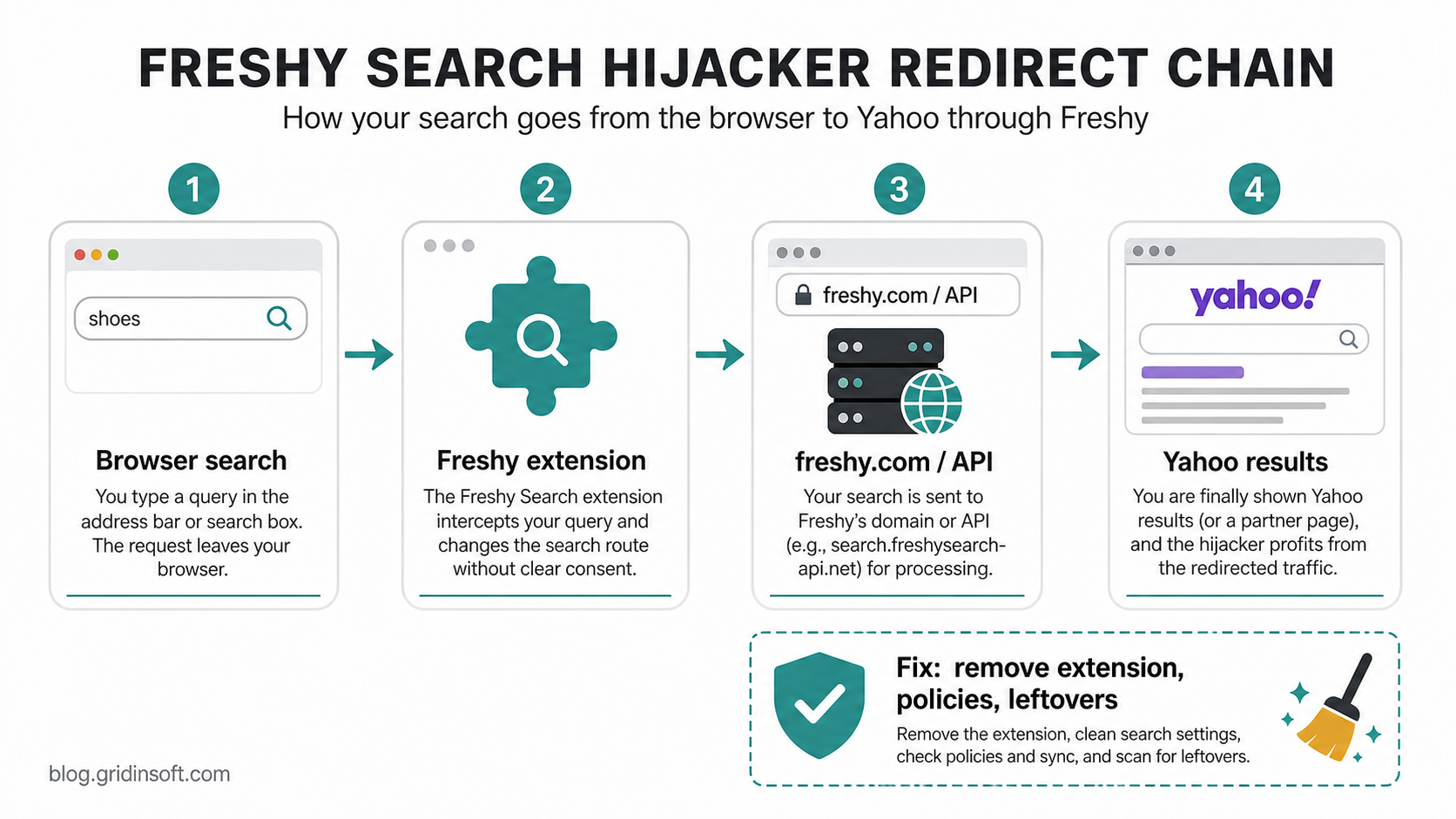
The final search results may land on Yahoo or another familiar provider, which makes the problem easy to miss. The unsafe part is the intermediate extension, domain, or API route that changes what your browser does before the results page opens.
Freshy Search removal checklist
- Open the extensions page in every affected browser and remove Freshy Search plus unfamiliar search, coupon, recipe, PDF, template, or new-tab add-ons.
- Delete
freshy.com,search.freshysearch-api.net, and unfamiliar Yahoo partner entries from default search, site-search shortcuts, homepage, new-tab, and startup pages. - Check
chrome://policy,edge://policy,about:policies, browser sync, and Mac profiles if the setting is locked or comes back. - Review recently installed apps, Startup Apps, browser shortcuts, and scheduled tasks for a bundled installer or helper that can restore the hijacker.
- Scan the system with Gridinsoft Anti-Malware if redirects, policies, notifications, or unknown startup items remain after manual cleanup.
- Restart the browser and search from the address bar. The query should go directly to the provider you chose, with no Freshy domain in the route.
What is Freshy Search?
Freshy Search is listed as a browser extension that changes the browser’s web search provider. The public Chrome Web Store listing says the extension sets Freshy Search as the default search provider and describes permissions tied to browsing history and data on Freshy-managed websites. SearchJack research also lists the extension ID oikgbpcmdphfkhplgkfngjilemlolann and a search route that sends queries through search.freshysearch-api.net/search/{searchTerms} before handing the query to a Yahoo-powered page.
That pattern fits the browser-hijacker problem users search for: the browser still works, but the address bar, homepage, or new tab stops using the provider the user chose. Gridinsoft’s URL scanner currently classifies freshy.com as a high-risk malware-related domain with a 10/100 trust score, so treat unexpected Freshy Search behavior as something to remove rather than a harmless preference change.
Why Yahoo opens after a Freshy Search redirect
Seeing Yahoo results does not prove Yahoo is installed on the computer or that Yahoo caused the hijack. A browser hijacker can place an extra step between the address bar and the final results page: your browser search goes to the Freshy extension or Freshy search route first, then the request is forwarded to a familiar results provider. That is why changing only the visible default engine may fail if the Freshy extension, policy, or shortcut remains.
Signs Freshy Search is controlling your browser
- Your search provider, homepage, or new-tab page changes to
freshy.comor a Freshy-branded page. - Address-bar searches briefly pass through
search.freshysearch-api.netbefore opening Yahoo results. - A Freshy Search extension appears in Chrome, Edge, Firefox, or another browser.
- The default search engine looks normal, but an entry under site search or search shortcuts still contains Freshy or Yahoo partner parameters.
- Firefox opens a Freshy search window on new tabs, or Safari keeps restoring an unfamiliar homepage/search setting.
- The setting returns after restart, sign-in sync, browser reset, or after you sign back into the same browser profile.
- Chrome or Edge says the browser is managed on a personal PC, especially if policy pages mention search, startup, homepage, or forced extensions.
Remove Freshy Search from Chrome or Edge
- Open the browser’s extensions page:
chrome://extensionsoredge://extensions. - Remove Freshy Search and any extension you do not remember installing. If an extension cannot be removed, note its ID and check the policy step below.
- Open Settings and review Search engine, On startup, Home button, and New tab settings. Delete entries that mention Freshy,
freshy.com,freshysearch-api.net, or unfamiliar Yahoo partner codes such asyhs,trp, orhspart. - In Chrome, open
chrome://settings/searchEngines. In Edge, openedge://settings/searchEngines. Inspect the site-search shortcuts below the default provider list because hijackers often hide there while the visible default search engine looks clean. - Check the browser shortcut on the desktop or taskbar. If a URL appears after the browser executable path, remove the extra URL or recreate the shortcut.
- Reset the browser only after removing the extension and search shortcuts. Resetting first can leave the source in place and make the redirect come back.
Remove Freshy Search from Firefox or Safari
- In Firefox, open
about:addons, choose Extensions, and remove Freshy Search or any unfamiliar add-on that changes search, new-tab, shopping, coupons, recipes, PDFs, templates, or downloads. - Open Firefox Settings and review Search plus Home. Restore your preferred default search engine, new-tab behavior, and homepage.
- If Firefox still restores Freshy Search, check
about:policiesand remove the suspicious app or profile that is applying the policy. On a personal computer, forced search and homepage policies are not normal unless you deliberately installed management software. - In Safari, open Safari -> Settings -> Extensions and remove recently added or unknown extensions. Then check Search and General for homepage or new-window changes.
- On macOS, also review System Settings -> Privacy & Security -> Profiles and General -> Login Items. Remove profiles or login helpers you did not install knowingly.
If Freshy Search comes back, check policies and sync
Modern browser hijackers often survive by using a policy, a synced profile setting, or a helper app that rewrites the browser after you clean it. Open chrome://policy or edge://policy. On a home PC, policies that force extensions, startup pages, search providers, or homepage URLs are suspicious unless they come from software you intentionally installed.
If Freshy returns after you sign in, pause browser sync, remove the extension and search entries again, and then review synced extensions before turning sync back on. This prevents a bad profile setting from restoring the same redirect on every device.
| Where Freshy hides | What to clean |
|---|---|
| Extensions | Freshy Search and recently installed search/new-tab add-ons. |
| Search shortcuts | freshy.com, freshysearch-api.net, and partner parameters that remain below the default provider list. |
| Policies | Forced extension, homepage, startup, and default-search entries on a personal PC. |
| Sync | Synced extensions or browser settings that restore the hijacker after sign-in. |
| System helpers | Bundled apps, startup items, scheduled tasks, login items, and shortcuts that rewrite browser settings. |
Check Windows for hijacker leftovers
Freshy Search may be only the visible browser layer. If it arrived with a bundle, updater, fake utility, or download helper, removing the extension may not remove the program that installed it.
- Sort installed apps by date and remove recently added programs you do not recognize.
- Check Startup Apps and Task Scheduler for names tied to search, browser helpers, coupons, templates, recipes, PDF tools, or unknown updaters.
- Delete browser shortcuts that include an extra URL after the browser executable path.
- Clear the browser cache and cookies after the extension and search route are gone.
- Change passwords only if you entered credentials while redirects, pop-ups, fake sign-in pages, or unknown extensions were active.
If Freshy is gone but Yahoo still appears because another browser change remains, use the Yahoo Search cleanup guide. For a broader adware cleanup path, see the browser hijacker removal guide.
If the redirect returns, or if you found bundled apps, policies, or unknown startup items, scan the PC before trusting the browser again. Gridinsoft Anti-Malware can check for unwanted apps, browser-policy changes, hidden startup entries, scheduled tasks, and other persistence that a manual browser reset may miss.
If redirects, notifications, extensions, homepage changes, or managed policies return after browser cleanup, the source is often outside the browser: an installed app, policy, scheduled task, or startup entry.
Scan for hijacker leftoversHow to confirm Freshy Search is gone
- Open a new tab and search from the address bar. The browser should go directly to your chosen provider without showing
freshy.comorfreshysearch-api.netin the address bar or history. - Close and reopen the browser, then repeat the same test. If the route returns only after restart, focus on policies, sync, startup items, and helper apps.
- Reboot the computer and test again before saving passwords or using sensitive accounts.
- Run a Gridinsoft Anti-Malware scan and remove unwanted detections if manual cleanup found bundled apps, locked policies, or recurring redirects.
- After cleanup, change passwords for accounts used while the redirect, pop-ups, fake sign-in pages, or unknown extensions were active.
What not to do
- Do not assume Yahoo is the infection. Yahoo can be the final results provider while the unwanted Freshy route is the real problem.
- Do not install random “Freshy remover” tools from search results. Many removal pages promote unrelated scanners or download wrappers.
- Do not keep the extension just because it has a simple search feature. A search extension that changes provider settings and returns after cleanup is not worth trusting.
- Do not reset the browser repeatedly without checking policies, sync, and helper apps. That can hide the real persistence point and waste time.
FAQ
Is Freshy Search a virus?
It is better described as a browser hijacker or potentially unwanted extension. The risk is not that the browser instantly becomes unusable, but that searches, homepage, new-tab behavior, and browsing data can be routed through software you did not choose.
Why does Freshy Search redirect to Yahoo?
Some hijackers monetize search by sending a query through their own domain or API and then forwarding it to a familiar search provider. The Yahoo page can look normal, but the intermediate Freshy route shows the browser is no longer using the clean provider you selected.
Why does Freshy Search keep coming back?
The usual causes are a synced browser profile, a forced browser policy, an installed helper app, a modified shortcut, or another extension that restores the same search route. Remove the browser entry first, then check those persistence points before turning sync back on.
Can I just reset Chrome?
A reset helps only after you remove the extension, search shortcuts, and any policy or helper app that restores them. If you reset first, the same source can reapply Freshy Search later.
Does Freshy Search affect Firefox or Safari?
It can. Chrome and Edge are the most obvious targets for the public extension listing, but users can also see Freshy-like new-tab or homepage behavior in Firefox or Safari when a bundled app, browser profile, or search-setting change is present. Clean the affected browser and then check the system for the component that installed it.
Should I change my passwords?
Change important passwords if the hijacker was active while you used email, banking, crypto wallets, work accounts, or password-manager sign-ins, especially if pop-ups or fake login pages appeared. If you only noticed a redirect and did not sign in anywhere sensitive, focus first on removing the extension and scanning for leftovers.
References
- Google Chrome Web Store. “Freshy Search.” Chrome Web Store, accessed July 4, 2026. https://chromewebstore.google.com/detail/freshy-search/oikgbpcmdphfkhplgkfngjilemlolann
- MalExt. “SearchJack: How 23 Browser Extensions Silently Monetize.” MalExt Research, June 9, 2026, accessed July 4, 2026. https://malext.io/reports/SearchJack/