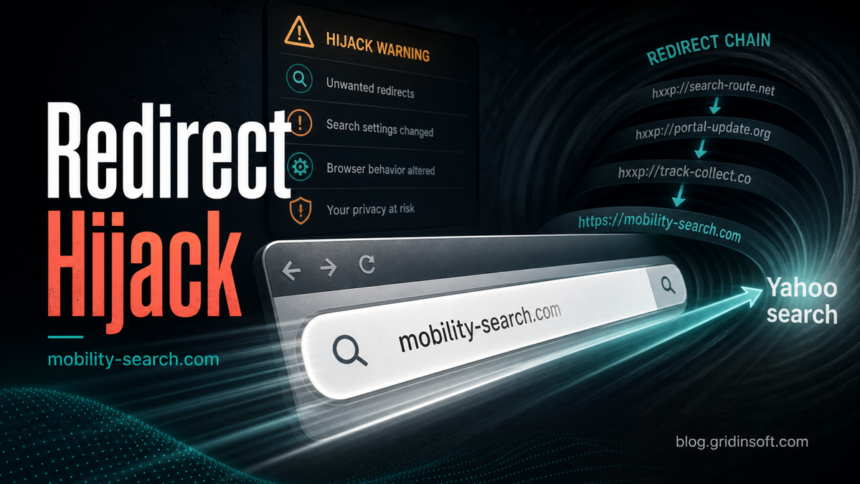
Mobility-search.com is usually a browser-search hijacker redirect layer, not a normal Yahoo setting. If Chrome or Edge briefly passes your query through mobility-search.com or mobilisearch.com and then lands on Yahoo or Bing, remove the restoring source first: the search shortcut, extension, managed policy, sync entry, or unwanted app that keeps putting the redirect back.
A simple browser reset can help, but it often fails when the redirect was synced from another Chrome profile or installed with an app. Work through the search-engine list, site-search shortcuts, extensions, policies, and Windows cleanup steps below before you turn sync back on.
What Is Mobility-search.com?
Mobility-search.com appears in the middle of a browser search chain. The user types into the address bar, the browser opens a redirect URL, and the final result page often looks like a normal search engine page. That final Yahoo or Bing page can make the problem look like a default-search mistake, but the important clue is the short redirect flash through Mobility-search.com or Mobilisearch.com.
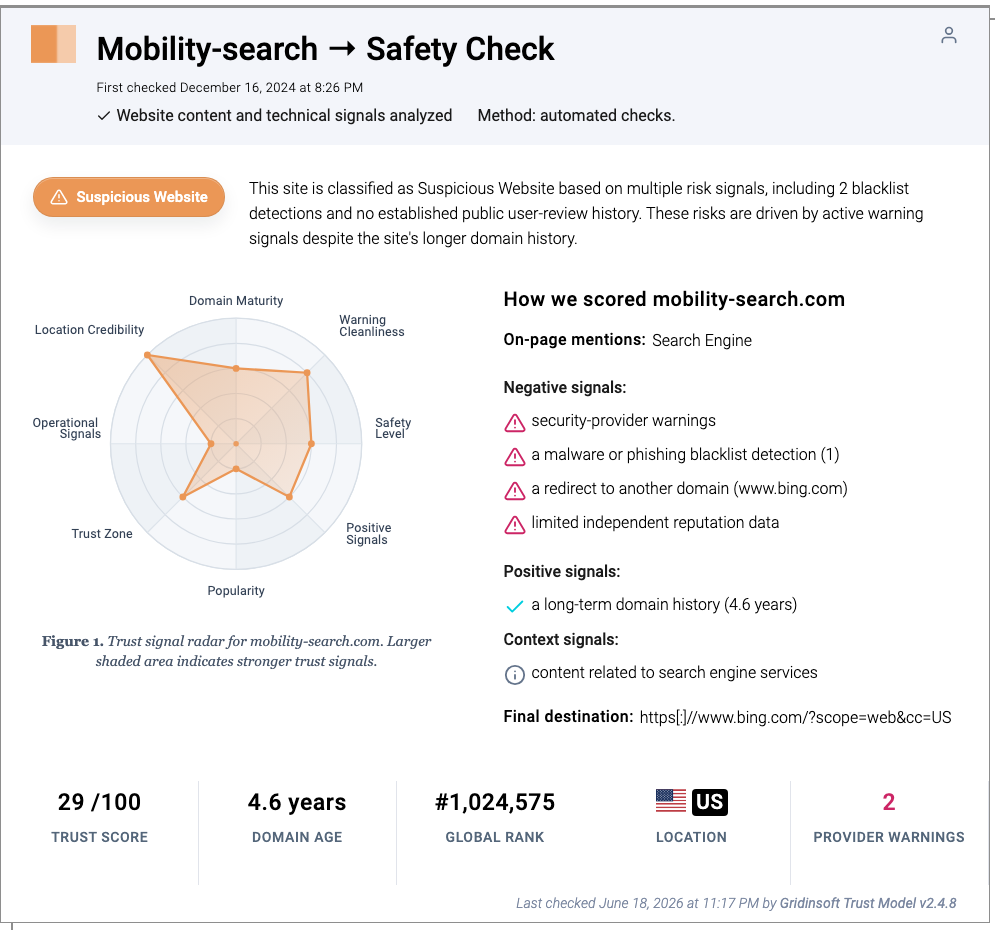
The domain itself is not needed for normal Chrome or Edge searching. Gridinsoft Website Reputation Checker currently classifies it as suspicious, with blacklist and redirect signals, so treat it as a browser-hijacker symptom until you prove it came from a known, trusted setting.
Why The Redirect Keeps Coming Back
Mobility-search.com usually returns because the visible search engine is only the last step in the chain. One of these sources can restore the unwanted entry after you reset the browser:
- Site Search or search-engine shortcuts in Chrome that still contain a Mobility-search.com or Mobilisearch.com URL.
- Browser extensions that control search, shopping, coupons, PDFs, new tabs, wallpapers, or downloads.
- Managed browser policies that make Chrome or Edge say the browser is managed even on a personal PC.
- Browser sync that copies the bad shortcut from another device or profile.
- Unwanted Windows apps installed around the same time as a free utility, mapper, converter, downloader, or browser add-on.
Remove Mobility-search.com From Chrome
Start in Chrome because many Mobility-search.com cases are restored from Chrome search shortcuts rather than from the default search-engine row alone.
- Pause sync first. Open Chrome settings, go to your profile, and turn off sync temporarily. If you use the same Google profile on several computers, repeat the cleanup before turning sync back on.
- Open search settings. Go to
chrome://settings/searchEngines. Check both Search engines and Site search. Remove entries where the URL containsmobility-search.com,mobilisearch.com, or an unknown redirect URL. - Set a trusted default search engine. Choose the engine you actually want. Do not keep an entry just because it has a familiar Yahoo, Bing, or Google icon; open the edit view and inspect the URL.
- Remove suspicious extensions. Open
chrome://extensionsand remove extensions connected to search, new-tab pages, coupons, shopping, PDFs, wallpapers, downloads, or anything you do not remember installing. - Check for policies. Open
chrome://policy. If a personal PC shows policies that lock search, startup, or extension settings, use the steps in our Managed by Your Organization cleanup guide before resetting Chrome. - Reset only after removing the source. If the redirect is gone from search settings and extensions, reset Chrome settings. Our browser reset guide shows where the reset option is and what it changes.
Remove It From Microsoft Edge
Edge can inherit the same problem through extensions, imported browser data, or Windows-installed apps. Clean Edge separately instead of assuming the Chrome fix covers it.
- Open Settings → Privacy, search, and services → Address bar and search.
- Open the search-engine management list and remove entries that point through Mobility-search.com, Mobilisearch.com, or an unknown redirect host.
- Open
edge://extensionsand remove unfamiliar search, new-tab, shopping, coupon, PDF, download, or wallpaper extensions. - Check
edge://policyif Edge says it is managed on a personal computer. - Reset Edge settings only after the unwanted search entries, extensions, and policies are gone.
Check Windows For The Restoring App
If the redirect returns after you clean both browsers, look outside the browser. Sort installed apps by date and uninstall suspicious utilities installed shortly before the redirect started. Also check startup apps and scheduled tasks for unknown updaters or browser helpers. Avoid deleting random system files; the goal is to find the installer, helper, or policy source that is restoring the browser change.
When the redirect affects several browsers, returns after reboot, blocks security sites, or follows a bundleware install, run a full Gridinsoft Anti-Malware scan after the manual checks. A scan can help find unwanted apps, browser changes, startup entries, scheduled tasks, and other persistence that a browser reset does not remove.
If redirects, notifications, extensions, homepage changes, or managed policies return after browser cleanup, the source is often outside the browser: an installed app, policy, scheduled task, or startup entry.
Scan for redirect leftoversMobility-search.com vs Mobilisearch.com
Treat Mobilisearch.com as the same cleanup path unless later evidence shows a separate source. Users commonly see one name in the visible redirect and another name in the search setting or support thread. Search settings, Site Search shortcuts, extension lists, and policy pages should be checked for both spellings.
What Not To Do
- Do not keep clicking search results through the redirect while testing; use a fresh browser tab after each cleanup step.
- Do not add Mobility-search.com to an allowlist or exclusion list.
- Do not install removal tools from competitor ads or random YouTube descriptions just because the page mentions the same domain.
- Do not turn sync back on until every device using the same browser profile has been checked.
How To Prevent Another Search Hijack
Most search hijacks arrive through bundled installers, browser extensions, fake download buttons, or utilities that ask for broad browser permissions. Install extensions only from publishers you recognize, review permissions before enabling them, and avoid download portals that wrap the real installer with their own setup program. If your search suddenly changes again, write down the first redirect domain you see before the final Yahoo or Bing page; that name often identifies the exact cleanup path.
FAQ
Is Mobility-search.com a virus?
It is better described as a browser-hijacker redirect symptom. The domain may be only one part of the chain; the real source is usually a search shortcut, extension, policy, synced browser setting, or unwanted app that restores it.
Why does Mobility-search.com redirect to Yahoo?
Many hijackers route searches through an intermediate domain and then send the query to a legitimate search provider. The final Yahoo page can look normal, but the intermediate Mobility-search.com hop shows that the browser setting or extension was changed.
Why did resetting Chrome not fix it?
Chrome reset does not always remove synced search shortcuts, managed policies, or Windows apps that recreate the redirect. Pause sync, clean Site Search and extensions, check policies, and then reset.
Should I remove every Yahoo entry?
No. Inspect the actual URL. Remove entries that contain Mobility-search.com, Mobilisearch.com, or an unknown redirect host. A legitimate Yahoo search URL is not the same as a redirect chain controlled by an unwanted setting.
When should I scan the PC?
Scan when the redirect returns after browser cleanup, affects multiple browsers, follows a bundled installer, blocks security sites, or appears together with pop-ups, new apps, startup entries, or other unwanted behavior.
References
- Gridinsoft. “Mobility-search.com Scam Check: Blacklist Warning (29/100 Trust Score).” Gridinsoft Website Reputation Checker, accessed June 19, 2026. https://gridinsoft.com/online-virus-scanner/url/mobility_search-com
- Google Chrome Help. “Set default search engine and site search shortcuts.” Google Help, accessed June 19, 2026. https://support.google.com/chrome/answer/95426
- Microsoft Support. “Change your default search engine in Microsoft Edge.” Microsoft, accessed June 19, 2026. https://support.microsoft.com/en-us/edge/change-your-default-search-engine-in-microsoft-edge