Ellinfituns.com is a notification-spam domain, not a site you should keep in the browser’s allowed notifications list. If its alerts appear on the desktop or inside Chrome, Edge, Firefox, or Safari, remove the site’s notification permission first. If the alerts return after that, treat the case as possible browser adware or a hijacker-style persistence problem.
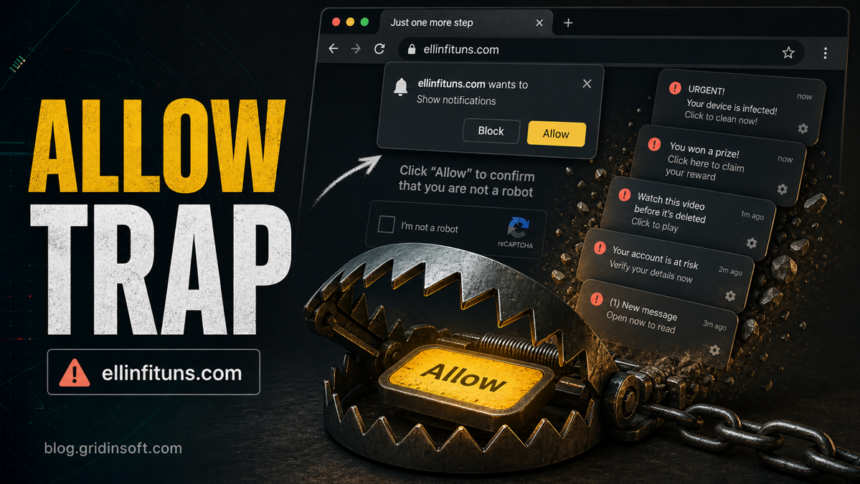
The usual trick is simple: a page shows a fake robot check, video gate, download gate, or security check and tells you to press Allow. That click gives the site permission to show browser notifications later, even after the tab is closed. The alerts may imitate antivirus warnings, prize notices, account warnings, or urgent cleanup prompts.
What Is Ellinfituns.com?
Ellinfituns.com is tied to a browser-notification abuse flow. The domain itself is the clue you should record before cleanup: if the notification sender says ellinfituns.com or a close subdomain, the first fix is in browser site permissions, not in a random Windows error dialog.
This does not automatically prove that Windows is infected. A clean browser profile can show Ellinfituns.com alerts after one accidental permission click. The risk rises when the same alerts return after you remove the permission, when new tabs open to related pages, or when unknown extensions and startup items are present.
Remove Ellinfituns.com Notification Permission
Start with the browser where the alerts appear. If you use more than one profile or browser, check each one because notification permissions are stored per browser profile.
If ellinfituns.com keeps showing unwanted pop-ups, you likely granted it permission to send notifications. To stop them, you need to revoke that permission in your browser settings.
- Copy and paste this into the address bar:
chrome://settings/content/notifications - Scroll down to the Allowed to send notifications list.
- Find ellinfituns.com.
- Click the three dots (...) next to it and select Remove (or Block).
- Open Safari and go to Settings (or Preferences).
- Click the Websites tab and select Notifications on the left.
- Find ellinfituns.com in the list on the right.
- Select it and click Remove (or change "Allow" to "Deny").
- Copy and paste this into the address bar:
about:preferences#privacy - Scroll down to Permissions and click Settings... next to Notifications.
- Type ellinfituns.com in the search bar or find it in the list.
- Select the site and click Remove Website.
- Copy and paste this into the address bar:
edge://settings/content/notifications - Look under the Allow section.
- Find ellinfituns.com.
- Click the three dots (...) next to it and select Remove (or Block).
- Copy and paste this into the address bar:
brave://settings/content/notifications - Scroll to the Allowed to send notifications list.
- Find ellinfituns.com.
- Click the three dots (...) and select Remove (or Block).
- Copy and paste this into the address bar:
opera://settings/content/notifications - Check the Allowed to send notifications list.
- Find ellinfituns.com.
- Click the three dots next to it and select Remove.
After removing or blocking the permission, close the browser and reopen it. If the alerts stop, the issue was likely just the allowed notification permission. If another suspicious domain replaces it, write down the new domain before changing anything else; that can reveal a redirect or adware chain.
Check Extensions, Search, and Startup Settings
If Ellinfituns.com keeps coming back, inspect the browser for the component that may be restoring it. Look for extensions you do not remember installing, extensions with broad permissions, changed homepage/search settings, managed browser policies, and shortcuts that open a suspicious URL.
- Launch Chrome.
- Click the three dots (...) in the top right corner.
- Select Extensions > Manage Extensions.
- Click Remove next to the extension you want to delete.
Quick Access: Type chrome://extensions/ in the address bar.
- Open Safari.
- In the menu bar, click Safari and select Settings (or Preferences).
- Click on the Extensions tab.
- Select the extension and click Uninstall.
- Click the menu button, select Add-ons and themes.
- Go to the Extensions tab.
- Click the three dots (...) next to the extension and select Remove.
Quick Access: Type about:addons in the address bar.
- Launch Microsoft Edge.
- Click the three dots (...) in the top right corner.
- Select Extensions.
- Find the extension and click Remove.
Quick Access: Type edge://extensions/ in the address bar.
- Launch Brave browser.
- Click the menu icon > Extensions.
- Find the extension and click Remove.
Quick Access: Type brave://extensions/ in the address bar.
- Launch Opera.
- Click the Opera logo in the top left corner.
- Select Extensions > Extensions.
- Click the X or Remove button next to the extension.
Quick Access: Type opera://extensions/ in the address bar.
Open Extensions/Add-ons again and remove any entry linked to Ellinfituns.com or clearly out of place.
Also review recent Windows installs. Notification spam often follows freeware bundles, fake update prompts, download mirrors, streaming pages, or pages that push a browser extension. Remove unfamiliar apps first, then reboot before deciding the cleanup is complete.
Reset the Browser Only After Removing the Sender
A browser reset can help when settings are tangled, but do it after you remove the notification sender and suspicious extensions. Resetting too early can hide the symptom while sync, an extension, a policy, or a startup task restores it later.
- Tap on the three dots (...) in the top right corner and Choose Settings.

- Choose Reset and Clean up and Restore settings to their original defaults.

- Tap Reset settings.

Quick Access: Type chrome://settings/reset in the address bar.
- Open Safari.
- In the menu bar, click Safari > Clear History.
- Select all history and click Clear History.
- Go to Safari > Settings (or Preferences).
- Click the Privacy tab and select Manage Website Data... > Remove All.
- In the Advanced tab, check Show features for web developers.
- In the menu bar, select Develop > Empty Caches.
- Launch Brave browser.
- Click the menu icon in the top right corner and select Settings.
- Click Additional settings > Reset settings.
- Tap Restore settings to their original defaults.
- Confirm by clicking Reset settings.
Quick Access: Type brave://settings/reset in the address bar.
- In the upper right corner tap the three-line icon and Choose Help.

- Choose More Troubleshooting Information.

- Choose Refresh Firefox... then Refresh Firefox.

Quick Access: Type about:support and click Refresh Firefox.
- Tap the three dots.

- Choose Settings.

- Tap Reset Settings, then Click Restore settings to their default values.

Quick Access: Type edge://settings/reset in the address bar.
- Launch the Opera browser.
- Click the Opera menu button in the top left corner and select Settings.
- Scroll down to the Advanced section in the left sidebar and click Reset and clean up.
- Click Restore settings to their original defaults.
- Click Reset settings to confirm.
Quick Access: Type opera://settings/reset in the address bar.
After reset, verify that ellinfituns.com is no longer set as your default search engine or homepage.
If several browsers are affected at the same time, or if the same alerts return after a reboot, scan Windows for adware, bundled apps, and persistence. Gridinsoft Anti-Malware can check for hidden files, startup entries, scheduled tasks, browser changes, and bundled components that may keep reopening the notification flow.
If redirects, notifications, extensions, homepage changes, or managed policies return after browser cleanup, the source is often outside the browser: an installed app, policy, scheduled task, or startup entry.
Scan for notification-adware leftoversWhat Not to Click
- Do not click Scan now, Remove threats, Claim reward, or similar buttons inside Ellinfituns.com notifications.
- Do not install a cleanup tool promoted by the notification.
- Do not call phone numbers or open remote-support prompts from the alert.
- Do not enter email, payment, or account passwords on pages opened from the notification.
How to Tell Whether It Is Only Notifications or Adware
Use this quick split:
- Likely only notification permission: alerts stop after you block Ellinfituns.com in browser settings and no new domains appear.
- Possible adware or hijacker: the permission returns, new tabs open by themselves, browser search/homepage changes, unknown extensions appear, or security websites are redirected.
- Higher-risk case: you downloaded a file, installed an extension, gave remote access, or entered account credentials after clicking one of the alerts.
For broader permission cleanup across browsers, use our browser push notification guide. If the alert names another sender, the Yzwtz.com notification removal guide shows the same exact-domain cleanup pattern. If the browser keeps changing search, homepage, proxy, or policy settings, follow the browser hijacker removal guide. If the symptom is extra tabs opening by themselves, the multiple-tabs troubleshooting guide can help you find the trigger.
FAQ
Is Ellinfituns.com a virus?
Ellinfituns.com is best handled as browser notification spam. The alerts can appear after a site permission click, so the first fix is to remove the notification permission. Scan the device if the permission returns or other browser settings change.
Why do Ellinfituns.com ads appear after I closed the site?
Browser notifications do not require the original tab to stay open. If the site was allowed to send notifications, the browser can show alerts later from the operating system’s notification area.
Should I reset Chrome, Edge, or Firefox?
Reset only after removing the Ellinfituns.com permission and suspicious extensions. A reset can help, but it will not fix a recurring extension, policy, startup task, or synced setting by itself.
Can I just block all notifications?
Yes, if you do not use website notifications. Blocking future notification requests reduces repeat accidents, but you should still remove Ellinfituns.com from the allowed list if it is already present.
What if I clicked a notification and downloaded something?
Do not open the downloaded file again. Delete the download if you do not trust it, scan the system, and change passwords from a clean device if you entered credentials on a page opened from the notification.
References
- Google Chrome Help. “Change site settings permissions.” Google Help, accessed June 24, 2026. https://support.google.com/chrome/answer/114662
- Microsoft Support. “Manage website notifications in Microsoft Edge.” Microsoft, accessed June 24, 2026. https://support.microsoft.com/en-us/microsoft-edge/manage-website-notifications-in-microsoft-edge-0c555609-5bf2-479d-a59d-fb30a0b80b2b
- Mozilla Support. “Push notifications in Firefox.” Mozilla, accessed June 24, 2026. https://support.mozilla.org/en-US/kb/push-notifications-firefox