If a SteamUnlocked download triggered a virus alert, stop using the package and match the response to what actually happened. Visiting a page is not the same as running malware; an archive saved but never opened is lower risk than an extracted installer, crack, launcher, or game that executed. Keep the exact alert name and file path, quarantine the detected item, remove the whole related download chain, then run full scans. If anything ran or account warnings appeared, clean the PC before changing passwords from a trusted device.
What happened after the SteamUnlocked visit?
| What happened | Risk and what to do |
|---|---|
| You only opened the page | Close it. Remove any notification permission or unexpected extension you accepted. A page visit alone does not prove Windows was infected. |
| An archive downloaded but stayed unopened | Delete it if you do not need it, or leave it quarantined. Scan the download folder. The downloaded-but-not-opened guide covers this lower-risk branch. |
| You extracted the archive | Scan both the original archive and extracted folder. Do not open a shortcut, script, crack DLL, launcher, or setup file to “test” it. |
| You ran an installer, crack, launcher, or game | Treat the PC as potentially changed. Start with the Full Scan → review → cleanup steps below, then check related apps and persistence, reboot, and scan again. |
| You see repeated alerts, redirects, unknown apps, or account activity | Disconnect the PC if abuse is active, use a clean device for urgent accounts, and follow the full recovery sequence below. |
If you ran the installer: scan, review, then clean up
On the affected Windows PC, stop the game or installer and keep detected files quarantined. Record the alert name, path, and time before cleanup. If remote access or account abuse is active, disconnect that PC and use a clean device for urgent account recovery. An executed installer may have changed files or settings outside the game folder, so deleting the archive alone is not a complete check.
- Run a Full Scan. Open Gridinsoft Anti-Malware, update the Threat List, and choose Scan → Full. Let the scan finish.
- Review the results. Check each detection name, affected path, and proposed action. Keep uncertain files quarantined; do not restore or exclude a crack to make the warning disappear.
- Apply cleanup to confirmed unwanted items. Restart if requested. If symptoms or new detections return, follow the repeat-scan and Defender Offline steps and check the related apps and startup entries below.
The Gridinsoft scan and results guide explains the scan choices and actions. Scanning can find detected threats; it does not establish whether passwords or sessions were exposed. Use the account-recovery steps when the execution or account evidence calls for them.
Cracks, repacks, and activators can add Defender exclusions, startup tasks, services, browser changes, stealers, or miners outside the folder you meant to install. Scan for those changes before trusting the PC.
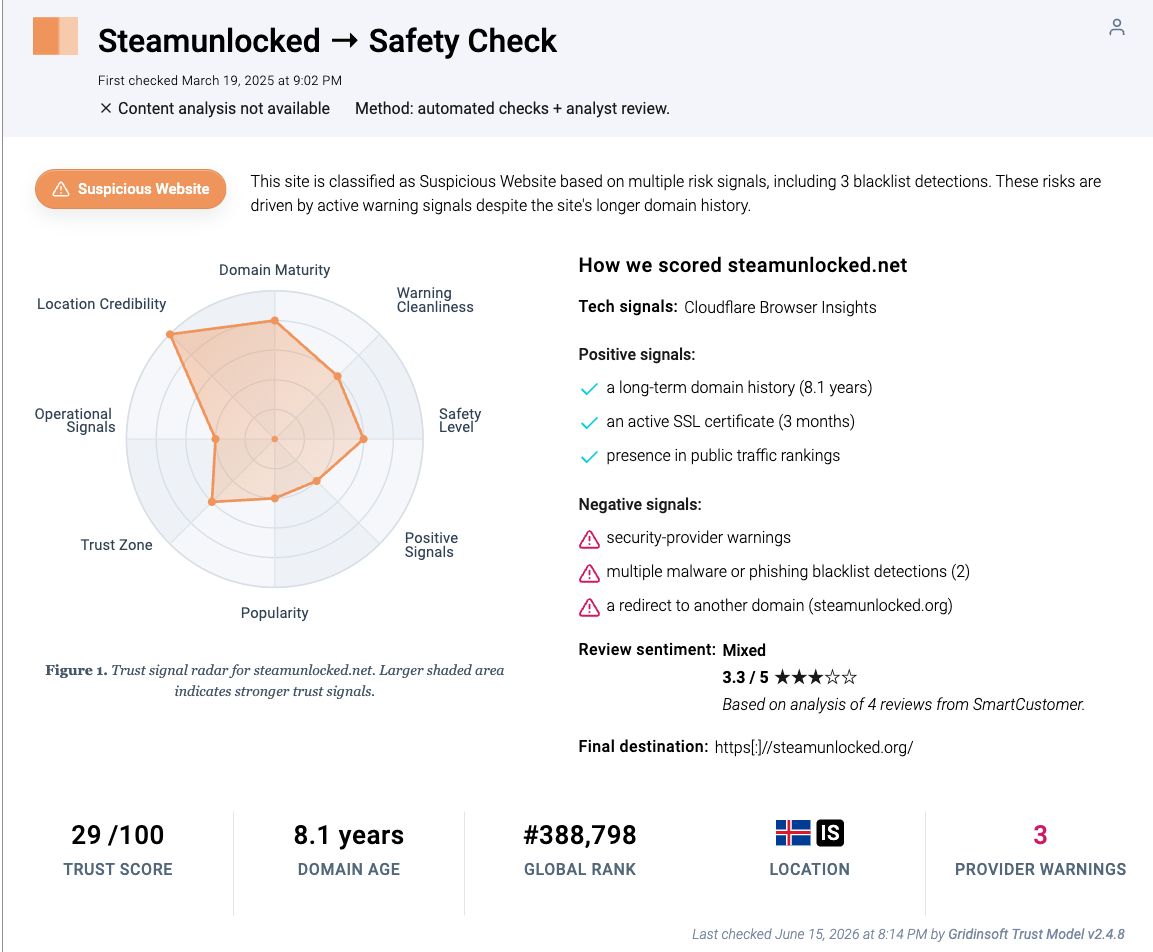
Download for WindowsThe existing Gridinsoft SteamUnlocked.net reputation report covers the domain verdict. This guide answers a different question: what to do after a file was downloaded, extracted, or run. A domain result cannot certify every archive, mirror, redirect, ad, or installer that appeared during the download chain.
First, record the alert before deleting files
Open Windows Security → Virus & threat protection → Protection history and note the exact detection name, affected file, path, time, and action. A label such as HackTool, GameHack, PUA, Trojan, Stealer, or Loader is more useful than “virus detected.” If Windows blocked the launch with an operation-did-not-complete message, use the safe blocked-file decision flow rather than disabling protection.
Do not select Allow on device, restore the file, or add the game folder to exclusions because a download page or forum says every crack alert is harmless. Microsoft recommends leaving uncertain items quarantined; allowing a file removes the protection that stopped it. The Defender detection-name guide explains how to read the family, platform, and suffix without treating the name as a complete forensic verdict.
Remove the whole same-download chain
- Close the game, launcher, installer, archive tool, and download tabs. If unknown remote-control software, rapid file changes, disabled security settings, or active account abuse is visible, disconnect Wi-Fi or Ethernet.
- Leave detected files quarantined. Delete the original archive, extracted folder, duplicate copies, torrent leftovers, and any small downloader or “required update” that arrived from the same page.
- Uninstall unexpected programs. In Settings → Apps → Installed apps, sort by install date. Remove unfamiliar browsers, driver updaters, VPNs, optimizers, launchers, or utilities that appeared with the game. Do not remove unrelated software only because its name is unfamiliar.
- Check the browser. Remove extensions you did not install intentionally, revoke notification permission for unknown sites, restore the search engine and homepage, and check whether a proxy keeps turning itself on.
- Check common persistence points. Review Startup apps, Task Scheduler, services, Windows Security exclusions, and recently created files under
%USERPROFILE%\Downloadsand%LOCALAPPDATA%\Temp. An unexpected command such asC:\Windows\System32\cmd.exelaunched by a new task or an unfamiliar value underHKCU\Software\Microsoft\Windows\CurrentVersion\Runneeds investigation; do not delete random registry values without identifying their owner.
The Windows post-malware audit provides a deeper checklist for startup entries, scheduled tasks, services, browser changes, exclusions, and network settings when the installer actually ran.
Run full scans, reboot, and scan again
- Update Windows Security intelligence, then run a Full scan.
- If the same detection returns after reboot, normal removal fails, or a suspected process interferes with security tools, save your work and run Microsoft Defender Offline. Microsoft documents Offline scan as the next step for malware that keeps returning or hides while Windows is running.[2]
- After the manual cleanup, run a full Gridinsoft Anti-Malware scan. Review the detection names, paths, and proposed actions before applying cleanup; leave uncertain files quarantined. Remove confirmed unwanted items, reboot, and scan again if symptoms return.
Deleting or quarantining the visible archive may not remove a downloader, scheduled task, service, browser change, security exclusion, or bundled module created after execution. A complete scan checks outside the game folder for the rest of that chain. It can find malware and persistence; it cannot recover stolen passwords or prove that no data was exposed.
Secure accounts only when the exposure justifies it
You do not need to rotate every password because an archive finished downloading and remained unopened. Use a clean phone or another trusted computer to secure accounts if you ran an installer, allowed a detection, saw an infostealer/loader alert, noticed unknown login activity, or had browser sessions and a password manager open while the PC was behaving suspiciously.
- Secure the primary email account and password manager first.
- Sign out unfamiliar or all active sessions where the service offers that option.
- Change unique passwords for Steam, Discord, Google, Microsoft, social, banking, shopping, and work accounts that were saved or used on the affected PC.
- Remove unknown connected apps, check recovery email/phone details, and enable passkey, authenticator-app, or hardware-key MFA.
- If a browser crypto wallet or seed phrase was present, move assets from a clean device using a new wallet and never type the old seed into the suspected PC.
For cookie theft, saved-password exposure, and the right recovery order, use the infostealer removal and account-recovery guide.
Could the SteamUnlocked alert be a false positive?
Some crack and license-bypass files trigger HackTool or GameHack detections because they patch code, inject into processes, or resemble tools used by malware. That possibility does not make a restore safe. A lower-risk case is limited to one expected file inside the game folder, with no unrelated apps, exclusions, startup entries, browser changes, or additional detections. A Trojan, stealer, loader, miner, script, or executable in AppData, Temp, Startup, or a new scheduled task is a different and more serious pattern.
Judge the exact file, path, source, digital signature, hash, and system changes. If the package came through a fake button, redirect, password-protected archive, separate downloader, or a page that told you to disable antivirus, remove it instead of trying to make the alert disappear.
When is a Windows reset or reinstall safer?
Consider a clean reinstall when a stealer, rootkit, ransomware, unknown administrator script, or remote-access tool ran; security settings cannot stay enabled; detections return after Offline scan; unexplained accounts or tasks reappear; or you cannot determine what the installer changed. Back up documents and personal files, not cracked installers, executables, scripts, archives, or the old game folder. Microsoft notes that irreversible malware changes may require reset, restore, or reinstall and recommends restoring from a backup created before the infection.[2]
Avoid the same download trap
- Keep Defender, SmartScreen, browser protection, and potentially unwanted app blocking enabled.
- Do not install download managers, browser extensions, “codecs,” driver updaters, or VPNs offered by an ad or redirect.
- Do not add Downloads, Temp, a game folder, or an entire drive to antivirus exclusions.
- Use official game stores and publisher download pages when possible.
- Scan unexpected files before opening them, and keep offline or versioned backups of important data.
For the same visit-versus-download-versus-execution decision on another multiplayer game-fix source, use the Online-fix.me safety and cleanup guide. It keeps the domain warning separate from the file, bundle, and account-recovery evidence.
FAQ
Am I infected if I downloaded a SteamUnlocked archive but did not open it?
Usually, a saved archive has not executed its contents. Delete or quarantine it and scan the download folder. Use the higher-risk branch if the browser auto-opened it, you previewed or extracted content, an alert appeared elsewhere, or the PC changed afterward.
Should I restore a SteamUnlocked file that Defender quarantined?
Not based on a forum or download-page claim. Leave it quarantined while you check the exact detection, path, expected file, source, signature, and whether anything else changed. Restore only when evidence supports a false positive.
Should I change my Steam and Discord passwords?
Change them from a clean device if an executable ran, a stealer/loader was detected, a warning was allowed, browser sessions were open during suspicious activity, or you see unknown logins. Also revoke sessions and enable stronger MFA.
Do I need to reinstall Windows?
Not for every blocked or downloaded file. Reinstall becomes the safer choice when high-impact malware ran, detections or security changes keep returning, remote access or encryption occurred, or you cannot establish a trustworthy clean state.
References
- Microsoft Support. “Protect your PC from unwanted software.” Microsoft, accessed July 17, 2026. Microsoft Support.
- Microsoft Support. “Troubleshoot problems with detecting and removing malware.” Microsoft, accessed July 17, 2026. Microsoft Support.