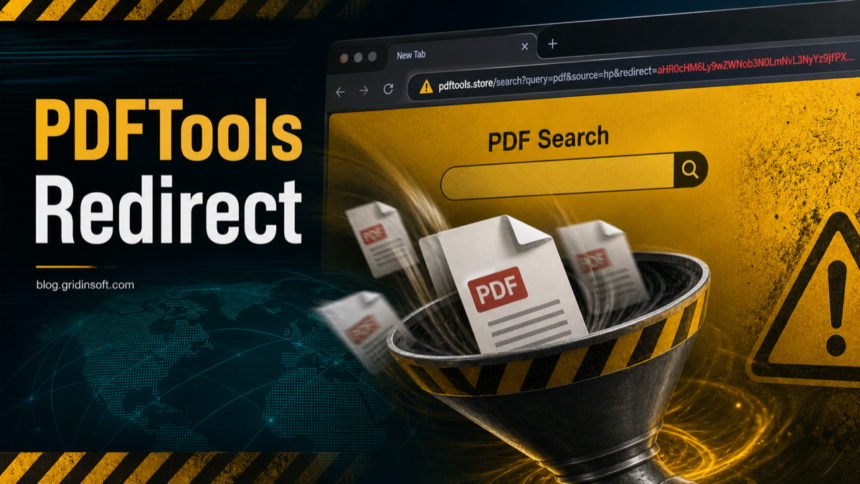
Pdftools.store redirect is a browser-hijacker symptom to clean when Chrome or Edge briefly opens a URL such as ipqcr.pdftools.store, adds a “PDFTools” search shortcut, or changes the default search page without a clear choice from you. Remove the suspicious extension or search entry first, restore the browser settings, then check notification permissions, browser policies, sync, and Windows adware persistence if the redirect comes back.
This is not the same as a legitimate PDF editor or document viewer. The red flag is the forced search or pop-up route through pdftools.store or a random-looking subdomain before your normal search results appear.
Technical snapshot
- Visible symptom: Chrome or Edge opens
pdftools.store,ipqcr.pdftools.store, or a similar subdomain during search, startup, or a short pop-up event. - Likely source: an unwanted extension, search shortcut, notification permission, browser policy, synced setting, or adware component that restores the setting.
- Main risk: unwanted search routing, low-trust pages, tracking exposure, and repeat redirects after a simple browser reset.
- First action: remove the browser source, restore search/homepage/new-tab settings, and scan Windows if the change followed a free installer, fake update, or unknown extension.
What is pdftools.store?
pdftools.store is best treated as an unwanted search and redirect domain when it appears in a browser you did not configure. User reports describe a new tab opening by itself, a long search string being submitted, and a PDFTools search shortcut or search provider appearing in Chrome. That pattern points to a browser hijacker or adware-style configuration change rather than a normal PDF utility.
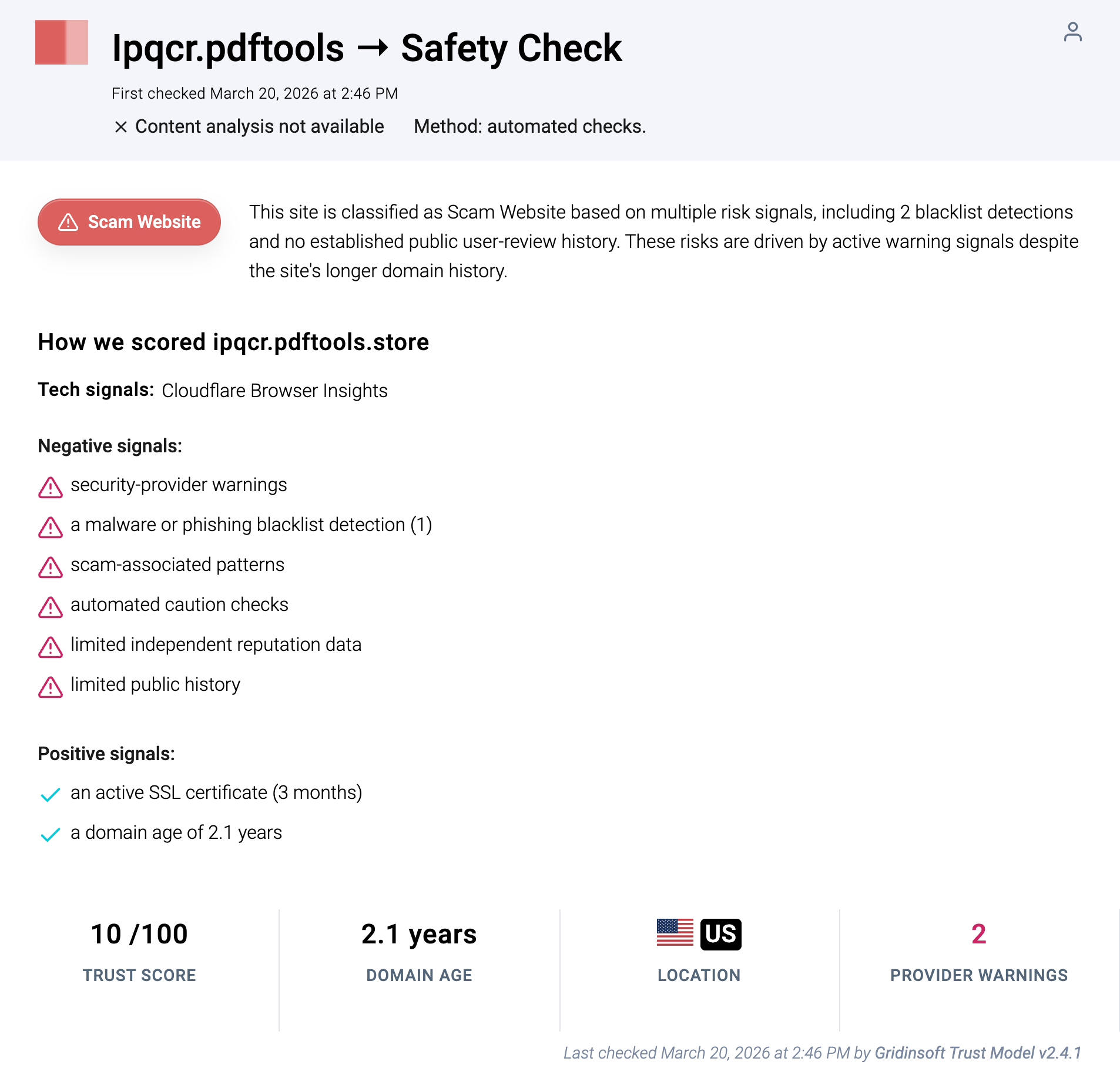
Gridinsoft’s Website Reputation Checker also flags the exact subdomain ipqcr.pdftools.store as a scam website with a 10/100 trust score and provider warnings. That does not prove every machine seeing the redirect has the same payload, but it is enough reason not to keep the setting or enter account data through pages reached by the redirect.
Why the redirect keeps coming back
A one-time reset often fails because the visible URL is only the last part of the chain. The source can live in several places:
- a recently installed “PDF”, “search”, “coupon”, “new tab”, or “productivity” extension;
- a custom search engine entry or site search shortcut that uses
pdftools.storeas the query URL; - a homepage, startup page, or new-tab setting restored by browser sync;
- notification permissions from the domain or from another site in the redirect chain;
- a Chrome or Edge policy that makes the browser look “managed” on a personal PC;
- a Windows startup item, scheduled task, or bundled adware app that re-adds the browser change after reboot.
Remove the pdftools.store redirect from Chrome or Edge
- Write down the exact URL. Note whether it is
pdftools.store,ipqcr.pdftools.store, or another subdomain. Also note whether it appears at browser startup, during address-bar search, after clicking a PDF-related shortcut, or as a brief background pop-up. - Remove suspicious extensions. Open
chrome://extensionsoredge://extensions. Remove recently added PDF, search, shopping, coupon, new-tab, or unknown extensions. If an extension says it was installed by policy, continue with the policy check below. - Restore the search engine and site search shortcuts. In browser settings, open the search engine section and remove entries that contain
pdftools.storeor unfamiliar query URLs. Set Google, Bing, DuckDuckGo, or another trusted provider as default. - Check homepage, startup, and new-tab settings. Remove any
pdftools.storeURL from “On startup” or “Open a specific page”. If the browser opens a PDFTools page only after sign-in, pause browser sync until the local profile is clean. - Clear notification permissions. In site settings, remove notification, pop-up, and redirect permissions for
pdftools.store,ipqcr.pdftools.store, and any unknown site that appeared around the same time. - Check browser policies. Visit
chrome://policyoredge://policy. On a home PC, unexpected policies that force extensions, search providers, startup pages, or managed settings are suspicious. Remove the unwanted app or administrator profile that created them before resetting the browser again. - Scan Windows if the redirect returns. If the setting reappears after reboot, after browser sign-in, or after uninstalling the extension, scan for adware and PUA persistence instead of repeating the same browser reset.
If the redirect was added by a bundled installer or keeps returning, the browser cleanup should be followed by a system scan. A hijacker can leave a helper app, scheduled task, startup entry, browser policy, or another unwanted extension that restores the search route after you remove the visible PDFTools entry.
If redirects, notifications, extensions, homepage changes, or managed policies return after browser cleanup, the source is often outside the browser: an installed app, policy, scheduled task, or startup entry.
Scan this PC for browser hijacker leftoversWhat to check after cleanup
- Open a new tab and search for a harmless phrase from the address bar. The URL should not flash through
pdftools.store. - Restart the browser and confirm the default search engine, homepage, startup page, and new-tab page stay unchanged.
- Reboot Windows once. If the redirect returns only after reboot, focus on startup apps, scheduled tasks, and recently installed programs.
- Check other signed-in browsers or devices. Sync can reintroduce the old setting if another profile still has the extension.
- Change passwords only after the redirect is gone if you entered accounts through pages opened by the hijacker.
When this is probably more than a browser setting
Treat the case as higher risk when the redirect appears together with fake virus alerts, adult or betting pages, unknown installers, blocked security sites, unexpected downloads, or repeated security-tool warnings. In that situation, use the broader browser hijacker removal guide to check proxy, DNS, policies, sync, and Windows persistence. If the main symptom is many tabs opening by themselves, the multiple-tabs troubleshooting guide helps separate normal startup settings from adware behavior.
FAQ
Is pdftools.store a virus?
The domain itself is a redirect and search-routing symptom. The cause can be an unwanted extension, browser setting, policy, or adware component. Clean the browser first, then scan Windows if the redirect returns.
Why does ipqcr.pdftools.store open for only a second?
Brief appearances usually mean another component is launching a redirect URL in the background, submitting a search, or refreshing a browser search shortcut. The short window does not make it safe; it only makes the source harder to see.
Can I just reset Chrome?
A reset can remove the visible setting, but it may not remove browser sync, forced policies, notification permissions, or a Windows helper app that restores the redirect. Reset only after removing suspicious extensions and search entries.
Should I delete all PDF tools?
No. Remove only suspicious browser extensions, search shortcuts, and apps you did not intentionally install. Legitimate PDF readers and editors do not need to route browser searches through pdftools.store.
References
- Gridinsoft Website Reputation Checker. “Ipqcr.pdftools.store Review: Scam Risk (10/100 Trust Score).” Gridinsoft, first checked March 20, 2026; accessed June 23, 2026. https://gridinsoft.com/online-virus-scanner/url/ipqcr-pdftools-store