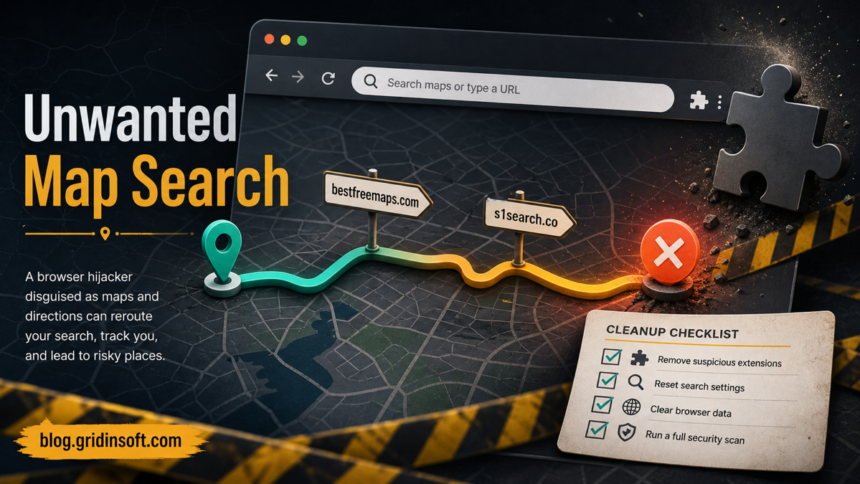
Get Maps & Driving Directions is a browser-hijacker cleanup case when it appears without clear consent, changes your search provider, or sends address-bar searches through bestfreemaps.com and s1search.co before opening Yahoo results. Remove the extension first, then clean the search shortcut, homepage, new-tab, startup, browser-policy, sync, and Windows leftovers that can make the route return.
The final page may look like a normal Yahoo search, but that does not mean Yahoo is the problem. The unsafe part is the unwanted extension and the intermediate search route that sits between your browser and the results page.
What is Get Maps & Driving Directions?
Get Maps & Driving Directions is a Chrome extension promoted around maps, locations, and directions. The current Chrome Web Store listing says the extension lets users search for location information from the browser search box and that its search sets the default search engine to Yahoo. That wording matters: a maps feature is not the same thing as permission to keep a search route you did not choose.
MalExt’s SearchJack research also lists the extension ID gmapdckphdmbafmmcfoahhgoogdjeell with a route through bestfreemaps.com/search-direction.php?q={searchTerms}. PCRisk’s July 2026 write-up describes the current chain as bestfreemaps.com forwarding searches to s1search.co, which then forwards to Yahoo. Gridinsoft’s Website Reputation Checker currently labels s1search.co as an ads warning with a 20/100 trust score, so unexpected redirects through that domain are worth removing rather than ignoring.
Signs this extension is controlling your browser
- Chrome, Edge, Brave, or another Chromium browser shows a Get Maps & Driving Directions extension you do not remember installing.
- Address-bar searches briefly pass through
bestfreemaps.comors1search.cobefore reaching Yahoo. - The default search engine, new tab, homepage, or startup page changes after a browser restart.
- The browser says Managed by your organization on a personal PC.
- The extension or search setting returns after you remove it once.
- Other map, directions, PDF, coupon, recipe, search, or “quick access” extensions appeared around the same time.
Remove the Get Maps & Driving Directions extension
- Open
chrome://extensions,edge://extensions, or the equivalent extensions page in your Chromium browser. - Remove Get Maps & Driving Directions. Also remove extensions installed on the same day if they claim to improve maps, directions, search, coupons, PDFs, video, weather, or quick access.
- If the browser shows a developer-mode ID, compare it with
gmapdckphdmbafmmcfoahhgoogdjeell. Do not keep a matching extension just because it still opens map pages. - If removal is blocked, go to
chrome://policyoredge://policyand check whether a policy forces an extension, homepage, startup page, or search provider.
- Launch Chrome.
- Click the three dots (...) in the top right corner.
- Select Extensions > Manage Extensions.
- Click Remove next to the extension you want to delete.
Quick Access: Type chrome://extensions/ in the address bar.
- Open Safari.
- In the menu bar, click Safari and select Settings (or Preferences).
- Click on the Extensions tab.
- Select the extension and click Uninstall.
- Click the menu button, select Add-ons and themes.
- Go to the Extensions tab.
- Click the three dots (...) next to the extension and select Remove.
Quick Access: Type about:addons in the address bar.
- Launch Microsoft Edge.
- Click the three dots (...) in the top right corner.
- Select Extensions.
- Find the extension and click Remove.
Quick Access: Type edge://extensions/ in the address bar.
- Launch Brave browser.
- Click the menu icon > Extensions.
- Find the extension and click Remove.
Quick Access: Type brave://extensions/ in the address bar.
- Launch Opera.
- Click the Opera logo in the top left corner.
- Select Extensions > Extensions.
- Click the X or Remove button next to the extension.
Quick Access: Type opera://extensions/ in the address bar.
Open Extensions/Add-ons again and remove any entry linked to Get Maps & Driving Directions or clearly out of place.
Restore search, new tab, and startup settings
After deleting the extension, clean every browser setting it could have touched. Hijackers often leave a site-search shortcut behind, so the visible default engine may look normal while address-bar searches still use the unwanted route.
- Open search settings and choose a trusted default search provider.
- Open the full search-engine and site-search shortcut list. In Chrome this is
chrome://settings/searchEngines. - Delete entries that mention
bestfreemaps.com,s1search.co,mapsr.com,yhs-bestfreemaps, or unfamiliar Yahoo partner parameters. - Check startup pages, homepage, and new-tab settings. Remove any map/directions page you did not intentionally set.
- Inspect desktop and taskbar browser shortcuts. The target should end at the browser executable, not with an extra
bestfreemaps.comors1search.coURL after it.
If it comes back, check policy and browser sync
A returning hijacker is usually not a search-setting problem anymore. It is often restored by browser sync, a forced extension policy, a companion app, a scheduled task, or a startup item. Pause browser sync, remove the extension and search entries again, reboot, and test before signing back in. If the route returns only after sync, remove the bad extension or setting from the synced account.
On a work or school device, policies may be legitimate. On a home PC, unexpected policies that force search, homepage, startup URLs, or extension IDs are a cleanup signal. Remove the program or script that created the policy before resetting the browser again.
Check Windows for hijacker leftovers
If the extension arrived through a bundle, fake updater, download helper, or another free utility, a browser-only reset may not remove the source. Check Windows before trusting the cleaned browser profile.
- Sort installed apps by date and remove unfamiliar utilities installed near the first redirect.
- Check Startup Apps for search helpers, unknown updaters, or browser launchers.
- Open Task Scheduler and look for tasks that launch a browser, script, updater, or unknown executable.
- Review proxy and DNS settings if search redirects happen in more than one browser.
- Keep browser sync paused until one clean reboot confirms that the redirect no longer returns.
If redirects, extensions, browser policies, homepage changes, or suspicious startup items return after manual cleanup, scan the PC before using the browser for banking, email, or password changes. Gridinsoft Anti-Malware can check for unwanted apps, hidden startup entries, scheduled tasks, browser changes, and persistence that can restore a hijacker after a reset.
If redirects, notifications, extensions, homepage changes, or managed policies return after browser cleanup, the source is often outside the browser: an installed app, policy, scheduled task, or startup entry.
Scan for hijacker leftoversReset the browser after the source is removed
Resetting is useful after the extension, shortcuts, policies, and Windows leftovers are gone. If you reset first, the same restoring source can reapply the route and make it look like reset “did not work.”
- Tap on the three dots (...) in the top right corner and Choose Settings.

- Choose Reset and Clean up and Restore settings to their original defaults.

- Tap Reset settings.

Quick Access: Type chrome://settings/reset in the address bar.
- Open Safari.
- In the menu bar, click Safari > Clear History.
- Select all history and click Clear History.
- Go to Safari > Settings (or Preferences).
- Click the Privacy tab and select Manage Website Data... > Remove All.
- In the Advanced tab, check Show features for web developers.
- In the menu bar, select Develop > Empty Caches.
- Launch Brave browser.
- Click the menu icon in the top right corner and select Settings.
- Click Additional settings > Reset settings.
- Tap Restore settings to their original defaults.
- Confirm by clicking Reset settings.
Quick Access: Type brave://settings/reset in the address bar.
- In the upper right corner tap the three-line icon and Choose Help.

- Choose More Troubleshooting Information.

- Choose Refresh Firefox... then Refresh Firefox.

Quick Access: Type about:support and click Refresh Firefox.
- Tap the three dots.

- Choose Settings.

- Tap Reset Settings, then Click Restore settings to their default values.

Quick Access: Type edge://settings/reset in the address bar.
- Launch the Opera browser.
- Click the Opera menu button in the top left corner and select Settings.
- Scroll down to the Advanced section in the left sidebar and click Reset and clean up.
- Click Restore settings to their original defaults.
- Click Reset settings to confirm.
Quick Access: Type opera://settings/reset in the address bar.
After reset, verify that Get Maps & Driving Directions is no longer set as your default search engine or homepage.
Do you need to change passwords?
Change important passwords if the hijacker was active while you entered credentials on pages opened through redirects, fake sign-in prompts, pop-ups, or unfamiliar downloads. If you only noticed address-bar search redirection and did not sign in anywhere sensitive, focus first on removing the extension, cleaning the browser profile, and scanning for persistence.
Related cleanup paths
If the visible symptom is simply Yahoo taking over Chrome, compare this exact extension case with our Yahoo Search removal guide. If an extension keeps coming back after deletion, use the deeper browser extension keeps reinstalling guide. For broad PUA/search cleanup beyond one extension name, start with the browser hijacker removal guide.
What not to do
- Do not assume the final Yahoo page is the infection. The unwanted extension and routing domain are the part to remove.
- Do not install random “hijacker remover” downloads from search results. Many removal pages promote unrelated scanners or bundled utilities.
- Do not sign back into browser sync immediately after reset. Test one clean reboot first.
- Do not keep the extension only because maps or directions still work. A map feature is not worth a forced search route.
FAQ
Is Get Maps & Driving Directions a virus?
It is better treated as a browser hijacker or potentially unwanted extension when it changes search, new-tab, homepage, or startup behavior without clear consent. It is not the same as ransomware, but it can route searches through domains you did not choose and may return through policies or bundled software.
Why does the redirect end on Yahoo?
Many search hijackers monetize queries by routing them through a partner or fake-search domain and then handing the query to a familiar search engine. Yahoo may be the final results provider, while bestfreemaps.com or s1search.co is the unwanted intermediate route.
Can I remove it by resetting Chrome?
Reset Chrome only after removing the extension, search shortcuts, startup pages, policies, sync source, and any Windows helper app. Otherwise the same source may restore the hijacker after reset.
What if the extension cannot be removed?
Check chrome://policy or edge://policy. On a personal PC, a forced extension policy usually means another app or script changed browser rules. Remove that source first, then delete the extension and reset the browser.
Should I delete my whole browser profile?
Use that as a later step, not the first one. Export important bookmarks, pause sync, remove the extension and policy source, reboot, and test. Create a fresh profile if the old profile keeps restoring the route after those checks.
References
- Google Chrome Web Store. “Get Maps & Driving Directions.” Chrome Web Store, accessed July 2, 2026. https://chromewebstore.google.com/detail/get-maps-driving-directio/gmapdckphdmbafmmcfoahhgoogdjeell
- MalExt Research. “SearchJack: How 23 Browser Extensions Silently Monetize.” MalExt, June 2026, accessed July 2, 2026. https://malext.io/reports/SearchJack/
- Google Chrome Help. “Remove unwanted ads, pop-ups & malware.” Google, accessed July 2, 2026. https://support.google.com/chrome/answer/2765944