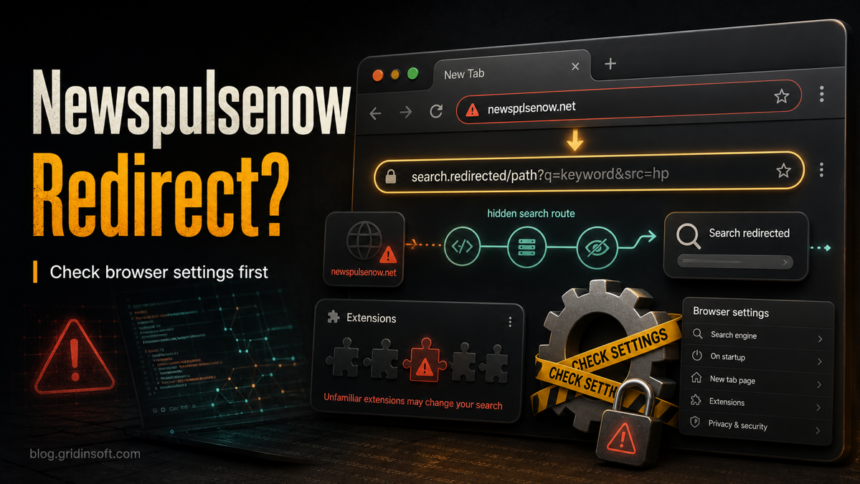
Newspulsenow.net is a browser-hijacker cleanup signal when it opens at startup, replaces your homepage or new tab, or appears before your searches land on Yahoo. The domain itself may not always look dangerous in a URL reputation report, but a browser that keeps forcing newspulsenow.net or a search route through skwhatlaybeyo.org and m.search-api.co is no longer using the settings you chose. Remove the controlling extension, search shortcut, policy, sync setting, or unwanted app before resetting the browser.
The important point is the routing behavior. Yahoo can be the final results page while the unwanted part is the hidden route that changes the browser before the results page opens.
What is Newspulsenow.net?
Newspulsenow.net is reported in browser-hijacker cases as a page that can be forced into the homepage, new-tab, startup, or address-bar search path. In observed cases, affected searches pass from newspulsenow.net through skwhatlaybeyo.org and m.search-api.co before opening Yahoo results. That chain is the reason to clean the browser even if the last page looks familiar.
Gridinsoft’s current Website Reputation Checker page for newspulsenow.net shows a “Trusted but Verify” style score rather than a severe malware verdict. Treat that as a useful caution: do not overstate the domain as proven malware, but do not ignore a browser that was changed without consent. The local cause is usually an extension, installed app, browser policy, shortcut, sync residue, or adware component.
Signs the redirect is controlling your browser
- Chrome, Edge, Brave, or another Chromium browser opens
newspulsenow.netat startup or on a new tab. - Address-bar searches briefly flash
newspulsenow.net,skwhatlaybeyo.org, orm.search-api.cobefore Yahoo results. - The default search engine looks normal, but a hidden site-search shortcut still sends queries through an unknown route.
- The browser says it is managed by your organization on a personal PC.
- The setting returns after restart, browser reset, or sign-in sync.
- Other search, map, PDF, coupon, news, weather, or “quick access” extensions appeared around the same time.
Remove suspicious extensions first
- Open
chrome://extensions,edge://extensions, or the extensions page for your Chromium browser. - Remove extensions you did not intentionally install, especially anything connected to news, search, shortcuts, coupons, PDF tools, weather, maps, or browser “helper” features.
- If an extension cannot be removed, copy its ID and check
chrome://policyoredge://policyfor a forced extension rule. - Restart the browser and test one search before turning browser sync back on.
- Launch Chrome.
- Click the three dots (...) in the top right corner.
- Select Extensions > Manage Extensions.
- Click Remove next to the extension you want to delete.
Quick Access: Type chrome://extensions/ in the address bar.
- Open Safari.
- In the menu bar, click Safari and select Settings (or Preferences).
- Click on the Extensions tab.
- Select the extension and click Uninstall.
- Click the menu button, select Add-ons and themes.
- Go to the Extensions tab.
- Click the three dots (...) next to the extension and select Remove.
Quick Access: Type about:addons in the address bar.
- Launch Microsoft Edge.
- Click the three dots (...) in the top right corner.
- Select Extensions.
- Find the extension and click Remove.
Quick Access: Type edge://extensions/ in the address bar.
- Launch Brave browser.
- Click the menu icon > Extensions.
- Find the extension and click Remove.
Quick Access: Type brave://extensions/ in the address bar.
- Launch Opera.
- Click the Opera logo in the top left corner.
- Select Extensions > Extensions.
- Click the X or Remove button next to the extension.
Quick Access: Type opera://extensions/ in the address bar.
Open Extensions/Add-ons again and remove any entry linked to Newspulsenow.net or clearly out of place.
Restore search, homepage, new tab, and startup settings
Do this after removing suspicious extensions. If you reset the browser first, the same extension, policy, or helper app can simply write the unwanted route back.
- Open search settings and choose the search provider you actually want.
- Open the full search-engine and site-search shortcut list. In Chrome this is
chrome://settings/searchEngines. - Delete entries that mention
newspulsenow.net,skwhatlaybeyo.org,m.search-api.co, unfamiliar Yahoo partner parameters, or search URLs you do not recognize. - Check homepage, new-tab, and startup pages. Remove Newspulsenow.net or any unknown page from those lists.
- Inspect desktop and taskbar browser shortcuts. The target should end at the browser executable, not with an extra URL after it.
If Newspulsenow.net comes back, check policy and sync
Returning redirects usually mean something outside the visible search setting is restoring the route. Open chrome://policy or edge://policy. On a work or school computer, some policies may be legitimate. On a home PC, policies forcing extensions, startup pages, homepage URLs, or search providers are suspicious unless you know exactly which app created them.
Browser sync can also restore bad settings. Pause sync, remove the extension and search entries again, reboot, and test before signing back in. If the route returns only after sync, remove the suspicious extension or search shortcut from the synced profile before re-enabling sync on other devices.
Check Windows for hijacker leftovers
If Newspulsenow.net arrived through a bundled installer or fake utility, browser cleanup alone may not be enough. Check the system layer before you trust the cleaned profile.
- Sort installed apps by date and remove unfamiliar utilities added near the first redirect.
- Check Startup Apps for browser launchers, search helpers, or unknown updaters.
- Open Task Scheduler and look for tasks that launch a browser, script, updater, or unknown executable at logon.
- Review proxy and DNS settings if more than one browser redirects the same way.
- Keep sync paused until one clean reboot confirms that the route no longer returns.
If redirects, suspicious extensions, browser policies, homepage changes, or unknown startup items return after manual cleanup, scan the PC before using the browser for banking, email, or password changes. Gridinsoft Anti-Malware can check for unwanted apps, browser changes, hidden startup entries, scheduled tasks, and other persistence that a browser reset may miss.
If Newspulsenow redirects return after changing browser settings, use Gridinsoft Anti-Malware to check Windows for unwanted apps and startup items that may be restoring them.
6-day full trial for eligible new users, including cleanup. Email activation; no credit card.
Download Anti-Malware for WindowsReset the browser after the source is gone
A browser reset is useful after you remove the extension, search shortcut, policy, sync source, and Windows helper app. Resetting too early can make the browser look clean for one session while the restoring component remains active.
- Tap on the three dots (...) in the top right corner and Choose Settings.

- Choose Reset and Clean up and Restore settings to their original defaults.

- Tap Reset settings.

Quick Access: Type chrome://settings/reset in the address bar.
- Open Safari.
- In the menu bar, click Safari > Clear History.
- Select all history and click Clear History.
- Go to Safari > Settings (or Preferences).
- Click the Privacy tab and select Manage Website Data... > Remove All.
- In the Advanced tab, check Show features for web developers.
- In the menu bar, select Develop > Empty Caches.
- Launch Brave browser.
- Click the menu icon in the top right corner and select Settings.
- Click Additional settings > Reset settings.
- Tap Restore settings to their original defaults.
- Confirm by clicking Reset settings.
Quick Access: Type brave://settings/reset in the address bar.
- In the upper right corner tap the three-line icon and Choose Help.

- Choose More Troubleshooting Information.

- Choose Refresh Firefox... then Refresh Firefox.

Quick Access: Type about:support and click Refresh Firefox.
- Tap the three dots.

- Choose Settings.

- Tap Reset Settings, then Click Restore settings to their default values.

Quick Access: Type edge://settings/reset in the address bar.
- Launch the Opera browser.
- Click the Opera menu button in the top left corner and select Settings.
- Scroll down to the Advanced section in the left sidebar and click Reset and clean up.
- Click Restore settings to their original defaults.
- Click Reset settings to confirm.
Quick Access: Type opera://settings/reset in the address bar.
After reset, verify that Newspulsenow.net is no longer set as your default search engine or homepage.
Do you need to change passwords?
Change important passwords if the redirect was active while you entered credentials on pages opened through pop-ups, fake sign-in prompts, unknown extensions, or suspicious downloads. If you only noticed address-bar search redirection and did not sign in anywhere sensitive, focus first on removing the redirect source and scanning for persistence.
Related cleanup paths
If the symptom is mainly Yahoo replacing your chosen search engine, compare this exact-domain case with our Yahoo Search removal guide. If extensions keep reinstalling, use the browser extension keeps reinstalling guide. For broader PUA/search cleanup beyond one named domain, start with the browser hijacker removal guide.
What not to do
- Do not assume Yahoo is the infection. The unwanted redirect route is the part to remove.
- Do not install random “Newspulsenow remover” downloads from search results. Many removal pages promote unrelated tools or download wrappers.
- Do not sign back into browser sync immediately after reset. Test one clean reboot first.
- Do not ignore a “managed by your organization” message on a home PC. It can explain why the setting keeps coming back.
FAQ
Is Newspulsenow.net a virus?
Newspulsenow.net is best treated as a redirect symptom rather than proof that the domain itself is a standalone virus. If your browser opens it or routes searches through it without consent, clean the extension, policy, sync, shortcut, or unwanted app that controls the browser.
Why does it redirect to Yahoo?
Browser hijackers often route a query through one or more intermediate domains and then hand it to a familiar search engine. Yahoo may be the final results provider, while newspulsenow.net, skwhatlaybeyo.org, or m.search-api.co is the unwanted route.
Can I remove it by resetting Chrome?
Reset Chrome only after removing suspicious extensions, search shortcuts, startup pages, policies, sync sources, and any Windows helper app. Otherwise the same source may restore the redirect after reset.
What if no extension is visible?
Check the full site-search shortcut list, browser policies, startup apps, Task Scheduler, proxy settings, DNS settings, and browser shortcuts. A hijacker can restore search routes without showing an obvious extension name.
Should I delete my whole browser profile?
Use a fresh profile only after the normal cleanup fails. Export bookmarks, pause sync, remove extensions and policies, reboot, and test. If the old profile keeps restoring the route after those checks, then create a clean profile and re-enable only trusted extensions.
References
- Google Chrome Help. “Remove unwanted ads, pop-ups & malware.” Google, accessed July 2, 2026. https://support.google.com/chrome/answer/2765944