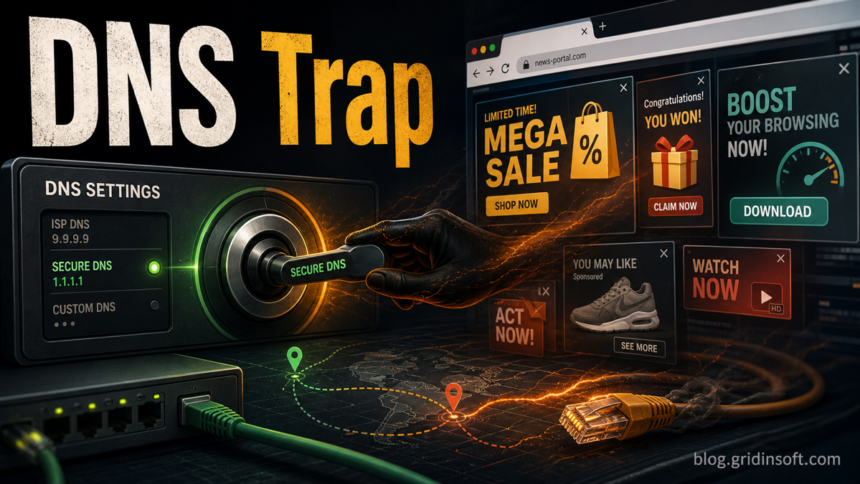
DNSUnlocker adware should be removed when ads labeled “Ads by DNS-Unlocker” appear across unrelated websites, DNS settings no longer match your normal network, or browser ads return after a simple reset. Start by uninstalling the visible DNS Unlocker program if it is present, then restore Windows DNS and proxy settings, clean browser extensions and site data, and scan for bundled adware that can reapply the change after reboot.
Do not treat DNSUnlocker as a normal DNS utility just because it talks about unlocking websites. F-Secure describes DNS Unlocker as a Windows adware program that is commonly bundled with other software, claims to give users more DNS control, and injects unsolicited ads during browsing. That combination is the reason a browser reset alone often does not solve the problem.
What DNSUnlocker changes
The visible symptom is advertising, but the cleanup has to cover more than pop-ups. DNSUnlocker can sit between the browser and normal name resolution, while the installer that brought it in may also add a browser extension, proxy entry, startup task, or another potentially unwanted app.
- Ads follow you across sites. Banners, pop-unders, or shopping boxes appear on pages that normally do not show them.
- DNS settings look manual. Windows may show DNS servers that you did not choose, or the connection may fail after the adware is removed.
- Search and new-tab behavior changes. A browser hijacker can ride with the same bundle and restore redirects after reset.
- Removal seems incomplete. Ads stop for one session, then return after reboot, browser sync, or another bundled app starts.
If your main symptom is no internet after an antivirus cleanup, use the broader DNS server is not responding after malware guide. If the main symptom is a changed homepage, search engine, or redirect chain, start with the browser hijacker removal guide and return here for the DNS-specific checks.
Before you change settings
Take two minutes to record the current state. It prevents guesswork if you need to restore a company VPN, custom DNS resolver, parental-control profile, or router setting later.
- Disconnect from banking, work dashboards, password managers, and crypto wallets until the ads stop.
- Open Windows network settings and write down whether DNS is automatic or manual for Wi-Fi and Ethernet.
- Check whether every browser is affected. If only Chrome or Edge shows ads, the source may be an extension or synced profile.
- Check another device on the same network. If every device sees redirects, inspect the router DNS separately instead of only changing this PC.
Remove DNSUnlocker from Windows
Remove the visible program first, then reset the settings it may have changed. If you reset DNS first but leave the bundled app installed, it may write the same settings back.
- Uninstall DNS Unlocker and recent bundleware. Open installed apps or Programs and Features, sort by install date, and remove DNS Unlocker plus any unfamiliar coupon, search, updater, VPN, media converter, or “download assistant” installed around the same time.
- Restore DNS to automatic when appropriate. For a home network, Wi-Fi and Ethernet usually use automatic IP and DNS assignment from the router. Microsoft documents the same baseline in Windows networking guidance: use automatic DNS unless you intentionally specify a resolver.
- Remove unknown DNS entries. If DNS is set manually and you do not recognize the addresses, switch DNS server assignment back to automatic, or replace it only with the resolver you intentionally use.
- Reset the Windows DNS cache. Open Command Prompt as administrator and run
ipconfig /flushdns. - Reset proxy settings. In Windows proxy settings, turn off unknown manual proxies. In an elevated Command Prompt,
netsh winhttp reset proxycan clear WinHTTP proxy settings used by system components. - Reset Winsock if the network is still broken. Run
netsh winsock reset, reboot, and test again. Use this after the basic DNS/proxy checks, not as the first step.
Clean browsers after the Windows change
Browser cleanup should happen after the program and network settings are handled. Otherwise the browser can look fixed while the same adware component is still active in Windows.
- Remove suspicious extensions. Delete extensions you did not choose, especially coupon, video downloader, PDF, search, shopping, or DNS/unblocker extensions.
- Check notifications and pop-ups. Google lists persistent pop-up ads, changed search settings, returning extensions, redirects, and fake virus alerts as signs of unwanted software in Chrome. Remove notification permissions for unknown sites and block pop-ups again.
- Clear site data for affected sites. If ads appear only on a few pages, clear cookies/site data for those sites and restart the browser.
- Reset the browser only after source removal. Resetting Chrome, Edge, or Firefox can remove visible settings, but it will not help if a Windows startup item or extension policy restores the adware.
If browser settings keep coming back after cleanup, follow the browser reset guide and check for managed policies, synced extensions, and startup entries before signing back into sync.
Scan for leftovers that make DNSUnlocker return
DNSUnlocker is usually not the only thing in the installer bundle. A cleaner result is to remove the visible app, restore DNS/proxy settings, then scan Windows for the component that may reinstall the extension, proxy, scheduled task, or updater.
Browser reset can remove visible symptoms, but adware may keep a desktop app, extension source, notification permission, or startup task that brings pop-ups and redirects back.
Scan for DNS and browser leftoversWith Gridinsoft Anti-Malware, run a full scan after the manual steps, remove detections, reboot, and scan again if the ads or DNS changes return. The useful signals to check are bundled apps, browser add-ons, startup entries, scheduled tasks, hidden downloaders, and suspicious network-setting changes. Do not assume the PC is clean just because one browser tab stopped showing ads.
If internet breaks after removal
Internet loss after adware cleanup usually means one of three things: DNS was left pointing at a dead resolver, a proxy was removed incompletely, or a network filter/VPN driver was damaged. Work from local to network-wide:
- Test another browser.
- Test another device on the same Wi-Fi.
- Switch the affected adapter back to automatic DNS and IP assignment.
- Flush DNS with
ipconfig /flushdns. - Reset proxy and Winsock, then reboot.
- If every device is affected, log in to the router from a clean device and check whether router DNS was changed.
For the attack concept behind malicious resolver changes, read DNS spoofing vs DNS hijacking. For everyday intrusive-ad examples, see our guide to adware examples.
How to avoid another DNS adware bundle
- Download utilities from the original vendor, not from repack, codec, PDF, or “free unlocker” portals.
- Choose custom install mode and reject browser offers, DNS helpers, coupon tools, and search extensions.
- Keep browser sync paused until the cleaned profile stays stable after reboot.
- Review router DNS after a serious adware infection if more than one device is affected.
- Keep a known-good security scan result before restoring passwords or payment sessions on the same browser.
FAQ
Is DNSUnlocker a virus?
DNSUnlocker is usually classified as adware or potentially unwanted software, not a classic file-destroying virus. It still deserves removal because it changes browsing behavior and may arrive with other bundled components.
Why do DNSUnlocker ads come back after uninstalling it?
A related extension, scheduled task, startup updater, proxy setting, or browser sync entry may be restoring the behavior. Remove the visible program first, then check DNS, proxy, extensions, startup entries, and scan Windows for bundled adware.
Should I manually enter public DNS servers?
Only if you intentionally use that resolver. For most home users, the first recovery step is to return DNS server assignment to automatic, test the network, and then choose a trusted resolver later if needed.
Do I need to reset the router?
Reset the router only if multiple devices on the same network show the same redirects or suspicious DNS servers. If only one Windows PC is affected, start with local apps, DNS, proxy, browser, and startup checks.
References
- F-Secure. “Adware.DNSUnlocker.” F-Secure Threat Descriptions, accessed June 25, 2026. https://www.f-secure.com/sw-desc/adware-dnsunlocker
- Microsoft. “How to change the IP address of a network adapter.” Microsoft Learn, updated February 12, 2026, accessed June 25, 2026. https://learn.microsoft.com/en-us/troubleshoot/windows-server/networking/change-ip-address-network-adapter
- Google Chrome Help. “Remove unwanted ads, pop-ups & malware.” Google Help, accessed June 25, 2026. https://support.google.com/chrome/answer/2765944?co=GENIE.Platform%3DDesktop&hl=en