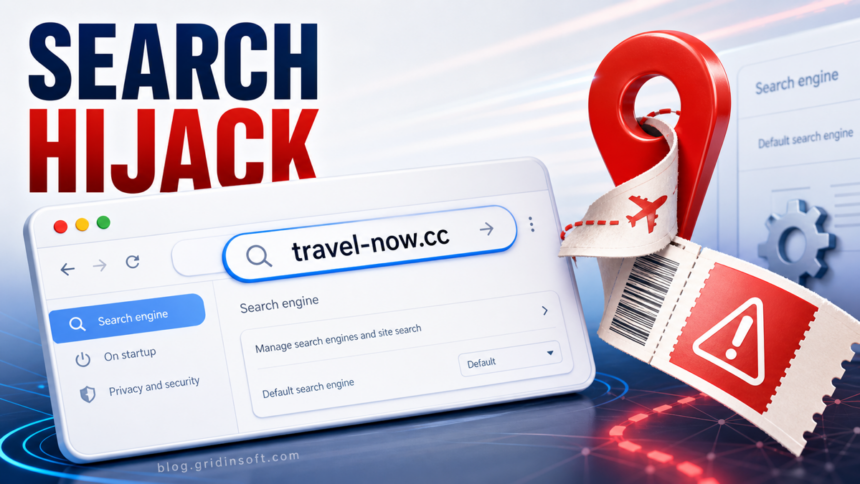
Travel-now.cc is a browser-hijacker symptom, not a normal travel site setting. If Chrome keeps changing the default search engine, opens Settings by itself, or sends searches through subdomains such as brvpcr.travel-now.cc, intpkcr.travel-now.cc, or sug.travel-now.cc, remove suspicious extensions first, reset the browser settings, revoke any notification permissions, and scan Windows if the redirect comes back.
The domain can appear for only a second before the browser lands on another search or ad page. That short redirect is still useful evidence: it means something in the browser profile, an extension, a site permission, or a Windows startup item is steering searches without clear consent. If you are dealing with several redirect families at once, use the broader PUA and browser hijacker removal guide after this exact-domain cleanup.
What Is Travel-now.cc?
Travel-now.cc is associated with browser-hijacker behavior: search settings change, homepage or new-tab behavior shifts, and unknown subdomains appear in the search engine list. Google lists changing search engines, returning unwanted extensions, pop-ups that will not go away, and redirects to unfamiliar pages as signs that unwanted software may be present in Chrome [1].
That does not prove every visit to Travel-now.cc installed malware. The practical issue is control. If the domain was added as your search provider or keeps returning after you remove it, treat the browser as compromised until you identify the extension, policy, or program that restores it.
Common Symptoms
- Chrome opens Settings or Search engine without you choosing it.
- The default search engine changes to Travel-now.cc or a random subdomain.
- Searches pass through Travel-now.cc before landing on another search page.
- Unknown extensions, toolbars, or helper apps return after removal.
- Chrome says Managed by your organization on a personal computer.
- Pop-ups, redirects, or notification alerts continue after closing the site.
Is Travel-now.cc Dangerous?
The redirect itself is a warning sign. Browser hijackers usually try to monetize search traffic, show ads, push notification spam, or keep a promoted search provider in place. The larger risk is the component that added the setting: a bundled extension, fake update installer, unwanted app, browser policy, or scheduled task. If the main symptom is tab storms rather than a fixed search provider, compare the trigger against Browser Opens Multiple Tabs by Itself?.
If you only see Travel-now.cc in the browser search settings, start with browser cleanup. If you recently installed a free converter, media tool, cracked program, fake browser update, or “search helper”, scan the whole Windows system before entering passwords or payment details in the affected browser.
How to Remove Travel-now.cc from Chrome
- Stop browser sync temporarily. If the same Google account is signed into several devices, pause sync while you clean the affected profile. Otherwise the bad search setting or extension can come back from another device.
- Remove suspicious extensions. Open
chrome://extensions/. Delete anything installed around the time the redirect started, especially search, coupon, PDF, travel, download, update, or “helper” extensions you do not recognize. - Fix the search engine list. Open
chrome://settings/searchEngines. Delete Travel-now.cc,brvpcr.travel-now.cc,intpkcr.travel-now.cc,sug.travel-now.cc, and any other unknown provider. Set a trusted search engine as default. - Check startup and homepage settings. Open
chrome://settings/onStartupandchrome://settings/appearance. Remove unknown startup pages and homepage URLs. - Revoke site permissions. Open
chrome://settings/content/notificationsandchrome://settings/content/popups. Block or remove Travel-now.cc and unknown domains. Chrome also warns that persistent pop-ups can come from notification permissions or malware [3]. For browser-by-browser permission paths, see How to Disable Browser Push Notifications. - Reset Chrome if settings still change. Chrome’s reset keeps saved bookmarks and passwords but restores the default search engine, homepage, startup pages, pinned tabs, content settings, cookies/site data, extensions, and themes [2].
- Launch Chrome.
- Click the three dots (...) in the top right corner.
- Select Extensions > Manage Extensions.
- Click Remove next to the extension you want to delete.
Quick Access: Type chrome://extensions/ in the address bar.
- Open Safari.
- In the menu bar, click Safari and select Settings (or Preferences).
- Click on the Extensions tab.
- Select the extension and click Uninstall.
- Click the menu button, select Add-ons and themes.
- Go to the Extensions tab.
- Click the three dots (...) next to the extension and select Remove.
Quick Access: Type about:addons in the address bar.
- Launch Microsoft Edge.
- Click the three dots (...) in the top right corner.
- Select Extensions.
- Find the extension and click Remove.
Quick Access: Type edge://extensions/ in the address bar.
- Launch Brave browser.
- Click the menu icon > Extensions.
- Find the extension and click Remove.
Quick Access: Type brave://extensions/ in the address bar.
- Launch Opera.
- Click the Opera logo in the top left corner.
- Select Extensions > Extensions.
- Click the X or Remove button next to the extension.
Quick Access: Type opera://extensions/ in the address bar.
Open Extensions/Add-ons again and remove any entry linked to Travel-now.cc or clearly out of place.
- Tap on the three dots (...) in the top right corner and Choose Settings.

- Choose Reset and Clean up and Restore settings to their original defaults.

- Tap Reset settings.

Quick Access: Type chrome://settings/reset in the address bar.
- Open Safari.
- In the menu bar, click Safari > Clear History.
- Select all history and click Clear History.
- Go to Safari > Settings (or Preferences).
- Click the Privacy tab and select Manage Website Data... > Remove All.
- In the Advanced tab, check Show features for web developers.
- In the menu bar, select Develop > Empty Caches.
- Launch Brave browser.
- Click the menu icon in the top right corner and select Settings.
- Click Additional settings > Reset settings.
- Tap Restore settings to their original defaults.
- Confirm by clicking Reset settings.
Quick Access: Type brave://settings/reset in the address bar.
- In the upper right corner tap the three-line icon and Choose Help.

- Choose More Troubleshooting Information.

- Choose Refresh Firefox... then Refresh Firefox.

Quick Access: Type about:support and click Refresh Firefox.
- Tap the three dots.

- Choose Settings.

- Tap Reset Settings, then Click Restore settings to their default values.

Quick Access: Type edge://settings/reset in the address bar.
- Launch the Opera browser.
- Click the Opera menu button in the top left corner and select Settings.
- Scroll down to the Advanced section in the left sidebar and click Reset and clean up.
- Click Restore settings to their original defaults.
- Click Reset settings to confirm.
Quick Access: Type opera://settings/reset in the address bar.
After reset, verify that travel-now.cc is no longer set as your default search engine or homepage.
If travel-now.cc keeps showing unwanted pop-ups, you likely granted it permission to send notifications. To stop them, you need to revoke that permission in your browser settings.
- Copy and paste this into the address bar:
chrome://settings/content/notifications - Scroll down to the Allowed to send notifications list.
- Find travel-now.cc.
- Click the three dots (...) next to it and select Remove (or Block).
- Open Safari and go to Settings (or Preferences).
- Click the Websites tab and select Notifications on the left.
- Find travel-now.cc in the list on the right.
- Select it and click Remove (or change "Allow" to "Deny").
- Copy and paste this into the address bar:
about:preferences#privacy - Scroll down to Permissions and click Settings... next to Notifications.
- Type travel-now.cc in the search bar or find it in the list.
- Select the site and click Remove Website.
- Copy and paste this into the address bar:
edge://settings/content/notifications - Look under the Allow section.
- Find travel-now.cc.
- Click the three dots (...) next to it and select Remove (or Block).
- Copy and paste this into the address bar:
brave://settings/content/notifications - Scroll to the Allowed to send notifications list.
- Find travel-now.cc.
- Click the three dots (...) and select Remove (or Block).
- Copy and paste this into the address bar:
opera://settings/content/notifications - Check the Allowed to send notifications list.
- Find travel-now.cc.
- Click the three dots next to it and select Remove.
If Chrome Says Managed by Your Organization
On a work or school device, browser management can be legitimate. On a personal PC, the same message can mean an extension or unwanted app wrote Chrome policies to lock a search provider in place.
- Open
chrome://policyand look for search, extension, homepage, or startup policies you did not set. - If a suspicious extension ID appears, match it against
chrome://extensions/with Developer mode enabled. - Uninstall recently added Windows apps before editing policy locations manually.
- If policies remain after uninstalling the app, scan Windows and remove the persistence source before resetting Chrome again.
Do not delete random registry keys if the computer belongs to an employer, school, or managed family account. Confirm ownership first, because legitimate policies will return by design.
Check Windows for the Program That Restores It
When Travel-now.cc returns after browser cleanup, the browser is usually not the only place to look. Check Windows for recently installed apps, startup entries, scheduled tasks, and shortcuts that launch Chrome with an unwanted URL.
- Open Settings > Apps > Installed apps and sort by install date.
- Open Task Manager > Startup apps and disable unknown launchers.
- Inspect Chrome shortcuts for extra URLs after
chrome.exe. - Review Task Scheduler for tasks created around the first redirect date.
- Scan the system with Gridinsoft Anti-Malware if an unknown app, fake update, or bundled installer was involved.
If you see Travel-now.cc or other suspicious applications that you don't remember installing, you should remove them as well.
- Right-click the Start button and select Installed Apps (or Apps & Features).
- Scroll through the list to find Travel-now.cc or any other unfamiliar program.
- Click the three dots (...) next to it and select Uninstall.
- Open Finder and go to the Applications folder.
- Locate Travel-now.cc or any app you don't recognize.
- Drag it to the Trash.
- Empty the trash to remove it permanently.
- Go to Settings > Apps > See all apps.
- Find Travel-now.cc or any suspicious app in the list.
- Tap on it and select Uninstall.
After uninstalling the suspicious app or deleting the visible threat, use Gridinsoft Anti-Malware to check hidden files, startup entries, scheduled tasks, bundled apps, browser changes, and other persistence points that can restore malware.
Download Anti-MalwareAfter Cleanup
Restart Windows, open Chrome without restoring old tabs, and search for a neutral term. If the address bar no longer touches Travel-now.cc and the search engine list stays clean after another restart, the hijacker is probably removed.
If the redirect returns, create a new Chrome profile for testing. A clean profile that does not redirect points back to the original profile’s extensions, settings, or sync data. A redirect in a brand-new profile points more strongly to Windows-level persistence. The same profile-vs-system logic applies to other exact-domain hijackers such as Easysearching.net.
How to Avoid Another Search Hijack
- Install extensions only from trusted publishers and remove ones you no longer use.
- Decline bundled “search helper”, “PDF converter”, “download manager”, and “browser assistant” offers.
- Do not click fake browser-update prompts; download updates from the official browser vendor.
- Keep notification prompts blocked by default if you do not rely on web alerts. Chrome lets you change default notification behavior in Site Settings [3].
- Use a second-opinion malware scan after installing free utilities or after any browser setting changes without permission.
FAQ
Is Travel-now.cc a virus?
Travel-now.cc is better described as a browser-hijacker or redirect symptom. The domain is the visible clue; the extension, app, policy, or scheduled task that added it is what you need to remove.
Why does Travel-now.cc come back after I delete it?
Something may be restoring the search provider. Check browser sync, extensions, Chrome policies, recently installed apps, startup entries, scheduled tasks, and modified browser shortcuts.
Should I reset Chrome?
Reset Chrome if manual search and extension cleanup does not hold. A reset is useful, but it should come after you remove the unwanted extension or Windows program that keeps changing settings.
Do I need to change passwords?
Change passwords if you entered them while the browser was redirecting through unknown pages, installed a suspicious program, or saw other malware symptoms. Use a clean browser profile or another trusted device for password changes.
References
- Google Chrome Help. “Remove unwanted ads, pop-ups and malware – Computer.” Google, accessed June 5, 2026. https://support.google.com/chrome/answer/2765944/
- Google Chrome Help. “Reset Chrome settings to default.” Google, accessed June 5, 2026. https://support.google.com/chrome/answer/3296214
- Google Chrome Help. “Use notifications to get alerts – Computer.” Google, accessed June 5, 2026. https://support.google.com/chrome/answer/3220216