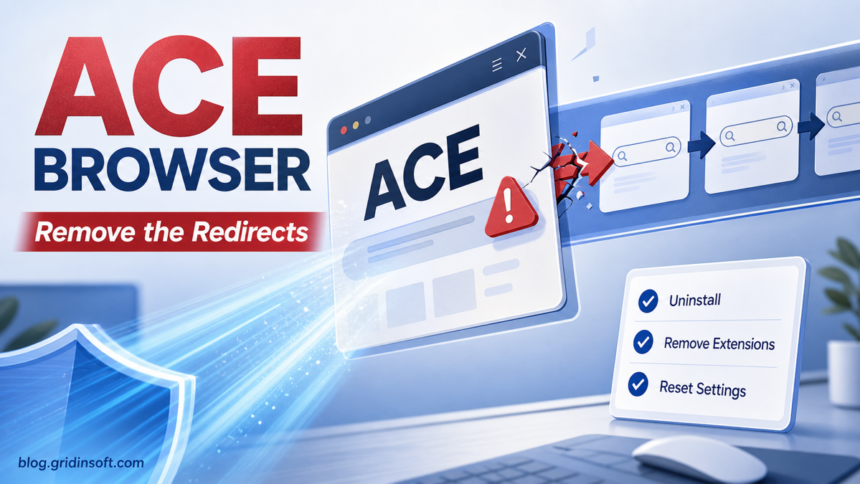
Before downloading Ace AI Browser, check the source and the installer’s identity. Remove an unwanted Ace install if it appeared after a quiz, download ad, bundle, or installer you did not trust. An intentional browser installation and an unexpected app changing your search or default browser call for different decisions. Start with the checks below; if redirects or extensions return after uninstalling, investigate the matching startup items and browser settings. This guide covers both current Ace Browser questions and older AceLauncher cleanup evidence, with their identities kept separate.
Quick check: should you remove Ace Browser?
- Remove it if Chrome, Edge, or Firefox started opening Ace, Yahoo, Bing-style sponsored results, or a new search page without a clear opt-in.
- Remove it if you see
Ace Browser,AceLauncher,AceSetup.exe, orAce Browser Shieldand you do not remember choosing it. - Scan the PC if the uninstall button fails, settings revert after reboot, or another app installed at the same time.
- Do not run random cleanup scripts from forums. Use Windows uninstall first, then check leftovers manually or with a trusted scanner.
| Items covered | Ace Browser and older AceLauncher reports; verify which product and installer you have |
| Most accurate label | Potentially unwanted browser or launcher when installed without clear consent |
| Common symptoms | Search redirect, changed default browser, desktop dock, startup entry, extension leftovers, settings returning after reboot |
| Gridinsoft detection context | Gridinsoft ThreatInfo records a specific AceSetup.exe sample as PUP.AceBrowser; compare the exact file identity |
| Best first action | Uninstall Ace, remove companion browser pieces, reset affected browsers, and scan for bundled PUA |
What is Ace Browser and AceLauncher?
The current ace.ai site calls its product Ace AI Browser and describes it as Chromium-based. Its safety page says it does not sell browsing data or train AI models on chats, and describes optional anonymous telemetry. These are the vendor’s claims, not findings from an independent test of the current installer.5 Its uninstall page gives separate Windows, Mac, and Chrome-extension instructions.1
AceLauncher is a separate identity to check. The acelauncher.com material describes a Windows desktop dock with a browser and names Sunstream Labs in its terms.23 Similar names and an AceSetup.exe filename do not establish that a current ace.ai package is the same product or version as an older AceLauncher sample. Apply the historical paths and behavior below only when they match the installed app.
Is the Ace installer safe to run?
- You deliberately chose ace.ai: use the vendor’s own download route, then inspect the file’s Properties → Digital Signatures and compare the publisher with current vendor information before running it. If the identity cannot be matched, leave it unopened and ask the vendor. A familiar filename, valid signature, expected path, or clean scan alone does not settle safety.
- A quiz, ad, or bundle supplied it: do not run the unexpected installer. If it already ran, check installed apps, browser defaults and extensions, then use the removal and recurrence checks below.
- Search changed or an extension says “managed”: identify the matching app, extension and policy rather than deleting arbitrary policy folders. A work or school device may be legitimately managed; ask its administrator before changing those controls.
The safety decision depends on how it got there and what changed afterward. A browser you intentionally installed, tested, and can remove cleanly is a different case from a browser that appeared after an IQ-test flow, download button, fake helper, or bundled installer. In the second case, treat it like a PUA or browser hijacker until you verify the installer and clean the related settings.
The same cleanup logic applies when Pulse Browser appears unexpectedly: remove the app first, then reset default browser and search settings so the unwanted browser does not keep returning.
For a domain-only search hijack without Ace Browser or AceLauncher installed, the Nextgeeker.com redirect cleanup guide focuses on extensions, search providers, browser policies, and notification permissions.
Why Ace redirects or search changes happen
AceLauncher’s own privacy page says its default search is powered by Yahoo and that search revenue helps keep the product free.2 That does not prove every install is malicious, but it explains why users notice a sudden search-provider change and think their browser was hijacked. The same page says the search provider can be changed in settings, while AceLauncher’s current terms document automatic updates, always-on behavior, Task Scheduler use, and Control Panel removal.3
An independent technical analysis documented the exact AceLauncher User Data\Default\History profile path, AppData folders, scheduled tasks, registry entries, and Browser Shield extension. Treat those as historical AceLauncher indicators when they match your installation, rather than identifiers for every current Ace AI download; do not run its broad wildcard cleanup script.4
Why a scan can show many Ace User Data detections
Ace is Chromium-based, so one browser profile is spread across databases, caches, extension folders, and state files. When many results share an Ace-owned root such as %LocalAppData%\AceLauncher\User Data or an abbreviated Ace\User Data path, the file count usually describes one parent browser cluster and its artifacts—not the same number of unrelated infections.
Group the results by their role before deleting anything:
- Parent app and matching components: use the publisher and install path to associate
Ace Browser,AceLauncher,AceLauncherAutoUpdate,AceLauncherDock,Ace Browser Shield, and startup or scheduled-task entries with the unwanted app. These names are checks, not a claim that every installation contains every component. - Supporting profile artifacts: names such as
History,Cookies,Web Data,Local State,Cache,Code Cache, andGPUCacheunder that same Ace root may be reported separately. They can contain traces of the browser session, but each generic filename is not automatically a separate malware family. - Separate co-detections: a result outside the Ace root, signed by another publisher, or carrying a different PUA, adware, loader, or Trojan family name needs its own check. Do not mark it resolved merely because Ace was uninstalled.
The path is part of the false-positive decision. If you intentionally installed Ace from its official source, the file is correctly signed, and no settings changed unexpectedly, review the exact path and detection before deciding what to keep. A generic cache or database name alone proves neither malware nor safety. If Ace arrived through a bundle or changed browser settings without clear consent, grouping explains how to clean it; it is not a reason to allow the whole profile.
- Preserve only what you need. Close Ace and export bookmarks before removal if you used it intentionally. Do not copy its extensions, cookies, executables, or saved-password database into another browser.
- Remove the parent components. Uninstall the unwanted Ace Browser or AceLauncher app you identified, then remove its matching extension, launcher, updater, and clearly matching startup or task entries.
- Delete only the Ace-owned leftover profile. After uninstalling and closing every Ace process, remove the remaining Ace or AceLauncher folder under your user profile. Do not delete Chrome or Edge’s entire
User Datafolder just because both browsers use similar filenames. - Reboot and rescan. If only the old Ace profile artifacts disappear and browser settings stay fixed, the grouped cleanup is complete. If a managed extension or policy returns, follow the extension persistence checks before deleting more profile files.
- Handle account risk separately. If you entered passwords or payment details in an unexpectedly installed Ace browser, finish the device scan first, then change those credentials from a clean browser and use the Windows security audit checklist to review sessions, startup items, and other compromise signs.
How to remove Ace Browser safely
For the current ace.ai product, the vendor says uninstalling the browser also removes its Chrome extension, but does not cancel a paid plan. If you subscribed, cancel the plan separately in Ace account settings. Check the actual result after uninstalling; returning extensions or redirects still need the recurrence checks below.1
- Disconnect from suspicious install pages. Close the quiz, download page, pop-up, or installer tab that led to Ace. Do not install a second “cleanup” utility from the same path.
- Uninstall from Windows. Open Settings → Apps → Installed apps, search for
Ace,Ace Browser, orAceLauncher, then choose Uninstall. Also check old Control Panel Programs and Features if the entry is missing. - End running Ace processes only if uninstall is blocked. In Task Manager, search for
Aceand close the browser or launcher process. Then retry uninstall. - Check startup and scheduled tasks. Open Task Manager → Startup apps, then Task Scheduler. Disable Ace-related entries only when the publisher/path clearly points to AceLauncher or the same install folder.
- Remove extension leftovers. In Chrome or Edge, open
chrome://extensionsoredge://extensions. RemoveAce Browser Shieldor any extension installed at the same time that you did not choose. - Reset default browser and search. Set your normal browser as default again. In each browser, review Search engine, On startup, New tab, and Site notifications.
- Check AppData leftovers. Look under
%LocalAppData%and%AppData%for Ace or AceLauncher folders after uninstall. Delete only clearly related leftover folders, not random system files. - Scan for bundled PUA. Run Gridinsoft Anti-Malware to catch companion installers, browser policies, adware, and startup entries that a normal uninstall may miss.
If Ace disappears after uninstall and browser settings stay fixed, manual cleanup may be enough. If redirects, managed policies, notification spam, or extensions return after reboot, scan for the app, task, or policy that keeps restoring them.
Use Gridinsoft Anti-Malware to check Windows for bundled unwanted programs and startup items that may bring the browser changes back. Review the scan results before removing anything.
6-day full trial for eligible new users, including cleanup. Email activation; no credit card.
Download Anti-Malware for WindowsWhen a scan matters more than manual uninstall
Manual uninstall is enough only when Ace disappears cleanly and browser settings stay fixed after reboot. Use a full scan when redirects return, the extension says it is managed by an organization, uninstall fails, or you also see unknown download managers, fake optimizers, coupon extensions, notification spam, or new shortcuts. Those symptoms point to a bundled PUA chain rather than a single browser app.
Gridinsoft’s ThreatInfo record for one AceSetup.exe sample lists PUP.AceBrowser, BrowseAI LLC publisher/signature metadata, and an 11 MB file observed on April 16, 2026. The verdict applies to that recorded file identity. Compare your file with the report before using it as evidence; a current download needs its own assessment.
Reset Chrome, Edge, or Firefox after removal
Do not reset the browser before you remove the program that is changing it. Otherwise the same launcher, extension, or policy can restore the redirect. After uninstall and scan, reset only the affected browser:
- Chrome: Settings → Reset settings → Restore settings to their original defaults.
- Edge: Settings → Reset settings → Restore settings to their default values.
- Firefox: Help → More troubleshooting information → Refresh Firefox.
If search still changes after the reset, use the broader browser redirect cleanup checklist to check policies, sync, shortcuts, and notification permissions. If the suspicious item behaves like a rogue browser rather than a search-only redirect, compare it with the Carbonate Browser and OneStart Browser cases.
How to avoid the same install path
- Download browsers only from the official site you intended to visit, not from quiz pages, fake update buttons, ad pop-ups, or “required helper” prompts.
- Use custom install mode and decline extra browsers, search assistants, docks, coupon tools, and “recommended” extensions.
- Do not grant admin approval to an installer unless the publisher and product match what you meant to install.
- Keep a restore point before testing unfamiliar browsers or launchers.
- After a surprise install, check accounts only if you entered passwords into the new browser or extension while it was active.
FAQ
Is Ace Browser a virus?
Not by default. The safer label is potentially unwanted when it arrives through bundling, changes search or browser defaults, or resists removal. Treat it seriously, but do not assume a full credential-stealing infection unless you see additional evidence.
Why does Ace Browser keep coming back?
Usually because a companion launcher, startup entry, scheduled task, browser extension, or policy is restoring it. Remove the installed app first, then check extensions, startup apps, Task Scheduler, and AppData folders.
Can I just delete AceSetup.exe?
Delete the installer after uninstalling, but do not rely on deleting the downloaded file alone. If Ace already ran, it may have installed a browser, launcher, extension, or startup entry elsewhere.
Should I change passwords after removing Ace Browser?
Change passwords if you typed sensitive credentials into Ace Browser, installed it from a suspicious download flow, or saw other malware symptoms. Use a clean browser session after scanning the PC.
References
- Ace Browser. “How to Uninstall Ace: Mac, Windows & the Chrome Extension.” Ace.ai, accessed September 29, 2026. https://ace.ai/how-to-uninstall
- AceLauncher. “Privacy & Security.” AceLauncher, accessed September 29, 2026. https://app.acelauncher.com/PrivacySecurity
- Sunstream Labs. “Terms of Service and License Agreement.” AceLauncher, updated December 16, 2025, accessed September 29, 2026. https://acelauncher.com/TermsAndConditions
- Alert Overload. “AceLauncher.” Alert Overload, December 15, 2025, accessed September 29, 2026. https://alertoverload.com/posts/2025/12/acelauncher/
- Ace Browser. “Is Ace browser safe? A straight answer from the Ace team.” Ace.ai, accessed September 29, 2026. https://www.ace.ai/safe-browser