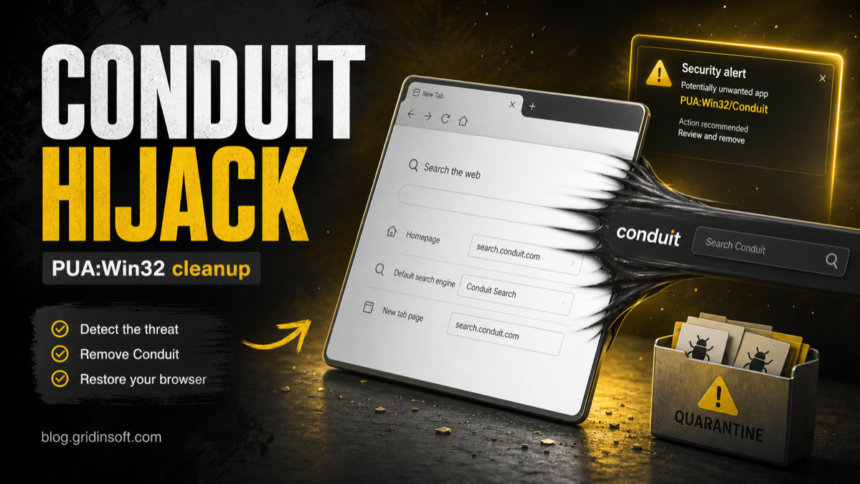
PUA:Win32/Conduit is a Microsoft Defender detection for Conduit/Search Protect unwanted software that can change browser search, homepage, new-tab, extensions, startup entries, and bundled programs. Keep the item quarantined first, check the affected path in Protection history, remove the source installer, then reset the browser changes that may remain after the file is gone. If the alert returns after reboot or the browser still redirects, treat it as a leftover bundle or persistence problem rather than a harmless old warning.
What should you do first?
- Do not restore or allow the detection unless you are testing a verified false positive in an isolated environment.
- Open the alert details and write down the affected item path before clearing Protection history.
- Delete the source package from Downloads, Temp, email attachments, crack/repack folders, or third-party download wrappers.
- Clean the browser separately if search, homepage, new-tab, notifications, shortcuts, or extensions changed.
- Scan for leftovers when the alert returns, the file ran, or several PUA names appeared at the same time.
| Detection | PUA:Win32/Conduit; related searches may show PUAAdvertising:Win32/Conduit |
| Likely category | Potentially unwanted application, adware, browser hijacker, bundled installer |
| Common visible signs | Search provider, homepage, new tab, toolbar, extension, startup, or browser policy changes |
| Cleanup lane | Quarantine the file, remove the installer, reset browser changes, check startup/tasks, scan for leftovers |
What is PUA:Win32/Conduit?
PUA:Win32/Conduit is not just a generic “virus name.” Microsoft documents Conduit as a potentially unwanted application connected to software bundling, startup files, drivers, process injection, browser injection, and browser setting changes. In practical terms, the alert often means a download wrapper or companion app tried to install Search Protect, Conduit Toolbar, Background Container, or another browser-changing component.
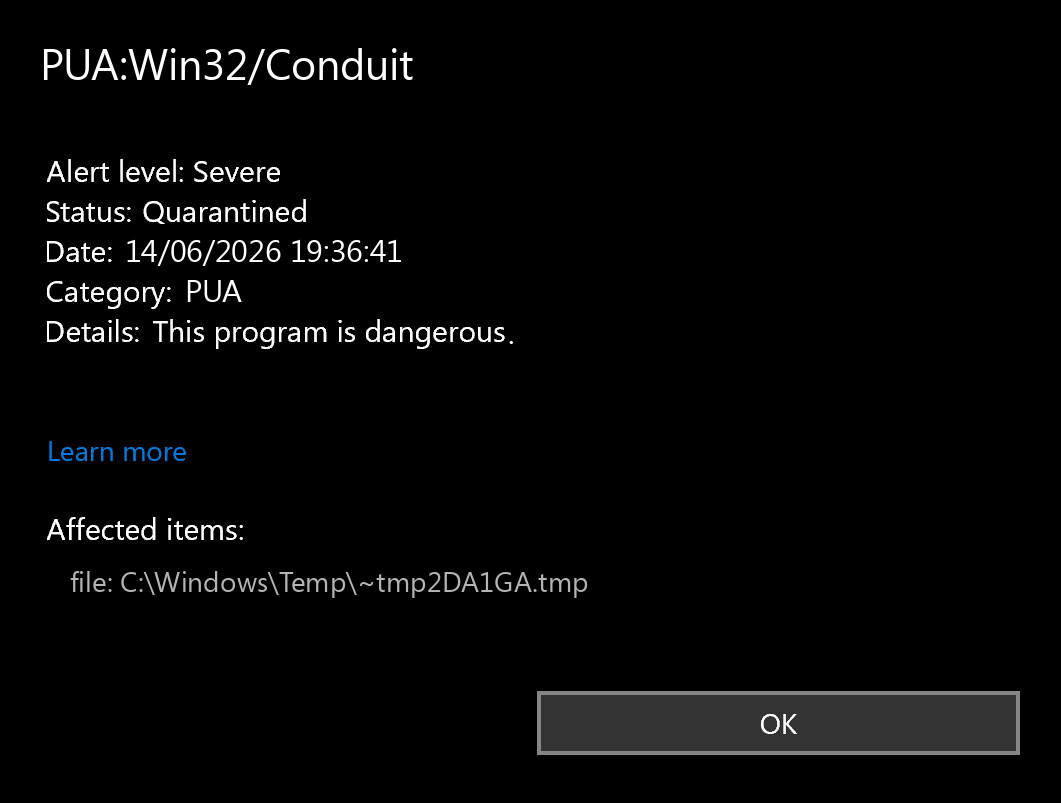
The safest decision depends on the path and source. A hit in %USERPROFILE%\Downloads, %TEMP%, an extracted archive, a fake update folder, or a crack/repack directory is much more suspicious than an old quarantined copy that never ran. Still, because Conduit is tied to browser changes, clearing the file alone may not undo homepage, search, new-tab, notification, or extension changes.
Why the old article was weak for search
The older version answered the detection name, but it did not fully match what searchers need when this alert appears: whether it is Conduit/Search Protect, why browser settings still change after quarantine, what to check in Protection history, and how to separate a blocked leftover from an active bundle. It also competed with broader Gridinsoft PUA pages instead of owning the exact Conduit cleanup lane.
The updated page now focuses on the exact detection and the repeat-alert/browser-hijack symptoms. The broader browser hijacker removal guide remains the general reference, while this page handles the Defender-specific Conduit decision.
How Conduit affects browsers
Conduit-related installers may change the default search provider, homepage, new-tab page, browser shortcuts, and extension list. Microsoft also notes behavior such as adding startup files, installing a driver, injecting into processes or browsers, and changing Chrome secure preferences. That is why a “Removed” or “Quarantined” status can be only the first step: the visible executable may be gone while a browser setting, extension, policy, updater, or bundled app remains.
| What you see | What to check next |
|---|---|
| Search opens through Conduit or another unknown provider | Default search engine, new-tab page, homepage, and browser extension list. |
| Pop-ups or redirects return after reboot | Startup Apps, Task Scheduler, installed programs, notification permissions, and updater services. |
| Browser says settings are managed | Browser policy entries created by a bundle or unwanted management component. |
| Defender keeps detecting the same name | Source archive, extracted installer, temporary folder, browser cache, or companion PUA still present. |
PUA:Win32/Conduit cleanup flow
Use this order so you do not erase the clue you need. The affected item path tells you whether Defender blocked a downloaded installer, a temp file, a browser component, or a persistent copy that can recreate the symptoms.
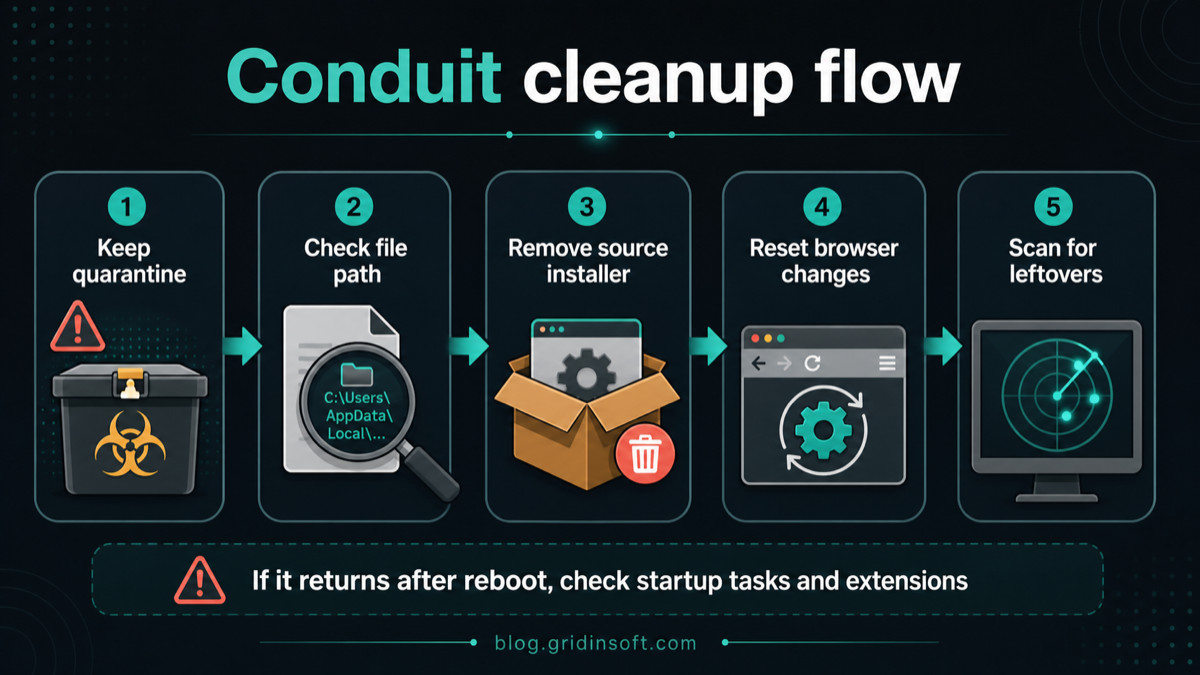
- Keep quarantine or remove the item. Do not click Allow on a normal home PC just to silence the warning.
- Record the affected path. In Windows Security, open Virus & threat protection → Protection history → the Conduit detection. Note whether it points to Downloads, Temp, a browser folder, an archive, or a program directory.
- Delete the original installer or archive. If the item came from
%USERPROFILE%\Downloads,%TEMP%, a torrent, crack, fake update page, or third-party download portal, remove the source package too. - Uninstall same-day suspicious apps. In Apps & features, sort by install date and remove unknown toolbars, download managers, converters, optimizers, or “Search Protect” style entries.
- Reset browser changes. Remove unknown extensions, reset default search/homepage/new-tab settings, check notification permissions, and review shortcuts for a URL after
.exe. - Check persistence points. Review Startup Apps and Task Scheduler for unfamiliar entries created around the detection time.
- Reboot and scan again. If Defender reports remediation incomplete or the same alert returns, assume a leftover task, extension, service, or bundled module is still present.
Manual browser cleanup after Conduit
Conduit is a browser-hijacker style PUA, so cleanup has to include browser state. If you only remove the file, the search provider or new-tab setting can keep pointing to an unwanted page.
- Chrome and Edge: remove unknown extensions, check Search engine, On startup, New tab behavior, Site settings → Notifications, and reset settings if redirects continue.
- Firefox: remove suspicious add-ons, check Home, Search, and Extensions, then refresh Firefox if settings keep reverting.
- Shortcuts: right-click browser shortcuts and make sure the target ends at the browser executable, not an added URL after
.exe. - Managed browser message: if the browser says it is managed on a personal PC, check for unwanted policy entries or a management component left by the bundle.
For a deeper browser-only walkthrough, use the Gridinsoft guide on resetting browser settings after hijacker pop-ups.
Could PUA:Win32/Conduit be a false positive?
It can be, but most home users should not start with the false-positive assumption. Consider a false-positive review only when the file came from an official vendor, is digitally signed by a vendor you trust, matches a known legitimate installer, and the browser did not change. Before restoring it, upload the file to the vendor or Microsoft for review and compare the hash with the official download.
Do not restore the item if it came from a third-party download site, fake update prompt, torrent, crack/repack folder, bundled converter, or message attachment. Those are exactly the distribution paths where PUA installers and adware wrappers are common.
When to scan for leftovers
Manual cleanup is good for visible symptoms: an extension, a homepage, a suspicious installer, or a changed search engine. It is weaker at proving that nothing is left behind. Defender can quarantine the visible Conduit component, but repeated alerts, post-reboot redirects, changed search settings, unknown extensions, or suspicious startup items suggest a bundle is still active.
| If you only clean by hand | What a Gridinsoft scan adds |
|---|---|
| You can remove the obvious browser extension or reset the homepage. | It checks for companion detections, bundled apps, hidden files, and browser changes across the system. |
| You can delete the installer you remember downloading. | It looks for startup entries, scheduled tasks, services, and persistence points that can bring the hijack back. |
| You can stop the visible redirect for now. | It helps confirm whether cleanup is actually finished before you sign back into browser sync or restore settings. |
If Conduit appeared after a download wrapper, fake update, crack/repack, or third-party installer, treat the Gridinsoft Anti-Malware scan as the verification step before you call the PC clean. The scan checks for detections, hidden files, startup entries, scheduled tasks, bundled apps, browser changes, and other persistence points that can restore the unwanted behavior.
If redirects, notifications, extensions, homepage changes, or managed policies return after browser cleanup, the source is often outside the browser: an installed app, policy, scheduled task, or startup entry.
Scan for Conduit leftoversIf Gridinsoft or Defender finds several PUA names in the same time window, clean them as one bundle. Related detections such as PUA:Win32/WebCompanion or PUA:Win32/Vigua.A can point to the same download-wrapper pattern, even when the names are different.
FAQ
Should I allow PUA:Win32/Conduit?
No, not on a normal PC. Keep it quarantined or removed unless you are testing a verified false positive in an isolated lab.
Why does PUA:Win32/Conduit come back after removal?
The source archive, extracted installer, browser cache, scheduled task, updater service, browser extension, or notification permission may still be present.
Is PUAAdvertising:Win32/Conduit the same problem?
It is a related Microsoft Defender naming lane for Conduit-style unwanted advertising or browser-changing behavior. The same cleanup logic applies: keep quarantine, check the path, remove the source package, reset browser changes, and scan if symptoms return.
Do I need to reinstall Windows?
Usually no if Defender blocked the file before it ran and browser settings can be reset. Consider deeper recovery only if the file executed, remediation is incomplete, startup entries keep returning, or suspicious network/system behavior continues.
References
- Microsoft Security Intelligence. “PUA:Win32/Conduit threat description.” Microsoft, published July 6, 2016, accessed June 14, 2026. https://www.microsoft.com/en-us/wdsi/threats/malware-encyclopedia-description?Name=PUA%3AWin32%2FConduit
- Microsoft Security Intelligence. “PUAAdvertising:Win32/Conduit threat description.” Microsoft, published October 11, 2021, accessed June 14, 2026. https://www.microsoft.com/en-us/wdsi/threats/malware-encyclopedia-description?Name=PUAAdvertising%3AWin32%2FConduit