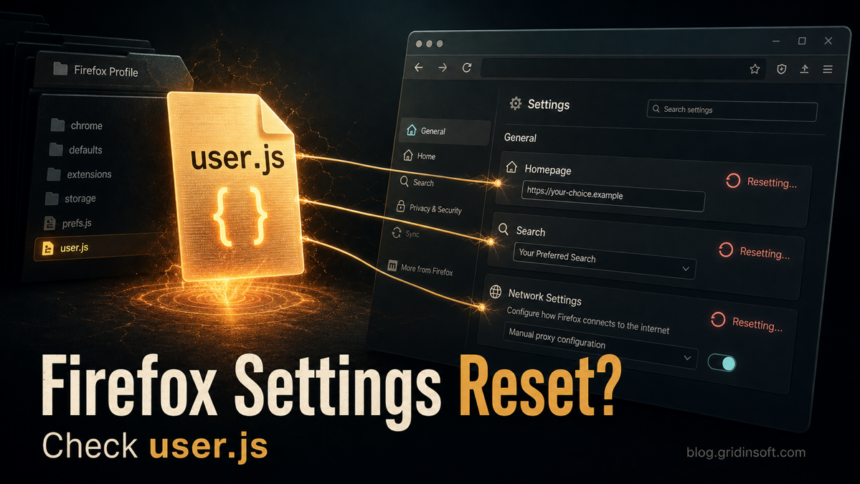
If Firefox keeps putting your homepage, search engine, proxy, privacy settings, or new-tab behavior back after every restart, check the profile for a user.js file before you keep resetting the browser. A user.js file can be legitimate in hardened Firefox setups, business deployments, or privacy templates, but it is suspicious when you did not create it and it restores unwanted settings after each launch.
The safe fix is not to delete everything in the profile blindly. Back up the profile, inspect user.js, remove only the unwanted preferences, reset the matching Firefox settings, and then check extensions, shortcuts, startup items, and recently installed apps if the file returns.
What user.js does in Firefox
Firefox stores most changed preferences in prefs.js. A separate user.js file is read from the Firefox profile and can apply preferences again when Firefox starts. That is why a setting changed in the normal Settings screen can appear to work during the session, then come back after a restart.
This mechanism is not automatically malicious. Privacy-hardening projects and administrators use user.js to keep a known configuration, and Mozilla support articles include user.js in preference troubleshooting guidance [1]. The risk starts when the file appears unexpectedly, contains unknown homepage/search/proxy rules, or reappears after you remove it.
Signs the file may be part of a hijack
- Your homepage, search engine, new-tab page, proxy, or privacy settings change back after closing and reopening Firefox.
about:configshows values that you did not set, especially homepage, search, network, proxy, extension, or tracking preferences.- A
user.jsfile exists in the active profile, but you do not use a hardening template, enterprise policy, or managed configuration. - The file includes unknown domains, search URLs, extension IDs, proxy hosts, or comments that look like installer leftovers.
- The same settings return after you rename the file, which suggests an extension, scheduled task, startup entry, or unwanted app is recreating it.
Do not treat every hardened configuration as an infection. If you installed a template such as arkenfox, Betterfox, a company policy package, or a managed browser setup, the file may be doing exactly what that setup promised. The decision depends on consent, source, and behavior.
Find the active Firefox profile
- Open Firefox and type
about:supportin the address bar. - Find Profile Folder and click Open Folder.
- Close Firefox before editing files in that folder.
- Look for
user.js,prefs.js, and numbered preference backups such asprefs-1.js.
On Windows, Firefox profiles are usually under %APPDATA%\Mozilla\Firefox\Profiles\. Do not assume the first folder is the active one if multiple profiles exist; use about:support to open the current profile.
Inspect user.js safely
Before deleting the file, copy it somewhere safe or rename it to user.js.bak. Then open it with Notepad or another plain text editor and search for suspicious values. These are common preferences to review:
browser.startup.homepagefor forced homepage changes.browser.search.defaultenginenameand search-related preferences for forced search providers.network.proxy.type,network.proxy.http, and related proxy settings.extensions.autoDisableScopes,xpinstall.signatures.required, or extension-related settings that weaken add-on controls.- Any unknown domain, IP address, extension ID, file path, or tracking URL.
If the file is a known hardening template from a source you intentionally installed, edit that template according to its documentation instead of deleting random lines. Some templates intentionally reset settings each time Firefox starts [3].
Remove unwanted user.js changes
- Close Firefox completely.
- Make a copy of the profile folder or at least copy
user.jsandprefs.js. - Rename suspicious
user.jstouser.js.bak. If you know exactly which lines are unwanted, remove only those lines instead. - Open Firefox, go to Settings, and set the homepage, search engine, proxy, privacy, and startup options again.
- If old values still remain, use Mozilla’s preference reset guidance or remove the matching custom values from
prefs.jswhile Firefox is closed [2]. - Restart Firefox and confirm that the settings stay changed.
Deleting user.js stops future forced writes, but it may not automatically reset every value that was already written into prefs.js. That is why some settings may need to be reset manually after the file is removed.
If user.js comes back
When user.js reappears after deletion or the same settings return after reboot, treat it as a broader browser-hijacker cleanup problem. Check these places:
- Firefox extensions: remove unknown add-ons and review anything installed around the same date the problem started.
- Windows apps: uninstall recently added search helpers, coupon tools, download managers, PC optimizers, and browser assistants you do not recognize.
- Startup and scheduled tasks: look for entries that run from
%APPDATA%,%LOCALAPPDATA%,%TEMP%, or a random vendor folder. - Shortcuts: right-click the Firefox shortcut and make sure the target ends with
firefox.exe, not an added URL or script. - Other browsers: if Chrome or Edge also changes homepage/search settings, clean the unwanted app first, not only Firefox.
If the file returns after manual cleanup, run a full Gridinsoft Anti-Malware scan and remove detections tied to browser policies, startup entries, scheduled tasks, bundled apps, or suspicious files. A browser reset can repair visible settings, but a recurring hijacker often has another component outside the Firefox profile.
Ask, APN, and PIP leftovers to check
Some Firefox hijack cleanups also leave Windows-side traces from older Ask/APN/PIP bundles. These traces do not prove that user.js itself is malicious, but they are worth checking when search settings return after Firefox cleanup or a scanner reports a PUP tied to Ask.
| Artifact | Why it matters |
|---|---|
HKCU\Software\APN PIP or HKCU\Software\PIP |
Often points to a bundled toolbar or search-helper remnant outside the Firefox profile. |
| Ask toolbar or Ask search-provider entries | Can explain why homepage/search settings come back after you reset Firefox. |
PUP.RPL.Ask.vl or similar PUP detections |
Use the detection as a clue to inspect installed apps, extensions, startup entries, and scheduled tasks before trusting a browser refresh. |
Remove only entries you can tie to the unwanted search/helper software or a current scanner detection. If you are unsure, export the registry key first, uninstall the related app from Windows, then clean Firefox and scan again to confirm the setting no longer returns.
If redirects, notifications, extensions, homepage changes, or managed policies return after browser cleanup, the source is often outside the browser: an installed app, policy, scheduled task, or startup entry.
Scan for Firefox hijack leftoversWhen to refresh Firefox instead
Use Firefox Refresh when you cannot isolate the broken preference file, when many settings are damaged, or when extensions and profile files are too tangled to repair one by one. A refresh keeps essential data such as bookmarks and passwords, but it removes add-ons and resets many preferences, so export or sync anything important first.
If a refresh fixes the problem only until the next reboot, the cause is probably outside the profile: an unwanted app, startup entry, scheduled task, extension installer, or managed policy is rebuilding the same behavior.
How to avoid breaking a legitimate setup
- Keep a backup before editing
user.jsorprefs.js. - Do not delete company-managed browser files on a work device without checking your administrator’s policy.
- If you use a hardening template, update or override it from the template’s official instructions, not from random forum snippets.
- Prefer removing unknown search/proxy/homepage lines over wiping the whole profile when your bookmarks and extensions matter.
- After cleanup, change passwords only if a suspicious extension, fake installer, phishing page, or unknown proxy may have exposed sessions or credentials.
Related cleanup guides
If the problem is broader than Firefox, use the browser hijacker removal guide for unwanted apps and policies. If settings were damaged by pop-ups or redirects, see how to reset browser settings after hijacker pop-ups. For add-ons that keep coming back, check the guide to removing suspicious browser extensions that reinstall themselves.
FAQ
Is Firefox user.js a virus?
No. user.js is a Firefox preference file. It becomes suspicious when it appears without your consent, forces unwanted domains or proxy settings, or is recreated by another unwanted program.
Why do Firefox settings change back after I restart?
A user.js file can reapply preferences when Firefox starts. Extensions, enterprise policies, unwanted apps, and damaged prefs.js files can also make settings appear to reset.
Can I just delete user.js?
You can rename or delete an unwanted user.js file after backing it up, but some values may remain in prefs.js. Reset the affected Firefox settings afterward and check whether the file returns.
Where is user.js on Windows?
Open about:support and use the Profile Folder button. The usual Windows base path is %APPDATA%\Mozilla\Firefox\Profiles\, but the active profile can vary.
Should I remove arkenfox or another hardening user.js?
Only remove it if you no longer want that configuration or it came from an untrusted source. If you intentionally installed a hardening template, read its documentation first because some changed behavior is expected.
What is HKCU\Software\APN PIP?
HKCU\Software\APN PIP is a Windows registry location associated with old APN/PIP toolbar or search-helper leftovers. Treat it as a browser-hijacker cleanup clue when it appears with Ask search changes, recurring Firefox settings, or a current PUP detection.
References
- Mozilla Support. “How to fix preferences that won’t save.” Mozilla, updated 2025, accessed June 24, 2026. https://support.mozilla.org/en-US/kb/how-to-fix-preferences-wont-save
- Mozilla Support. “Reset Firefox preferences to troubleshoot and fix problems.” Mozilla, updated November 24, 2024, accessed June 24, 2026. https://support.mozilla.org/en-US/kb/reset-preferences-fix-problems
- arkenfox project. “user.js: Firefox privacy, security and anti-tracking configuration.” GitHub, accessed June 24, 2026. https://github.com/arkenfox/user.js/