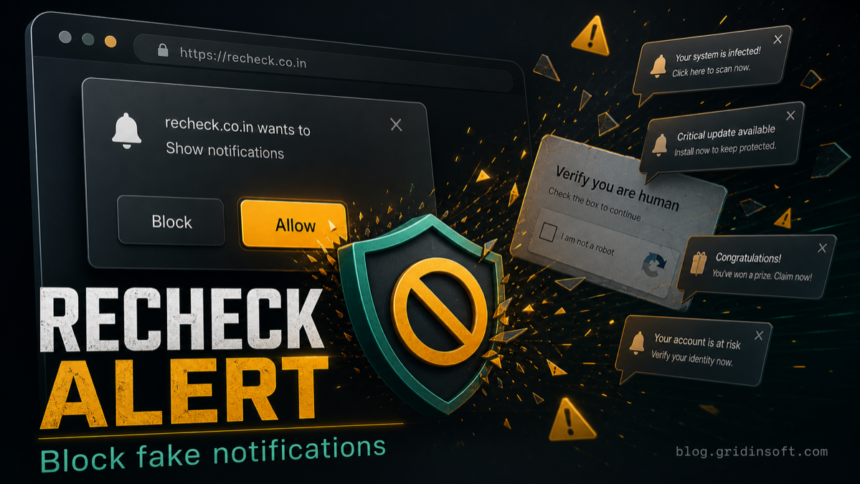
Recheck.co.in ads usually start after a site tricks the browser into allowing push notifications. The page may look like a CAPTCHA, video player, download gate, or security check, but the real goal is to get permission to send alerts. If Recheck.co.in is showing fake McAfee, Windows, or prize-style warnings, revoke the site’s notification permission first, then check extensions and installed apps if the alerts come back.
For the same notification abuse with a fake law-enforcement message, see the Police-center.vg fake police pop-up removal guide.
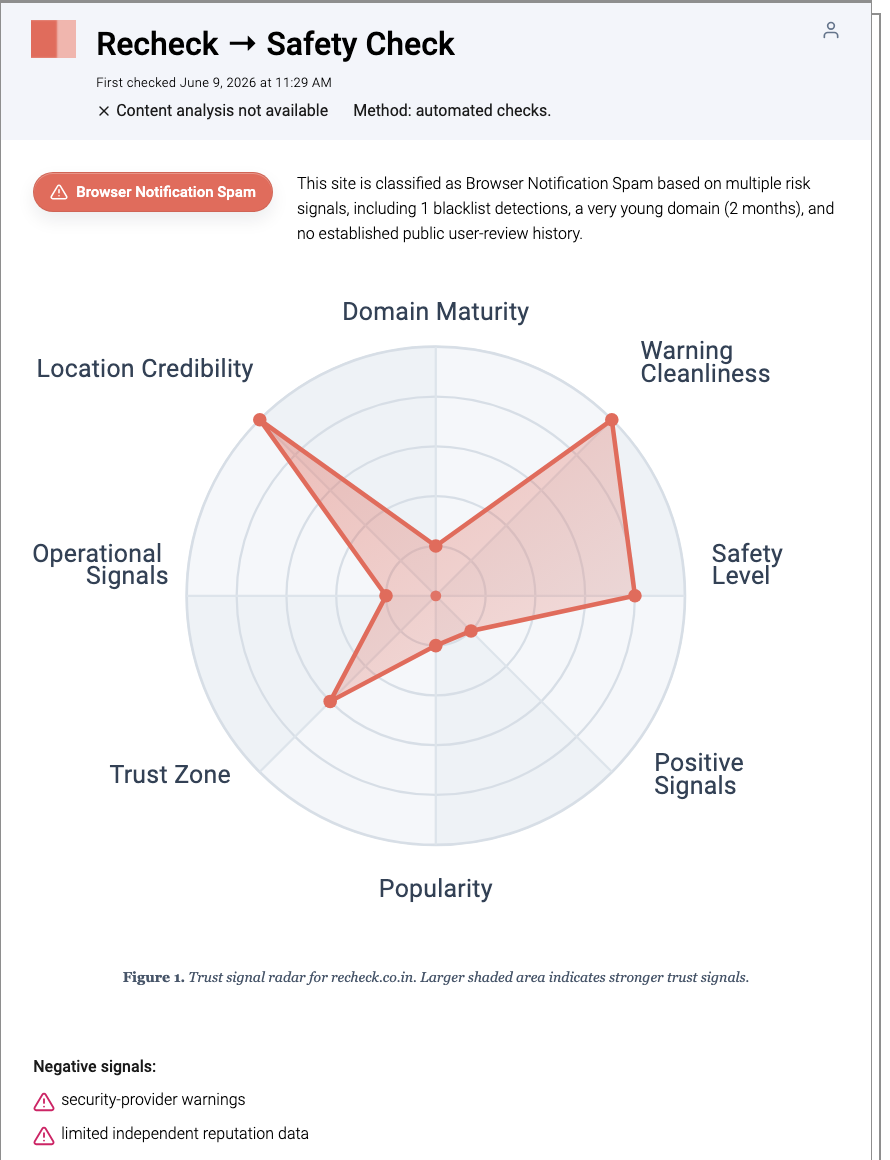
Gridinsoft’s Website Reputation Checker currently classifies Recheck.co.in as browser notification spam, with a low trust score and risk signals such as a young domain and blacklist detections. That does not mean every affected computer has a full malware infection, but it does mean the domain should not be allowed to keep sending notifications.
What is Recheck.co.in?
Recheck.co.in is a domain associated with unwanted browser notifications and pop-up ads. The common pattern is simple: a user lands on the site through a redirect, the page asks them to click Allow to prove they are not a robot, and the browser then gives the site permission to show notifications outside the tab.
Those notifications can look more serious than normal ads because they appear through the operating system notification area. Some messages claim that a subscription expired, a device is infected, or a security scan found threats. The goal is usually to push the user toward another scam page, questionable download, fake support flow, or affiliate offer.
Why Recheck.co.in notifications keep appearing
Most Recheck.co.in alerts are caused by a stored browser permission, not by the page being open in the background. Closing the tab is not enough because Chrome, Edge, Firefox, and other browsers can continue delivering notifications from sites that were previously allowed.
There are three common causes:
- Notification permission was allowed. The site is listed under the browser’s allowed notification senders.
- A redirect or adware source keeps bringing it back. A suspicious extension, search hijacker, or advertising script may open Recheck.co.in again.
- Another site is impersonating security software. Fake McAfee or Windows-style warnings are often web ads, not alerts from the real product.
Remove Recheck.co.in from browser notifications
Start with the browser where the alert appears. If you use more than one browser, check each one because notification permissions are stored separately.
Google Chrome
- Open Settings and go to Privacy and security.
- Open Site settings, then Notifications.
- Find recheck.co.in under allowed sites.
- Choose Remove or Block.
- Remove other unfamiliar notification senders from the same list.
Microsoft Edge
- Open Settings and select Cookies and site permissions.
- Open Notifications.
- Remove or block recheck.co.in.
- Review the remaining allowed sites for unfamiliar domains.
Mozilla Firefox
- Open Settings, then Privacy & Security.
- Find Permissions and click Settings next to Notifications.
- Select recheck.co.in and remove or block it.
- Save the changes and restart the browser.
If recheck.co.in keeps showing unwanted pop-ups, you likely granted it permission to send notifications. To stop them, you need to revoke that permission in your browser settings.
- Copy and paste this into the address bar:
chrome://settings/content/notifications - Scroll down to the Allowed to send notifications list.
- Find recheck.co.in.
- Click the three dots (...) next to it and select Remove (or Block).
- Open Safari and go to Settings (or Preferences).
- Click the Websites tab and select Notifications on the left.
- Find recheck.co.in in the list on the right.
- Select it and click Remove (or change "Allow" to "Deny").
- Copy and paste this into the address bar:
about:preferences#privacy - Scroll down to Permissions and click Settings... next to Notifications.
- Type recheck.co.in in the search bar or find it in the list.
- Select the site and click Remove Website.
- Copy and paste this into the address bar:
edge://settings/content/notifications - Look under the Allow section.
- Find recheck.co.in.
- Click the three dots (...) next to it and select Remove (or Block).
- Copy and paste this into the address bar:
brave://settings/content/notifications - Scroll to the Allowed to send notifications list.
- Find recheck.co.in.
- Click the three dots (...) and select Remove (or Block).
- Copy and paste this into the address bar:
opera://settings/content/notifications - Check the Allowed to send notifications list.
- Find recheck.co.in.
- Click the three dots next to it and select Remove.
Check extensions, search settings, and startup pages
If Recheck.co.in returns after notification permission is removed, look for the source of the redirect. Browser notification spam often travels with adware, a suspicious extension, or a hijacked search/startup setting.
- Remove extensions you do not recognize, especially recent “search”, “coupon”, “PDF”, “video”, “weather”, or “security” extensions.
- Check the default search engine and startup pages for unknown domains.
- Inspect browser shortcuts and remove any added web address after the browser executable path.
- On Windows, uninstall unfamiliar apps added around the time the pop-ups started.
- Check Scheduled Tasks if a browser opens by itself after reboot.
Do not install software from a Recheck.co.in notification or from a page it opens. If a notification says a security subscription expired, open the real vendor’s app or website manually instead of clicking the alert.
Scan the device if pop-ups continue
Recheck.co.in notifications alone do not prove that Windows is infected, but recurring redirects, new extensions that reinstall themselves, unknown apps, or browser tabs opening without user action are stronger signs of adware or a potentially unwanted app. In that case, run a security scan and remove the source, not just the notification permission.
Gridinsoft Anti-Malware can check for adware, browser hijackers, suspicious scheduled tasks, and unwanted startup entries that keep redirecting the browser. A scan is especially useful if several browsers are affected or if the pop-ups started after installing a free utility, game mod, cracked program, fake update, or browser extension.
After uninstalling the suspicious app or deleting the visible threat, use Gridinsoft Anti-Malware to check hidden files, startup entries, scheduled tasks, bundled apps, browser changes, and other persistence points that can restore malware.
Download Anti-MalwareWhat not to click
Treat Recheck.co.in alerts as untrusted. Do not click fake scan results, renewal warnings, “remove virus” buttons, prize claims, or download prompts shown through these notifications. Also avoid entering passwords, payment details, phone numbers, or remote-support codes on pages opened from the alert.
If you clicked a download and ran a file, disconnect from suspicious pages, keep any browser tabs closed, scan the system, and change passwords for important accounts from a clean browser session. If payment information was entered, contact the bank or card issuer and watch for unauthorized charges.
How to avoid similar notification spam
- Do not click Allow on pages that say it is required for CAPTCHA, video playback, file download, or age verification.
- Keep browser notification prompts blocked by default unless you intentionally use a trusted site.
- Install browser extensions only from trusted publishers and remove unused extensions regularly.
- Use a domain checker before interacting with unfamiliar sites that appear through redirects.
- Keep Windows and browsers updated so adware has fewer opportunities to abuse old settings.
FAQ
Is Recheck.co.in a virus?
Recheck.co.in is best treated as a browser notification spam domain. The alerts may be removed by revoking notification permission, but you should scan the device if redirects keep returning or unknown extensions are present.
Why do Recheck.co.in alerts mention McAfee or Windows?
Scam notifications often borrow familiar security-brand wording to make users panic. A real antivirus alert should appear inside the real security app, not from a random browser notification domain.
Will clearing browser history remove Recheck.co.in ads?
Usually no. Clearing history may remove visited-page records, but notification permissions are stored separately. Remove Recheck.co.in from the allowed notifications list.
Should I reset the browser?
Resetting the browser can help if redirects or unwanted extensions keep returning. First remove the notification permission and suspicious extensions; reset the browser if those steps do not stop the issue.
If another fake alert domain appears after Recheck.co.in, use the same permission-first workflow in our Google-cloudflare.cc fake notification cleanup guide.
References
- Google Chrome Help. “Change site settings permissions.” Google Help, accessed June 11, 2026. https://support.google.com/chrome/answer/114662
- Microsoft Support. “Manage website notifications in Microsoft Edge.” Microsoft, accessed June 11, 2026. https://support.microsoft.com/en-us/microsoft-edge/manage-website-notifications-in-microsoft-edge-0c555609-5bf2-479d-a59d-fb30a0b80b2b
- Mozilla Support. “Web Push notifications in Firefox.” Mozilla, accessed June 11, 2026. https://support.mozilla.org/en-US/kb/push-notifications-firefox