Planet Search is a real Chrome extension, but its current search-routing behavior is a good reason to remove it. The extension uses ID kadaohckdkghfaclhjmkmplebcdcnfnp and changes Chrome’s default search provider. A July 25, 2026 trace documented address-bar queries moving from planet-search.com through sstmaster.com to nextgeeker.com. That is search hijacking, even though it is not proof that Planet Search steals passwords or installs a trojan.
The practical fix is to confirm the extension ID, remove Planet Search, restore the search engine you chose, and test again. Check browser policy, sync, and Windows only when the extension is forced, returns after removal, or arrived with another unwanted app.
Planet Search verdict
- What it is: a Chrome Web Store extension that sets a custom default search provider.
- Exact ID:
kadaohckdkghfaclhjmkmplebcdcnfnp. - Current concern: a verified July 25 trace routed searches through two intermediaries to Nextgeeker.
- What is not established: password theft, credential access, file infection, or malicious behavior by every product from the publisher.
- Recommended action: remove the extension if you did not knowingly choose this routing or no longer want it controlling Chrome search.
What is the Planet Search Chrome extension?
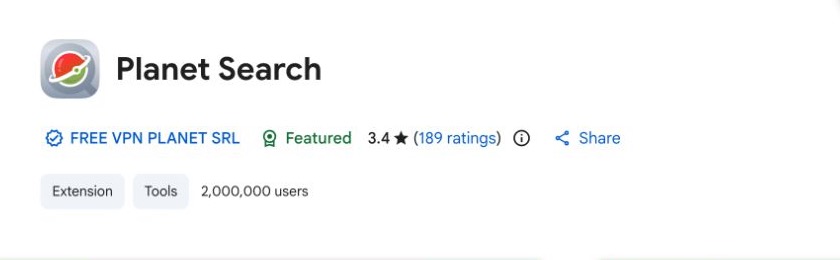
Planet Search is listed in the Chrome Web Store by FREE VPN PLANET SRL. At the time of this review, the listing shows version 2.0.1, a Featured badge, and about 2,000,000 users. The store description says installing the extension sets Chrome’s default search to the provider supplied by the service and that the final results come from Google.
Changing a search engine is not automatically malicious. Chrome supports extensions that control settings, and the store listing tells users that Planet Search changes the default provider. The concern is the difference between that broad disclosure and the route documented in current testing: the query does not go directly to Google. It passes through domains that are not visible in the listing’s short explanation.
A Featured badge or large install count should not replace a behavior check. The useful questions are whether you wanted the change, whether the route is clearly disclosed, and whether the extension returns after you remove it.
What the July 2026 redirect trace found
MalExt Sentry reported that Planet Search’s package used a manifest search-provider override rather than a busy background script. The researchers then traced a test query through this chain:
| Hop | Observed role |
planet-search.com/search/?q=... |
Search provider declared by the extension. |
sstmaster.com/edge/PN1021?q=... |
Intermediate redirect that received the query. |
nextgeeker.com/B151001.php |
Final redirect page before Google Custom Search results. |
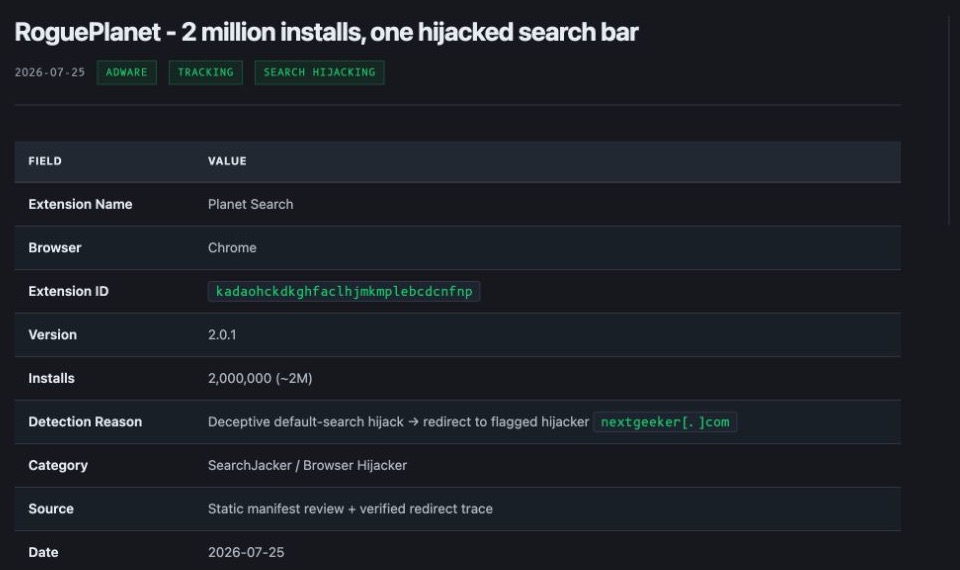
This evidence supports the label search hijacker: the extension controls the address-bar search and sends the query through intermediaries that users may not expect. It also creates a privacy concern because those domains receive the search string. The report did not establish how long they retain it, and this article does not claim that the extension reads saved passwords, cookies, or files.
If the visible destination is already Nextgeeker, use the detailed Nextgeeker.com redirect cleanup to check extensions, fake search entries, policies, and returning browser settings. The Planet Search page is the upstream extension decision; the Nextgeeker guide covers the broader exact-domain symptom.
The extension name alone is not enough to identify a malicious listing. In the 737-extension fake VPN campaign, attackers copied familiar brands, so compare the exact 32-character Chrome extension ID before deciding whether a browser was affected.
How to confirm you have the exact extension
- Open
chrome://extensionsin Chrome. - Turn on Developer mode in the upper-right corner.
- Find Planet Search and compare its ID with
kadaohckdkghfaclhjmkmplebcdcnfnp. - Open Details and note whether Chrome says the extension controls your search engine or was installed by an administrator.
- Do not remove a different extension just because its name contains “planet” or “search.” A 32-character ID is the safer identity check.
If the card says Installed by your administrator, pause before deleting registry keys or policies. On a work or school device, the setting may be legitimate. On a personal PC, record the extension ID and the entries shown at chrome://policy, then look for the app or script that created them.
How to remove Planet Search and restore Chrome search
- Remove Planet Search first. Open
chrome://extensions, select Remove on the exact extension, and confirm. - Restore the default provider. Open Chrome Settings, choose Search engine, and select the provider you actually want.
- Inspect search entries. Open
chrome://settings/searchEngines. Deactivate or delete unwanted entries that reference Planet Search,planet-search.com,sstmaster.com, Nextgeeker, or a provider name you did not choose. - Close and reopen Chrome. Run a harmless address-bar search and watch the address bar. It should go directly to the provider you selected, without flashing through the three documented domains.
- Reset only if settings remain damaged. Chrome’s reset can restore the search engine, startup pages, content settings, and disabled extensions, but it should come after the controlling extension or app is gone.
If a normal extension removal solves the problem and the extension stays gone after a reboot, you do not need to delete Chrome profile folders or run random policy-removal scripts. A broad reset can erase useful site settings while leaving a Windows-level restoring source untouched.
If Planet Search comes back
A returning extension usually means another source is restoring it. Pause Chrome sync temporarily, reboot, and compare what happens before and after signing back into the profile. Then check these branches in order:
- Sync: the extension returns only after Chrome account sync resumes.
- Policy:
chrome://policyshows an unexpected extension or search-provider rule on a personal computer. - Companion app: a recent PDF tool, downloader, VPN, coupon utility, “safe search” helper, or bundle installer appeared at the same time.
- Startup persistence: the redirect returns after reboot even with sync paused.
- Other browsers: Edge or Firefox also changes search, suggesting a Windows-level app rather than one Chrome profile.
The broader extension-keeps-returning checklist explains how sync, policies, scheduled tasks, startup entries, and companion apps restore unwanted add-ons. For multiple unknown redirects, use the browser hijacker removal guide instead of treating every domain as a separate infection.
Scan only when the symptoms justify it
Removing Planet Search is enough when you intentionally installed it, Chrome removes it normally, and searches stay fixed. A Windows scan becomes useful when the extension appeared without clear consent, removal is blocked, it returns after reboot, an unexpected policy forces it, or another browser/app is changing settings too.
In those cases, a full Gridinsoft Anti-Malware scan can check for bundled apps, hidden files, startup entries, scheduled tasks, browser changes, and persistence that may restore the extension. Quarantine confirmed detections, reboot, and test Chrome again with sync still paused.
Do you need to change passwords?
The documented Planet Search behavior exposes search queries to redirect intermediaries; it does not by itself prove saved-password or session-cookie theft. Removing the extension is the primary action.
Change important passwords from a clean device only if you also find stronger account-risk evidence: an unknown extension with broad all-site permissions, suspicious sign-ins, altered recovery details, unexpected session prompts, or a downloaded app that ran. Start with email and the account used for browser sync, then revoke unfamiliar sessions. Do not tell every Planet Search user that their passwords are stolen without that additional evidence.
What not to assume
- The Chrome Web Store listing does not prove that every observed redirect is safe.
- The current redirect trace does not prove credential theft or a file-based trojan.
- The exact Planet Search finding should not be applied automatically to Planet VPN or other extensions from the same publisher.
- An unexpected policy on a personal PC deserves investigation, but policies on managed work or school devices can be legitimate.
- Deleting the visible extension repeatedly will not help if sync, an app, or a policy keeps restoring it.
FAQ
Is Planet Search a virus?
The current evidence supports calling Planet Search a search hijacker because it controls the default provider and routes queries through undisclosed intermediaries. That is not the same as proving a file-infecting virus, credential stealer, or trojan.
Why is Planet Search Featured in the Chrome Web Store?
The listing currently carries a Featured badge and shows a large user count. Those store signals do not replace checking what an extension changes or where it sends searches. Remove it if you do not accept the documented routing.
Why does Nextgeeker appear after I remove Planet Search?
Another search entry, extension, synced setting, browser policy, or companion app may still be redirecting queries. Inspect chrome://settings/searchEngines, pause sync, check chrome://policy on a personal PC, and scan if the behavior returns after reboot.
Can I keep Planet Search and just change the default search engine?
Chrome may show that the extension controls this setting. If you want a different provider and do not want the intermediary route, remove Planet Search first, then choose the preferred search engine in Chrome Settings.
References
- Chrome Web Store. “Planet Search.” Google, version 2.0.1, updated December 19, 2024, accessed July 25, 2026. https://chromewebstore.google.com/detail/planet-search/kadaohckdkghfaclhjmkmplebcdcnfnp
- MalExt Sentry. “RoguePlanet — 2 million installs, one hijacked search bar.” MalExt Sentry, July 25, 2026, accessed July 25, 2026. https://malext.io/reports/RoguePlanet/
- Chrome Web Store Help. “Manage extensions that change your settings.” Google, accessed July 25, 2026. https://support.google.com/chrome_webstore/answer/6029416