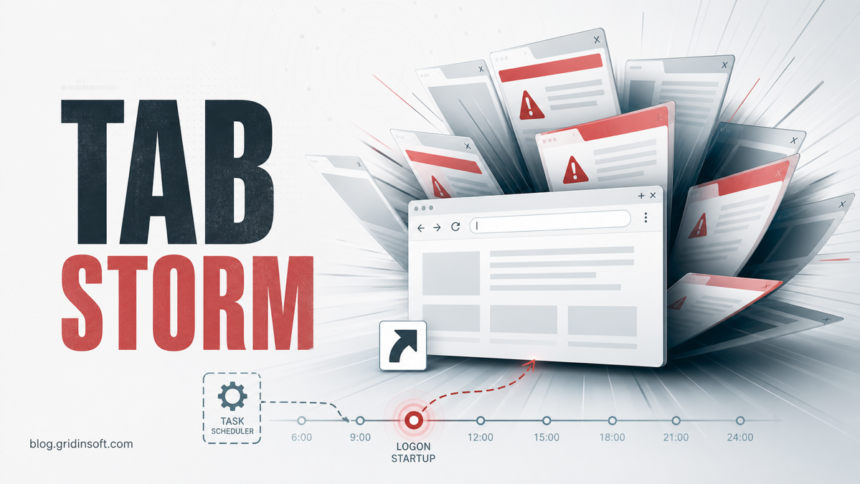
If your browser opens multiple tabs by itself, do not start by reinstalling Chrome, Edge, or Firefox. First find the trigger. A browser can open extra tabs because of a normal startup setting, a saved session, site pop-ups, notification permissions, sync, a bad extension, a modified shortcut, a scheduled task, or adware running in Windows. The fix depends on when the tabs appear.
If extra tabs pass through a specific search, homepage, or notification domain, use the exact guide for the domain: Sogou and 123.sogou.com redirects, Viewmenuprices.com, Searchtoggler.com, Greatstartapp.com, or Police-center.vg fake police notifications, or Firefox.vg fake Firefox notifications.
If the extra tabs or searches pass through earthapp.net or earth3d.net, use the Earthapp.net and Earth3d.net redirect removal guide for the exact extension and search-setting checks.
When the unwanted tab or search briefly passes through under-cover.info, follow the under-cover.info redirect cleanup guide to remove Nautilus Notes, PerfecTab, and related extension settings.
When the unwanted tab specifically flashes newtab.art, use the Newtab.art redirect cleanup guide for the exact-domain extension, policy, shortcut, and startup checks.
When the unwanted tab or search briefly opens pdftools.store or ipqcr.pdftools.store, start with the PDFTools redirect cleanup guide before doing a broad browser reset.
If searches pass through mobility-search.com or mobilisearch.com before landing on Yahoo or Bing, use the Mobility-search.com redirect cleanup guide for the Site Search, sync, and policy checks that generic tab cleanup can miss.
When the unwanted tabs stop opening but Chrome still feels slow, the Chrome performance cleanup guide explains how to finish with Memory Saver, extension review, cache cleanup, and a malware scan.
Treat it as suspicious when the tabs lead to fake virus alerts, adult or streaming redirects, betting pages, unknown search engines, browser update prompts, login pages you did not request, or the same site after every reboot. That pattern is often a browser hijacker, notification-spam permission, unwanted app, or persistence task rather than a harmless browser preference.
For the exact case where the browser jumps into Chrome search settings and adds Travel-now.cc or its subdomains as the search provider, follow the Travel-now.cc removal guide before doing a full browser rebuild.
Find the trigger first
Open a note and write down exactly when the tabs appear. This prevents you from resetting the wrong thing and missing the source that keeps bringing the tabs back.
- Only when you launch the browser: Startup pages, session restore, profile sync, browser shortcut target, or a startup task.
- When you click anywhere on one site: Pop-ups and redirects allowed for that site, malvertising scripts, or deceptive page overlays.
- Even when the browser was closed: Windows Startup Apps, Task Scheduler, services, or adware launching the browser with a URL.
- After you sign back into the profile: Sync restoring settings, extensions, homepage, search engine, or site permissions.
- Across Chrome, Edge, and Firefox: A Windows-level app, proxy/DNS change, scheduled task, or bundled PUA.
- After deleting an extension: A companion app, browser policy, or sync source reinstalling it.
Start with normal browser settings
Some tab storms are not malware. Chrome, Edge, and Firefox can restore previous sessions, open a defined startup page, or let trusted sites use pop-ups. Check the simple settings before assuming a system infection.
- Check startup behavior. In Chrome and Edge, look for startup pages that open a group of URLs. In Firefox, check whether it restores previous windows and tabs. Remove unknown pages and test with one blank new-tab start.
- Review pop-ups and redirects. Chrome documents a dedicated Pop-ups and redirects site setting, and notes that continuing pop-ups can also come from notifications or malware [1]. Edge has a similar pop-up control [2], while Firefox blocks pop-ups by default and lets you remove exceptions [3].
- Revoke notification permissions. A site notification can look like a system alert and lead you into new browser tabs when clicked. Remove unknown sites from notification permissions, especially pages that used “Allow to continue”, “Allow to watch”, or fake CAPTCHA wording.
- Disable suspicious extensions. Turn off recently installed shopping helpers, downloaders, video tools, PDF tools, “search” extensions, VPN/proxy extensions, and anything with all-sites access that you do not recognize. If the extension returns after removal, use the Gridinsoft guide for a browser extension that keeps reinstalling itself.
- Test a clean profile without sync. Pause sync, open a temporary local browser profile, and browse without extensions. If the tab problem disappears, your old profile, sync data, extension set, or site permissions are part of the cause.
If unwanted tabs return after a browser reset
If the same advertising, fake-alert, or download tabs return after a reset, do not keep resetting the browser. A reset changes browser settings; it does not remove a Windows app or task that opens a website. Google also recommends checking for unwanted programs before resetting Chrome [1]. Normal session restore and tabs that open only after an intentional click still belong to the settings checks above.
For recurring unwanted tabs on Windows, use Gridinsoft Anti-Malware to check for adware, bundled apps, and persistence that may recreate the browser changes. You do not need to work through every manual task or registry check before taking this route.
- Download and install Gridinsoft Anti-Malware from the official download below. Close the unwanted pages without accepting their notifications, updates, or downloads.
- Update the malware database and run a Full Scan. Review the detected items, apply cleanup to the threats you select, and restart Windows when prompted.
- Repeat the original trigger before restoring everything. Keep sync paused and extensions disabled for the first test. Reopen the browser, restart Windows, or wait through the usual recurrence interval, depending on when the unwanted tabs appeared.
- Compare what happens when you restore trusted settings. If the problem returns only after sync or a particular extension is enabled, leave that source off and use the extension-reinstallation guide above. If tabs return before sync is enabled, or the browser launches itself again after restart, use the targeted Windows checks below. Record the time, destination domain, and any new detection for follow-up.
If redirects, notifications, extensions, homepage changes, or managed policies return after browser cleanup, the source is often outside the browser: an installed app, policy, scheduled task, or startup entry.
Download for WindowsA clean scan alone does not explain every unwanted tab. If the same symptom remains, keep the scan report and investigate its trigger rather than repeatedly reinstalling the browser. On a work or school device, let the administrator handle managed policies.
Optional Windows checks if tabs still return
If tabs open after reboot, when the browser is closed, or across several browsers, move from browser settings to Windows persistence. The goal is to find what launches the browser with a URL.
- Browser shortcuts: right-click the browser shortcut, open Properties, and inspect the Target field. It should end with the browser executable, not with an extra URL after the closing quote.
- Startup Apps: disable unknown entries that appeared near the first unwanted tabs. Pay attention to random names, “update” helpers, or items launched from AppData, ProgramData, Temp, or Downloads.
- Task Scheduler: look for tasks that run at logon, on idle, or every few minutes and launch
chrome.exe,msedge.exe,firefox.exe,powershell.exe,cmd.exe,wscript.exe, ormshta.exewith a URL. If the entry iscmd.exe /c startplus a website, use the CMD startup website hijack cleanup guide. - Firefox profile files: if the tabs or homepage come back only in Firefox, inspect
user.jshijack settings before reinstalling the browser. - Installed apps by date: uninstall unknown ad blockers, media downloaders, coupon tools, cracked-software helpers, fake browser updates, search utilities, or “web protect” apps installed just before the symptom started.
- Proxy, DNS, and Secure DNS: reset unknown proxy settings and remove DNS providers you did not choose. If several devices on the same network redirect, also check the router DNS settings.
- Browser policies: on a personal PC, unexpected “Managed by your organization” policies can force extensions, startup pages, or search settings; if that is the clue you see, follow the Managed by your organization cleanup guide before resetting the browser. On a work or school PC, ask the administrator before removing policies.
For a broader cleanup order across extensions, policies, apps, startup items, and browser settings, use Gridinsoft’s PUA and browser hijacker removal guide. If the problem is mostly notification spam, the focused guide on disabling browser push notifications is usually faster.
When to scan for malware or adware
Run a full security scan when the browser opens unknown tabs after every reboot, the tabs point to fake alerts or downloads, the issue affects multiple browsers, a suspicious installer ran recently, or you find a startup task/shortcut that launches a URL. If the repeated request names api.rainbowblocker.com, remove the extension and follow the Rainbow Blocker cleanup guide before signing back into browser sync. Keep Microsoft Defender enabled and follow the Gridinsoft Anti-Malware Full Scan, cleanup, restart, and recurrence test above.
When Malwarebytes specifically identifies exo-api.tf and lists the normal-path msedge.exe process as the application, use the exo-api.tf Edge alert cleanup guide to separate the requesting browser process from the extension, notification, policy, app, or Windows task that caused the connection.
If you already clicked a fake update, installed a suggested player/extension, allowed exclusions, or signed into accounts while the tab storm was active, clean the device first. Then change important passwords from a clean device and sign out of suspicious sessions for email, banking, social media, work, gaming, and password-manager accounts.
If the symptom is a recurring Google CAPTCHA rather than tabs opening themselves, use the Google unusual traffic browser, device, and network tests. A shared-IP challenge alone is not evidence of adware.
What not to do
- Do not keep clicking through the tabs to “see where they go.” Redirect chains can lead to fake updates, phishing, and drive-by downloads.
- Do not reinstall the browser before checking sync, shortcuts, startup tasks, and installed apps. Reinstalling often keeps the same profile problem.
- Do not add browser or antivirus exclusions for a page or file that a pop-up tells you to trust.
- Do not install random “tab remover” or “adware cleaner” tools from the same redirect path. That can add another unwanted program.
When the repeated tabs started after 360 software or a new Chromium-style browser appeared, check the uninstall and startup steps in the 360 Extreme Browser removal guide as part of the same browser-cleanup pass.
If the tab storm started after a movie-streaming page, first compare the symptoms with the free movie streaming scam cleanup guide, then follow the cleanup and recurrence test above.
FAQ
Is a browser opening multiple tabs by itself always a virus?
No. It can be a startup/session setting, pop-up permission, notification permission, extension, or sync issue. Treat it as possible adware or a hijacker when the tabs are unknown, repeat after cleanup, open after reboot, or lead to fake alerts and downloads.
Why does Chrome open tabs even after I reset it?
The restoring source may be outside the visible Chrome settings. For recurring unwanted tabs on Windows, follow the cleanup and restart test above before resetting again. A return only after sync or an extension is enabled points toward that profile source; a return before that calls for the optional shortcut, startup, task, app, or policy checks.
Can a website open tabs if pop-ups are blocked?
Some pop-ups are tied to clicks, site exceptions, notifications, deceptive overlays, or browser-specific behavior. Remove site exceptions and notification permissions for unknown sites, then scan the PC if tabs still appear without a clear click.
Should I change passwords after unwanted tabs opened?
Change passwords if you installed anything, entered credentials, allowed a suspicious extension, or saw signs of account access. Clean the PC first so new passwords are not typed into a still-compromised browser.
If the extra tabs point to Google-cloudflare.cc or a similar fake notification domain, follow the exact-domain cleanup in our Google-cloudflare.cc fake browser notification guide.
If one of the unwanted tabs points to Hosting-explorer.cc, use the exact-domain steps in our Hosting-explorer.cc pop-up removal guide before doing a full browser reset.
If the extra tabs or alerts point to Fileshare.vg, remove the notification permission and follow the persistence checks in our Fileshare.vg browser notification cleanup.
If the extra tabs or alerts point to Flowtracker.vg, remove the notification permission and follow the persistence checks in our Flowtracker.vg browser redirect cleanup.
If the extra tabs begin with address-bar searches that pass through Search-crown.com, use our Search-crown.com cleanup checklist before resetting every browser profile.
References
- Google Chrome Help. “Remove unwanted ads, pop-ups and malware.” Google, accessed June 5, 2026. https://support.google.com/chrome/answer/2765944
- Microsoft Support. “Block pop-ups in Microsoft Edge.” Microsoft, accessed June 5, 2026. https://support.microsoft.com/en-us/microsoft-edge/block-pop-ups-in-microsoft-edge-1d8ba4f8-f385-9a0b-e944-aa47339b6bb5
- Mozilla Support. “Pop-up blocker settings, exceptions and troubleshooting.” Mozilla, accessed June 5, 2026. https://support.mozilla.org/en-US/kb/pop-blocker-settings-exceptions-troubleshooting
If the extra tabs or notifications point to Matrixgrowthforge.com, revoke the permission and follow the extension, policy, and startup checks in our Matrixgrowthforge.com ads cleanup guide.
If the sender is Ellinfituns.com, use the Ellinfituns.com ads cleanup guide before doing a full browser reset.
If the extra tabs point to Homesearchtab.com, follow the exact-domain steps in our Homesearchtab.com startup redirect removal guide before doing a full browser-profile reset.