
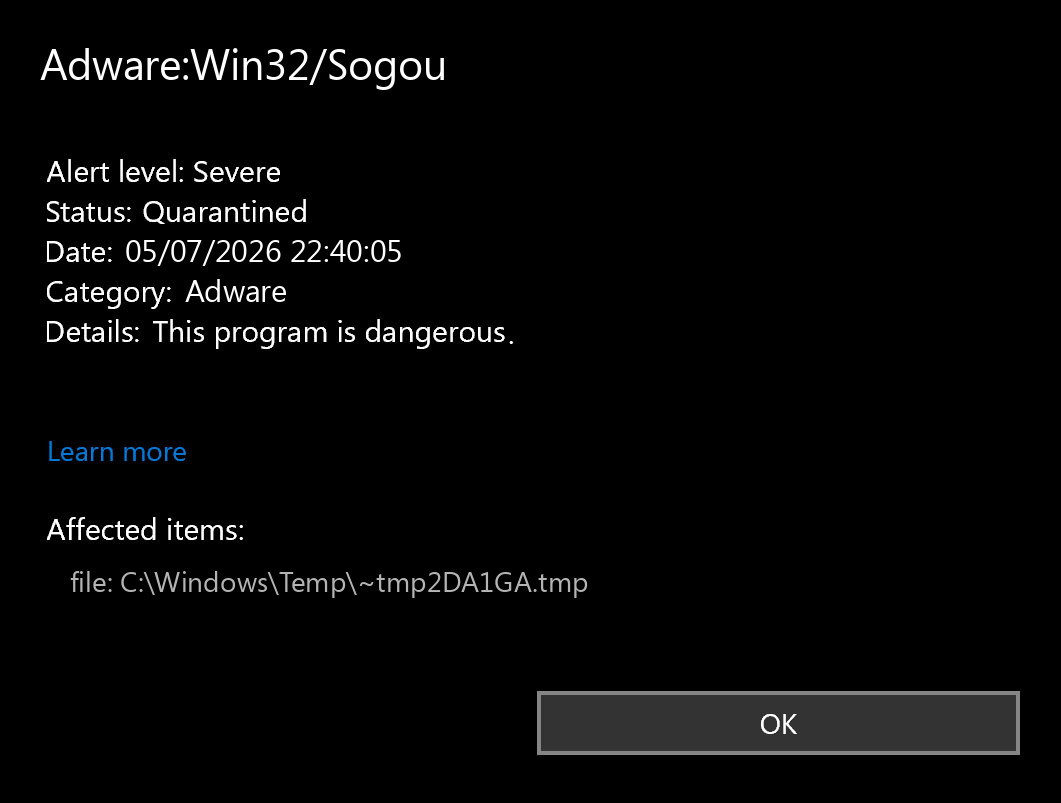
Adware:Win32/Sogou is a Microsoft Defender detection for adware that can show unwanted ads while you browse and may change browser behavior. If you see this alert, or if searches suddenly pass through sogou.com or 123.sogou.com, keep the detection quarantined, remove the app or extension that introduced it, reset browser search/startup settings, and scan Windows for leftovers if the alert or redirects return.
Sogou is also a real Chinese search, browser, and input-method brand, so the name alone is not enough to judge every file. The safety question is how it arrived, what it changed, and whether a security tool is naming Adware:Win32/Sogou, PUA:Win32/Sogou, or similar adware behavior. Do not whitelist the item just because the word Sogou looks familiar.
What Is Adware:Win32/Sogou?
Microsoft Security Intelligence describes Adware:Win32/Sogou as an adware program detected by Microsoft Defender Antivirus. Microsoft says the threat can display ads that users cannot control while browsing and lists older technical traces such as %CommonProgramFiles%\pushware\cpush.dll, %CommonProgramFiles%\pushware\uninst.exe, and Internet Explorer browser-helper-object registry changes [1]. A newer related Microsoft entry, PUA:Win32/Sogou!pz, is classified as a potentially unwanted app that can cause unexpected behavior such as added files, changed settings, slow performance, freezing, or reduced storage space [2].
In practical cleanup terms, treat Sogou adware as an unwanted browser and Windows persistence problem. The visible symptom may be a search redirect, pop-up ads, a Sogou-named program, a Sogou browser component, or a security-tool alert. The real fix is to remove the source and then check whether a browser extension, notification permission, startup item, policy, or leftover file is restoring it.
Common Symptoms
| What you see | What it usually means |
|---|---|
| Microsoft Defender reports Adware:Win32/Sogou or PUA:Win32/Sogou | Keep it quarantined and check the affected item path before allowing or deleting anything manually. |
Searches open through sogou.com, 123.sogou.com, or an unfamiliar search page |
A browser search setting, extension, shortcut, or policy may have been changed. |
| Pop-ups, banner ads, coupons, or fake prize pages appear outside normal websites | An adware component may be injecting ads or launching browser windows. |
| The default search engine, homepage, or startup page changes again after reset | Browser sync, a forced policy, scheduled task, startup app, or companion program may be restoring it. |
| A Sogou or PushWare-looking entry appears after installing free software | The issue may have arrived through a bundled installer. Remove the bundle and scan for co-installed PUA. |
Is Sogou Always Malware?
No. A Sogou input method, browser, or search component can be intentionally installed, especially on systems used for Chinese-language typing or Chinese web services. But a legitimate brand can still be involved in an unwanted installation or be detected when a component behaves like adware. Use the situation, source, and behavior to decide.
| Situation | Risk and next step |
|---|---|
| You intentionally installed a Sogou input method from a known source and there are no alerts or browser changes | It may be legitimate. Keep it updated and remove it normally if you no longer use it. |
| Sogou appeared after a free installer, cracked app, driver tool, or download manager | Treat it as unwanted. Uninstall the related app and scan for bundled components. |
| Defender or another security tool names Adware:Win32/Sogou | Do not restore the item without checking the path, source, signature, and behavior. |
| Browser search or startup settings return after reset | Look for a restoring extension, policy, startup task, or synced profile setting before resetting again. |
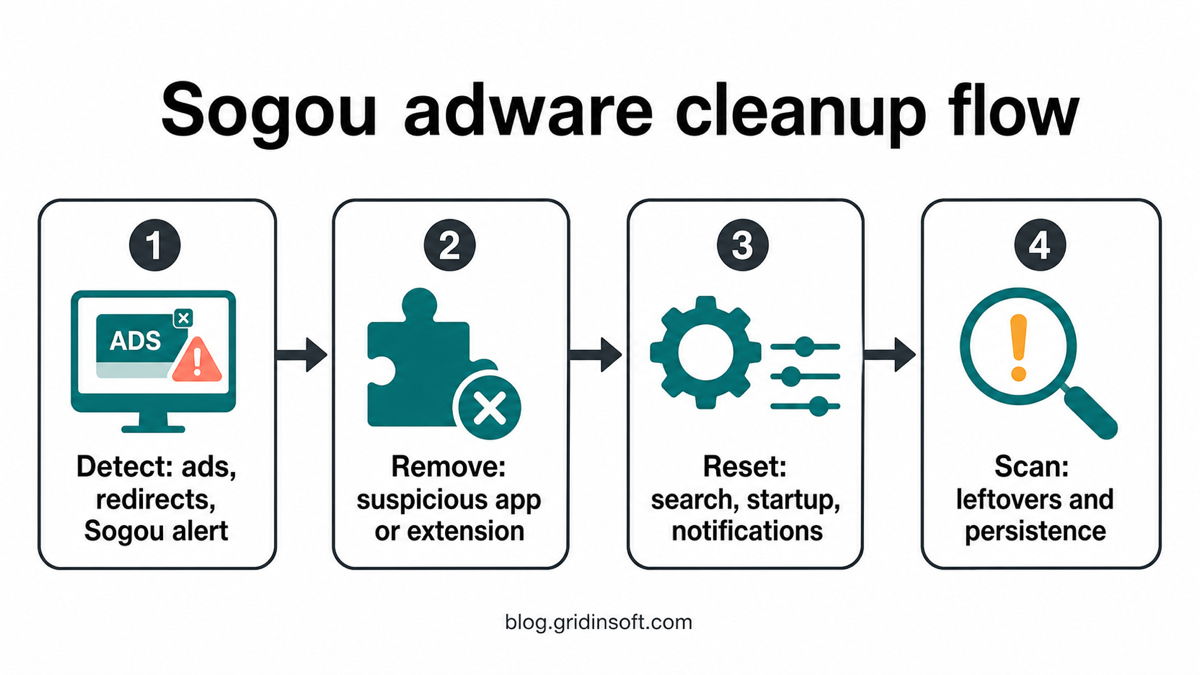
Sogou Adware Cleanup Flow
Use the cleanup order below so you do not remove the visible browser setting while leaving the restoring component behind.
1. Remove Suspicious Sogou Or Bundle Entries
Start with Windows installed apps. Open Settings > Apps > Installed apps, sort by install date, and look for Sogou, Sogou Explorer, Sogou Search, PushWare, unfamiliar download managers, search helpers, driver updaters, coupon tools, video tools, or software installed around the same time the ads started.
- Uninstall the suspicious app through Windows first. Do not just delete the folder.
- If the uninstaller is in Chinese and you are unsure, pause before clicking through random dialogs. Use the app name, install date, and publisher to confirm what you are removing.
- After uninstalling, reboot once and check whether the alert or redirect returns.
- If Windows cannot remove the program or it immediately comes back, continue with browser and startup checks before deciding the machine is clean.
If you see Sogou adware or other suspicious applications that you don't remember installing, you should remove them as well.
- Right-click the Start button and select Installed Apps (or Apps & Features).
- Scroll through the list to find Sogou adware or any other unfamiliar program.
- Click the three dots (...) next to it and select Uninstall.
- Open Finder and go to the Applications folder.
- Locate Sogou adware or any app you don't recognize.
- Drag it to the Trash.
- Empty the trash to remove it permanently.
- Go to Settings > Apps > See all apps.
- Find Sogou adware or any suspicious app in the list.
- Tap on it and select Uninstall.
2. Remove Browser Extensions And Search Changes
Many Sogou redirect cases feel like a browser problem because the visible symptom is a search or homepage change. Chrome’s own help notes that Windows or Mac applications can install Chrome extensions, and Chrome lets users remove extensions from the Manage extensions page [3]. Check every browser you use, not only the one that opened the alert.
- Open Chrome, Edge, Firefox, or the affected browser’s extensions page.
- Disable suspicious search helpers, coupon tools, shopping assistants, PDF/video helpers, or Sogou-named add-ons.
- Run a few searches from the address bar. If the redirect stops, remove the extension.
- Open browser settings and restore the default search engine, startup page, homepage, and new-tab behavior.
- Remove unwanted notification permissions if the adware also shows fake alerts or prize pop-ups.
- Launch Chrome.
- Click the three dots (...) in the top right corner.
- Select Extensions > Manage Extensions.
- Click Remove next to the extension you want to delete.
Quick Access: Type chrome://extensions/ in the address bar.
- Open Safari.
- In the menu bar, click Safari and select Settings (or Preferences).
- Click on the Extensions tab.
- Select the extension and click Uninstall.
- Click the menu button, select Add-ons and themes.
- Go to the Extensions tab.
- Click the three dots (...) next to the extension and select Remove.
Quick Access: Type about:addons in the address bar.
- Launch Microsoft Edge.
- Click the three dots (...) in the top right corner.
- Select Extensions.
- Find the extension and click Remove.
Quick Access: Type edge://extensions/ in the address bar.
- Launch Brave browser.
- Click the menu icon > Extensions.
- Find the extension and click Remove.
Quick Access: Type brave://extensions/ in the address bar.
- Launch Opera.
- Click the Opera logo in the top left corner.
- Select Extensions > Extensions.
- Click the X or Remove button next to the extension.
Quick Access: Type opera://extensions/ in the address bar.
Open Extensions/Add-ons again and remove any entry linked to Sogou adware or clearly out of place.
If an extension returns after you remove it, treat that as a persistence problem. Our guide for an extension that keeps reinstalling itself explains how browser sync, policies, scheduled tasks, and companion apps can bring the same add-on back.
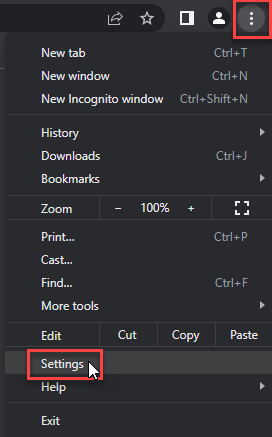
- Tap on the three dots (...) in the top right corner and Choose Settings.
- Choose Reset and Clean up and Restore settings to their original defaults.
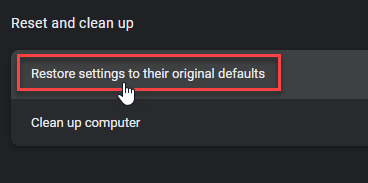
- Tap Reset settings.
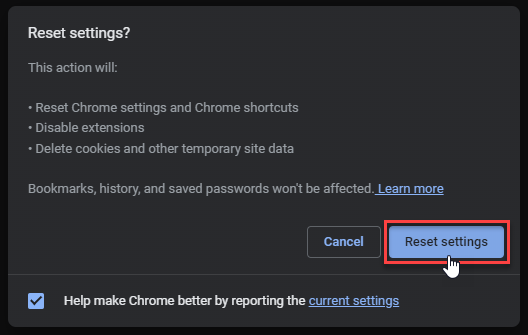
Quick Access: Type chrome://settings/reset in the address bar.
- Open Safari.
- In the menu bar, click Safari > Clear History.
- Select all history and click Clear History.
- Go to Safari > Settings (or Preferences).
- Click the Privacy tab and select Manage Website Data... > Remove All.
- In the Advanced tab, check Show features for web developers.
- In the menu bar, select Develop > Empty Caches.
- Launch Brave browser.
- Click the menu icon in the top right corner and select Settings.
- Click Additional settings > Reset settings.
- Tap Restore settings to their original defaults.
- Confirm by clicking Reset settings.
Quick Access: Type brave://settings/reset in the address bar.
- In the upper right corner tap the three-line icon and Choose Help.
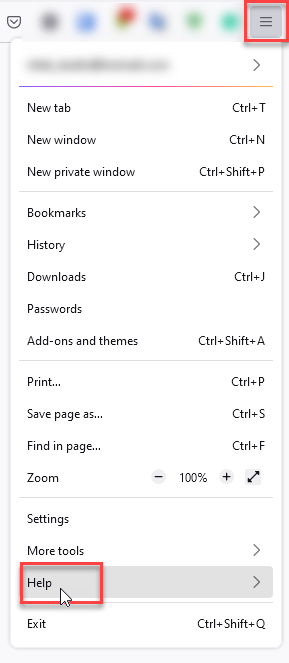
- Choose More Troubleshooting Information.
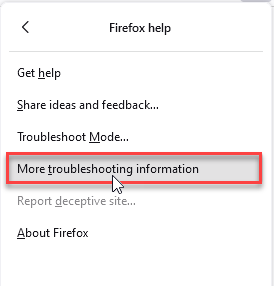
- Choose Refresh Firefox... then Refresh Firefox.
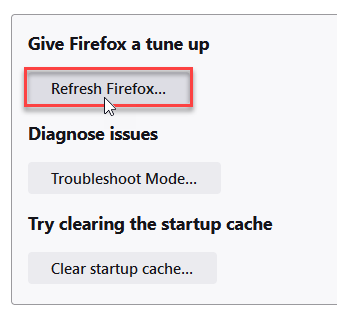
Quick Access: Type about:support and click Refresh Firefox.
- Tap the three dots.
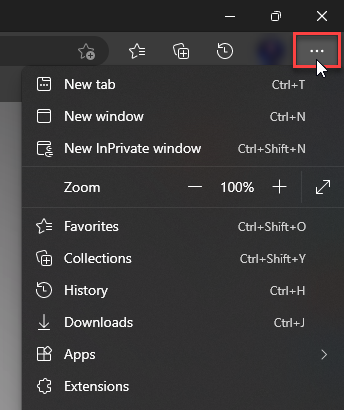
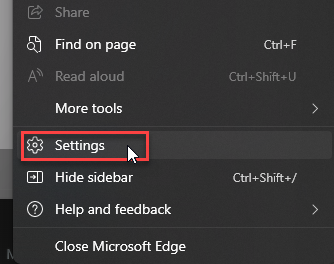
- Choose Settings.
- Tap Reset Settings, then Click Restore settings to their default values.
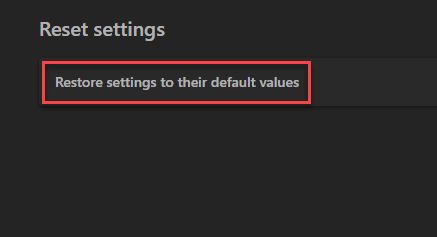
Quick Access: Type edge://settings/reset in the address bar.
- Launch the Opera browser.
- Click the Opera menu button in the top left corner and select Settings.
- Scroll down to the Advanced section in the left sidebar and click Reset and clean up.
- Click Restore settings to their original defaults.
- Click Reset settings to confirm.
Quick Access: Type opera://settings/reset in the address bar.
After reset, verify that Sogou adware is no longer set as your default search engine or homepage.
3. Check Startup, Policies, Shortcuts, And Notifications
Resetting the browser is not enough if something outside the browser keeps restoring Sogou settings. Check these places before you call the cleanup finished:
- Startup apps: disable unknown entries created around the same date.
- Task Scheduler: look for tasks that launch a browser, updater, script, or file from
AppData,Temp,ProgramData, or Downloads. - Browser shortcuts: right-click the shortcut and make sure no Sogou URL appears after the browser executable path.
- Chrome and Edge policies: open
chrome://policyoredge://policy. On a personal PC, unknown search-provider or forced-extension policies are suspicious. - Notification permissions: remove unfamiliar allowed sites, especially if ads appear as Windows-style notifications.
If Chrome or Edge says the browser is managed on a personal computer, use our Managed by Your Organization cleanup guide before resetting the browser again. If the symptom is many tabs opening by themselves, compare it with the browser opens multiple tabs checklist.
If Sogou adware keeps showing unwanted pop-ups, you likely granted it permission to send notifications. To stop them, you need to revoke that permission in your browser settings.
- Copy and paste this into the address bar:
chrome://settings/content/notifications - Scroll down to the Allowed to send notifications list.
- Find Sogou adware.
- Click the three dots (...) next to it and select Remove (or Block).
- Open Safari and go to Settings (or Preferences).
- Click the Websites tab and select Notifications on the left.
- Find Sogou adware in the list on the right.
- Select it and click Remove (or change "Allow" to "Deny").
- Copy and paste this into the address bar:
about:preferences#privacy - Scroll down to Permissions and click Settings... next to Notifications.
- Type Sogou adware in the search bar or find it in the list.
- Select the site and click Remove Website.
- Copy and paste this into the address bar:
edge://settings/content/notifications - Look under the Allow section.
- Find Sogou adware.
- Click the three dots (...) next to it and select Remove (or Block).
- Copy and paste this into the address bar:
brave://settings/content/notifications - Scroll to the Allowed to send notifications list.
- Find Sogou adware.
- Click the three dots (...) and select Remove (or Block).
- Copy and paste this into the address bar:
opera://settings/content/notifications - Check the Allowed to send notifications list.
- Find Sogou adware.
- Click the three dots next to it and select Remove.
4. Scan For Adware Leftovers And Persistence
Manual cleanup can remove the visible app and browser setting, but adware often leaves behind a launcher, browser helper, scheduled task, startup entry, notification permission, or bundled component that restores the problem. A full Gridinsoft Anti-Malware scan is useful when Adware:Win32/Sogou returns after reboot, the browser keeps redirecting, the affected item is under a user-writable folder, or the issue followed a bundled installer.
Run the scan, remove detections, reboot, and scan again if symptoms return. Gridinsoft Anti-Malware can check for unwanted apps, adware files, browser changes, startup entries, scheduled tasks, and persistence. It cannot prove a computer was never exposed, and it cannot undo account theft if credentials were entered on a bad page, but it can help clear the local infection path that keeps ads and redirects alive.
A separate Sogou incident involves DarkVigil delivery through a hijacked icon-configuration request. That Windows compromise requires an update and a compromise check; it is distinct from the Adware:Win32/Sogou detection name.
If The Alert Keeps Coming Back
A recurring Sogou alert usually means one of three things: the original bundle is still installed, the browser setting is being restored, or a startup/policy entry keeps relaunching the component. Before restoring anything from quarantine, capture the detection name, path, source app, publisher, and install date.
- If the affected file is under
%CommonProgramFiles%\pushware\, an unknown app folder,AppData,Temp, or Downloads, keep it quarantined and scan for the launcher. - If the path belongs to an intentionally installed Sogou input method or browser, remove or update that program from its official source before allowing the file.
- If browser search changes return on more than one device, pause browser sync and clean each signed-in browser profile.
- If you are convinced the file is legitimate, collect the hash, source URL, digital signature, and detection name before using our false-positive reporting checklist.
What Not To Do
- Do not restore Adware:Win32/Sogou from quarantine just because Sogou is a known brand.
- Do not install random “Sogou remover” tools from search results.
- Do not delete browser profile folders before exporting bookmarks and checking sync.
- Do not ignore changed search settings if the same PC also shows fake alerts, pop-ups, or new extensions.
- Do not sign in to banking, email, or admin accounts from a browser that is still redirecting through unknown pages.
How To Avoid Sogou-Style Adware Again
- Download apps from official sources and avoid repacked installers, cracks, fake codec prompts, and driver bundles.
- Choose custom installation and decline optional search tools, browser helpers, and notification prompts.
- Review browser extension permissions before enabling an add-on installed by a desktop app.
- Keep browser sync paused while cleaning a redirect that appears on multiple devices.
- Use our broader PUA and browser hijacker removal guide if other redirect domains appear after Sogou is gone.
- For background on the category, see what adware is and how it spreads.
FAQ
Is Adware:Win32/Sogou dangerous?
It should be treated as unwanted and potentially risky. Microsoft classifies Adware:Win32/Sogou as adware that shows ads users cannot control, and unexpected browser changes can expose you to scams, fake updates, or more unwanted downloads.
Is Sogou itself a virus?
No, the Sogou name can refer to real software and services. The warning sign is an unexpected install, a security-tool detection, browser search changes, pop-ups, or a component that returns after removal.
Why does Sogou come back after I reset Chrome?
A restoring extension, browser sync, forced policy, startup task, shortcut, or companion app may still be active. Remove the restoring source first, then reset the browser.
Should I remove Sogou Pinyin or another Sogou input method?
If you intentionally installed it from a trusted source and there are no alerts or browser changes, it may be legitimate. If Defender names it, it arrived through a bundle, or you do not use it, remove it normally and scan for leftovers.
Can Gridinsoft Anti-Malware remove Sogou adware?
Gridinsoft Anti-Malware can help detect and remove adware files, unwanted apps, browser changes, startup entries, scheduled tasks, and related persistence. You should still review browser sync, passwords, and accounts separately if a redirect led to a suspicious login page.
References
- Microsoft Security Intelligence. “Adware:Win32/Sogou.” Microsoft, published October 6, 2015, updated September 15, 2017, accessed July 5, 2026. https://www.microsoft.com/en-us/wdsi/threats/malware-encyclopedia-description?Name=Adware%3AWin32%2FSogou
- Microsoft Security Intelligence. “PUA:Win32/Sogou!pz.” Microsoft, published September 15, 2023, accessed July 5, 2026. https://www.microsoft.com/en-us/wdsi/threats/malware-encyclopedia-description?Name=PUA%3AWin32%2FSogou%21pz&threatId=407434
- Google Chrome Web Store Help. “Install and manage extensions.” Google, accessed July 5, 2026. https://support.google.com/chrome_webstore/answer/2664769