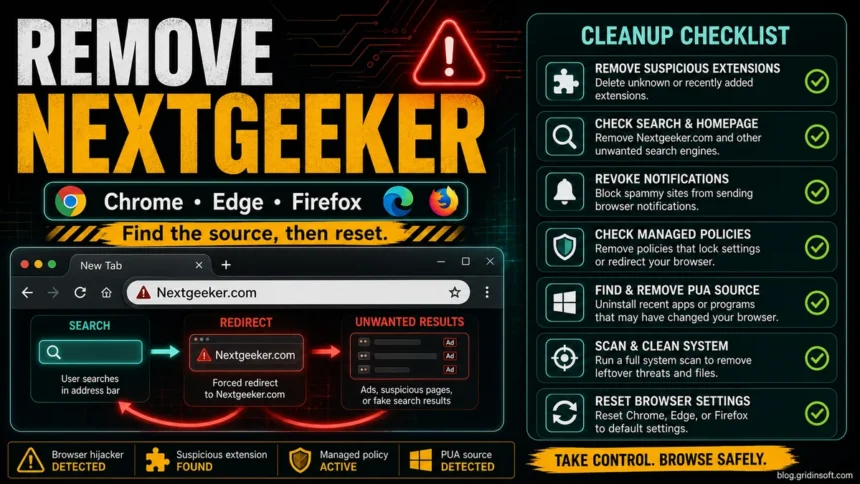
Nextgeeker.com redirects can come back when an unwanted extension, app, or synced setting restores them. If Chrome, Edge, or Firefox keeps sending searches through Nextgeeker.com or Direct App Search, repeatedly resetting the browser may leave the source in place.
On Windows, start with a Gridinsoft Anti-Malware scan when redirects return or appeared after an unfamiliar app was installed. Review and clean detected adware or unwanted programs, then restore your search settings. Browser permissions, sync, and legitimate work policies may still need the specific checks below; a scanner does not replace every browser-setting change.
Gridinsoft Anti-Malware can scan Windows for adware and unwanted programs that may restore the redirect. Review the results and clean detected items, then check the affected browser settings.
Free 6-day full trial for eligible new users, including cleanup. Email activation; no credit card required.
Download Gridinsoft Anti-Malware for WindowsQuick check: what should you do first?
- Remove it if searches, new tabs, or the homepage started opening Nextgeeker.com without a clear opt-in.
- Check extensions if the browser says the search engine is controlled by an extension, an extension icon appeared near the address bar, or the setting keeps switching back.
- Check search-engine entries if the redirect chain mentions Direct App Search, Yahoo-style results, betting pages, adult ads, or another provider you did not choose.
- Compare exact redirect names if the search page changes between Nextgeeker.com, Search1.me, or another fake provider; the Search1.me redirect guide covers the same extension, policy, and reset order for that domain.
- Check policies if Chrome or Edge says it is managed by an organization on a personal computer.
- Start a Gridinsoft Anti-Malware scan on Windows if the redirect returns after reset, unknown apps appeared recently, security tools are blocked, or another browser starts redirecting too. Review detections and apply cleanup before resetting again.
| Item | Nextgeeker.com redirect |
| Most accurate label | Unwanted search redirect or browser hijacker symptom |
| Common symptoms | Address-bar searches reroute through Nextgeeker.com, Direct App Search, Yahoo-style results, betting/adult ad pages, changed homepage/new tab, unknown extension, “Managed by your organization” message, settings that return after reset |
| Gridinsoft signal | Gridinsoft’s URL reputation report for Nextgeeker.com currently shows a blacklist warning and 26/100 trust score. |
| Best first action | Pause sync, remove the extension or app that changed the browser, check policies, scan for bundled PUA, then reset the affected browser. |
Symptoms users usually report
Nextgeeker.com cases often look confusing because the visible browser setting may still say Google, Bing, or another normal search engine. The clue is the redirect path and whether the change returns after you remove it.
| Symptom | Likely source | First check |
| Search jumps through Direct App Search, Nextgeeker.com, then Yahoo-style results | Fake search provider or search helper extension | Inspect the full search-engine URL, not only the display name |
| Chrome or Edge says it is managed on a home PC | Browser policy created by an app, script, or installer | Open chrome://policy or edge://policy and note search, startup, or extension rules |
| Extension disappears, returns, or is hard to remove | Sync restore, companion Windows app, startup task, or policy | Pause sync, sort Windows apps by install date, then compare extension IDs |
| Reset works for a short time, then Nextgeeker.com comes back | The source was not removed before reset | Uninstall recent apps and scan Windows before resetting again |
| Security sites, installers, or other browsers behave strangely | Broader PUA or malware persistence | Run a full system scan before signing back into browser sync |
What is the Nextgeeker.com redirect?
Nextgeeker.com behaves like a search-redirect page. In real user cases, the browser may still look normal until the person types a query in the address bar. Instead of going directly to the chosen search provider, the request passes through Nextgeeker.com or returns results the user did not choose.
This usually points to one of three sources: a browser extension, a recently installed Windows app, or a managed browser policy that changed search settings. The right fix is to remove the source, not only change the visible homepage.
One current upstream example is the Planet Search Chrome extension: its exact ID and July 2026 redirect trace show how an address-bar provider can route queries through intermediaries before Nextgeeker appears.
Why Nextgeeker.com can keep coming back
A search hijacker often survives a simple reset because more than one setting is involved. A suspicious extension can reapply the search provider. A companion app can reinstall the extension. Browser sync can restore it to another device. A policy can lock the setting so the normal browser UI cannot remove it.
Before deleting anything, separate personal and managed devices. On a work or school computer, browser policies can be legitimate; Google and Microsoft both document browser policy systems for managed environments.45 On a home PC, unexpected chrome://policy or edge://policy entries that set search, homepage, or extension rules are a red flag.
If reset did not fix it, map the source before deleting profiles. Open chrome://policy or edge://policy, note any policy that forces a search provider, startup URL, or extension install, then open chrome://extensions with Developer mode enabled and compare extension IDs. If the same ID or fake search provider returns after reboot, treat it as Windows-level persistence: uninstall recent apps, check startup items, and scan for bundled PUA instead of repeatedly resetting the browser.
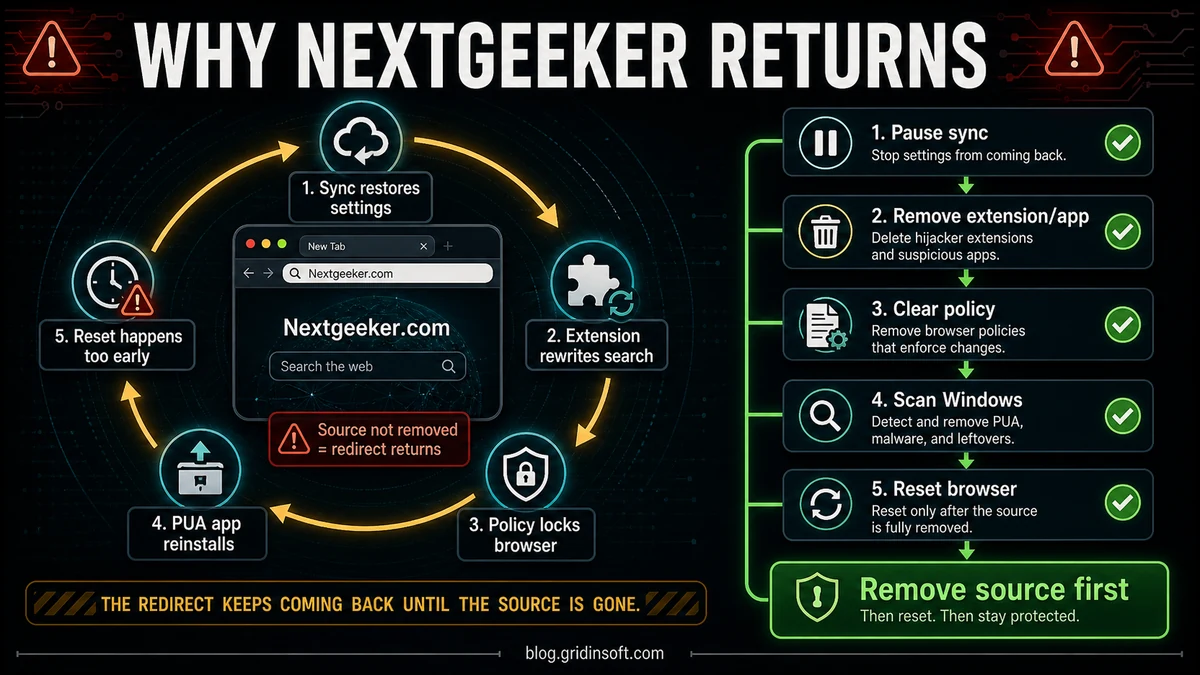
If the same extension keeps returning after removal, use the broader browser extension keeps reinstalling itself cleanup flow to check sync, policies, startup tasks, and companion apps.
If searches pass through Direct App Search or Yahoo
Some Nextgeeker.com cases do not stop at one visible domain. The address-bar search may jump from the chosen search engine to a page named Direct App Search, then to Nextgeeker.com, and finally to Yahoo-style results, betting pages, adult ads, or another search partner. That chain still points to a local hijacker source; changing the default search engine once is usually not enough.
Open the browser’s search-engine manager and inspect the full query URLs, not only the display names. In Chrome, check chrome://settings/searchEngines; in Edge, check edge://settings/searchEngines. Delete entries whose URL contains Nextgeeker.com, Direct App Search, search-sync wording, unfamiliar tracking domains, or a provider name that does not match the visible label. Then remove the extension or Windows app that created the entry, because otherwise it can add the same search provider again.
If security websites will not open, browser installers close by themselves, or Chrome says it is controlled by Microsoft or by an organization on a personal PC, move beyond browser settings. Check policies, recent Windows apps, startup items, proxy/DNS changes, and run a malware/PUA scan before signing back into browser sync.
How to remove Nextgeeker.com redirects
Start with the Windows scan-and-cleanup path
Pause browser sync if it keeps restoring unwanted settings, and back up needed bookmarks.
- Install Gridinsoft Anti-Malware and update its detection database. Eligible new users can request the trial in the app and activate it with the emailed code.
- Run a Full Scan and review the findings. Check the detected names, locations, and suggested actions before cleanup. Do not restore a quarantined item just to scan it again.
- Apply cleanup to confirmed threats. Quarantine or remove detected unwanted items. Keep Microsoft Defender enabled.
- Restart and verify. Test address-bar searches in the affected browser. If the redirect remains, review extensions and restore the search provider using the steps below. A clean scan does not guarantee that no compromise occurred. If symptoms persist, use the targeted checks below or contact support from the app.
Browser settings and optional manual checks
Use the parts of this checklist that match the remaining symptom. Windows scanning does not replace changing unwanted browser settings. Leave employer-managed policies to your IT team.
- Pause browser sync. If sync restores the same extension or search setting, pause it until the cleanup is complete. Keep bookmarks backed up before making changes.
- Remove suspicious extensions. Open the extension manager in Chrome, Edge, or Firefox and remove search helpers, coupon tools, PDF converters, video downloaders, “safe search” tools, or anything installed near the time the redirect started. Microsoft and Mozilla both document removing extensions from Edge and Firefox through their browser add-on managers.23
- Restore the default search engine. In Chrome, open Settings, Search engine, and choose the provider you actually want. Google’s Chrome Help documents changing the default search engine from this settings area.1 Repeat the same check in Edge or Firefox if they are affected. Also remove fake search entries whose display name looks normal but whose query URL points to Nextgeeker.com, Direct App Search, or another unknown redirect.
- Remove startup and homepage entries. Check the browser’s startup pages, homepage, and new-tab settings. Delete entries that point to Nextgeeker.com or a page you did not choose.
- Clear notification permissions. In each affected browser, remove notification permission for unfamiliar sites. Notification spam can make a cleaned browser look infected again even after search settings are fixed.
- Check managed policies. Open
chrome://policyoredge://policy. On a personal PC, unexpected policies for search provider, homepage, extension install list, or startup URLs usually mean a local app or script changed browser management settings.45 Do not delete random registry keys first; write down the policy name, value, and extension ID so the cleanup targets the source instead of breaking legitimate browser settings. - Uninstall recent apps. In Windows Settings, sort installed apps by date. Remove suspicious download assistants, search utilities, browser helpers, fake update tools, unknown VPN/proxy apps, or anything installed right before the redirect began.
- Check shortcuts, proxy, and DNS. Make sure browser shortcuts do not contain an extra URL after the executable path. Then check Windows proxy and DNS settings if redirects affect more than one browser.
- Scan for PUA and adware. If the redirect returns, a full scan with Gridinsoft Anti-Malware can find bundled PUA, adware, startup entries, browser-policy leftovers, and companion files that manual browser cleanup missed.
Reset the browser only after removing the source
A reset is useful after the unwanted app or extension is gone. If you reset first, the same source can change the search engine again. After uninstalling suspicious apps and running a scan, reset only the affected browser and then sign back into browser sync carefully.
- Chrome: reset settings, then re-enable only extensions you recognize.
- Edge: reset settings and review extension permissions before turning them back on.
- Firefox: remove suspicious add-ons first; use refresh/reset only if settings remain damaged.
When to treat it as more than a browser setting
Treat the case as a broader malware or PUA cleanup if security websites are blocked, installers close automatically, new extensions appear after reboot, Chrome or Edge reports unknown management policies, or other browsers start redirecting at the same time. Those symptoms suggest the redirect is being restored from Windows, not only from a visible browser setting.
Do not run random fix scripts from forum replies unless you understand exactly what they remove. A generic script can delete legitimate browser policies, user profile data, or startup entries. Safer cleanup starts with uninstalling known recent apps, removing suspicious extensions, checking policies, and scanning the PC.
How to avoid the redirect returning
- Download browser extensions only when you know the publisher and need the feature.
- Avoid installers that bundle “recommended” search, PDF, coupon, VPN, or browser helper tools.
- Review extension permissions before accepting anything that can read and change site data or search settings.
- Keep a small set of trusted extensions instead of testing many unknown search or shopping add-ons.
- Scan downloaded installers before running them, especially if they came from ads, mirrors, or file-sharing pages.
For a similar exact-domain case, see the WebWebWeb.com redirect removal guide, which uses the same extension, policy, notification, recent-app, and browser reset sequence.
FAQ
Is Nextgeeker.com a virus?
Not by the domain name alone. The important problem is that the browser is being redirected without clear consent. Treat it as a browser hijacker or PUA symptom and remove the extension, app, or policy that caused it.
Why does Direct App Search appear before Nextgeeker.com?
Direct App Search can be part of the redirect chain that rewrites address-bar searches before the browser reaches the final results page. Delete the fake search-engine entry, remove the extension or app that created it, and check browser policies if the entry returns.
Why does Nextgeeker.com open when my search engine still says Google?
An extension, startup page, shortcut, policy, or synced profile can intercept searches before the browser reaches the search provider. Check extensions and policies even if the visible search-engine setting looks normal.
Can I just reset Chrome or Edge?
A reset can help, but it should come after removing suspicious apps and extensions. If the source remains installed, it can restore Nextgeeker.com after the next reboot or sync event.
What if Chrome or Edge says it is managed by an organization?
On a work or school device, that message can be normal. On a personal PC, unexpected management usually means a policy is forcing search, startup, or extension settings. Check chrome://policy or edge://policy, write down the policy and extension ID, then remove the app or script that created it before resetting the browser.
Why does Nextgeeker.com come back after I reinstall Chrome?
Reinstalling Chrome does not always remove the source. Sync can restore a bad setting, a Windows app can reinstall the extension, and a browser policy can reapply the search provider. Pause sync, remove suspicious apps, check chrome://policy, and scan Windows before reinstalling again.
Should I use a custom removal script?
Use a custom script only when it comes from a trusted technician who reviewed your exact logs. For most users, uninstalling recent apps, removing suspicious extensions, checking policies, and scanning with a trusted anti-malware tool is safer.
References
- Google Chrome Help. “Set your default search engine.” Google, accessed May 29, 2026. https://support.google.com/chrome/answer/16738040?hl=en
- Microsoft Support. “Add, turn off, or remove extensions in Microsoft Edge.” Microsoft, accessed May 29, 2026. https://support.microsoft.com/en-US/edge/add-turn-off-or-remove-extensions-in-microsoft-edge
- Mozilla Support. “Disable or remove Add-ons.” Mozilla, accessed May 29, 2026. https://support.mozilla.org/kb/disable-or-remove-add-ons
- Chrome Enterprise. “Chrome Enterprise policy list.” Google, accessed June 17, 2026. https://chromeenterprise.google/policies/
- Microsoft Learn. “Microsoft Edge browser policy documentation.” Microsoft, accessed June 17, 2026. https://learn.microsoft.com/en-us/deployedge/microsoft-edge-policies