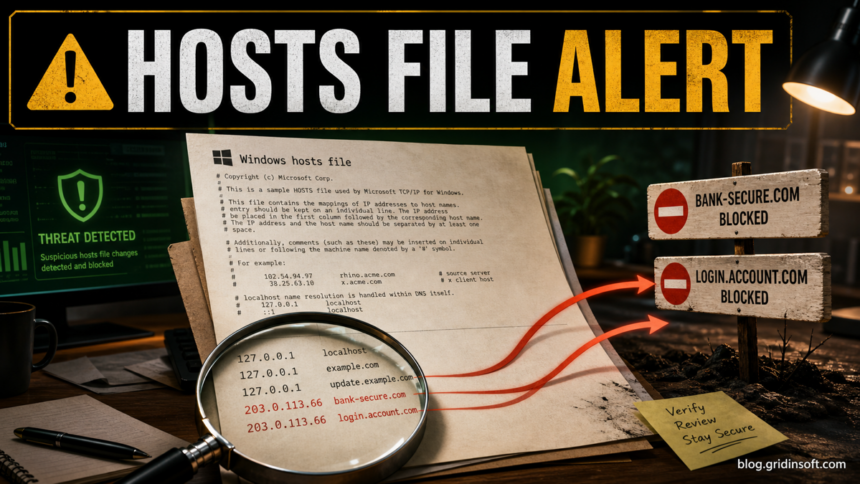
SettingsModifier:Win32/PossibleHostsFileHijack is a Microsoft Defender warning for a Windows hosts file change. The alert can be harmless when you knowingly use an ad blocker, privacy tool, or lab entry, but it can also point to malware or a browser hijacker that is blocking security sites or redirecting banking, search, or login pages. Do not allow the detection until you understand every active line in C:\Windows\System32\drivers\etc\hosts.
The safe path is simple: inspect the hosts file, decide whether the entries are yours, reset it if you cannot verify them, then check DNS, proxy, browser, and startup persistence if the alert returns.
What the Defender alert means
The Windows hosts file is a local name-to-address list. Before a browser asks DNS where a domain should go, Windows can use entries from this file. That is why a hosts-file change can be useful for development, local testing, parental controls, or blocking known ad/telemetry hosts. It is also why malware likes the same file: one line can send a real domain to the wrong IP address or stop a security website from opening.
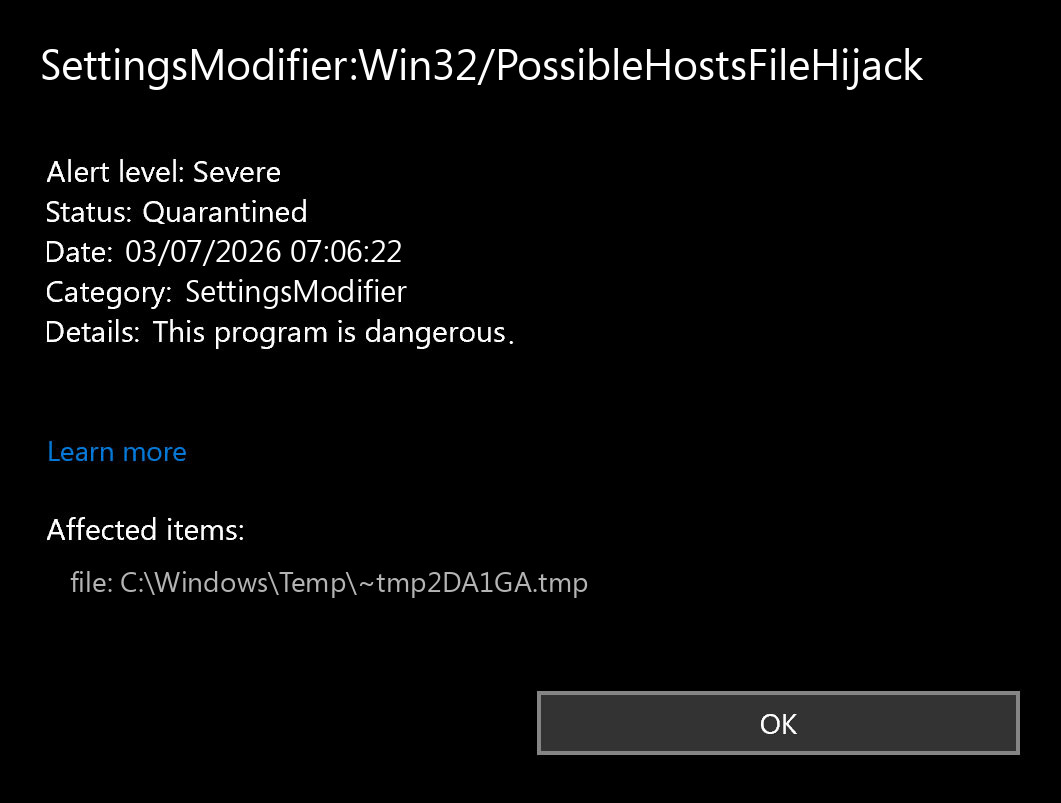
Microsoft’s threat description for this detection says the unwanted software changes the hosts file and may stop users from reaching websites or force them to other websites. The important word in PossibleHostsFileHijack is “possible.” Defender is warning that a sensitive network setting changed; it is not automatically proof that every custom hosts entry is malicious.
False positive or real hijack?
Treat the alert as a decision, not a panic button. A privacy utility that adds transparent, documented entries is different from an unknown installer that adds bank, search, antivirus, or Microsoft update domains.
| What you find | How to handle it |
|---|---|
| Only entries you created for development, ad blocking, or a known privacy tool | Keep a backup, document the tool, and only then consider an exclusion if Defender keeps warning. |
| Security, banking, login, update, or search domains mapped to unfamiliar IPs | Do not allow the alert. Reset the hosts file and scan for the app or task that changed it. |
Entries pointing many domains to 127.0.0.1 or 0.0.0.0 |
Often used for blocking, but verify the source. It can be intentional or abused to block updates and cleanup sites. See what 127.0.0.1 means before changing the hosts file. |
| The alert returns after reboot or after browser use | Look for persistence: startup apps, scheduled tasks, browser policies, proxy/DNS changes, or bundled PUA. |
Check the hosts file safely
- Open Notepad as administrator. Search for Notepad, right-click it, and choose Run as administrator.
- Open the file directly. In Notepad, open
C:\Windows\System32\drivers\etc\hosts. Change the file picker from text files to all files if the hosts file is not visible. - Ignore comments first. Lines beginning with
#are comments. Focus on active lines that start with an IP address and then a domain. - Look for sensitive domains. Be cautious with entries for security vendors, Microsoft update services, browser search providers, banking, email, crypto exchanges, or login pages.
- Do not edit randomly. Save a copy first, for example
hosts.backup.txton the desktop, so you can compare what changed.
A normal default hosts file on modern Windows usually has no active domain mappings. It may include commented examples and localhost notes. If you see many active entries and you cannot name the tool that created them, reset the file instead of allowing the detection.
Reset the hosts file and clean related settings
- Rename the current file. In
%WinDir%\System32\Drivers\Etc, rename the existing hosts file tohosts.oldafter saving a backup. - Create a clean hosts file. Use Microsoft’s reset instructions to create a new extensionless file named exactly
hosts. Do not save it ashosts.txt. - Flush cached DNS. Open Command Prompt as administrator and run
ipconfig /flushdns. - Check proxy settings. Go to Windows Settings, Network & internet, Proxy. Disable unknown manual proxies.
- Check browser Secure DNS and extensions. A malicious extension or browser policy can restore redirects even after the hosts file is clean. If pop-ups or search redirects continue, use our browser hijacker cleanup guide and then reset the affected browser.
- Reboot and recheck Protection history. If Defender no longer reports SettingsModifier:Win32/PossibleHostsFileHijack, the hosts-file part is likely resolved.
If the alert keeps coming back
A returning hosts-file alert usually means something is rewriting the file. Check recently installed utilities, cracked installers, “optimizer” apps, VPN/filtering tools, browser extensions, scheduled tasks, startup entries, and Defender exclusions. Also check whether internet problems appeared at the same time; DNS, proxy, and hosts changes often travel together after adware or a browser hijacker.
If the change followed a suspicious download, fake update, browser hijacker, or cracked installer, scan the PC after the manual reset. Defender may quarantine the visible hosts-file change while a loader, scheduled task, service, browser policy, or bundled module recreates it after reboot. Gridinsoft Anti-Malware can help check for hidden files, startup entries, scheduled tasks, browser changes, and PUA leftovers before you sign back into important accounts.
Defender can quarantine the visible file, but repeated alerts may mean a loader, scheduled task, service, browser change, or bundled component is recreating it. Scan the PC before trusting the cleanup.
Scan for hosts-file hijack leftoversFor stubborn cases, also run a Microsoft Defender Offline scan from Windows Security after saving your work. Use offline scanning when normal Windows scans close, the same detection returns immediately, or the machine blocks security websites.
Should you allow PossibleHostsFileHijack?
Allow it only when you can explain every active hosts entry and you still want those entries. For example, a developer lab or a known privacy tool may intentionally map domains. If the file contains entries you did not create, entries for security or banking sites, or changes that came after a suspicious installer, reset the hosts file and scan instead of allowing it.
Do not make a permanent exclusion just to make Protection history look clean. An exclusion hides future hosts-file changes from Defender, including malicious ones. If you need an exception for a trusted tool, document it and keep a copy of the clean baseline.
FAQ
Is SettingsModifier:Win32/PossibleHostsFileHijack a virus?
It is a Defender detection for a sensitive settings change. It can be caused by malware, adware, privacy tools, ad blockers, or manual edits. The file content and the source of the change decide the risk.
Where is the Windows hosts file?
The usual path is C:\Windows\System32\drivers\etc\hosts. The file has no extension. If you see hosts.txt, that is not the active hosts file Windows uses.
Why does the alert return after I remove it?
Another program may be writing the entries back. Check startup apps, scheduled tasks, services, browser extensions, browser policies, proxy settings, DNS settings, and recently installed utilities.
Can a hosts file block antivirus websites?
Yes. A malicious or unwanted entry can redirect or block security, update, banking, or login domains. That is why unknown entries should be removed before you allow the detection.
Is 127.0.0.1 in the hosts file always bad?
No. 127.0.0.1 is localhost and is often used for testing or blocking. It becomes suspicious when unfamiliar entries block security, update, banking, or login sites, or when a PUA keeps restoring them.
References
- Microsoft Security Intelligence. “SettingsModifier:Win32/PossibleHostsFileHijack threat description.” Microsoft, accessed July 3, 2026. https://www.microsoft.com/en-us/wdsi/threats/malware-encyclopedia-description?Name=SettingsModifier%3AWin32%2FPossibleHostsFileHijack
- Microsoft Support. “Hosts file is detected as malware in Windows Defender.” Microsoft, accessed July 3, 2026. https://support.microsoft.com/en-us/topic/hosts-file-is-detected-as-malware-in-windows-defender-4320fa8b-0d54-1129-db85-61f095144521
- Microsoft Support. “How to reset the Hosts file back to the default.” Microsoft, accessed July 3, 2026. https://support.microsoft.com/en-us/topic/how-to-reset-the-hosts-file-back-to-the-default-c2a43f9d-e176-c6f3-e4ef-3500277a6dae