Rainbow Blocker is a risky browser-extension cleanup case, not a normal ad-blocker issue to ignore. If your security tool blocks api.rainbowblocker.com, or if you remember installing Rainbow Blocker in Firefox, Chrome, or Edge, remove the extension, revoke its site permissions, check browser sync, and scan Windows if the blocked traffic or ads continue. The Firefox add-on page is no longer available, while the promotional site still points users toward browser-install buttons.
Quick answer
- Remove Rainbow Blocker from every browser profile where it appears.
- Block or remove
rainbowblocker.comand unknown sites from notification and site-permission lists. - Check sync before signing back into Chrome, Edge, or Firefox Sync on a cleaned profile.
- Scan Windows if
api.rainbowblocker.comkeeps appearing after the extension is gone. - Change important passwords from a clean session if the extension had broad site access or you also see account alerts.
What is Rainbow Blocker?
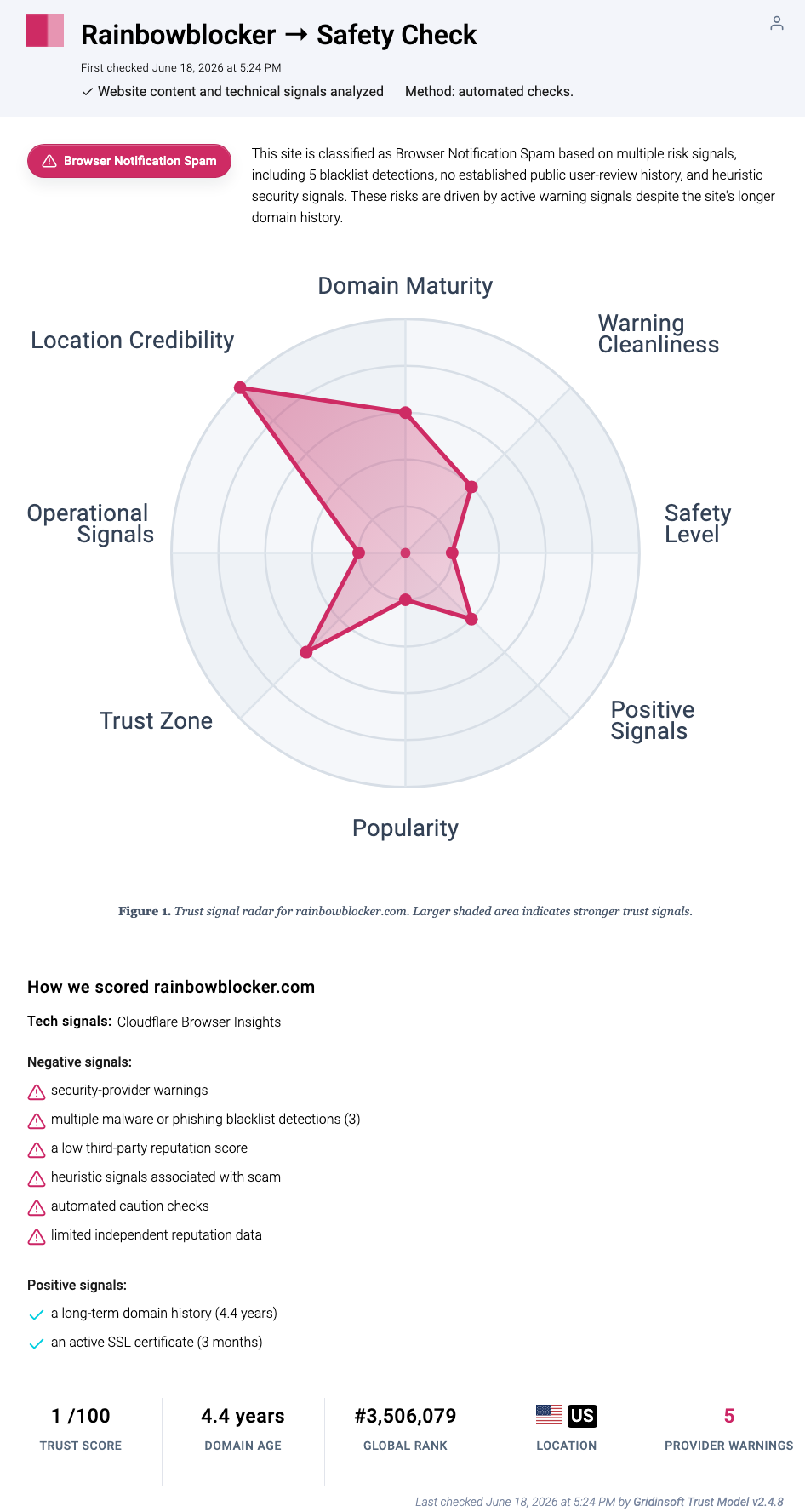
Rainbow Blocker presents itself as an ad-blocking browser extension. The safety problem is the surrounding pattern: users report security products blocking api.rainbowblocker.com, the Firefox add-on URL now returns a removed/not-found page, and the live promotional site still advertises ad-free browsing while linking to browser-extension install paths. Gridinsoft’s own Website Reputation Checker currently rates Rainbowblocker.com at 1/100 and classifies it as Browser Notification Spam.
That does not prove every device with a Rainbow Blocker trace is fully compromised. It does mean the extension and its related domain should be treated as unwanted until you can prove the browser profile is clean. Ad-blocking extensions can request strong browser permissions, and a bad extension can affect pages, ads, redirects, searches, and sometimes account sessions.
Why is api.rainbowblocker.com being blocked?
A blocked request to api.rainbowblocker.com usually means something in the browser profile, an extension background process, or a leftover component is trying to contact the Rainbow Blocker service. The alert may appear even when the visible extension is hidden or when you cannot find a normal program in Windows settings.
| What you see | What to check first |
|---|---|
Security tool blocks api.rainbowblocker.com |
Browser extensions, service workers, notification permissions, and recently synced profiles. |
| Rainbow Blocker appears in one browser | Remove it, restart the browser, then check whether sync reinstalls it. |
| Ads or tabs return after removal | Browser policies, startup tasks, installed apps, and other adware. |
| You cannot find the extension | Check each profile and browser, including Edge/Chrome profiles you do not normally use. |
Remove Rainbow Blocker from browsers
Start with the browser where the alert first appeared. If you use browser sync, remove the extension while signed in, then check another clean device or profile before re-enabling sync.
Firefox
- Open
about:addons. - Open Extensions.
- Find Rainbow Blocker or any unfamiliar ad blocker/search helper.
- Choose Remove, then restart Firefox.
- If there is no Remove button, use Mozilla’s troubleshooting path for add-ons installed by other software.
Mozilla’s own help article explains that Firefox extensions and themes are add-ons and can be disabled or removed from the Add-ons Manager [1].
Chrome
- Open
chrome://extensions. - Remove Rainbow Blocker and any extension you did not install deliberately.
- Open Chrome’s site settings and remove unknown notification permissions.
- Check On startup, default search engine, and new-tab settings.
- If Chrome says it is managed on a personal PC, check browser policies and scan for PUA/adware.
Google’s Chrome help treats pop-ups, new tabs that will not go away, changed search/homepage settings, unwanted extensions, and hijacked redirects as signs of unwanted software or malware [2].
Microsoft Edge
- Open
edge://extensions. - Select Remove next to Rainbow Blocker or suspicious extensions.
- Review Site permissions, especially notifications and pop-ups.
- Check the start page and search settings.
Microsoft documents removing Edge extensions from the extension icon menu or from the Extensions page [3].
- Launch Chrome.
- Click the three dots (...) in the top right corner.
- Select Extensions > Manage Extensions.
- Click Remove next to the extension you want to delete.
Quick Access: Type chrome://extensions/ in the address bar.
- Open Safari.
- In the menu bar, click Safari and select Settings (or Preferences).
- Click on the Extensions tab.
- Select the extension and click Uninstall.
- Click the menu button, select Add-ons and themes.
- Go to the Extensions tab.
- Click the three dots (...) next to the extension and select Remove.
Quick Access: Type about:addons in the address bar.
- Launch Microsoft Edge.
- Click the three dots (...) in the top right corner.
- Select Extensions.
- Find the extension and click Remove.
Quick Access: Type edge://extensions/ in the address bar.
- Launch Brave browser.
- Click the menu icon > Extensions.
- Find the extension and click Remove.
Quick Access: Type brave://extensions/ in the address bar.
- Launch Opera.
- Click the Opera logo in the top left corner.
- Select Extensions > Extensions.
- Click the X or Remove button next to the extension.
Quick Access: Type opera://extensions/ in the address bar.
Open Extensions/Add-ons again and remove any entry linked to Rainbow Blocker or clearly out of place.
Revoke site permissions and notifications
Do not stop after deleting the extension. Open notification permissions and remove rainbowblocker.com, api.rainbowblocker.com, and unrelated domains you do not recognize. Then review pop-up, redirect, and automatic-download permissions. If an adware page convinced you to click Allow, the site can keep pushing messages after the original tab is closed.
If Rainbow Blocker keeps showing unwanted pop-ups, you likely granted it permission to send notifications. To stop them, you need to revoke that permission in your browser settings.
- Copy and paste this into the address bar:
chrome://settings/content/notifications - Scroll down to the Allowed to send notifications list.
- Find Rainbow Blocker.
- Click the three dots (...) next to it and select Remove (or Block).
- Open Safari and go to Settings (or Preferences).
- Click the Websites tab and select Notifications on the left.
- Find Rainbow Blocker in the list on the right.
- Select it and click Remove (or change "Allow" to "Deny").
- Copy and paste this into the address bar:
about:preferences#privacy - Scroll down to Permissions and click Settings... next to Notifications.
- Type Rainbow Blocker in the search bar or find it in the list.
- Select the site and click Remove Website.
- Copy and paste this into the address bar:
edge://settings/content/notifications - Look under the Allow section.
- Find Rainbow Blocker.
- Click the three dots (...) next to it and select Remove (or Block).
- Copy and paste this into the address bar:
brave://settings/content/notifications - Scroll to the Allowed to send notifications list.
- Find Rainbow Blocker.
- Click the three dots (...) and select Remove (or Block).
- Copy and paste this into the address bar:
opera://settings/content/notifications - Check the Allowed to send notifications list.
- Find Rainbow Blocker.
- Click the three dots next to it and select Remove.
Check sync, profiles, and managed policies
Browser sync can restore an extension after you remove it locally. After cleanup, open a fresh browser profile and confirm that Rainbow Blocker does not return. If it does, pause sync, remove the extension from the synced account, and review other devices signed into the same browser account.
Also check whether Chrome or Edge says Managed by your organization on a home computer. Unwanted software can use browser policies to keep an extension installed, force a search provider, or block security pages. If you see a managed message that your workplace or school did not configure, treat it as a cleanup clue.
Check Windows if traffic continues
If api.rainbowblocker.com traffic continues after extension removal, check Windows for a source outside the visible browser UI:
- Uninstall recently added ad blockers, coupon tools, PDF converters, search helpers, and media downloaders you do not recognize.
- Review Startup apps and Task Scheduler for entries that launch a browser or unknown updater.
- Check browser shortcuts for appended URLs.
- Review installed browser profiles, including old Chrome/Edge/Firefox profiles.
- Run a full security scan before signing back into sensitive accounts.
Adware and extension hijackers can leave restore points in startup entries, browser policies, bundled apps, or synced profiles. If the alert returns after manual cleanup, use Gridinsoft Anti-Malware to scan for browser hijacker components, unwanted apps, hidden startup entries, scheduled tasks, and modified browser settings.
Browser reset can remove visible symptoms, but adware may keep a desktop app, extension source, notification permission, or startup task that brings pop-ups and redirects back.
Scan for adware leftoversShould you change passwords?
Change passwords from a clean browser session if Rainbow Blocker had access to all sites, if the extension was installed from a pop-up or fake update, or if you saw sign-in alerts after the browser started contacting api.rainbowblocker.com. Start with email, browser account, password manager, banking, crypto, work, and social accounts. Also revoke active sessions where the service supports it.
If the only symptom was one blocked request and you removed the extension quickly, password rotation may not be necessary. The safer decision depends on what permissions the extension had, how long it was installed, and whether the same device also showed other malware or adware symptoms.
What not to do
- Do not allow-list
api.rainbowblocker.comjust to stop security notifications. - Do not install another random ad blocker from a pop-up that claims to fix Rainbow Blocker.
- Do not reset the browser before checking sync; sync can bring the same extension back.
- Do not ignore the alert because the extension claims to block ads.
- Do not change passwords on the affected browser before cleanup if you suspect session or form-data exposure.
Related cleanup guides
If the main symptom is recurring notification spam, use our browser push notification cleanup guide. If searches, homepage, or new-tab pages keep changing, use the broader browser hijacker removal hub. If new tabs keep opening by themselves after the extension is gone, compare the timing with our multiple-tabs troubleshooting guide.
FAQ
Is Rainbow Blocker a virus?
Treat it as unwanted browser adware or a risky extension unless you can prove the browser profile is clean. The strongest user-facing clue is repeated blocked traffic to api.rainbowblocker.com or extension behavior that returns after removal.
Why is the Firefox Rainbow Blocker page gone?
The public Firefox add-on URL currently returns a not-found page. A removed listing is not proof by itself, but it is a strong reason to avoid reinstalling the extension and to clean old browser profiles.
Can Rainbow Blocker steal passwords?
A risky extension with broad site access can expose browsing and account risk. Do not assume password theft from one alert alone, but rotate important passwords from a clean session if the extension had access to all sites or other account-warning symptoms appear.
What if Norton, Bitdefender, or another tool keeps blocking api.rainbowblocker.com?
Check every browser profile, remove notification permissions, pause sync, and scan Windows for adware. A continuing block usually means something still tries to contact that endpoint.
Should I reset the browser?
Reset after you remove the extension, revoke permissions, and check sync. Resetting first can hide the symptom while the synced extension, policy, or bundled app remains.
References
- Mozilla Support. “Disable or remove Add-ons.” Mozilla, updated June 24, 2025, accessed June 18, 2026. https://support.mozilla.org/en-US/kb/disable-or-remove-add-ons.
- Google Chrome Help. “Remove unwanted ads, pop-ups & malware.” Google Help, accessed June 18, 2026. https://support.google.com/chrome/answer/2765944.
- Microsoft Support. “Add, turn off, or remove extensions in Microsoft Edge.” Microsoft, accessed June 18, 2026. https://support.microsoft.com/en-us/edge/add-turn-off-or-remove-extensions-in-microsoft-edge.