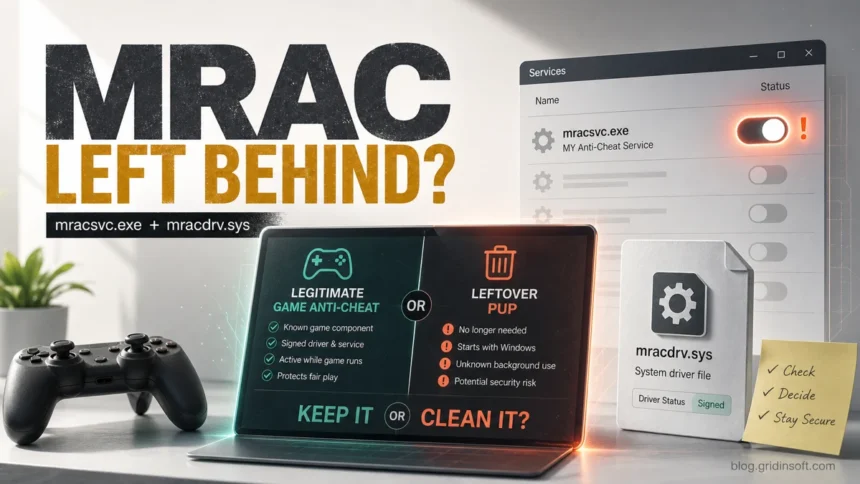
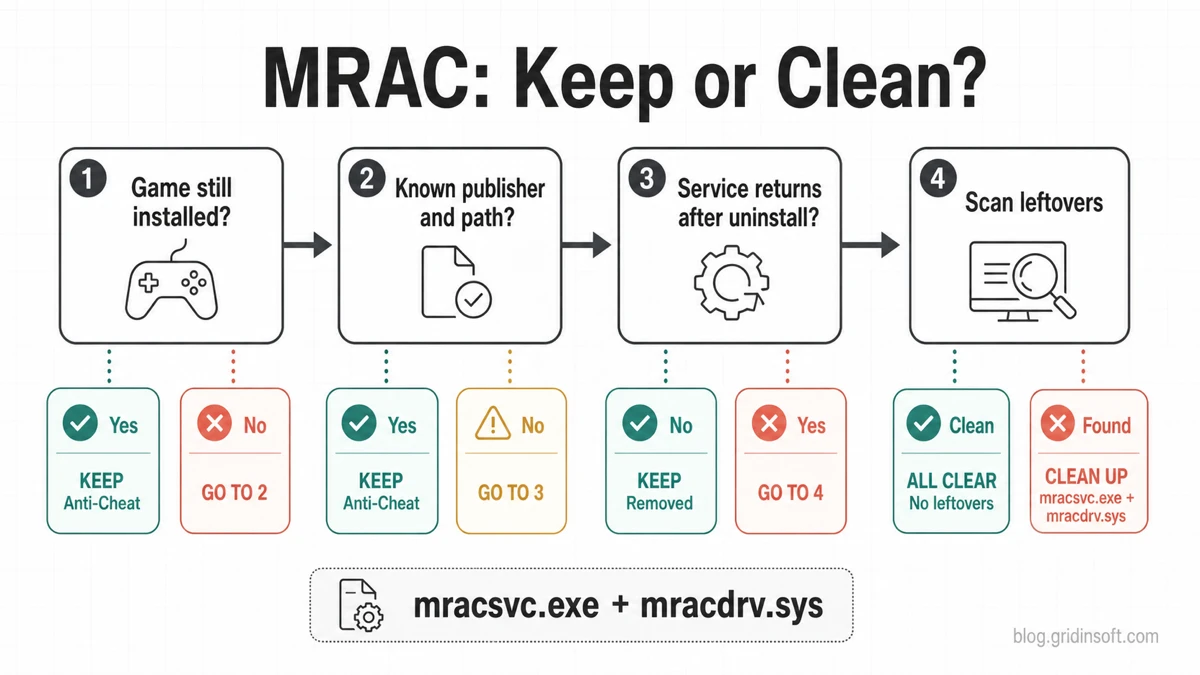
mracsvc.exe and mracdrv.sys are usually linked to MRAC, the Mail.Ru/MY.GAMES anti-cheat used by some online games. That does not make them automatically malware. Keep them if a game you still use installed them and the service, driver, publisher, and path all match that game. Treat them as a cleanup case when the game is gone, Windows still starts the service, a security tool reports names such as PUP.Win64.MailRu.vl!c or PUP.Optional.MailRu, browser or search settings changed, or mracsvc/mracdrv returns after reboot.
The safest rule is simple: identify the parent game or launcher first, uninstall it normally, reboot, then check whether the service and driver are still present. Do not delete mracdrv.sys blindly just because a forum says to remove the file. Drivers run at a sensitive Windows level, and a bad manual deletion can create a new problem while leaving the unwanted service entry behind.
Quick Decision: Keep It or Clean It?
| What you see | Best action |
|---|---|
| A MY.GAMES, Mail.Ru, VK Play, or related online game is still installed and launches normally. | Keep MRAC unless a trusted security tool flags the exact file and path. Update the game or launcher first. |
The game was removed, but mracsvc.exe, mracsvc, mracdrv.sys, or mracdrv still appears after reboot. |
Handle it as a leftover service/driver cleanup case. |
| A scanner reports Mail.Ru PUP names and you also see unwanted search, browser extensions, notifications, or adware. | Clean the whole PUP bundle, not only one MRAC file. |
Windows Memory Integrity or device security names mracdrv.sys as an incompatible driver. |
Update or uninstall the game/anti-cheat that owns it. Remove the owning app before touching driver files. |
| The file is in a strange folder, unsigned, recently created after a cracked installer, or keeps returning from a task. | Do not trust the name. Scan the PC and check startup, tasks, services, and browser changes. |
What Are mracsvc.exe and mracdrv.sys?
mracsvc.exe is commonly seen as the MRAC service component, while mracdrv.sys is the driver component. Older MY.GAMES/Warface documentation describes MRAC as Mail.Ru Anti-Cheat, and MY.GAMES currently presents its anti-cheat as a fair-play technology for online games. That legitimate anti-cheat context matters: a security article should not call every MRAC file a virus by name alone.
The cleanup question starts when the component appears outside that clear game context. A driver and a service can remain after uninstall, start with Windows, or be packaged beside other unwanted software. Security tools may use PUP or PUA wording because the installation path, bundling, persistence, or user consent looks unwanted even when the visible brand is known.
Places to Check in Windows
Use the exact service and driver names as clues, then compare them with the installed apps and file properties. A legitimate anti-cheat should have a clear parent application, a consistent publisher, and a path that makes sense for the game or anti-cheat installer.
- Services: press Win+R, type
services.msc, and look formracsvc, Mail.Ru Anti-Cheat, MY.GAMES Anti-Cheat, or similar MRAC wording. - Driver file: commonly reported locations include
C:\Windows\System32\drivers\mracdrv.sys. Check file properties, publisher, date, and whether the owning game is still installed. - Service file: commonly reported locations include
C:\Windows\System32\mracsvc.exe. Do not assume the path alone proves safety; compare it with the service ImagePath and file signature. - Installed apps: check Settings > Apps for the related game, MY.GAMES GameCenter, VK Play, Mail.Ru components, or a recently added launcher.
- Startup and tasks: check Task Manager > Startup apps and Task Scheduler for entries that restart the service after reboot.
- Browser side effects: check Chrome, Edge, and Firefox search engine, startup page, notification permissions, and extensions if Mail.Ru PUP detections appeared with redirects or ads.
Safe Removal Steps
- Decide whether a game still needs MRAC. If you still play the game that installed it, update the game or launcher first. Removing the anti-cheat can break multiplayer launch or trigger integrity errors.
- Uninstall the parent game or launcher normally. Use Settings > Apps or Control Panel. Remove the game, MY.GAMES/VK Play/Mail.Ru launcher, or anti-cheat entry only if you no longer need it.
- Reboot before judging leftovers. Services and drivers can stay loaded until Windows restarts. A reboot also shows whether something recreates the service.
- Re-check Services and the driver path. If
mracsvcis gone andmracdrv.sysis no longer referenced, do not keep digging through Windows folders. If they remain, continue cautiously. - Remove browser and PUP side effects. If search, homepage, notifications, or extensions changed at the same time, use the broader PUA and browser hijacker cleanup guide and remove notification permissions with our browser push notification cleanup steps.
- Scan before manual service deletion. If the service or driver returns after uninstall, a scheduled task, installer helper, bundled PUP, or browser component may be restoring it. A scan is safer than deleting one system-level file and hoping the rest is gone.
If MRAC appeared after a cracked game installer, fake launcher, unknown mod, or file-host redirect, treat the source as the real risk. The anti-cheat name may be legitimate, but the installer chain may still have dropped other components. For account-safety steps after risky game downloads, use the post-game/mod infostealer checklist.
When Gridinsoft Anti-Malware Helps
Manual uninstall is the right first move when MRAC belongs to a game you no longer want. Gridinsoft Anti-Malware becomes useful when mracsvc.exe or mracdrv.sys remains after reboot, when PUP.MailRu or PUP.Optional.MailRu detections repeat, or when the same install period also brought OfferCore-style bundles, browser hijacks, unwanted notifications, or adware. In those cases, the visible service is only one part of the cleanup.
A full scan can check services, driver files, scheduled tasks, startup entries, browser policies, extensions, and bundled PUP/adware leftovers in one pass. After removal, reboot and scan again if the service, browser change, or detection returns. That second check is important because leftover launchers often reveal themselves only after restart.
Browser reset can remove visible symptoms, but adware may keep a desktop app, extension source, notification permission, or startup task that brings pop-ups and redirects back.
Scan MRAC leftoversIf Windows Names mracdrv.sys as an Incompatible Driver
Windows device security may refuse to enable Memory Integrity when an incompatible driver is installed. If the named file is mracdrv.sys, do not download a random driver-cleaner tool. First update the game or anti-cheat. If you no longer use the game, uninstall the parent app, reboot, and then confirm whether the driver reference is gone.
If Windows still lists the driver after the app is removed, the driver may be orphaned in the driver store or still connected to a service entry. At that point, create a restore point and keep the cleanup focused on the owning app, service, and driver reference. Advanced service or driver-store commands are not the first step for most readers; they are last-resort maintenance after you know exactly what owns the file.
Why Security Tools Flag Mail.Ru or MRAC as PUP
PUP and PUA labels do not always mean “classic virus.” They often mean the software may have arrived with unclear consent, changed settings, displayed unwanted behavior, bundled extra apps, or remained after the user tried to remove it. Microsoft describes potentially unwanted applications as software that can slow a machine, show unexpected ads, or install other unwanted software.
That is why context decides the answer. MRAC inside a still-installed online game is different from a Mail.Ru service and driver that remain after uninstall, start with Windows, and sit next to browser redirects or adware detections. The exact names help you find the right place to look; they do not replace the full cleanup decision.
What Not to Do
- Do not delete
mracdrv.syswhile guessing. Identify the owning app first. - Do not copy forum batch files that delete services without explaining what they target.
- Do not install a second unknown “driver remover” to remove the first unwanted component.
- Do not ignore browser changes just because the visible warning names a Windows service.
- Do not keep a cracked installer or fake launcher that may reinstall the same components.
Related Cleanup Paths
If the PC has several unwanted services or startup entries, compare this workflow with our AlsulicsService.exe cleanup guide. If a proxy or service PUP is present instead of MRAC, the Microleaves removal guide shows the same uninstall, service, task, proxy, and rescan pattern in a different PUP family.
FAQ
Is mracsvc.exe a virus?
Not by name alone. mracsvc.exe is usually associated with MRAC, a game anti-cheat service. It becomes suspicious when the related game is gone, the service still starts with Windows, the file is unsigned or in an odd folder, or a security tool reports Mail.Ru PUP detections around it.
Is mracdrv.sys safe?
It can be safe when it belongs to a legitimate game anti-cheat you still use. Investigate it when Windows names it as an incompatible driver, the game was removed, the driver remains after reboot, or it appears beside unwanted browser or adware changes.
Can I delete mracdrv.sys manually?
Do not start there. Uninstall the parent game or launcher, reboot, and confirm whether the service and driver reference remain. Manual driver deletion is a last resort after you know the file is orphaned and you have a restore point.
Why does mracsvc or mracdrv come back after uninstall?
A leftover service, scheduled task, updater, launcher, or bundled component may recreate it. That is why the cleanup should include Services, Task Scheduler, startup apps, browser settings, and a full scan after reboot.
Why does a scanner say PUP.Win64.MailRu or PUP.Optional.MailRu?
The scanner may be judging the install behavior, persistence, bundling, or nearby unwanted changes rather than saying that every MRAC file is a destructive virus. Treat the alert seriously, but verify the path, publisher, parent app, and whether the service remains after uninstall.
Should I use Gridinsoft Anti-Malware for this?
Use manual uninstall first if MRAC clearly belongs to a game you no longer need. Use Gridinsoft Anti-Malware when the service or driver returns, when PUP detections repeat, or when browser/search/adware changes appeared at the same time. The scan helps find the leftovers that a single file deletion can miss.
References
- MY.GAMES. “Anti-Cheat.” MY.GAMES, accessed July 3, 2026. https://my.games/fairplay
- MY.GAMES / Warface: Clutch. “MRAC — All you need to know about My.Com Anti-Cheat.” March 22, 2017, accessed July 3, 2026. https://pc.wfclutch.com/en/news/1207673.html
- Microsoft Support. “Protect your PC from potentially unwanted applications.” Microsoft, accessed July 3, 2026. https://support.microsoft.com/en-us/security/protect-your-pc-from-potentially-unwanted-applications
- Microsoft Support. “Device Security in the Windows Security App.” Microsoft, accessed July 3, 2026. https://support.microsoft.com/en-us/windows/security/windows-security/device-security-in-the-windows-security-app