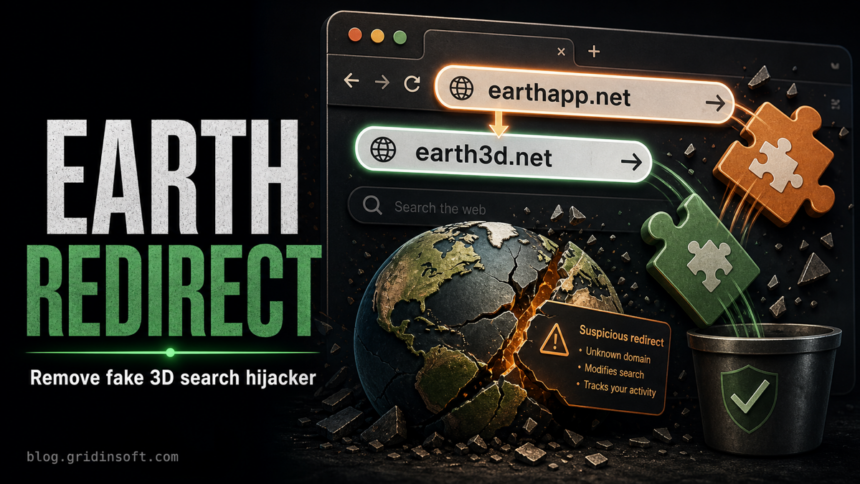
Earthapp.net and Earth3d.net are closely related browser-redirect domains tied to Earth/Earth 3D themed hijacker pages and extensions. If your browser briefly opens either domain during search, new-tab, or startup activity, remove the extension that controls the redirect, restore your search and new-tab settings, and scan for adware if the redirect returns.
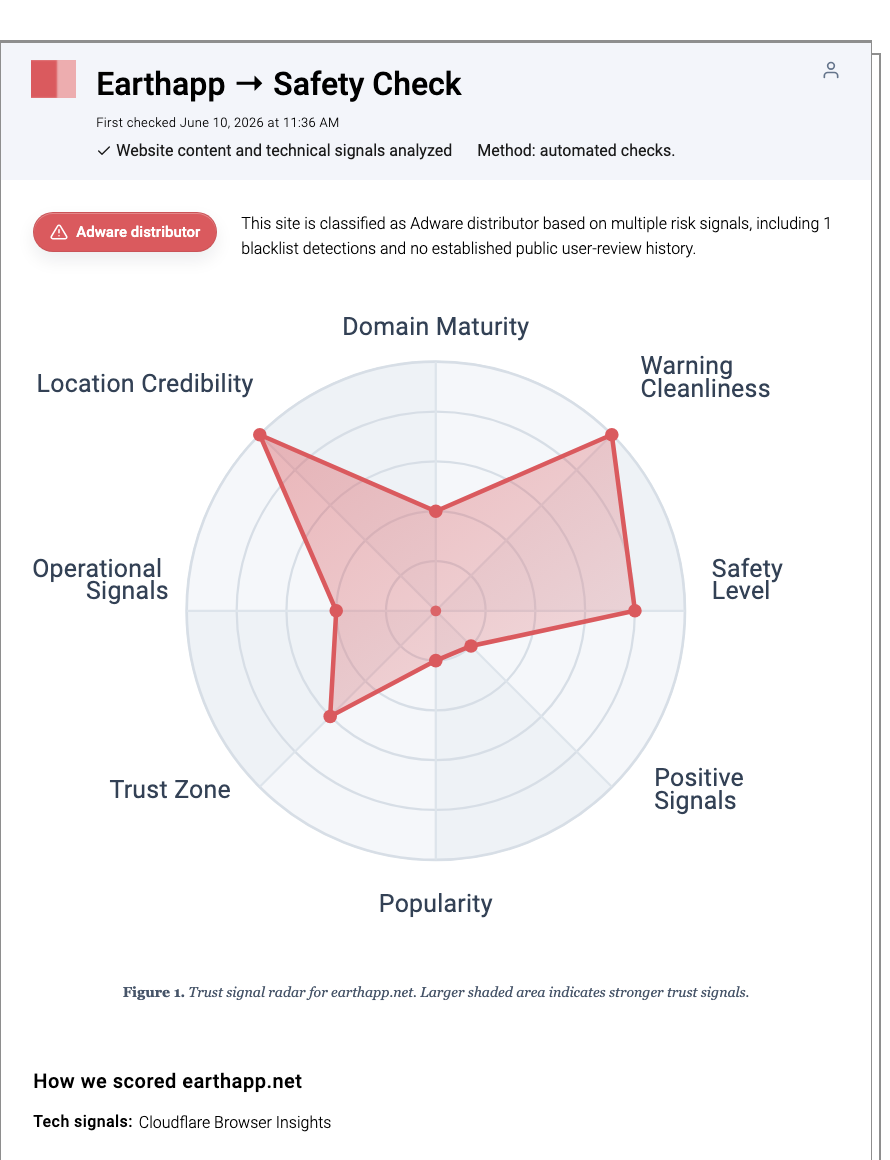
Gridinsoft’s Website Reputation Checker currently rates Earthapp.net at 9/100 and Earth3d.net at 11/100, with both pages warning about blacklisted or low-trust signals. That does not mean every device has a severe infection, but it is enough reason to stop the redirect and avoid entering personal or payment information on pages reached through it.
What are Earthapp.net and Earth3d.net?
Earthapp.net and Earth3d.net are promoted redirect domains that use an Earth or 3D Earth theme to look like a browser tool, search page, wallpaper feature, or new-tab enhancement. In practice, this type of page often behaves like a browser hijacker: it changes search flow, new-tab behavior, or startup pages so traffic passes through a promoted domain.
The exact extension name can vary, so focus on the domain and symptoms rather than only the visible branding. If the address bar shows Earthapp.net or Earth3d.net before another search page loads, treat it as a redirect chain that needs cleanup.
Common symptoms
- Searches or new tabs briefly pass through
earthapp.netorearth3d.net. - An Earth, Earth 3D, map, wallpaper, search, or new-tab extension appears unexpectedly.
- The default search engine changes after installing a browser add-on.
- The browser opens extra tabs or shows more ads and redirects than usual.
- Search or homepage settings change back after you edit them.
Remove the Earth/Earth 3D extension first
Start with the extension list. Browser hijackers usually keep control from an installed add-on, so changing the search engine before removing the extension may not last.
- Open the browser’s extension or add-ons manager.
- Remove unfamiliar Earth, Earth 3D, map, wallpaper, search, or new-tab extensions.
- Remove any extension you do not remember installing around the time the redirects started.
- Restart the browser and test a search from the address bar.
- Launch Chrome.
- Click the three dots (...) in the top right corner.
- Select Extensions > Manage Extensions.
- Click Remove next to the extension you want to delete.
Quick Access: Type chrome://extensions/ in the address bar.
- Open Safari.
- In the menu bar, click Safari and select Settings (or Preferences).
- Click on the Extensions tab.
- Select the extension and click Uninstall.
- Click the menu button, select Add-ons and themes.
- Go to the Extensions tab.
- Click the three dots (...) next to the extension and select Remove.
Quick Access: Type about:addons in the address bar.
- Launch Microsoft Edge.
- Click the three dots (...) in the top right corner.
- Select Extensions.
- Find the extension and click Remove.
Quick Access: Type edge://extensions/ in the address bar.
- Launch Brave browser.
- Click the menu icon > Extensions.
- Find the extension and click Remove.
Quick Access: Type brave://extensions/ in the address bar.
- Launch Opera.
- Click the Opera logo in the top left corner.
- Select Extensions > Extensions.
- Click the X or Remove button next to the extension.
Quick Access: Type opera://extensions/ in the address bar.
Open Extensions/Add-ons again and remove any entry linked to earthapp.net or clearly out of place.
Reset search, new tab, and startup settings
After removing the extension, check the browser settings it may have changed:
- Default search engine: restore your preferred provider.
- Site search shortcuts: remove Earthapp.net, Earth3d.net, and unknown entries.
- Startup pages: delete suspicious URLs that open with the browser.
- New-tab page: switch away from extension-controlled pages.
- Notification permissions: remove unfamiliar sites if pop-ups appeared too.
- Tap on the three dots (...) in the top right corner and Choose Settings.

- Choose Reset and Clean up and Restore settings to their original defaults.

- Tap Reset settings.

Quick Access: Type chrome://settings/reset in the address bar.
- Open Safari.
- In the menu bar, click Safari > Clear History.
- Select all history and click Clear History.
- Go to Safari > Settings (or Preferences).
- Click the Privacy tab and select Manage Website Data... > Remove All.
- In the Advanced tab, check Show features for web developers.
- In the menu bar, select Develop > Empty Caches.
- Launch Brave browser.
- Click the menu icon in the top right corner and select Settings.
- Click Additional settings > Reset settings.
- Tap Restore settings to their original defaults.
- Confirm by clicking Reset settings.
Quick Access: Type brave://settings/reset in the address bar.
- In the upper right corner tap the three-line icon and Choose Help.

- Choose More Troubleshooting Information.

- Choose Refresh Firefox... then Refresh Firefox.

Quick Access: Type about:support and click Refresh Firefox.
- Tap the three dots.

- Choose Settings.

- Tap Reset Settings, then Click Restore settings to their default values.

Quick Access: Type edge://settings/reset in the address bar.
- Launch the Opera browser.
- Click the Opera menu button in the top left corner and select Settings.
- Scroll down to the Advanced section in the left sidebar and click Reset and clean up.
- Click Restore settings to their original defaults.
- Click Reset settings to confirm.
Quick Access: Type opera://settings/reset in the address bar.
After reset, verify that earthapp.net is no longer set as your default search engine or homepage.
Scan if the redirect keeps returning
If Earthapp.net or Earth3d.net returns after extension removal and browser reset, check Windows for the persistence source. Potentially unwanted apps can reinstall browser extensions, change shortcuts, add startup entries, or launch browser tabs through scheduled tasks.
- Uninstall recently added apps that came with the extension.
- Check browser shortcuts for a URL added after the executable path.
- Review startup apps and scheduled tasks for unknown entries.
- Scan the device if multiple browsers are affected or the extension reinstalls itself.
Gridinsoft Anti-Malware can check for adware, browser hijackers, unwanted startup entries, scheduled tasks, and bundled programs that keep redirecting the browser after manual cleanup.
After uninstalling the suspicious app or deleting the visible threat, use Gridinsoft Anti-Malware to check hidden files, startup entries, scheduled tasks, bundled apps, browser changes, and other persistence points that can restore malware.
Download Anti-MalwareWhat not to click
Do not install a second extension from the redirect page, click fake update prompts, or enter passwords, payment details, or phone numbers on pages opened through Earthapp.net or Earth3d.net. If a page claims that a browser tool is required to continue, close the tab and remove the extension from the browser’s settings instead.
Prevention
- Install browser extensions only from trusted publishers.
- Be careful with add-ons that ask to control search, homepage, new tab, or all websites.
- Remove extensions you no longer use.
- Review browser sync after cleanup so unwanted extensions do not return from another device.
- Check unfamiliar domains with a reputation scanner before trusting them.
FAQ
Are Earthapp.net and Earth3d.net viruses?
They are best treated as low-trust browser redirect domains tied to adware or hijacker behavior. The redirect alone is not proof of a destructive virus, but it is a strong reason to clean browser extensions and settings.
Why are there two similar domains?
Hijacker campaigns often use related domains and branding variations. In this case, Earthapp.net and Earth3d.net fit the same cleanup lane, so one cluster guide is more useful than two thin pages.
Should I reset Chrome or Edge?
Reset the browser if removing the extension and fixing search/new-tab settings does not stop the redirect. If the redirect still returns, scan Windows for adware or persistence.
Can browser sync bring the redirect back?
Yes. If another device or profile still has the unwanted extension, browser sync can restore it. Remove the extension from all synced browsers.
References
- Google Chrome Help. “Install and manage extensions.” Google Help, accessed June 11, 2026. https://support.google.com/chrome_webstore/answer/2664769
- Microsoft Support. “Add, turn off, or remove extensions in Microsoft Edge.” Microsoft, accessed June 11, 2026. https://support.microsoft.com/en-us/microsoft-edge/add-turn-off-or-remove-extensions-in-microsoft-edge-9c0ec68c-2fbc-2f2c-9ff0-bdc76f46b026
- Mozilla Support. “Disable or remove Add-ons.” Mozilla, accessed June 11, 2026. https://support.mozilla.org/en-US/kb/disable-or-remove-add-ons