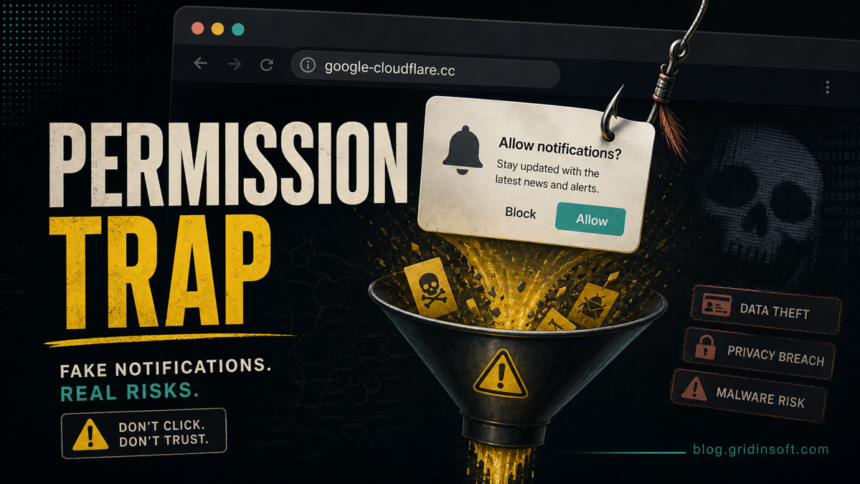
Google-cloudflare.cc is not a Google or Cloudflare support page. It is a suspicious site that can appear through ads, redirects, or deceptive browser notification prompts. If you allowed notifications, remove that permission first; if pop-ups keep coming back, check extensions, browser policies, installed apps, startup entries, and scan Windows for adware or bundled malware.
If the alert uses a fake law-enforcement angle instead of a Google or Cloudflare name, use the same permission-first workflow in our Police-center.vg fake police notification cleanup.
What Is Google-cloudflare.cc?
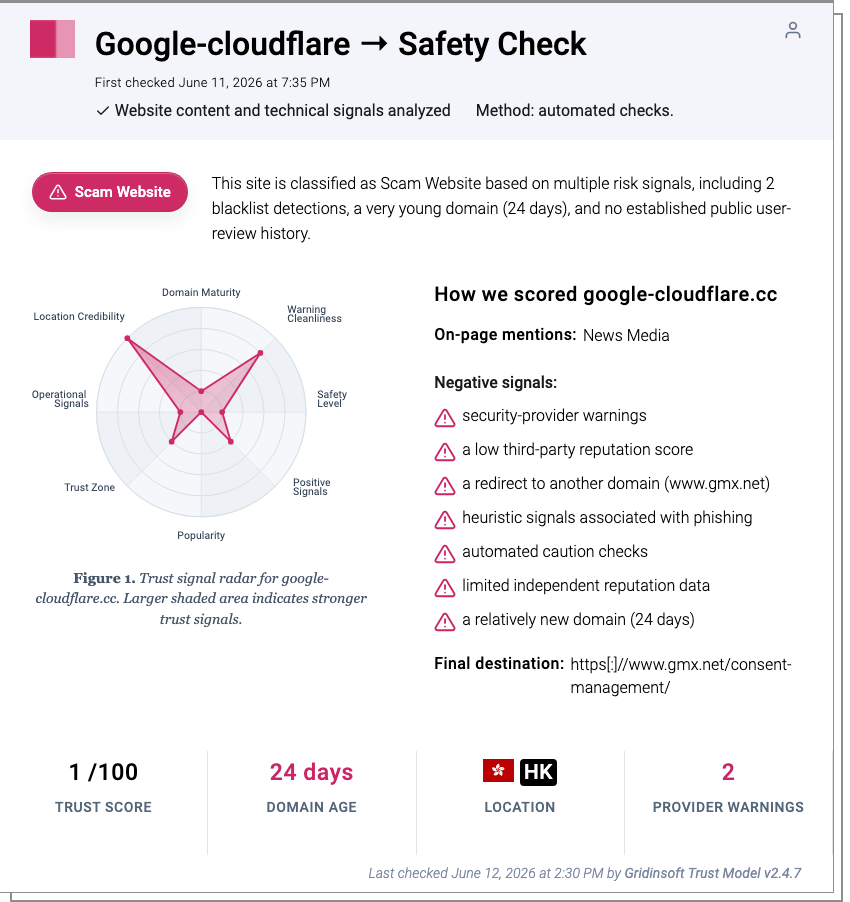
Google-cloudflare.cc is an exact-domain scam and redirect risk. The name borrows two trusted brands, but the page is not an official Google, Google Ads, Cloudflare, or browser-security notice. The Gridinsoft scanner report for Google-cloudflare.cc shows a 1/100 trust score, a Scam Website classification, a very young domain, blacklist detections, phishing-style heuristic signals, and a redirect destination under www.gmx.net/consent-management/.
The practical risk is usually browser-side: a user lands on the domain from an ad or redirect, clicks Allow on a notification prompt, and then receives recurring fake alerts. The domain alone does not prove that ransomware or a trojan is installed, but it is a strong reason to revoke permissions and check for adware leftovers.
Common Symptoms
- Browser notifications mention Google-cloudflare.cc, fake security alerts, prizes, updates, or urgent account warnings.
- New tabs or ads open after visiting streaming, download, cracked software, or adult-content sites.
- The browser asks to allow notifications before showing content or a video.
- Pop-ups return after reboot because the site remains allowed in Chrome, Edge, or Firefox.
- Unknown extensions, changed search settings, or a
Managed by your organizationbrowser policy appear at the same time.
Remove Google-cloudflare.cc Notifications
Start with site permissions. This fixes the most common case where the domain is abusing a browser notification permission rather than a full system infection.
- Open your browser settings and go to Privacy and security or Cookies and site permissions.
- Open Site settings or All sites, then find Notifications.
- Remove or block
google-cloudflare.ccand any unfamiliar domains allowed at the same time. - Also check Pop-ups and redirects and remove suspicious allowed sites.
- Restart the browser and confirm that no new Google-cloudflare.cc alerts appear.
If google-cloudflare.cc keeps showing unwanted pop-ups, you likely granted it permission to send notifications. To stop them, you need to revoke that permission in your browser settings.
- Copy and paste this into the address bar:
chrome://settings/content/notifications - Scroll down to the Allowed to send notifications list.
- Find google-cloudflare.cc.
- Click the three dots (...) next to it and select Remove (or Block).
- Open Safari and go to Settings (or Preferences).
- Click the Websites tab and select Notifications on the left.
- Find google-cloudflare.cc in the list on the right.
- Select it and click Remove (or change "Allow" to "Deny").
- Copy and paste this into the address bar:
about:preferences#privacy - Scroll down to Permissions and click Settings... next to Notifications.
- Type google-cloudflare.cc in the search bar or find it in the list.
- Select the site and click Remove Website.
- Copy and paste this into the address bar:
edge://settings/content/notifications - Look under the Allow section.
- Find google-cloudflare.cc.
- Click the three dots (...) next to it and select Remove (or Block).
- Copy and paste this into the address bar:
brave://settings/content/notifications - Scroll to the Allowed to send notifications list.
- Find google-cloudflare.cc.
- Click the three dots (...) and select Remove (or Block).
- Copy and paste this into the address bar:
opera://settings/content/notifications - Check the Allowed to send notifications list.
- Find google-cloudflare.cc.
- Click the three dots next to it and select Remove.
Check Extensions, Search, And Browser Policy
If notifications return, treat the problem as an adware or browser-hijacker cleanup. Remove recently installed extensions, especially video downloaders, coupon tools, PDF converters, search helpers, or extensions you do not remember installing. Then check the homepage, new tab page, default search engine, and browser shortcuts.
For similar exact-domain cleanup patterns, compare the steps in our Recheck.co.in fake notification guide, the Updatehub pop-up cleanup, and the troubleshooting guide for a browser opening multiple tabs by itself.
- Launch Chrome.
- Click the three dots (...) in the top right corner.
- Select Extensions > Manage Extensions.
- Click Remove next to the extension you want to delete.
Quick Access: Type chrome://extensions/ in the address bar.
- Open Safari.
- In the menu bar, click Safari and select Settings (or Preferences).
- Click on the Extensions tab.
- Select the extension and click Uninstall.
- Click the menu button, select Add-ons and themes.
- Go to the Extensions tab.
- Click the three dots (...) next to the extension and select Remove.
Quick Access: Type about:addons in the address bar.
- Launch Microsoft Edge.
- Click the three dots (...) in the top right corner.
- Select Extensions.
- Find the extension and click Remove.
Quick Access: Type edge://extensions/ in the address bar.
- Launch Brave browser.
- Click the menu icon > Extensions.
- Find the extension and click Remove.
Quick Access: Type brave://extensions/ in the address bar.
- Launch Opera.
- Click the Opera logo in the top left corner.
- Select Extensions > Extensions.
- Click the X or Remove button next to the extension.
Quick Access: Type opera://extensions/ in the address bar.
Open Extensions/Add-ons again and remove any entry linked to Google-cloudflare.cc or clearly out of place.
Check Windows For Adware Leftovers
Browser permissions are only one layer. If the alerts started after installing a free tool, update, game mod, browser extension, or cracked download, check Windows as well:
- Uninstall suspicious apps installed around the first Google-cloudflare.cc alert.
- Open Task Manager and check Startup apps for unknown entries.
- Review Task Scheduler for recently created tasks that open a browser or unknown executable.
- Check browser shortcuts for extra URLs appended after the executable path.
- Run a full security scan if you downloaded a file, enabled a browser helper, or the pop-ups survive a clean browser reset.
- Tap on the three dots (...) in the top right corner and Choose Settings.

- Choose Reset and Clean up and Restore settings to their original defaults.

- Tap Reset settings.

Quick Access: Type chrome://settings/reset in the address bar.
- Open Safari.
- In the menu bar, click Safari > Clear History.
- Select all history and click Clear History.
- Go to Safari > Settings (or Preferences).
- Click the Privacy tab and select Manage Website Data... > Remove All.
- In the Advanced tab, check Show features for web developers.
- In the menu bar, select Develop > Empty Caches.
- Launch Brave browser.
- Click the menu icon in the top right corner and select Settings.
- Click Additional settings > Reset settings.
- Tap Restore settings to their original defaults.
- Confirm by clicking Reset settings.
Quick Access: Type brave://settings/reset in the address bar.
- In the upper right corner tap the three-line icon and Choose Help.

- Choose More Troubleshooting Information.

- Choose Refresh Firefox... then Refresh Firefox.

Quick Access: Type about:support and click Refresh Firefox.
- Tap the three dots.

- Choose Settings.

- Tap Reset Settings, then Click Restore settings to their default values.

Quick Access: Type edge://settings/reset in the address bar.
- Launch the Opera browser.
- Click the Opera menu button in the top left corner and select Settings.
- Scroll down to the Advanced section in the left sidebar and click Reset and clean up.
- Click Restore settings to their original defaults.
- Click Reset settings to confirm.
Quick Access: Type opera://settings/reset in the address bar.
After reset, verify that Google-cloudflare.cc is no longer set as your default search engine or homepage.
If You Clicked, Downloaded, Or Entered Data
If you only clicked Allow, revoke the notification permission and watch the browser for a few minutes. If you downloaded or ran anything, disconnect from suspicious pages, scan the system, and remove unknown apps/extensions before signing in to sensitive accounts.
If a page asked for passwords, payment data, crypto wallet details, or remote-access software, change affected passwords from a clean browser session, enable multi-factor authentication, revoke unknown sessions, and contact your bank or service provider if payment details were entered.
After uninstalling the suspicious app or deleting the visible threat, use Gridinsoft Anti-Malware to check hidden files, startup entries, scheduled tasks, bundled apps, browser changes, and other persistence points that can restore malware.
Download Anti-MalwareHow To Avoid This Prompt Next Time
- Do not allow notifications just to watch a video, download a file, or prove you are human.
- Keep notifications blocked by default and allow only sites you recognize.
- Be skeptical of domains that combine trusted brand names with extra words or hyphens.
- Scan unknown domains with the Gridinsoft Website Reputation Checker before entering credentials or installing anything.
FAQ
Is Google-cloudflare.cc a real Cloudflare page?
No. The domain name imitates trusted brands, but it is not an official Google or Cloudflare support page. Treat it as a suspicious redirect or fake notification source.
Does Google-cloudflare.cc mean my PC has ransomware?
Not by itself. Most cases start with a browser notification permission. Escalate to a full malware scan if you downloaded a file, installed an extension, or the alerts return after permissions are removed.
Why do pop-ups keep coming back after I close the tab?
The site may still be allowed to send notifications. Remove it from notification permissions in Chrome, Edge, or Firefox, then check extensions and browser settings if the alerts continue.
Should I reset my browser?
Reset the browser if you cannot find the permission, the homepage or search engine changed, or unknown extensions keep returning. Save important bookmarks first.
References
- Google Chrome Help. “Block or allow pop-ups in Chrome.” Google Help, accessed June 12, 2026. https://support.google.com/chrome/answer/95472
- Microsoft Support. “Manage website notifications in Microsoft Edge.” Microsoft, accessed June 12, 2026. https://support.microsoft.com/en-us/edge/manage-website-notifications-in-microsoft-edge
- Mozilla Support. “Web Push notifications in Firefox.” Mozilla, updated May 2026, accessed June 12, 2026. https://support.mozilla.org/en-US/kb/push-notifications-firefox