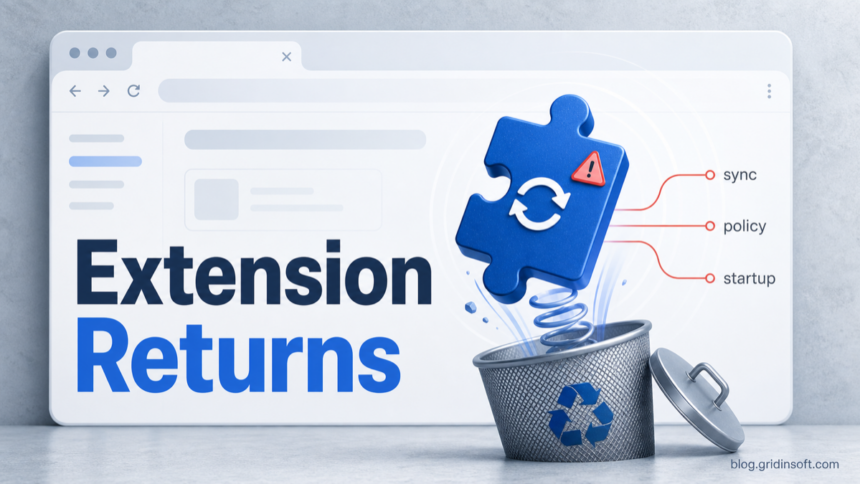
If a browser extension keeps reinstalling itself, the extension folder is usually only the visible symptom. Something else is restoring it: browser sync, an enterprise-style policy, a companion app, a scheduled task, a startup entry, or adware running in the user profile. Remove the restoring source first, then remove the extension and reset the browser.
If an unwanted extension returns on your personal Windows PC while sync is paused, or appeared after an unknown installer, check for a local restoring component. Removing the add-on alone may leave a bundled app, startup entry, or scheduled task that installs it again. First note the extension ID and pause sync. If this is a work or school device, ask IT about its policies; a legitimate managed extension or a sync mistake does not by itself mean malware.
For the unwanted local-persistence branch, download and install Gridinsoft Anti-Malware, update its database, and run a Full Scan. Review the detections and apply cleanup to the unwanted items, then restart Windows. Remove any remaining unwanted extension through the browser’s Extensions page and check whether the same ID returns before signing back in or enabling sync. If it stays gone locally but returns after sign-in, investigate sync and other signed-in devices. If it returns with sync still paused, use the targeted checks below and keep the scan log; repeating a browser reset alone will not identify the restoring source.
If redirects, notifications, extensions, homepage changes, or managed policies return after browser cleanup, the source is often outside the browser: an installed app, policy, scheduled task, or startup entry.
Download for WindowsIf an antivirus alert specifically names Chrome Secure Preferences, it points to protected settings in that Chrome profile, not to a separate extension package. A returning alert usually means sync, a forced extension, or another local program is writing the setting again. Record the profile path and extension ID before cleanup. If the alert instead points to LevelDB, Web Data, Local Extension Settings, or many records under User Data, use the Chrome LevelDB malware detection guide; that is the browser-database path, while this page handles an extension or policy that keeps returning.
If the recurring clue is Chromnius, ChromniusEdge, an ExtensionSeed folder, or a WorldWideWeb scheduled task, use the Chromnius removal guide before resetting the browser again.
After the restoring source is removed, follow the Chrome speed cleanup guide to check Chrome Task Manager, Memory Saver, cache, and any remaining extension load.
This matters when an extension appears in Chrome, Edge, Brave, or Opera without consent, injects ads, changes search, asks for broad site access, manages other extensions, or returns after you delete it. Treat that as a browser-hijacker or PUA persistence problem until you prove it is only a sync mistake.
If the visible clue is a domain such as ultahost.gl sending fake alerts or reopening tabs, start with the Ultahost.gl pop-ups removal checklist, then return here if an extension or policy keeps restoring the behavior.
Why the extension comes back
Recurring extensions usually return through one of these paths:
- Sync restores it. The extension is still attached to your Google, Microsoft, or Opera profile and returns after sign-in.
- A browser policy forces it. Chrome and Edge both support managed extension policies. Legitimate administrators use them, but adware can abuse the same policy area on personal PCs.
- A companion program reinstalls it. A recently installed “PDF”, “coupon”, “download helper”, “cleaner”, “ad blocker”, or game/mod tool may recreate the extension.
- A scheduled task or startup entry reloads it. Tasks under AppData, ProgramData, or a random vendor folder can rewrite browser settings after every reboot.
- The browser profile is still contaminated. Deleting one extension directory does not clean preferences, local state, policy, sync data, or another profile.
Chrome Secure Preferences: keep your data before cleanup
Chrome can save bookmarks, passwords, extensions, settings, history, and open tabs to the signed-in account. That convenience is why an unwanted extension can return after a local quarantine, but it also means a destructive profile reset can remove data you meant to keep. Use this order:
- Capture the exact alert first. Note the detection name, full profile path, Chrome profile name, extension ID, and whether the extension returns after sign-in, browser restart, or Windows reboot.
- Verify what you can restore. Check that important bookmarks and passwords are available in the intended account. If you cannot confirm that, export bookmarks and, only when necessary, passwords to temporary files you can store securely and delete after recovery. Do not reset a sync passphrase or erase cloud data as a test.
- Pause the restoring path. Sign out of Chrome or pause Chrome sync on the affected computer. Review other devices signed in to the same Chrome account; if the same unwanted extension is present, pause sync there before re-enabling it anywhere.
- Remove the local source. Check the extension ID,
chrome://policy, recently installed apps, Startup Apps, Task Scheduler, and services. Remove the confirmed source before deleting the extension from Chrome. - Close Chrome, clean, and rescan. End every Chrome process, remove the confirmed extension, run the security scan again, and reboot. If the setting still returns, create a clean Chrome profile and bring back only verified data such as bookmarks. Do not copy the whole old
User Datatree or extension folders into the clean profile. - Re-enable sync last. Sign in again only after the local rescan is clean and the other signed-in devices have been reviewed. If the extension returns immediately after sign-in, leave sync paused and inspect the account’s saved extensions and settings before repeating local cleanup.
A June 2026 D3Lab case shows why policy clues matter: a malicious Chrome extension used Native Messaging as a bridge from browser data to Windows commands. See the related security news on the Chrome Native Messaging cookie backdoor if an unknown extension appears with a local host, PowerShell activity, or session-cookie exposure.
If the returning extension is tied to a fake search provider, compare it with exact-domain cases such as the Nextgeeker.com redirect, where sync, browser policies, and companion apps can restore the hijack after a reset.
Record clues before deleting it
Open the browser extension page and turn on developer mode if the browser offers it. Write down the extension name, ID, permissions, source path, and whether it says Installed by your administrator, Managed by your organization, or from another store. These clues tell you where to look next. If the main clue is the browser-wide Managed by your organization message on a personal PC, use the managed browser policy removal guide before deleting random registry keys.
How to check an unknown Chrome extension ID
A 32-character Chrome or Edge extension ID is a lookup key, not a malware verdict by itself. Copy the ID from the extension page, search for the exact ID, compare the extension name and publisher with what appears in your browser, and then decide from the full context: did you install it, does it ask for broad permissions, is it forced by policy, and does it return after removal?
For a current exact-ID example, Planet Search uses kadaohckdkghfaclhjmkmplebcdcnfnp; matching that ID separates the search-hijacking extension from unrelated products with similar names.
Some IDs resolve to ordinary-looking Web Store entries, while others point to monitoring or hijacking behavior. For example, ekpkdmohpdnebfedjjfklhpefgpgaaji currently maps to Tackker / Free Keylogger Tool – Child Monitor, a browser monitoring extension that publicly describes keystroke and browsing-history logging [4]. If a monitoring extension appears without informed consent, remove it, pause sync, check policy entries, scan for the installer or companion app that added it, and rotate passwords for accounts used while it was active.
Current AI-branded extensions are another useful warning sign. Microsoft reported a malicious Chromium extension named Search for perplexity ai that spoofed Perplexity AI, changed search behavior, and routed address-bar input through attacker-controlled infrastructure before Google removed it from the store [3]. Removal from the store does not clean browsers where it was already installed, so users still need to uninstall the extension, reset search and new-tab settings, and check whether sync or policy brings it back.
- Same extension returns after sign-in — Sync or browser import is restoring it.
- Cannot remove it from the browser UI — A policy may be force-installing it.
- It returns after reboot — A startup item, scheduled task, service, or companion app may be reinstalling it.
- It appears in several browsers — Look for a Windows-level app, policy, or adware component, not only one browser profile.
- It has broad site access or history permissions — Assume possible data exposure and review passwords/sessions after cleanup.
If the returning item is a Malwarebytes detection named Trojan.FakeGoogleJS, first preserve the full AppData or extension-folder path. Our Trojan.FakeGoogleJS cleanup guide explains how to separate fake extension files, browser sync, and scheduled-task persistence.
One current fixed-ID case is the ModHeader malware warning. If Chrome or Edge disabled it, compare the extension ID and version before deleting only the matching profile storage.
Clean it in the right order
The scan-and-restart route above is the main cleanup path for unwanted local persistence. Use the following checks if the extension remains, returns, or you prefer to investigate manually. You do not need to delete registry entries, tasks, or profile folders after a successful cleanup. Keep the sync-only and legitimate managed-device branches separate.
- Pause sync and auto-import first. Sign out of the affected browser or pause sync. In Edge, also check profile import settings if it keeps copying Chrome extensions back. Do not turn sync on again until the local machine is clean.
- Check browser policy pages. Open
chrome://policy,edge://policy,brave://policy, or the equivalent Chromium policy page. Look for extension-related entries such asExtensionSettingsorExtensionInstallForcelist. Google and Microsoft document these as administrator controls for force-installed extensions [1] [2]. On a work or school device, ask the administrator. On a personal PC, unexpected extension policies are suspicious and should be investigated together with installed apps and startup entries. - Resolve the extension ID before deleting evidence. If the browser shows only an ID, map it to the extension name first. Keep a note of the ID, name, publisher, permissions, source path, and install source so you can tell the difference between a sync mistake, a forced policy, a monitoring extension, and a search hijacker.
- Remove suspicious installed apps. Sort Windows installed apps by date. Uninstall unknown ad blockers, shopping helpers, search tools, downloaders, “web protectors”, cracked-software helpers, or bundles installed near the first extension appearance.
- Inspect startup persistence. Check Startup Apps, Task Scheduler, Services, and the Startup folders. Be especially careful with entries launching from
%AppData%,%LocalAppData%,%ProgramData%,%Temp%, or a random folder name. If the restoring app is App Explorer/SweetLabs/Pokki, use the Host App Service removal guide to check its updater, scheduled task, and browser leftovers. Disable only items you understand or can clearly connect to the unwanted extension. - Close every browser process. Use Task Manager to end Chrome, Edge, Brave, Opera, and their background update/helper processes before removing profile leftovers.
- Remove the extension from the browser UI. Use the browser’s Extensions page first. If the extension is unpacked and points to a local profile folder, delete that specific extension folder only after the restoring process is stopped.
- Reset browser settings after the source is gone. Reset search, startup page, new tab, notification permissions, and site permissions. If the extension changed search or redirects, see Gridinsoft’s PUA and browser hijacker removal guide for the broader cleanup order.
- Match exact adware labels first. If the cleanup involves
SpecialSearchOffer, BrowserAssistant, or aNetTwoUpdaterscheduled task, follow the SpecialSearchOffer adware removal steps, then return here for managed-policy or extension-reinstall checks. - Scan for PUA/adware persistence. Run Gridinsoft Anti-Malware if the extension returns, appears in multiple browsers, arrived after a bundle, or created ads/redirects. A scan is useful here because the visible extension may be reinstalled by a separate Windows component.
After cleanup, check the extension list, search provider, and startup page again after a Windows restart. Record any new alert and its path. If nothing is detected but the same unwanted extension returns, retain that evidence for support and investigate the matching policy or companion app rather than deleting unrelated browser data.
Where to check in each browser
- Chrome —
chrome://extensions,chrome://policy, sync settings, and profile folders under%LocalAppData%\Google\Chrome\User Data. - Microsoft Edge —
edge://extensions,edge://policy, profile import settings, and profile folders under%LocalAppData%\Microsoft\Edge\User Data. - Brave —
brave://extensions,brave://policy, sync chain settings, and profile folders under%LocalAppData%\BraveSoftware\Brave-Browser\User Data. - Opera —
opera://extensions, sync settings, startup settings, and profile data under%AppData%\Opera Softwareor%LocalAppData%\Programs\Opera.
When to change passwords
Some malicious extensions do more than restore themselves. Microsoft’s StegoAd takedown showed how Edge add-ons could target credentials and session cookies, so users who installed one should also review the StegoAd Edge extension response steps.
Change passwords only after the extension and its restoring source are gone. Prioritize email, browser-synced accounts, banking, work accounts, password manager, social media, and gaming accounts if the extension had permissions for browsing history, all-site access, clipboard activity, notifications, downloads, or extension management. Also sign out of other sessions where the account provider offers that option.
If you are unsure whether an extension is malicious, compare its permissions with Gridinsoft’s browser extension safety checklist. Broad access is not automatically malware, but broad access plus silent installation or reinstallation is enough reason to clean the PC and review sensitive accounts.
What not to do
- Do not repeatedly delete the same extension folder while the browser is still running. The restoring process may immediately recreate it.
- Do not remove corporate or school policies from a managed device. If the PC belongs to an organization, contact IT.
- Do not reinstall the browser as the first fix. Reinstalling often keeps the same sync account, policies, tasks, or Windows-level app.
- Do not install more random “extension remover” tools. That can add another PUA to the same problem.
- Do not delete the entire Chrome
User Datafolder or copy the entire old profile into a new one. Preserve verified bookmarks and passwords, but leave policies, extension folders, and unknown profile databases behind.
If the returning extension is Easy Search and the browser briefly opens easysearching.net, use the Easysearching.net cleanup checklist after these reinstall checks.
When the returning extension also causes the browser to open multiple tabs by itself, widen the cleanup to startup URLs, notification permissions, shortcuts, and Windows scheduled tasks.
FAQ
Why does the extension return after I delete its folder?
Because another source is probably restoring it. Check browser sync, policy pages, recent installed apps, scheduled tasks, startup entries, and AppData or ProgramData helpers before deleting the folder again.
Does “Managed by your organization” always mean malware?
No. It is normal on school or work devices. On a personal PC, unexpected browser policy entries deserve investigation because unwanted software can use policy mechanisms to force-install extensions.
Should I reset Chrome or Edge?
Resetting helps only after the restoring source is removed. If you reset first, the same sync account, policy, task, or companion app can bring the extension back.
Can a browser extension steal passwords?
Some extensions can read page content or browsing activity depending on their permissions. If the extension had broad site access or appeared without consent, clean the device first, then change important passwords and revoke suspicious sessions.
For an exact-name case that follows this pattern, the Easy Online Templates adware guide shows how to remove the extension and then check sync, notifications, and Windows persistence.
A recent GhostDesk campaign hidden in a fake CCleaner installer shows why a returning extension must be investigated together with dropped Windows files and a modified Chrome manifest.
References
- Chrome Enterprise. “ExtensionSettings: Extension management settings.” Google, accessed June 1, 2026. https://chromeenterprise.google/policies/extension-settings/
- Microsoft Learn. “ExtensionInstallForcelist.” Microsoft, last updated May 22, 2026, accessed June 1, 2026. https://learn.microsoft.com/en-us/deployedge/microsoft-edge-policies/ExtensionInstallForcelist
- Microsoft Threat Intelligence. “Chromium extension uses AI-related branding to redirect browser search.” Microsoft Security Blog, June 29, 2026, accessed July 7, 2026. https://www.microsoft.com/en-us/security/blog/2026/06/29/chromium-extension-uses-airelated-branding-redirect-browser-search/
- Chrome Web Store. “Free Keylogger Tool – Child Monitor Tackker.” Google, accessed July 7, 2026. https://chromewebstore.google.com/detail/free-keylogger-tool-child/ekpkdmohpdnebfedjjfklhpefgpgaaji