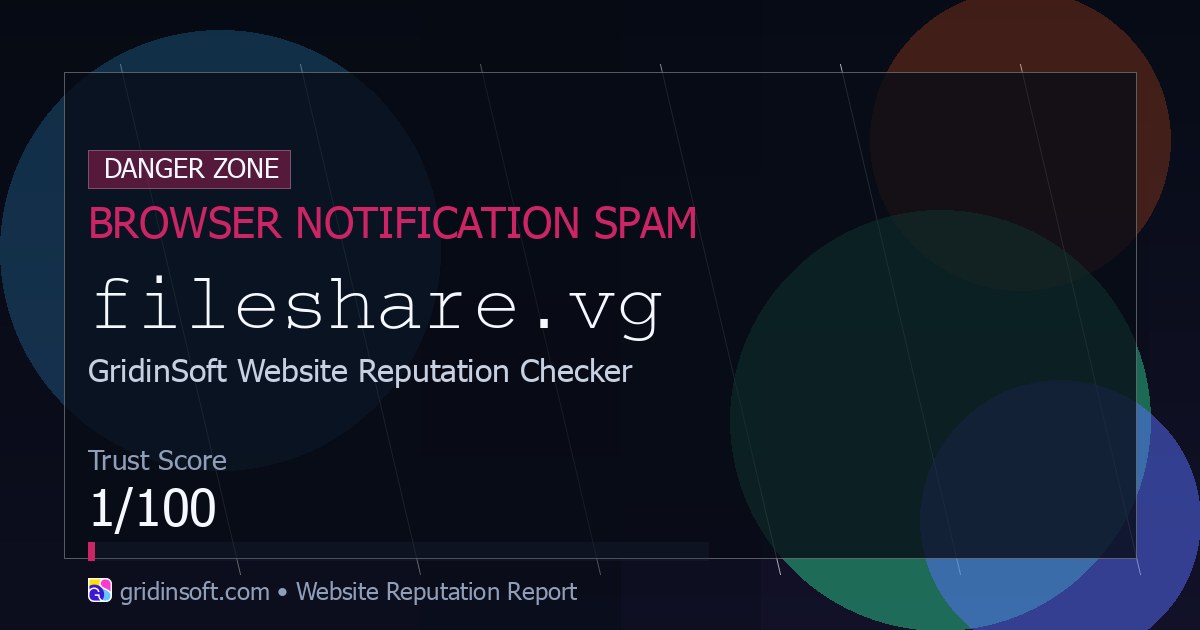
Fileshare.vg is not a trustworthy file-sharing service to keep in your browser permissions. Gridinsoft’s Website Reputation Checker classifies the domain as Browser Notification Spam with a 1/100 trust score, so the practical fix is to remove the site’s notification permission first. If Fileshare.vg pop-ups return after that, check extensions, search settings, browser policies, shortcuts, installed apps, startup entries, and scheduled tasks for adware-style persistence.
What Is Fileshare.vg?
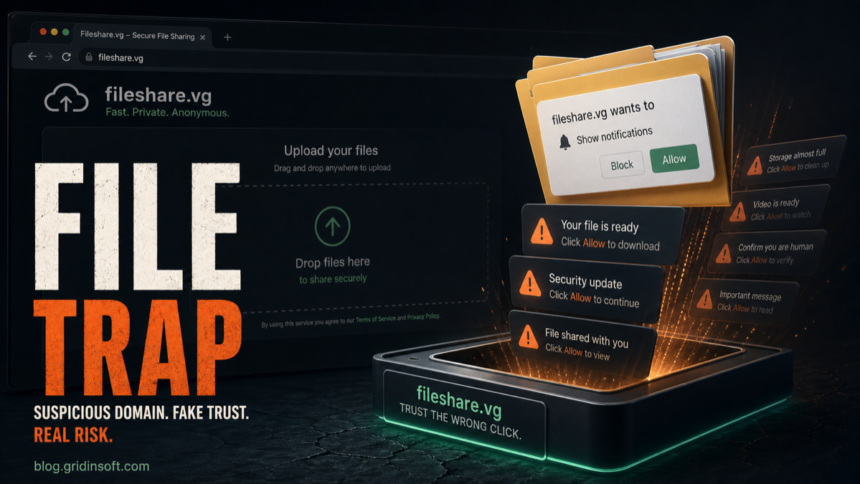
Fileshare.vg is an exact-domain browser notification and redirect risk. The name looks like a normal upload or download page, which is why it can trick users who only wanted a file, a video, or a verification step. The safety issue is the permission prompt: a page asks you to click Allow, then the browser can show Fileshare.vg alerts even when the original tab is closed.
The Gridinsoft scanner report for Fileshare.vg lists Browser Notification Spam, a 1/100 trust score, provider warnings, a young-domain signal, and a redirect destination outside the apparent file-sharing name. That does not prove that every affected PC has a full malware infection, but it is enough reason to revoke the permission and check for the adware or redirect source that brought the domain into the browser.
Common Symptoms
- Notifications mention Fileshare.vg, downloads, shared files, storage warnings, security updates, or human verification.
- A page says you must click Allow to download, watch, continue, or prove you are not a robot.
- Pop-ups appear from Chrome, Edge, or Firefox after the Fileshare.vg tab is closed.
- New tabs open to ads, fake updates, surveys, download offers, or unrelated login pages.
- Unknown extensions, changed search/homepage settings, or a
Managed by your organizationmessage appear around the same time.
Remove Fileshare.vg Notifications
Start with site permissions. Official Chrome, Edge, and Firefox documentation all route notification control through browser-level site permissions, so this is the highest-probability fix for corner-of-screen alerts [1] [2] [3].
- Open the browser that shows the alerts.
- Go to Privacy and security, Site settings, Cookies and site permissions, or the Firefox Permissions section.
- Open Notifications.
- Find
fileshare.vgand remove or block it. - Remove other unfamiliar allowed domains from the same time period.
- Also check Pop-ups and redirects and block suspicious allowed sites.
- Restart the browser and confirm that no new Fileshare.vg alerts appear.
If Fileshare.vg keeps showing unwanted pop-ups, you likely granted it permission to send notifications. To stop them, you need to revoke that permission in your browser settings.
- Copy and paste this into the address bar:
chrome://settings/content/notifications - Scroll down to the Allowed to send notifications list.
- Find Fileshare.vg.
- Click the three dots (...) next to it and select Remove (or Block).
- Open Safari and go to Settings (or Preferences).
- Click the Websites tab and select Notifications on the left.
- Find Fileshare.vg in the list on the right.
- Select it and click Remove (or change "Allow" to "Deny").
- Copy and paste this into the address bar:
about:preferences#privacy - Scroll down to Permissions and click Settings... next to Notifications.
- Type Fileshare.vg in the search bar or find it in the list.
- Select the site and click Remove Website.
- Copy and paste this into the address bar:
edge://settings/content/notifications - Look under the Allow section.
- Find Fileshare.vg.
- Click the three dots (...) next to it and select Remove (or Block).
- Copy and paste this into the address bar:
brave://settings/content/notifications - Scroll to the Allowed to send notifications list.
- Find Fileshare.vg.
- Click the three dots (...) and select Remove (or Block).
- Copy and paste this into the address bar:
opera://settings/content/notifications - Check the Allowed to send notifications list.
- Find Fileshare.vg.
- Click the three dots next to it and select Remove.
Check Extensions, Search, And Browser Policy
If Fileshare.vg returns after notification cleanup, treat it as a browser hijacker or adware symptom. Remove recently installed extensions you did not choose deliberately, especially download helpers, video tools, PDF converters, coupon extensions, “search helper” add-ons, fake VPNs, and cracked-software companions.
Then restore the homepage, new-tab page, and default search engine. Check chrome://policy or edge://policy on a personal computer; suspicious forced extensions or notification rules can keep unwanted domains alive. Also inspect browser shortcuts and remove any extra URL appended after the browser executable path.
For the broader workflow, use our guides on disabling browser push notifications, PUA and browser hijacker cleanup, and what to do when a browser opens multiple tabs by itself.
- Launch Chrome.
- Click the three dots (...) in the top right corner.
- Select Extensions > Manage Extensions.
- Click Remove next to the extension you want to delete.
Quick Access: Type chrome://extensions/ in the address bar.
- Open Safari.
- In the menu bar, click Safari and select Settings (or Preferences).
- Click on the Extensions tab.
- Select the extension and click Uninstall.
- Click the menu button, select Add-ons and themes.
- Go to the Extensions tab.
- Click the three dots (...) next to the extension and select Remove.
Quick Access: Type about:addons in the address bar.
- Launch Microsoft Edge.
- Click the three dots (...) in the top right corner.
- Select Extensions.
- Find the extension and click Remove.
Quick Access: Type edge://extensions/ in the address bar.
- Launch Brave browser.
- Click the menu icon > Extensions.
- Find the extension and click Remove.
Quick Access: Type brave://extensions/ in the address bar.
- Launch Opera.
- Click the Opera logo in the top left corner.
- Select Extensions > Extensions.
- Click the X or Remove button next to the extension.
Quick Access: Type opera://extensions/ in the address bar.
Open Extensions/Add-ons again and remove any entry linked to Fileshare.vg or clearly out of place.
Check Windows If Pop-Ups Keep Returning
Browser permission cleanup is often enough, but repeated redirects can be restored by an unwanted app, startup entry, or scheduled task. Check Windows when the alerts began after installing a free utility, game mod, codec, downloader, browser helper, or cracked software.
- Uninstall unfamiliar apps installed near the first Fileshare.vg alert.
- Open Task Manager and disable unknown Startup apps.
- Review Task Scheduler for new tasks that open a browser, script, updater, or unknown executable.
- Check browser shortcuts for extra URLs after the executable path.
- Temporarily pause browser sync if the same extension or setting returns on multiple devices.
- Run a full security scan if you downloaded a file, installed an extension, or the pop-ups survive a clean browser reset.
- Tap on the three dots (...) in the top right corner and Choose Settings.

- Choose Reset and Clean up and Restore settings to their original defaults.

- Tap Reset settings.

Quick Access: Type chrome://settings/reset in the address bar.
- Open Safari.
- In the menu bar, click Safari > Clear History.
- Select all history and click Clear History.
- Go to Safari > Settings (or Preferences).
- Click the Privacy tab and select Manage Website Data... > Remove All.
- In the Advanced tab, check Show features for web developers.
- In the menu bar, select Develop > Empty Caches.
- Launch Brave browser.
- Click the menu icon in the top right corner and select Settings.
- Click Additional settings > Reset settings.
- Tap Restore settings to their original defaults.
- Confirm by clicking Reset settings.
Quick Access: Type brave://settings/reset in the address bar.
- In the upper right corner tap the three-line icon and Choose Help.

- Choose More Troubleshooting Information.

- Choose Refresh Firefox... then Refresh Firefox.

Quick Access: Type about:support and click Refresh Firefox.
- Tap the three dots.

- Choose Settings.

- Tap Reset Settings, then Click Restore settings to their default values.

Quick Access: Type edge://settings/reset in the address bar.
- Launch the Opera browser.
- Click the Opera menu button in the top left corner and select Settings.
- Scroll down to the Advanced section in the left sidebar and click Reset and clean up.
- Click Restore settings to their original defaults.
- Click Reset settings to confirm.
Quick Access: Type opera://settings/reset in the address bar.
After reset, verify that Fileshare.vg is no longer set as your default search engine or homepage.
If You Clicked Allow, Downloaded A File, Or Entered Data
If you only clicked Allow, remove the notification permission and watch the browser for a few minutes. If you downloaded or opened anything from a Fileshare.vg redirect chain, scan the system before signing in to sensitive accounts.
If the page asked for passwords, payment data, crypto wallet details, or remote-access software, close the page, change affected passwords from a clean browser session, enable multi-factor authentication, revoke unknown sessions, and contact your bank or service provider if payment details were entered.
After uninstalling the suspicious app or deleting the visible threat, use Gridinsoft Anti-Malware to check hidden files, startup entries, scheduled tasks, bundled apps, browser changes, and other persistence points that can restore malware.
Download Anti-MalwareHow To Avoid Similar File-Sharing Traps
- Do not allow notifications to download a file, watch a video, or pass a fake verification step.
- Keep browser notifications blocked by default and allow only sites you recognize.
- Be skeptical of domains that promise a file but immediately request notification access.
- Scan unfamiliar domains with the Gridinsoft Website Reputation Checker before entering credentials, payment details, or installing software.
FAQ
Is Fileshare.vg a real file-sharing service?
You should not treat it as a safe file-sharing service. The domain is flagged by Gridinsoft as Browser Notification Spam, and the safe response is to remove its browser permission and avoid downloads from the redirect chain.
Does Fileshare.vg mean my PC has malware?
Not always. Many cases are caused by a site notification permission. Escalate to extension cleanup and a full malware scan if you downloaded a file, installed an extension, or the pop-ups return after permissions are removed.
Why do Fileshare.vg pop-ups appear when the site is closed?
The browser may still have permission to show notifications from the domain. Remove Fileshare.vg from notification permissions in Chrome, Edge, or Firefox, then check for adware if the alerts continue.
Should I reset my browser?
Reset the browser if notification cleanup does not stop the alerts, if search or homepage settings changed, or if suspicious extensions keep returning. Save important bookmarks first.
References
- Google Chrome Help. “Use notifications to get alerts.” Google Help, accessed June 12, 2026. https://support.google.com/chrome/answer/3220216
- Microsoft Support. “Manage website notifications in Microsoft Edge.” Microsoft, accessed June 12, 2026. https://support.microsoft.com/en-us/edge/manage-website-notifications-in-microsoft-edge
- Mozilla Support. “Web Push notifications in Firefox.” Mozilla, updated May 2026, accessed June 12, 2026. https://support.mozilla.org/en-US/kb/push-notifications-firefox