Homesearchtab.com and search.homesearchtab.com are best treated as browser-hijacker startup and search redirects. If Chrome still opens the page after you changed the search engine back, do not stop at the default-search setting: remove the startup page, check extensions, site-search shortcuts, browser sync, policies, shortcuts, and Windows startup items, then scan for adware if the redirect returns.
What Is Homesearchtab.com?
Homesearchtab.com is associated with unwanted browser changes: a startup tab, home page, new-tab behavior, or search provider may be changed so the browser opens the promoted search page first. The visible symptom can be small, such as one tab opening on launch, but the cause is often a browser extension, a site-search shortcut, a bundled app, a managed policy, or a shortcut/startup entry that keeps restoring the setting.
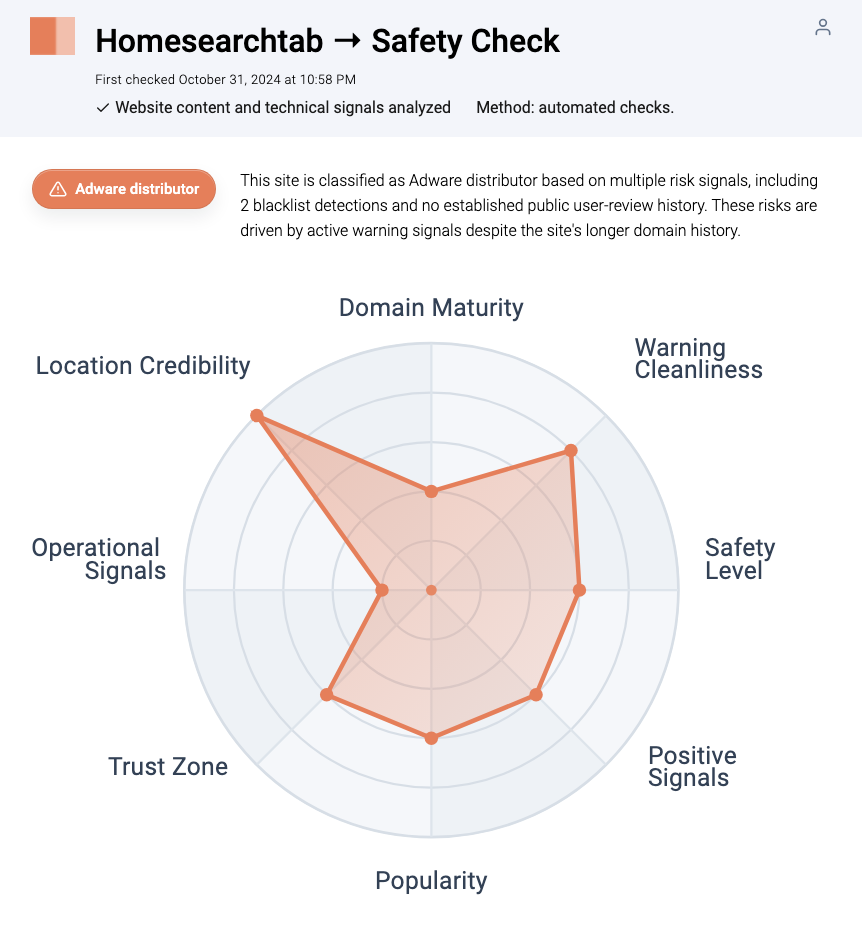
Gridinsoft’s Website Reputation Checker currently classifies Homesearchtab.com as an Adware distributor. That does not prove every affected PC has a severe infection, but it is enough reason to remove the redirect and inspect how it was added.
Symptoms To Check
- Chrome opens
homesearchtab.comorsearch.homesearchtab.comwhen Windows starts or when Chrome launches. - The default search engine was changed, but the unwanted tab still opens on startup.
- Searches pass through a fake search page before landing on Yahoo, Bing, or another legitimate engine.
- A new extension, toolbar, search helper, PDF tool, coupon extension, downloader, or video helper appeared near the same time.
- Chrome says Managed by your organization on a personal computer.
- The same setting returns after browser reset, reboot, or Chrome sync.
Remove Homesearchtab.com From Chrome Startup
Start with the setting that matches the symptom. Google documents that Chrome can open a chosen page or a set of pages at startup, and that an unwanted homepage or startup page on a personal computer can be a malware sign [2].
- Open Chrome and go to
chrome://settings/onStartup. - Select Open the New Tab page, or remove
homesearchtab.comfrom Open a specific page or set of pages. - Open
chrome://settings/searchand choose a trusted default search engine. - Open
chrome://settings/searchEnginesand remove or deactivate suspicious site-search shortcuts that mention Homesearchtab, WebBearSearch, or unknown search domains. Google’s Chrome help explains that site-search shortcuts can be edited, deactivated, or used as defaults [3]. - Restart Chrome. If the tab returns, continue with extensions, policies, and Windows startup checks below.
Remove The Extension Or Search Helper Behind It
Open chrome://extensions and remove anything you did not intentionally install. Pay special attention to extensions that claim to improve search, new tabs, coupons, downloads, PDFs, video playback, VPN access, or browser speed. If you are not sure, disable one suspicious extension, restart Chrome, and test whether the Homesearchtab startup page returns.
- Launch Chrome.
- Click the three dots (...) in the top right corner.
- Select Extensions > Manage Extensions.
- Click Remove next to the extension you want to delete.
Quick Access: Type chrome://extensions/ in the address bar.
- Open Safari.
- In the menu bar, click Safari and select Settings (or Preferences).
- Click on the Extensions tab.
- Select the extension and click Uninstall.
- Click the menu button, select Add-ons and themes.
- Go to the Extensions tab.
- Click the three dots (...) next to the extension and select Remove.
Quick Access: Type about:addons in the address bar.
- Launch Microsoft Edge.
- Click the three dots (...) in the top right corner.
- Select Extensions.
- Find the extension and click Remove.
Quick Access: Type edge://extensions/ in the address bar.
- Launch Brave browser.
- Click the menu icon > Extensions.
- Find the extension and click Remove.
Quick Access: Type brave://extensions/ in the address bar.
- Launch Opera.
- Click the Opera logo in the top left corner.
- Select Extensions > Extensions.
- Click the X or Remove button next to the extension.
Quick Access: Type opera://extensions/ in the address bar.
Open Extensions/Add-ons again and remove any entry linked to Homesearchtab.com or clearly out of place.
Check Policy, Sync, And Shortcuts
If the browser is personal but settings are locked, open chrome://policy. Forced homepage, extension, search provider, or startup URL policies can make manual changes fail. On a work or school computer, ask the administrator before changing policy. On a home PC, unexpected policies usually mean a PUA, adware installer, or script changed the browser configuration.
- Pause Chrome sync temporarily if the setting returns from another device.
- Right-click the Chrome shortcut, open Properties, and make sure the target ends at
chrome.exewithout a Homesearchtab URL after it. - Check Windows Startup apps for unknown browser helpers or update tools.
- Open Task Scheduler and look for jobs that launch Chrome, a browser updater, a script, or an unknown executable.
- Remove unfamiliar apps installed around the first redirect.
Reset Chrome Only After The Source Is Removed
Chrome’s reset option can restore default settings, but Google notes that it does not remove everything, such as all local profile data or every system-level cause [4]. Use reset after removing suspicious extensions, site-search shortcuts, startup entries, and unwanted apps; otherwise the same component may recreate the redirect.
- Tap on the three dots (...) in the top right corner and Choose Settings.

- Choose Reset and Clean up and Restore settings to their original defaults.

- Tap Reset settings.

Quick Access: Type chrome://settings/reset in the address bar.
- Open Safari.
- In the menu bar, click Safari > Clear History.
- Select all history and click Clear History.
- Go to Safari > Settings (or Preferences).
- Click the Privacy tab and select Manage Website Data... > Remove All.
- In the Advanced tab, check Show features for web developers.
- In the menu bar, select Develop > Empty Caches.
- Launch Brave browser.
- Click the menu icon in the top right corner and select Settings.
- Click Additional settings > Reset settings.
- Tap Restore settings to their original defaults.
- Confirm by clicking Reset settings.
Quick Access: Type brave://settings/reset in the address bar.
- In the upper right corner tap the three-line icon and Choose Help.

- Choose More Troubleshooting Information.

- Choose Refresh Firefox... then Refresh Firefox.

Quick Access: Type about:support and click Refresh Firefox.
- Tap the three dots.

- Choose Settings.

- Tap Reset Settings, then Click Restore settings to their default values.

Quick Access: Type edge://settings/reset in the address bar.
- Launch the Opera browser.
- Click the Opera menu button in the top left corner and select Settings.
- Scroll down to the Advanced section in the left sidebar and click Reset and clean up.
- Click Restore settings to their original defaults.
- Click Reset settings to confirm.
Quick Access: Type opera://settings/reset in the address bar.
After reset, verify that Homesearchtab.com is no longer set as your default search engine or homepage.
Check Notifications And Pop-Ups Too
Homesearchtab is mainly a startup/search redirect problem, but browser hijacker chains often add notification permissions or pop-up allowances for related domains. Open Chrome’s site settings and remove suspicious allowed domains under notifications, pop-ups, and redirects. For domain-specific permission cleanup, see our guide to disabling browser push notifications.
If Homesearchtab.com keeps showing unwanted pop-ups, you likely granted it permission to send notifications. To stop them, you need to revoke that permission in your browser settings.
- Copy and paste this into the address bar:
chrome://settings/content/notifications - Scroll down to the Allowed to send notifications list.
- Find Homesearchtab.com.
- Click the three dots (...) next to it and select Remove (or Block).
- Open Safari and go to Settings (or Preferences).
- Click the Websites tab and select Notifications on the left.
- Find Homesearchtab.com in the list on the right.
- Select it and click Remove (or change "Allow" to "Deny").
- Copy and paste this into the address bar:
about:preferences#privacy - Scroll down to Permissions and click Settings... next to Notifications.
- Type Homesearchtab.com in the search bar or find it in the list.
- Select the site and click Remove Website.
- Copy and paste this into the address bar:
edge://settings/content/notifications - Look under the Allow section.
- Find Homesearchtab.com.
- Click the three dots (...) next to it and select Remove (or Block).
- Copy and paste this into the address bar:
brave://settings/content/notifications - Scroll to the Allowed to send notifications list.
- Find Homesearchtab.com.
- Click the three dots (...) and select Remove (or Block).
- Copy and paste this into the address bar:
opera://settings/content/notifications - Check the Allowed to send notifications list.
- Find Homesearchtab.com.
- Click the three dots next to it and select Remove.
When To Scan For Adware Leftovers
If Homesearchtab.com appeared only once and you removed it from startup settings, a reset may be enough. Scan the PC when the redirect returns after reboot, appears in more than one browser, comes with a Managed by your organization message, follows a free utility or cracked installer, or keeps reinstalling an extension. A Gridinsoft Anti-Malware scan can check for detections, startup entries, scheduled tasks, hidden files, bundled apps, browser changes, and persistence that a normal browser reset does not remove.
If redirects, notifications, extensions, homepage changes, or managed policies return after browser cleanup, the source is often outside the browser: an installed app, policy, scheduled task, or startup entry.
Scan for browser hijacker leftoversRelated Cleanup Guides
If your symptom is broader than one Homesearchtab startup page, compare it with our Search-crown.com redirect removal guide, the Fusebase Search Redirect removal guide, and our troubleshooting steps for a browser that opens multiple tabs by itself. Those pages cover nearby redirect, tab-spam, and extension-persistence patterns without duplicating this exact Homesearchtab cleanup.
How To Avoid The Redirect Returning
- Install browser extensions only from sources you recognize and remove old extensions you no longer use.
- Choose custom install options for free utilities and decline search, homepage, or new-tab offers.
- Do not keep cracks, keygens, fake update installers, or bundled download managers on the PC.
- Review Chrome sync after cleanup so a bad setting does not return from another profile or device.
- Scan unfamiliar domains and downloads before installing anything they promote.
FAQ
Is Homesearchtab.com a virus?
Homesearchtab.com is better described as an unwanted browser hijacker or adware-related redirect. It is not proof by itself that ransomware or a file-stealing trojan is present, but repeated startup redirects, locked policies, or returning extensions justify a full adware scan.
Why does it open on startup after I changed the search engine?
The startup page, site-search shortcut, extension, shortcut target, sync setting, or Windows scheduled task may still point to Homesearchtab.com. Changing only the default search engine does not remove those separate persistence points.
What if Chrome says Managed by your organization?
On a work or school device, ask the administrator. On a personal device, unexpected Chrome policies usually mean an unwanted app, script, or extension changed browser rules. Check chrome://policy and scan for leftovers before resetting again.
Should I delete my whole Chrome profile?
Do that only after simpler checks fail. Export important bookmarks first, pause sync, remove suspicious extensions and policies, then create a fresh profile if the old one keeps restoring the unwanted startup page.
Can Homesearchtab.com steal passwords?
The startup redirect itself does not automatically read saved passwords, but pages reached through hijacker chains can lead to phishing, fake downloads, or scam alerts. Change passwords if you entered credentials after clicking through the redirect.
References
- Gridinsoft. “Homesearchtab.com Adware Report.” Gridinsoft Website Reputation Checker, accessed June 18, 2026. https://gridinsoft.com/online-virus-scanner/url/homesearchtab-com
- Google Chrome Help. “Set your homepage and startup page.” Google, accessed June 18, 2026. https://support.google.com/chrome/answer/95314
- Google Chrome Help. “Set default search engine and site search shortcuts.” Google, accessed June 18, 2026. https://support.google.com/chrome/answer/95426
- Google Chrome Help. “Reset Chrome settings to default.” Google, accessed June 18, 2026. https://support.google.com/chrome/answer/3296214