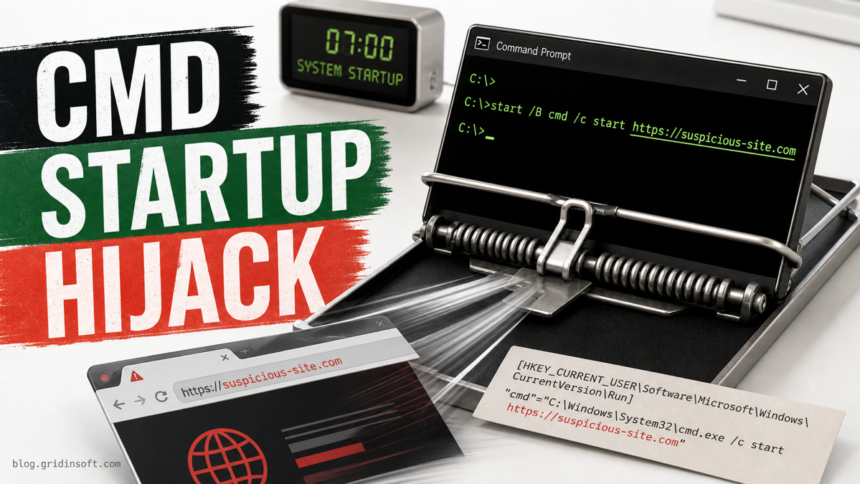
If Command Prompt opens a website every time Windows starts, the problem is usually the startup launcher, not cmd.exe itself. A command such as cmd.exe /c start <website> tells Windows to run Command Prompt, execute the start command, and open the URL in your default browser. Remove the Run key, scheduled task, Startup-folder shortcut, or browser shortcut that calls the command; do not delete C:\Windows\System32\cmd.exe.
This symptom is common in browser-hijacker and adware cleanups because it looks like a Windows bug for a second, then turns into a browser redirect. Examples you may see in startup commands include domains such as www.bongbonger.org, dongdonger.org, or legi.cc. The exact domain matters less than the pattern: a logon item is launching a site without your consent.
Quick fix order
- Disconnect from suspicious pages and do not enter passwords or payment details in the opened site.
- Find the launcher in Startup Apps, Run keys, Startup folders, Task Scheduler, browser shortcuts, or browser startup settings.
- Remove only the entry that calls
cmd.exe /c startwith the unwanted URL. - Clean browser notifications, extensions, homepage/search settings, shortcuts, and policies if redirects continue.
- Run a full malware/PUA scan, reboot, and recheck the same startup locations if the command returns.
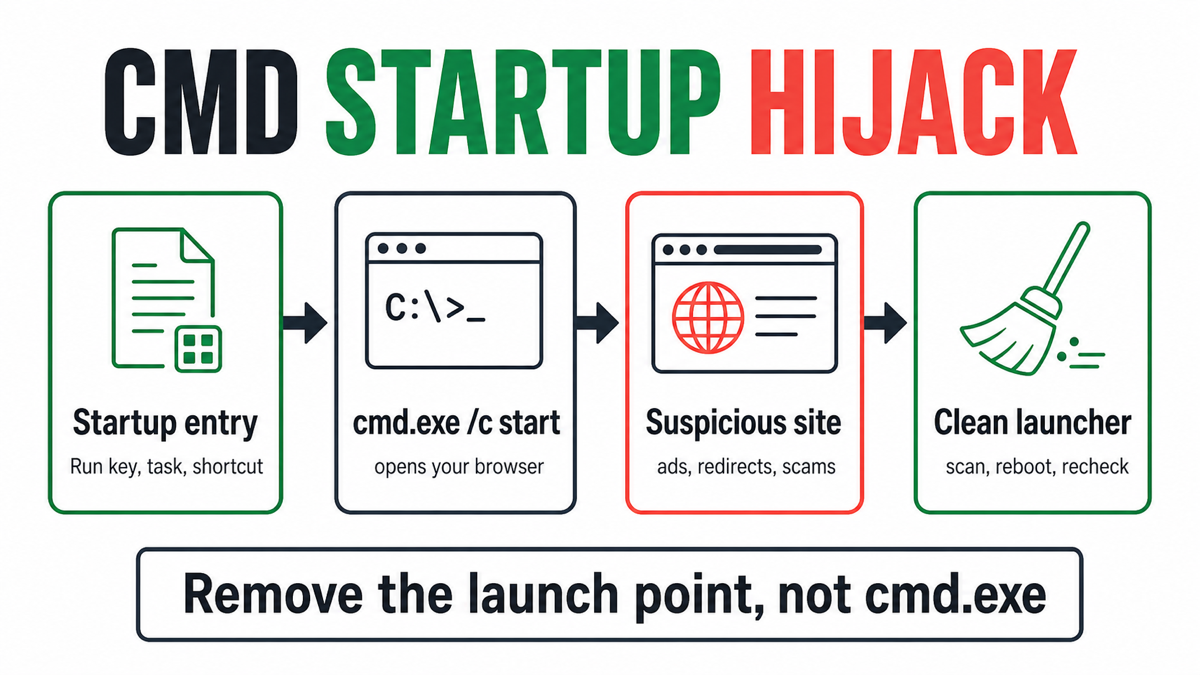
What cmd.exe /c start <website> means
cmd.exe is the normal Windows Command Prompt executable. The suspicious part is the command line and where it is stored. Microsoft documents that the start command can start a program or command, and that URLs are opened through their registered file association, usually the default browser [1]. So this startup command is not magic; it is a Windows command being abused as a browser launcher.
The /c switch tells Command Prompt to run the command and then close. That is why users often see only a black window flash for a moment before Chrome, Edge, Firefox, or another browser opens the site. If a security alert names cmd.exe, the alert may be about what launched through Command Prompt, not proof that the original Microsoft file was replaced.
Where the startup website launcher can hide
Start with the places a normal user can safely inspect. Do not delete broad registry branches, system folders, or every entry with the word “Windows.” You are looking for the exact value, task, shortcut, or setting that contains the unwanted URL.
| Place to check | What to look for |
|---|---|
| Startup Apps and Task Manager | An unknown entry named Windows Command Processor, CMD, PC, Update, Browser, or a random word that appeared when the redirects started. |
| Run registry keys | A value under HKCU\Software\Microsoft\Windows\CurrentVersion\Run or HKLM\Software\Microsoft\Windows\CurrentVersion\Run that calls cmd.exe /c start and a URL. Microsoft describes these keys as logon startup locations [2]. |
| Startup folders | A shortcut, batch file, script, or URL file in %APPDATA%\Microsoft\Windows\Start Menu\Programs\Startup or %ProgramData%\Microsoft\Windows\Start Menu\Programs\Startup. |
| Task Scheduler | A logon, startup, idle, or repeating task that launches C:\Windows\System32\cmd.exe with /c start, or a task that recreates the Run key after you delete it. |
| Browser shortcuts | A shortcut Target that ends with an extra URL after chrome.exe, msedge.exe, or firefox.exe. |
| Browser settings and sync | Startup pages, notification permissions, extensions, search settings, managed policies, or synced settings that keep restoring the redirect. |
1. Remove the Startup Apps or Run key entry
- Open Settings > Apps > Startup. Disable unknown entries that appeared around the same time as the unwanted site.
- Open Task Manager, Startup apps, and check whether the same entry is listed there. If the Publisher is blank, the name is random, or the command path points to
cmd.exeplus a URL, treat it as suspicious. - Press Win + R, type
regedit, and checkHKCU\Software\Microsoft\Windows\CurrentVersion\Run. Remove only the value that contains the unwanted website command. - If the PC is shared or the entry affects all users, also check
HKLM\Software\Microsoft\Windows\CurrentVersion\Run. Be careful here: machine-wide entries can belong to legitimate software.
If the value name looks harmless, such as PC, Update, Browser, Google, or a person’s name, judge it by the data field. The data is the important part. A value that runs cmd.exe /c start www.bongbonger.org is not a normal startup helper, even if the value name looks ordinary.
2. Check Task Scheduler if the Run key comes back
When the registry value reappears after reboot, Task Scheduler is the next place to check. Open taskschd.msc and review recent tasks in Task Scheduler Library. Look at the Triggers tab for logon/startup/repeating triggers and the Actions tab for the command line.
A suspicious action may look like one of these patterns:
C:\Windows\System32\cmd.exe /c start www.example-site.test
cmd.exe /c reg add HKCU\Software\Microsoft\Windows\CurrentVersion\Run /v PC /t REG_SZ /d "cmd.exe /c start www.example-site.test" /f
The second pattern is especially important: it does not just open the site; it recreates the startup Run value. Disable the task first, export or note its details if you need evidence, then delete the task only when you are confident it points to the hijack and not to software you chose.
3. Check Startup folders and browser shortcuts
Do not confuse this startup-launch symptom with a harmless old browser Favorite. If your scanner found many .url files but the browser is not opening sites by itself, use the old bookmarks and URL shortcuts triage guide to clean stale saved links separately from true startup persistence.
Open the current-user Startup folder:
%APPDATA%\Microsoft\Windows\Start Menu\Programs\StartupThen check the all-users Startup folder:
%ProgramData%\Microsoft\Windows\Start Menu\Programs\StartupDelete or move out only shortcuts, scripts, URL files, or batch files that clearly launch the unwanted site. If you are unsure, move the item to a temporary folder first and reboot to test. For browser shortcuts pinned to the desktop, Start menu, or taskbar, open Properties and inspect the Target field. The target should end at the browser executable path, not with an added website after the closing quote.
4. Clean the browser side of the redirect
Removing the Windows launcher stops the automatic startup, but it may not clean the browser profile that the redirect touched. Check the browser that opened:
- Startup pages: remove pages you did not choose from Chrome, Edge, Firefox, or another browser.
- Extensions: remove unknown search, coupon, download, media, PDF, weather, shopping, or “web protect” extensions.
- Notifications: remove suspicious sites from notification permissions, especially if fake antivirus or prize alerts keep appearing. If notification spam is the main symptom, use the browser notification cleanup guide.
- Search and homepage: reset the default search engine and homepage if they changed.
- Policies: if the browser says “managed by your organization” on a home PC, compare the problem with the broader browser hijacker cleanup guide.
- Sync: pause browser sync while cleaning. If the bad setting returns only after sign-in, remove it from the synced account before using that profile again.
5. Scan for the app that created the launcher
A startup website hijack is often only the visible symptom. A bundled app, adware installer, fake browser update, cracked-software helper, notification spammer, or browser extension may have created the Run value or task. If the command returns after reboot, if multiple browsers are affected, or if you also see security-tool alerts, run a full Gridinsoft Anti-Malware scan, remove detections, reboot, and scan again if the site opens again.
Gridinsoft Anti-Malware can help check the places manual cleanup often misses: startup entries, scheduled tasks, bundled apps, browser changes, hidden files, and persistence. It cannot recover stolen passwords or prove nothing else ever happened, so treat account security separately if the redirect came from a fake installer or suspicious download.
If redirects, notifications, extensions, homepage changes, or managed policies return after browser cleanup, the source is often outside the browser: an installed app, policy, scheduled task, or startup entry.
Scan for startup hijack leftoversAdvanced check: Autoruns
If you are comfortable with Microsoft Sysinternals tools, Autoruns is useful for this exact kind of problem. Microsoft describes Autoruns as showing programs configured to run during bootup or login, including Startup folders, Run and RunOnce keys, services, browser helper objects, scheduled tasks, and more. Its option to hide signed Microsoft entries helps focus on third-party additions [3].
Use Autoruns as a map, not as a delete-everything tool. Disable or delete only entries that clearly point to the unwanted URL, an unknown companion app, or a suspicious script. If an entry points to a file in %APPDATA%, %LOCALAPPDATA%, %TEMP%, Downloads, or a random folder under ProgramData, scan the file before restoring or trusting it.
What if the website opens again after reboot?
If the same website opens after you removed the obvious entry, one of these is still active:
- a scheduled task recreating the Run key;
- a service, updater, or bundled app rebuilding the startup command;
- a browser extension or policy restoring startup/search settings;
- browser sync reapplying a bad profile setting;
- another script or shortcut in a Startup folder;
- a separate PUA/adware component that has not been removed.
Recheck the startup locations immediately after reboot and sort by recent creation or modification time where possible. If you see a different domain each time, treat that as a redirect/adware network rather than a one-domain problem. The browser opens multiple tabs by itself guide covers the broader tab-storm branch.
What not to do
- Do not delete
C:\Windows\System32\cmd.exe. That is the normal Windows command processor. - Do not remove the whole
Runregistry key. Remove only the suspicious value. - Do not add antivirus exclusions to stop alerts about the startup command.
- Do not sign in to banking, email, crypto, work, or password-manager accounts through the site that opened.
- Do not download random removal tools from pages that rank for the same domain. Use trusted cleanup tools and verify every manual step.
- Do not factory reset as the first step unless you also see account compromise, security tools disabled, ransomware, or repeated malware that survives normal cleanup.
If the CMD startup redirect appears alongside other unknown entries in Task Manager, review the broader suspicious startup apps checklist after removing the URL launcher. It helps separate harmless orphaned entries from scripts, Run keys, and scheduled tasks that need a malware scan.
FAQ
Is cmd.exe a virus if it opens a website on startup?
Usually no. cmd.exe is a legitimate Windows file. The suspicious part is the startup entry, scheduled task, shortcut, or browser setting that uses cmd.exe /c start to open a website without consent.
Should I delete Windows Command Processor from Startup Apps?
Disable the suspicious startup entry first, then find where it is stored. Do not delete C:\Windows\System32\cmd.exe. If the entry points to a URL, remove the startup value or task that calls it.
Why does the Run key return after I delete it?
A scheduled task, service, updater, or adware component may be recreating it. Check Task Scheduler for logon/startup tasks that run cmd.exe or use reg add to rebuild the same Run value.
Can a browser reset fix this?
A browser reset can remove startup pages, extensions, and search changes, but it will not remove a Windows Run key or scheduled task. Clean the Windows launcher first, then reset browser settings if the profile was changed.
Do I need to change passwords?
Change passwords from a clean device if the hijack followed a fake installer, crack, browser extension, remote-support session, or if you see account alerts or other malware detections. The startup website symptom alone does not prove password theft.
References
- Microsoft Learn. “start.” Microsoft, last updated April 16, 2026, accessed July 3, 2026. https://learn.microsoft.com/en-us/windows-server/administration/windows-commands/start.
- Microsoft Learn. “Run and RunOnce Registry Keys.” Microsoft, last updated February 21, 2026, accessed July 3, 2026. https://learn.microsoft.com/en-us/windows/win32/setupapi/run-and-runonce-registry-keys.
- Mark Russinovich. “Autoruns for Windows.” Microsoft Sysinternals, published June 17, 2026, accessed July 3, 2026. https://learn.microsoft.com/en-us/sysinternals/downloads/autoruns.