Authentic WPS Office is legitimate productivity software, not malware by default, but that does not make every WPS download safe or every bundled installation wanted. Check the source, valid WPS/Kingsoft-related signature, full file path, and behavior of your copy. A warning such as PUP.Optional.KingSoft describes a potentially unwanted program classification, not proof that every WPS build is a trojan. An unexpected installer, unrelated signer, or app that returns after removal needs investigation. If you simply do not want the suite, uninstall it normally and restore document defaults.
What to check first
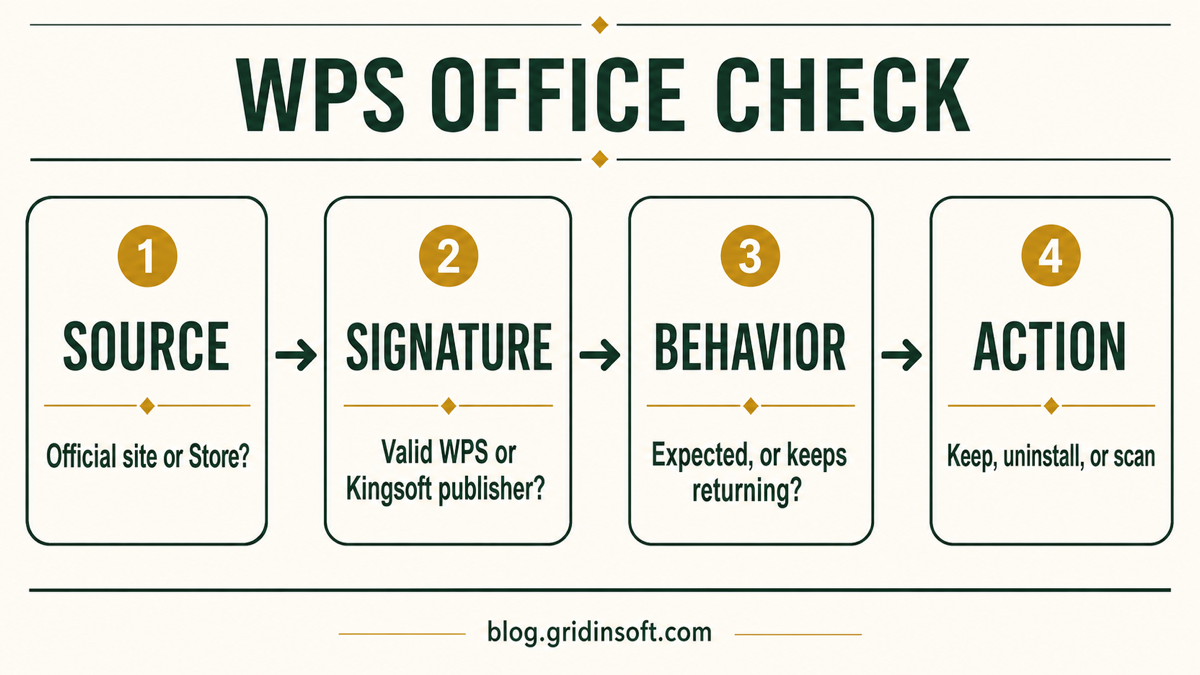
- Source: verify the exact website or store that supplied the installer. A familiar filename does not prove where it came from.
- Publisher: inspect the installer or main executable under Properties → Digital Signatures. A valid WPS or Kingsoft-related publisher is expected; a missing or unrelated signer needs more checks.
- Location: use Task Manager’s Open file location. A WPS-named file launched from a random temporary folder is more concerning than an installed program in a clearly named application folder.
- Behavior: document editing, PDF features, updates, cloud prompts, ads in a free edition, and changed defaults can be unwanted without being malicious. Browser redirects, fake alerts, unknown extensions, or recurrence after uninstall are different signals.
- Removal: start with Windows Installed apps. Do not delete random folders or registry keys before the normal uninstaller finishes.
| What you find | Risk and what to do |
|---|---|
| Official source, valid WPS/Kingsoft-related signature, expected office-suite behavior | Likely the legitimate product. Keep it if you use it, or uninstall it normally if you do not want it. |
| WPS appeared with another installer or changed document defaults | Potentially unwanted or poorly disclosed, but not automatically malware. Identify the parent installer, then remove WPS and restore defaults. |
| Unknown download site, missing signature, unrelated publisher, or random Temp path | Do not allow or restore the file. Quarantine it when flagged and run a full scan. |
| One or two antivirus engines object, but source and signer match | Possible false positive or unwanted-program classification. Check the exact hash and detection names instead of voting by count alone. |
| WPS or related components return after uninstall | Look for another installer, startup item, scheduled task, managed-device policy, or bundled app restoring it; scan if the source is unclear. |
Is WPS Office Malware?
WPS Office is a real cross-platform productivity suite distributed by WPS Software/Kingsoft. Its official download center offers Windows, macOS, Linux, Android, and iOS versions.[1] That makes the product legitimate, but it does not automatically prove that every file named WPS_Office, every mirror, or every bundled installer is safe.
Separate three questions that search results often mix together:
- Is the product real? Yes, WPS Office is established software.
- Is this exact copy authentic? Check its source, signature, path, version, and hash.
- Do you want it? A legitimate app can still be unwanted because it arrived in a bundle, changed file associations, showed promotions, or is not needed.
Country of origin, advertising, or a changed default app is not a malware test. Conversely, a polished installer and recognizable product name are not proof of safety when the download came from an unknown site.
How to Verify the Installed Copy
- Check how it arrived. Review browser download history, the installer you intentionally ran, and the app installation date. If WPS appeared during another setup, note that parent installer.
- Open Installed apps. Go to Settings → Apps → Installed apps, search for WPS and Kingsoft, and record the displayed version and installation date.
- Find the running file. Open Task Manager, expand any WPS entry, right-click the process, and choose Open file location when available. Different WPS versions may install per-machine or per-user, so location is a clue rather than a verdict.
- Inspect the digital signature. Right-click the installer or executable, select Properties → Digital Signatures, open the signature details, and confirm Windows reports it as valid. The publisher should clearly correspond to WPS or Kingsoft. A valid signature proves who signed that file and that signed content was not altered; it does not guarantee every behavior is safe.
- Calculate the hash when a warning names a specific file. Use the SHA-256 value from your security tool or a local hash command, then compare reports for that exact hash. Do not rely on a report for a similarly named file.
- Compare behavior. Opening documents, updating the suite, offering cloud features, or asking to become the default app fits an office product. PowerShell windows, browser extensions you did not approve, fake security pages, credential prompts outside the app, or executables launched from random folders do not.
For a reusable version of this process, see how to check whether an EXE file is safe before running it. Source, signer, full path, hash, and behavior are stronger together than any single indicator.
Why Antivirus Tools Can Flag WPS Office
An antivirus result can mean several different things: confirmed malicious code, a potentially unwanted application classification, suspicious installer behavior, a reputation warning for a new build, or a false positive. The label and the exact file matter more than the raw number of engines.
Use this order:
- Keep the file quarantined or unopened while you check it.
- Confirm that the report is for your exact SHA-256 hash.
- Read the detection names. Labels such as PUA, PUP, riskware, or generic do not describe the same finding as a named trojan or backdoor.
- Check whether established engines agree and whether detections appeared recently or disappeared after a signature update.
- Compare the source and digital signer. An official route plus a valid expected signature supports a false-positive or PUA interpretation; an unknown mirror plus an unrelated signer does not.
- Do not restore or allow the file merely because someone else called it safe. Submit the exact file to the detecting vendor when the decision matters.
A valid signature is useful evidence, but signed malware exists. A clean multi-engine report is also time-bounded. The safest conclusion is qualified: this exact file matches the expected publisher and source, or it does not.
What Does PUP.Optional.KingSoft Mean?
Malwarebytes uses PUP.Optional.KingSoft for an ad-supported potentially unwanted program associated with WPS Office, and lists wpsnotify.exe as a file trace.[4] That is the detecting vendor’s classification, not a finding that every WPS version or every file with that name is malicious.
Open your security tool’s detection details and record the exact filename, full path, label, and hash. If it names wpsnotify.exe, check that file’s source and signature using the steps above; do not assume that any same-named process belongs to your installed suite. If the copy is authentic but unwanted, use normal uninstall. If its origin or signer is unclear, leave it quarantined while investigating. Neither a familiar publisher nor one PUP label is a reason to add an automatic exclusion or dismiss a different trojan detection.
Do Old WPS Office Vulnerabilities Make It a Virus?
No. A vulnerable application and a malicious application are not the same thing. ESET documented exploitation of two WPS Office for Windows vulnerabilities, CVE-2024-7262 and CVE-2024-7263, in a targeted campaign. The vendor acknowledged and patched both issues, and researchers advised users to update to the latest release.[3]
That history is a reason to keep WPS Office updated and to treat suspicious documents cautiously. It is not evidence that every current WPS installation contains malware. If an old build is installed, update it from an official source or remove it; do not use a historical CVE as a shortcut around checking the actual file and version.
How to Remove WPS Office Completely on Windows
- Save local work first. Close WPS Writer, Spreadsheet, Presentation, PDF tools, cloud-sync windows, and any document that might still be open.
- Quit WPS processes. Use the app’s Exit or Quit option when present. Then check Task Manager for remaining WPS or Kingsoft entries before starting removal.
- Open Installed apps. On Windows 11 use Settings → Apps → Installed apps. On Windows 10 use Settings → Apps → Apps & features.
- Uninstall every clearly related component you do not need. Search for WPS and Kingsoft. Read each name before removing it; do not uninstall unrelated software because it was installed on the same date.
- Restart Windows. This releases files that were locked by document preview handlers, update processes, or shell integrations.
- Verify the result. Confirm that WPS no longer appears in Installed apps, the Start menu, Task Manager, or the system tray.
- Review leftovers cautiously. Back up templates or documents you created. Delete only folders that clearly belong to the removed WPS installation and are no longer needed. Do not run a broad registry cleaner or delete shared Office/PDF handlers by guesswork.
Microsoft recommends using Installed apps first and provides repair, reset, restart, and uninstall troubleshooting for desktop programs that cannot be removed normally.[2] If a removal screen offers an additional “deep clean” executable, do not run it automatically. Verify its download host and digital signature just as you would any other installer.
Leftovers are not automatically persistence. A document template, cache, user preference, or saved cloud file can remain after the application is gone. The leftover-removal guide explains why ownership matters before deleting shared files or registry entries.
How to Restore Word, Excel, PowerPoint, or PDF Defaults
WPS Office can become the default handler for document formats during setup or after a prompt. That can feel like a takeover, but a file association is a Windows preference, not proof of infection.
- Open Settings → Apps → Default apps.
- Search by file type, starting with
.docx,.xlsx,.pptx, and.pdf. - Select the app you want for each type, such as Microsoft Word, Excel, PowerPoint, or your preferred PDF reader.
- Open one test document of each type. Confirm both the icon and the application are correct.
- If WPS reclaims the association after you change it, update or uninstall WPS, then repeat the default-app choice after reboot.
What If WPS Office Will Not Uninstall?
Start with the least destructive cause. An open document, preview handler, updater, or background process can lock files. Close the app, end only clearly identified WPS processes, restart Windows, and try Installed apps again.
If the entry is missing or the uninstaller is damaged, reinstalling the same current version from the official source may restore the uninstall information. Then restart and remove it through Settings. On a managed work or school PC, stop and contact the administrator; policy or software deployment may reinstall the suite, and removing management components can break the device configuration.
A third-party uninstaller is not the first step. If you choose one later, review every proposed leftover instead of accepting an automatic registry purge. Never download a removal utility from an ad, pop-up, forum attachment, or lookalike support page.
If WPS Office Comes Back After Uninstall
Recurrence is the point where the restoring source matters more than the WPS name. Check recently installed apps, the original software bundle, other Windows user accounts, work or school management, startup entries, scheduled tasks, and browser downloads. A second program may be offering or reinstalling WPS; a managed device may be redeploying it; or the original uninstaller may not have completed.
Use the startup-app checklist to inspect publisher, file path, command line, and post-reboot behavior. Do not delete a task or service only because it contains a generic update word. Record its path and signer first.
If the first installer came from an unknown site, the signer does not match, WPS returns with random executables, or redirects and fake warnings continue, remove the visible app and run a full Gridinsoft Anti-Malware scan. It can check for bundled apps, hidden files, startup entries, scheduled tasks, services, browser changes, and other persistence that normal uninstall does not address. Remove confirmed detections, reboot, and scan again if the activity returns.
Do You Need to Change Passwords?
Not because WPS Office was present. Change passwords and revoke sessions only when an untrusted installer actually ran and there are stronger compromise signs: browser-stored credentials exposed to a stealer, unknown extensions, new sign-ins, changed recovery details, suspicious payment activity, or security tools identifying credential theft.
If those signs exist, secure the affected email account first from a clean device, revoke active sessions, change reused passwords, and then complete a Windows security audit after malware. A clean scan reduces risk but cannot prove that no credentials were copied before cleanup.
FAQ
Is the official WPS Office app a virus?
No. WPS Office is legitimate productivity software. The verdict applies to authentic builds from official sources, not to every WPS-named file or third-party installer.
Why did WPS Office appear without me asking for it?
It may have been preinstalled, offered by another installer, installed under another Windows account, or selected during a bundled setup. That can make it unwanted, but source, signer, and behavior are still needed before calling it malware.
Can one VirusTotal detection be a false positive?
Yes. Check the exact hash, detection label, source, signer, and whether established engines agree. Do not ignore a warning automatically, and do not restore a file solely because only one engine objected.
Why does WPS still open DOCX or PDF files after uninstall?
The file association may still point to WPS or a related component may remain. Use Settings → Apps → Default apps to choose the preferred handler for each file type, then restart and test again.
Should I delete every WPS or Kingsoft folder?
No. Confirm the application is removed, back up templates or documents, and delete only folders clearly owned by the removed app. Random folder or registry deletion can remove user data or shared components without fixing the actual restoring source.
References
- WPS Software. “WPS Office Download Center.” WPS Office, accessed July 26, 2026. Official product download center.
- Microsoft. “Fix problems that block programs from being installed or removed.” Microsoft Support, updated 2026, accessed July 26, 2026. Windows install and uninstall troubleshooting.
- ESET Research. “Spy group exploits WPS Office zero day; analysis uncovers a second vulnerability.” ESET Newsroom, August 28, 2024, accessed July 26, 2026. CVE-2024-7262 and CVE-2024-7263 research.
- Malwarebytes. “PUP.Optional.KingSoft.” Malwarebytes Threat Center, accessed October 20, 2026. KingSoft classification and documented file trace.