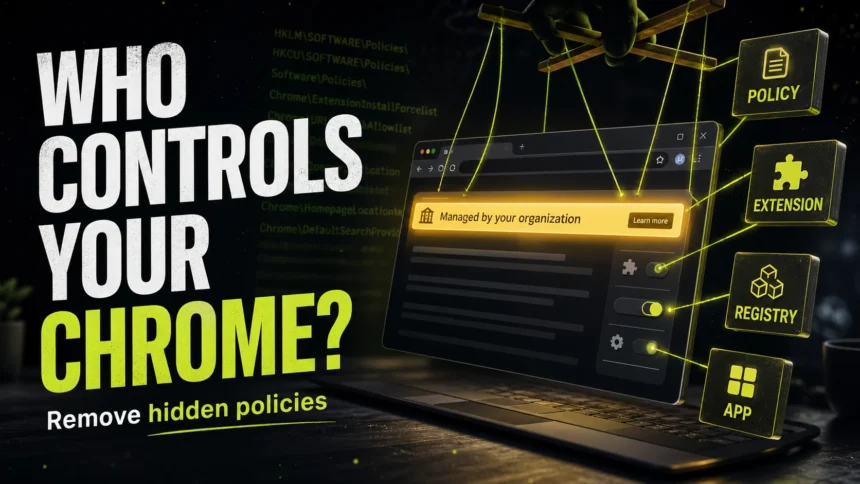
If Chrome says “Managed by your organization” on a work or school computer, the message is usually expected. If it appears on your personal Windows PC, Mac, or Chromebook, check it before you keep browsing. Browser hijackers and unwanted apps abuse the same Chrome policy system to lock the search engine, homepage, extensions, proxy, notifications, or update settings so they come back after a normal reset.
The fastest fix is to open chrome://policy, identify the policy source, remove the related extension or app, clear the local policy and registry entries, reboot, and then reset Chrome. Do not delete policies on a company or school device unless the administrator tells you to do it.
Quick removal checklist for a personal device
- Open
chrome://managementandchrome://policyto confirm Chrome is actually managed. - Remove suspicious extensions, especially ones you cannot disable or that return after restart.
- Uninstall recent apps, search tools, PDF converters, “coupon” extensions, fake update tools, and browser helpers.
- On Windows, remove Chrome policy folders and suspicious registry policy keys only after confirming this is not a work/school device.
- Reboot, run a malware scan, reset Chrome, and check whether the policy list is empty.
What “Managed by your organization” means
“Managed by your organization” means Chrome has at least one active browser policy. Google designed this for administrators who need to control Chrome settings across company, school, or shared devices.[1] The same mechanism can also be abused on a personal computer.
On a clean work laptop, policies may set the homepage, extensions, certificate rules, updates, sign-in behavior, or safe browsing options. On a personal PC, the warning becomes suspicious when it appears together with search redirects, blocked extension removal, a homepage you did not choose, unknown notifications, a proxy you did not set, or an extension that keeps reinstalling.
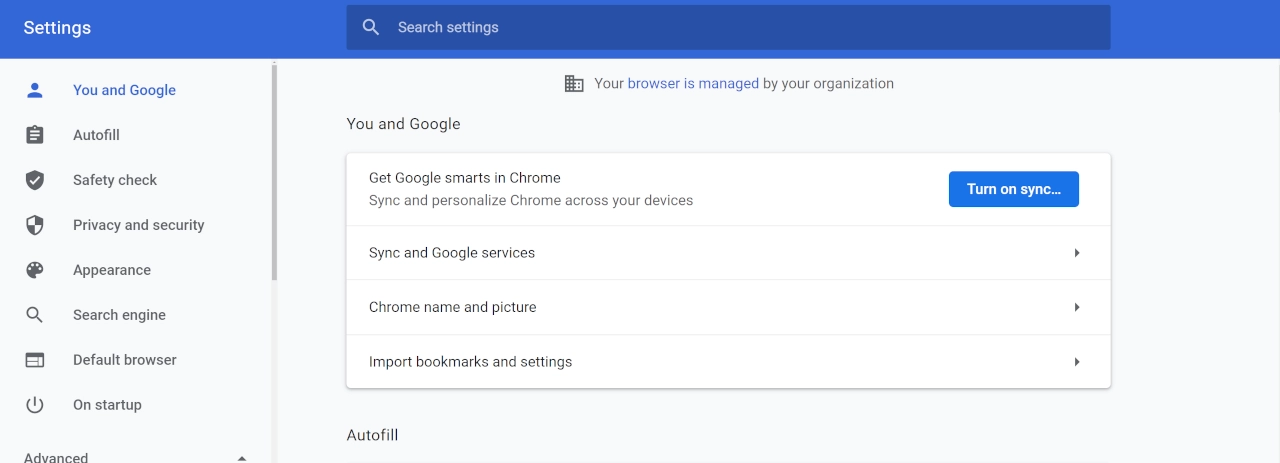
Check Chrome policies before deleting anything
- Open a new Chrome tab and go to
chrome://management. If Chrome says it is managed, continue to the policy page. - Open
chrome://policyand click Reload policies. - Look for policy names that explain the symptom:
ExtensionInstallForcelist,HomepageLocation,DefaultSearchProvider*,RestoreOnStartupURLs,ProxySettings,NotificationsBlockedForUrls, or similar entries. - Write down the policy name and value before removing anything. A forced extension ID or search URL often points to the app that keeps restoring the setting.
Google’s Chrome Enterprise policy list is useful for understanding what a policy controls, but it does not tell you whether the policy is legitimate on your device.[2] Treat policies as context: the real removal target is the app, extension, profile, registry entry, or device enrollment that created them.
Remove “Managed by your organization” from Chrome on Windows
Use these steps only on a personal Windows device. If the computer belongs to an employer, school, or managed family account, policy removal can break required security settings.
- Remove suspicious extensions first. Go to
chrome://extensions. Remove anything tied to search redirects, coupons, PDF conversion, “safe search”, fake VPNs, download helpers, or extensions you did not install. If the Remove button is missing, a policy is forcing it. - Uninstall the companion app. Open Windows Settings -> Apps -> Installed apps. Sort by install date and remove suspicious browser helpers, search tools, fake updates, and recently bundled software.
- Delete local Chrome policy folders. Open Command Prompt as Administrator and run:
rd /s /q "%WinDir%\System32\GroupPolicy"
rd /s /q "%WinDir%\System32\GroupPolicyUsers"
rd /s /q "%ProgramFiles%\Google\Policies"
rd /s /q "%ProgramFiles(x86)%\Google\Policies"
gpupdate /force- Remove Chrome policy registry keys. Press
Win + R, typeregedit, and check these locations. Delete only keys that clearly belong to unwanted Chrome/Chromium policy control on a personal PC.
HKEY_CURRENT_USER\Software\Policies\Google\Chrome
HKEY_LOCAL_MACHINE\Software\Policies\Google\Chrome
HKEY_CURRENT_USER\Software\Policies\Chromium
HKEY_LOCAL_MACHINE\Software\Policies\Chromium
HKEY_LOCAL_MACHINE\Software\WOW6432Node\Google\Enrollment
HKEY_LOCAL_MACHINE\Software\WOW6432Node\Google\Update\ClientState
  subkey: {430FD4D0-B729-4F61-AA34-91526481799D}
value: CloudManagementEnrollmentToken- Check scheduled tasks and startup apps. Open Task Scheduler and Startup Apps. Disable entries that launch unknown browser helpers, extension installers, search tools, scripts, or update services from suspicious folders.
- Reboot and reload policies. Open
chrome://policyagain. If the same policy returns, something is still reinstalling it. - Reset Chrome after the policy is gone. Go to Settings -> Reset settings -> Restore settings to their original defaults. A reset is useful after policy cleanup, but it will not remove a policy by itself.
If the same extension returns after reboot, use the deeper checklist in our browser extension keeps reinstalling itself guide. If the symptom includes forced search redirects, the Yahoo Search keeps coming back in Chrome workflow covers the same persistence points.
Remove it from Chrome on Mac
On macOS, Chrome policies often come from configuration profiles, managed preferences, or an installed helper app.
- Open System Settings and search for Profiles or go to Privacy & Security -> Profiles. Remove unknown profiles that set Chrome, search, proxy, certificate, or extension rules.
- Open Chrome and check
chrome://policy. Note policy names and suspicious extension IDs. - Open Applications and remove recently installed browser helpers, fake update tools, search apps, and coupon/PDF utilities.
- Check Login Items in System Settings -> General -> Login Items, and remove suspicious background items.
- After removing the source, restart the Mac, reload
chrome://policy, and reset Chrome.
If a profile cannot be removed, the Mac may be managed through MDM. In that case, do not force-delete profile files; contact the device owner or administrator.
Remove it from Chromebook or ChromeOS
On a school or company Chromebook, “Managed by your organization” usually means the device is enrolled. The owner can set restrictions that a normal user cannot remove. A Powerwash may not unenroll an enterprise-managed Chromebook.
On a personal Chromebook, remove suspicious extensions, check Chrome sync, and reset browser settings. If the device was bought used and still shows organization management after Powerwash, it may still be enrolled to the previous owner and needs to be released by that organization.
What if Edge, Brave, or another Chromium browser is managed?
Edge, Brave, Opera, and other Chromium-based browsers can also be controlled by policies. The symptom is similar, but the registry path and policy page differ. For Edge on Windows, check edge://policy and these policy locations:
HKEY_CURRENT_USER\Software\Policies\Microsoft\Edge
HKEY_LOCAL_MACHINE\Software\Policies\Microsoft\Edge
For Brave and other Chromium browsers, check their policy page first, then look for the app or extension that created the policy. Do not delete all browser policy keys blindly if the computer has legitimate management software.
Why it keeps coming back
If “Managed by your organization” returns after you delete a key or reset Chrome, the source is still active. The usual causes are:
- A forced extension policy:
ExtensionInstallForcelistreinstalls the same extension ID. - A companion Windows app: a search hijacker or PUA writes the policy again on startup.
- A scheduled task or service: a background updater restores registry keys after reboot.
- Chrome sync residue: bad extensions or settings come back after sign-in.
- A real managed device: employer, school, family safety, or MDM controls are applying policies correctly.
Run a full system scan if the policy appeared on a personal device together with redirects, pop-ups, blocked extension removal, or unfamiliar apps. Google also recommends removing unwanted programs when Chrome shows unwanted ads, pop-ups, or other malware-like behavior.[3] You can scan suspicious installers with Gridinsoft Online Virus Scanner, and use Gridinsoft Anti-Malware when the browser policy keeps returning after manual cleanup.
After uninstalling the suspicious app or deleting the visible threat, use Gridinsoft Anti-Malware to check hidden files, startup entries, scheduled tasks, bundled apps, browser changes, and other persistence points that can restore malware.
Download Anti-MalwareFAQ
Is “Managed by your organization” a virus?
No, the message itself is not a virus. It means Chrome has active policies. On a personal device, those policies can be created by adware, a browser hijacker, a forced extension, or a legitimate management tool.
Why can’t I remove the message from my work or school computer?
Your administrator may intentionally manage Chrome. If the device is owned by work or school, you usually cannot and should not remove those policies yourself.
Does resetting Chrome remove managed policies?
Usually no. Resetting Chrome can remove changed browser settings, but policy entries often live outside Chrome in Windows registry keys, macOS profiles, local policy folders, or management software.
What does ExtensionInstallForcelist mean?
It means a policy is forcing one or more extensions to install. On a personal PC, that is suspicious when you do not recognize the extension ID or the extension comes back after you remove it.
Can Chrome sync bring the problem back?
Yes, sync can restore extensions or settings after you sign in again. Remove the policy source first, then clean extensions, review sync settings, and reset Chrome only after the unwanted policy stops returning.
References
- Google Chrome Help. “Check if your Chrome browser is managed.” Google, accessed June 7, 2026. https://support.google.com/chrome/answer/9281740?hl=en-GB
- Google Chrome Enterprise. “Chrome Enterprise policy list and management documentation.” Google, accessed June 7, 2026. https://chromeenterprise.google/policies/
- Google Chrome Help. “Remove unwanted ads, pop-ups and malware.” Google, accessed June 7, 2026. https://support.google.com/chrome/answer/2765944/?co=GENIE.Platform%3DDesktop&hl=en-GB