Greatstartapp.com is the promoted domain behind the Great Start – Homepage extension. The page presents itself as a start-page shortcut with favorite sites and Yahoo search results, but the issue is that it can replace browser settings without clear consent.
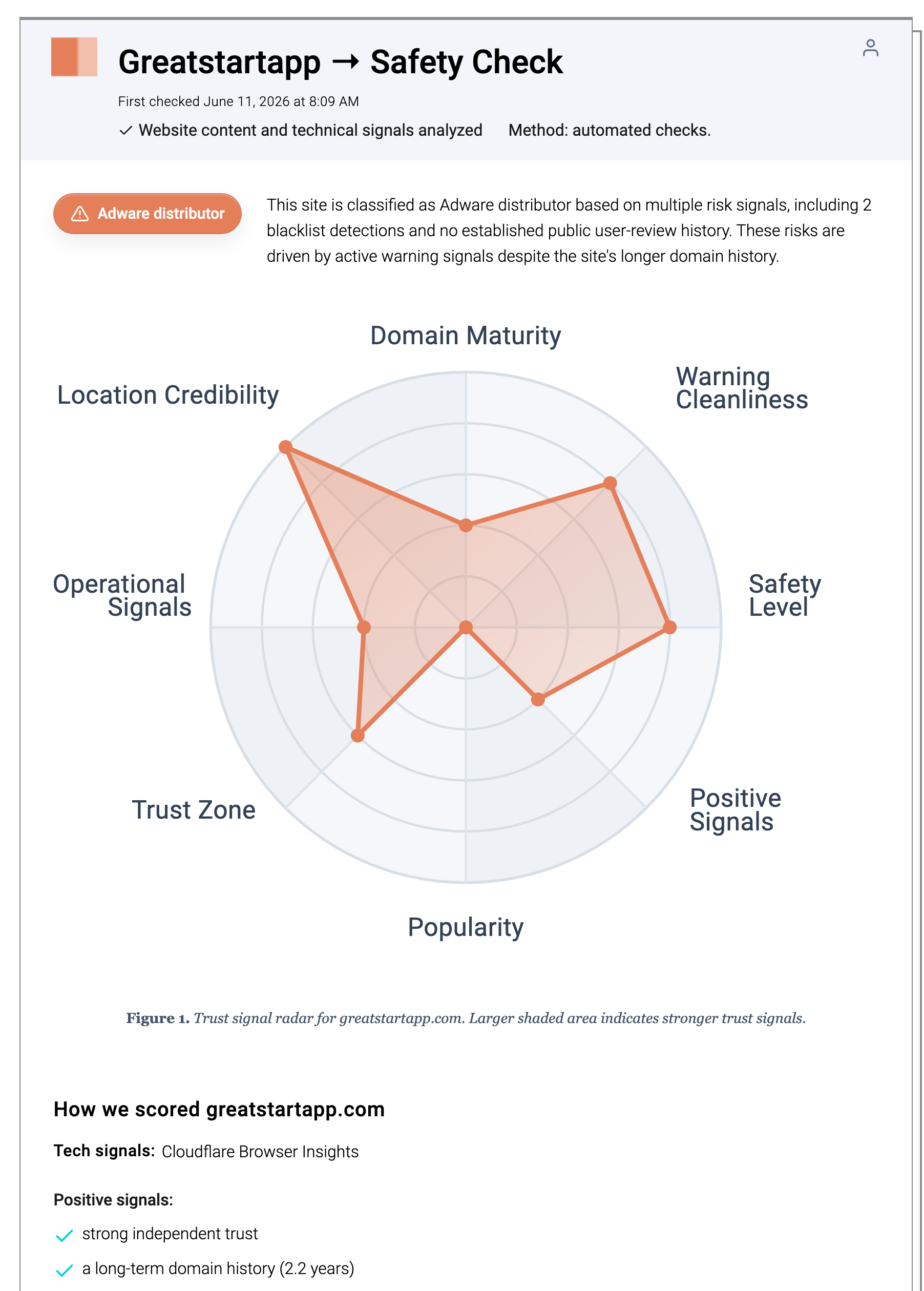
Gridinsoft’s Website Reputation Checker currently rates greatstartapp.com at 20/100 and classifies it as an adware distributor. Treat that as a signal to remove the extension, restore browser settings, and avoid entering personal information on pages reached through the redirect.
If a similar video-search page appears instead of Great Start, see the Myvideolibrary.info redirect cleanup guide; it covers Video Search Extension and Video Library Search settings that can affect the same browser controls.
Technical snapshot
- Extension name: Great Start – Homepage
- Promoted domain:
greatstartapp.com - Claimed purpose: quick access to favorite websites and Yahoo search results
- Browser settings affected: homepage, new tab URL, and default search engine
- Common distribution paths: Chrome Web Store, deceptive pop-up ads, and bundled installers
- Main risks: browser tracking, unwanted ads, and redirects to dubious websites.
Why Great Start – Homepage targets the first screen
This hijacker is built around the browser start experience. Users often notice the homepage or new tab first, then later realize that default search has also changed. The cleanup should therefore restore startup, new-tab, and search settings together.
Symptoms to check
- The address bar, homepage, or new tab briefly shows
greatstartapp.com. - The extension list contains Great Start – Homepage or a similar search/new-tab helper.
- Browser settings revert after you manually change them.
- Searches land on a normal-looking provider only after passing through the promoted domain.
Remove Great Start – Homepage
Remove the extension before changing settings. If the extension remains installed, it may write the hijacked search or homepage value back after the next browser restart.
- Launch Chrome.
- Click the three dots (...) in the top right corner.
- Select Extensions > Manage Extensions.
- Click Remove next to the extension you want to delete.
Quick Access: Type chrome://extensions/ in the address bar.
- Open Safari.
- In the menu bar, click Safari and select Settings (or Preferences).
- Click on the Extensions tab.
- Select the extension and click Uninstall.
- Click the menu button, select Add-ons and themes.
- Go to the Extensions tab.
- Click the three dots (...) next to the extension and select Remove.
Quick Access: Type about:addons in the address bar.
- Launch Microsoft Edge.
- Click the three dots (...) in the top right corner.
- Select Extensions.
- Find the extension and click Remove.
Quick Access: Type edge://extensions/ in the address bar.
- Launch Brave browser.
- Click the menu icon > Extensions.
- Find the extension and click Remove.
Quick Access: Type brave://extensions/ in the address bar.
- Launch Opera.
- Click the Opera logo in the top left corner.
- Select Extensions > Extensions.
- Click the X or Remove button next to the extension.
Quick Access: Type opera://extensions/ in the address bar.
Open Extensions/Add-ons again and remove any entry linked to greatstartapp.com or clearly out of place.
Restore the changed browser settings
- Remove Great Start – Homepage from the extensions list.
- Set a clean homepage and new-tab page before testing address-bar search.
- Remove Greatstartapp.com from search shortcuts even if you normally use Yahoo or another provider.
- Restart the browser and run a fresh address-bar search to confirm the redirect is gone.
- Tap on the three dots (...) in the top right corner and Choose Settings.

- Choose Reset and Clean up and Restore settings to their original defaults.

- Tap Reset settings.

Quick Access: Type chrome://settings/reset in the address bar.
- Open Safari.
- In the menu bar, click Safari > Clear History.
- Select all history and click Clear History.
- Go to Safari > Settings (or Preferences).
- Click the Privacy tab and select Manage Website Data... > Remove All.
- In the Advanced tab, check Show features for web developers.
- In the menu bar, select Develop > Empty Caches.
- Launch Brave browser.
- Click the menu icon in the top right corner and select Settings.
- Click Additional settings > Reset settings.
- Tap Restore settings to their original defaults.
- Confirm by clicking Reset settings.
Quick Access: Type brave://settings/reset in the address bar.
- In the upper right corner tap the three-line icon and Choose Help.

- Choose More Troubleshooting Information.

- Choose Refresh Firefox... then Refresh Firefox.

Quick Access: Type about:support and click Refresh Firefox.
- Tap the three dots.

- Choose Settings.

- Tap Reset Settings, then Click Restore settings to their default values.

Quick Access: Type edge://settings/reset in the address bar.
- Launch the Opera browser.
- Click the Opera menu button in the top left corner and select Settings.
- Scroll down to the Advanced section in the left sidebar and click Reset and clean up.
- Click Restore settings to their original defaults.
- Click Reset settings to confirm.
Quick Access: Type opera://settings/reset in the address bar.
After reset, verify that greatstartapp.com is no longer set as your default search engine or homepage.
If Greatstartapp.com returns
If the redirect returns after extension removal, check the Windows side. Bundled installers and unwanted apps can reinstall extensions, rewrite shortcuts, or create startup tasks that reopen the browser with a promoted URL.
- Uninstall suspicious apps installed near the date the redirect started.
- Inspect browser shortcut targets for extra URLs after the executable path.
- Review Startup Apps and Task Scheduler for browser launch entries.
- Run a scan if settings keep changing after manual cleanup.
After uninstalling the suspicious app or deleting the visible threat, use Gridinsoft Anti-Malware to check hidden files, startup entries, scheduled tasks, bundled apps, browser changes, and other persistence points that can restore malware.
Download Anti-MalwareFor broader cleanup, use the PUA and browser hijacker removal guide. If the browser opens extra tabs after the redirect starts, also check the multiple-tabs troubleshooting guide.
If a similar login-shortcut extension starts routing searches through another domain, use the Loginonlineapp.com redirect cleanup guide to compare extension, search shortcut, and managed-policy checks.
When the changed search setting shows MINERSEARCH instead of a homepage domain, follow the MinerSearch redirect removal steps to clean search shortcuts, extension sync, and browser policies.
FAQ
Is Greatstartapp.com malware?
It is best treated as a browser hijacker or adware-style redirect. The risk is browser control, tracking, unwanted ads, and exposure to low-trust pages, not necessarily a full system infection.
Why does greatstartapp.com appear before another search page?
The extension can route the search through its promoted domain before handing you off to another provider. That extra hop is the redirect you need to remove.
Can I just change my homepage?
Only if homepage was the only setting changed. For Great Start – Homepage, also check homepage, new tab URL, and default search engine, then remove the extension that created the change.