Free movie streaming site scams are risky because the page around the video is often the trap. The video player may be fake, the first Play button may open ads or malware redirects, and a “card verification” step can turn into unwanted charges or stolen payment data. If you only visited the page, close it and block notifications. If you clicked, installed a player, entered card details, or allowed browser prompts, treat it as a cleanup and account-safety incident.
The safest answer is simple: use legal streaming sources and do not install codecs, APKs, browser extensions, VPNs, or “HD players” from a free movie page. If the site says a card is needed only to verify your age, location, or robot status, leave. That is not how legitimate free ad-supported services normally start a movie.
How Free Movie Streaming Site Scams Work
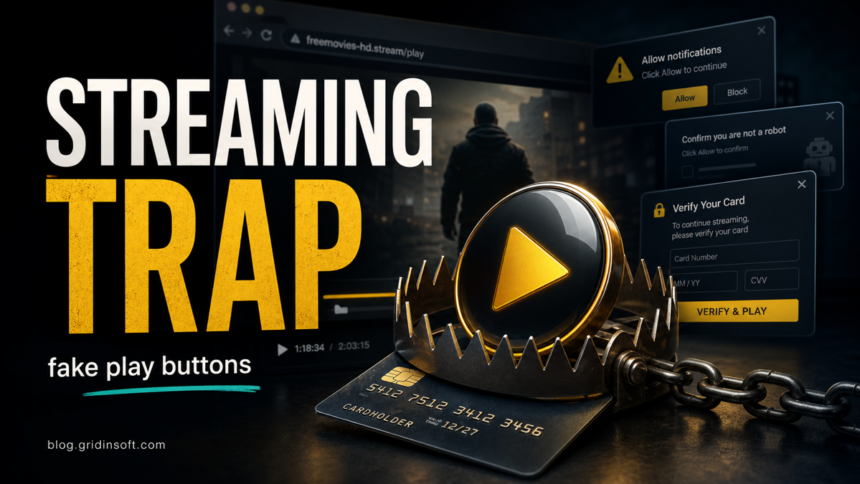
Most scams in this lane do not need to hide malware inside the movie file. They use the user’s hurry to watch something now. A page may show a real-looking player, a countdown, fake comments, and several buttons that look like Play, Download, Continue, or Verify. One wrong click can send the browser through ad networks, fake CAPTCHA pages, push-notification prompts, or a checkout page.
| What you see | What it may mean |
|---|---|
| Several Play buttons on one page | Some buttons are ads or redirects, not the video player. |
| “Allow notifications to watch” | The site wants permission to send spam alerts after you leave. |
| “Install this player/codec” | The download can be adware, a browser hijacker, or a trojan loader. |
| “Verify your card; you will not be charged” | The page may be collecting payment data or enrolling you in a subscription trap. |
| Fake virus or tech-support alert | The goal is panic: call a number, install remote access, or download a fake cleaner. |
Can A Free Movie Site Give You A Virus?
Yes, but the risk usually comes from the surrounding page, downloads, ads, extensions, apps, or prompts rather than from the act of watching a normal video stream. The FTC has warned that illegal streaming apps and add-ons can carry malware, and that free movie and TV offers have long been used as malware bait [1]. A browser-only visit is lower risk than running an installer, but it is not a reason to trust the page.
Be especially cautious on Windows and Android. Windows users are often targeted with EXE installers, fake codecs, browser extensions, and notification spam. Android users may see APK downloads or “player” apps that request broad permissions. If a streaming page tries to move you outside the browser into an installer, app store lookalike, ZIP archive, or profile installation, stop.
Card Verification Is A Major Red Flag
A free movie page that asks for a credit card “only to verify” your identity, age, or location should be treated as a scam until proven otherwise. Some pages are pure phishing. Others use a negative-option pattern: they advertise a free or low-cost trial, hide recurring billing terms, and make cancellation difficult. The FTC’s free-trial enforcement records include cases where consumers were charged full prices and enrolled in ongoing plans without clear consent [2].
If you already entered a card, do not try to “cancel” by logging back into the same suspicious page. Contact the card issuer, watch for small test charges and recurring billing, request a replacement card if needed, and save screenshots or emails. If money was taken or the site impersonated a known brand, file a report with the FTC’s fraud reporting portal [3].
What To Do If You Clicked A Fake Play Button
If the suspicious page was Flickystream.ru or one of its redirects, use the dedicated Flickystream.ru link cleanup checklist after you block notifications and remove unexpected downloads.
If the site was MoviesJoy or a MoviesJoy-like clone, use the dedicated MoviesJoy safety and post-click cleanup guide to decide whether you only need to close tabs, revoke notifications, scan Windows, or secure accounts.
- Close the tab without approving prompts. Do not allow notifications, downloads, remote access, or “human verification” steps.
- Do not restore the same session if the browser crashed. Reopening every tab can reload the scam chain.
- Clear suspicious notification permissions. Remove the streaming domain and unknown sites from Chrome, Edge, Firefox, or your mobile browser.
- Check extensions and search settings. Remove new extensions, unknown search providers, and startup pages that appeared after the visit.
- Delete downloaded installers. Pay attention to fake players, codecs, APK files, ZIP archives, scripts, or browser add-ons.
- Run a security scan if anything executed. Gridinsoft Anti-Malware can check for adware, PUA, browser hijackers, trojans, and stealer-risk leftovers.
- Protect accounts after cleanup. If you ran a file or entered login data, change passwords from a clean device and revoke active sessions where possible.
If a website keeps showing unwanted pop-ups, you likely granted it permission to send notifications. To stop them, you need to revoke that permission in your browser settings.
- Copy and paste this into the address bar:
chrome://settings/content/notifications - Scroll down to the Allowed to send notifications list.
- Find the suspicious site.
- Click the three dots (...) next to it and select Remove (or Block).
- Open Safari and go to Settings (or Preferences).
- Click the Websites tab and select Notifications on the left.
- Find the suspicious site in the list on the right.
- Select it and click Remove (or change "Allow" to "Deny").
- Copy and paste this into the address bar:
about:preferences#privacy - Scroll down to Permissions and click Settings... next to Notifications.
- Type the suspicious site in the search bar or find it in the list.
- Select the site and click Remove Website.
- Copy and paste this into the address bar:
edge://settings/content/notifications - Look under the Allow section.
- Find the suspicious site.
- Click the three dots (...) next to it and select Remove (or Block).
- Copy and paste this into the address bar:
brave://settings/content/notifications - Scroll to the Allowed to send notifications list.
- Find the suspicious site.
- Click the three dots (...) and select Remove (or Block).
- Copy and paste this into the address bar:
opera://settings/content/notifications - Check the Allowed to send notifications list.
- Find the suspicious site.
- Click the three dots next to it and select Remove.
- Launch Chrome.
- Click the three dots (...) in the top right corner.
- Select Extensions > Manage Extensions.
- Click Remove next to the extension you want to delete.
Quick Access: Type chrome://extensions/ in the address bar.
- Open Safari.
- In the menu bar, click Safari and select Settings (or Preferences).
- Click on the Extensions tab.
- Select the extension and click Uninstall.
- Click the menu button, select Add-ons and themes.
- Go to the Extensions tab.
- Click the three dots (...) next to the extension and select Remove.
Quick Access: Type about:addons in the address bar.
- Launch Microsoft Edge.
- Click the three dots (...) in the top right corner.
- Select Extensions.
- Find the extension and click Remove.
Quick Access: Type edge://extensions/ in the address bar.
- Launch Brave browser.
- Click the menu icon > Extensions.
- Find the extension and click Remove.
Quick Access: Type brave://extensions/ in the address bar.
- Launch Opera.
- Click the Opera logo in the top left corner.
- Select Extensions > Extensions.
- Click the X or Remove button next to the extension.
Quick Access: Type opera://extensions/ in the address bar.
After uninstalling the suspicious app or deleting the visible threat, use Gridinsoft Anti-Malware to check hidden files, startup entries, scheduled tasks, bundled apps, browser changes, and other persistence points that can restore malware.
Download Anti-MalwareWhat To Check On Windows
If the page only opened ads and no download ran, focus on the browser. If you installed anything, inspect the system too:
- recent apps with unknown publishers;
- Startup Apps and Task Manager startup entries;
- Task Scheduler entries created around the time of the click;
- browser extensions, notification permissions, homepage, and search provider;
- browser shortcuts that open an unwanted URL;
- security-tool quarantine history and repeated detections;
- account login alerts for email, banking, streaming, Discord, Steam, Google, Microsoft, or Apple.
If the issue looks like endless pop-ups or tabs, use the broader browser opens multiple tabs by itself guide. If a fake virus screen appeared, compare it with the Windows Defender Security Center scam cleanup path. If the download was a fake YouTube/movie downloader, see the YouTube downloader virus safety check.
Android, Smart TV, And Streaming Stick Risks
On Android, the biggest danger is an APK or unknown “player” app. Do not sideload apps from a movie page. Check installed apps, notification access, accessibility permissions, SMS permissions, and device-admin settings if anything was installed. Our Android malware cleanup guide covers the phone-specific path.
For smart TVs and streaming sticks, avoid “free premium TV” devices, jailbreak-style add-ons, and instructions that ask you to disable security or install unknown packages. If a suspicious stick or box was connected to your network, disconnect it, change router and account passwords from a clean device, and scan the computers that shared the same network if you saw account or banking warnings.
Free Movie Site Red Flags
- The site promises new theatrical releases or premium shows for free with no clear legal source.
- The first click opens unrelated tabs, casino pages, adult ads, fake CAPTCHA, or prize offers.
- The page asks for a card before the movie starts.
- The domain name changes between mirrors, clones, or short links.
- The site pushes a codec, APK, extension, VPN, or “HD player” download.
- The browser asks to allow notifications to continue watching.
- Closing the page triggers more tabs, fake alerts, or back-button traps.
- The page uses logos of real streaming platforms but the URL is not the official domain.
Safer Ways To Watch Free Movies
Use legal ad-supported services, official broadcaster apps, library-supported services, free trials from the real provider, or rental options from trusted stores. Legal free services still show ads, but they do not need you to install random players or give a card to a clone domain before the first video starts.
For anime-specific clone risk, read our KissAnime safety analysis. For broader scam warning signs, use Signs of Online Scams. If the site claims an MP4 file itself is the threat, the MP4 malware explainer can help separate video-file risk from fake download risk.
For the cartoon-streaming branch of this risk, use the WatchCartoonOnline and WCO safety guide to check fake play buttons, notification prompts, child-safety concerns, and post-click cleanup.
If the page uses the KissCartoon or KimCartoon name, the KissCartoon clone safety guide explains why a familiar brand does not authenticate a current domain or app and routes cleanup by notifications, credentials, payment data, downloads, and installs.
Related streaming-safety guides: if the brand name is the issue, see the 123Movies clone safety guide for the broad clone pattern, the FMovies safety guide for post-shutdown copycats, the Flixtor safety guide for VIP payments, apps or APKs, and endpoint identity, the GoMovies safety guide for clone identity, fake players, notifications, and post-download recovery, the Putlocker safety guide for legacy-brand clones, pop-ups, downloads, and account or card recovery, the Soap2Day safety guide for post-shutdown brand reuse and notification or download cleanup, the HDToday safety guide for clone sites, redirects, and post-click cleanup, the SFlix safety guide for SFlix clones, or the SolarMovie safety guide for domain-report limits, notification spam, redirects, and download recovery. The YesMovies safety guide covers the same-name clone problem, dated domain evidence, and recovery after notifications, downloads, account entry, or card exposure. For current warning evidence and state-based recovery after a movie download, use our Acermovies.fun safety guide. For a current exact-domain case built around a verification gate, app prompt, file-type check, and staged recovery, see the Moviesdl.cc download safety guide. For a changing brand where the same name can lead to different domains, embedded players, apps, and payment prompts, see the Hurawatch safety guide. For a related changing brand, the OnionPlay safety guide explains third-party player hosts, notification prompts, downloads, and state-based cleanup. For newer exact-brand decisions, use the LookMovie safety guide for changing domains, fake players, pop-ups, and payment prompts; the FlixHQ safety guide for domains, apps, APK prompts, logins, and recovery; and the Popcorn Time safety guide to separate browser streaming from forked-app, installer, and P2P risks. For live events, the free sports streaming scams guide covers fake players, card checks, notification and calendar abuse, and event-time cleanup.
FAQ
Can I get malware just by watching a movie online?
The bigger risk is usually the page around the stream: malicious ads, fake Play buttons, downloads, browser prompts, and redirects. Risk rises sharply if you install a player, run a file, allow notifications, or enter account or card data.
Is it safe if I did not download anything?
It is safer than running an installer, but still check the browser. Remove notification permissions, close suspicious tabs, and avoid restoring the same session if the page opened redirects or fake alerts.
Why does a free movie site ask for my card?
That is a red flag. Some pages steal card data directly, while others use hidden subscription terms or hard-to-cancel trial offers. Leave the page and do not enter payment information.
What if I already entered my card number?
Contact your card issuer, monitor transactions, dispute unauthorized charges, and consider replacing the card. Save evidence and report fraud if the site impersonated a real service or charged you without clear consent.
Should I reset my browser?
Start with notification permissions, extensions, search settings, and startup pages. Reset the browser if pop-ups, redirects, or fake search settings return after those targeted fixes.
References
- Federal Trade Commission. “Malware from illegal video streaming apps: What to know.” FTC Consumer Advice, May 2, 2019, accessed June 12, 2026. https://consumer.ftc.gov/consumer-alerts/2019/05/malware-illegal-video-streaming-apps-what-know
- Federal Trade Commission. “Getting in and out of free trials, auto-renewals, and negative option subscriptions.” FTC Consumer Advice, accessed June 12, 2026. https://consumer.ftc.gov/articles/getting-and-out-free-trials-auto-renewals-and-negative-option-subscriptions
- Federal Trade Commission. “ReportFraud.ftc.gov.” FTC fraud reporting portal, accessed June 12, 2026. https://reportfraud.ftc.gov/