360 Extreme Browser is not automatically malware, but it becomes a problem when it appears without a clear install choice, changes the default browser or search settings, keeps returning after removal, or leaves 360 folders and startup entries behind. The safest removal path is to uninstall it through Windows first, remove leftover 360 browser items only after the uninstaller finishes, then scan the PC if the browser came bundled with other software, redirects continue, or 360extremebrowser.exe runs from an unusual location.
This guide focuses on Windows cleanup without pushing you toward random paid “leftover cleaner” prompts. If you only see an empty folder after uninstalling, do not panic. If the browser still launches, shows ads, reinstalls, or is tied to 360 Total Security prompts, treat it like a potentially unwanted app and verify the system more carefully.
What Is 360 Extreme Browser?
360 Extreme Browser is a Chromium-based browser associated with Qihoo/360 software. A normal signed copy can be a legitimate browser, and Gridinsoft file-analysis results for one 360extremebrowser.exe sample show a clean verdict for that specific file. That does not prove every copy on every PC is safe, because unwanted installers can bundle legitimate apps, change defaults, or drop lookalike files in user-writable folders.
The practical question is not only “is the browser malware?” It is: did you knowingly install it, can you remove it normally, and are there symptoms that suggest a PUA-style bundle or another unwanted program is keeping it active?
When Removal Is Worth Doing
| Situation | What it means |
|---|---|
| You installed it intentionally and it uninstalls cleanly. | Use the normal Windows uninstaller and remove only obvious leftover folders after a restart. |
| It appeared after a repair, bundle, game/mod installer, or 360 Total Security install. | Check the rest of the software added around the same time and scan before deleting random files. |
| It returns after uninstalling. | Look for a related updater, scheduled task, startup entry, or another 360 component reinstalling it. |
GRouter86.exe appears during 360 cleanup. |
Use the GRouter86.exe path, Qihoo signature, hash, and parent-app check before deleting it; a verified helper and a wrong-path copy require different actions. |
| Browser defaults, search, pop-ups, or redirects changed. | Reset browser defaults and inspect extensions, notification permissions, and installed apps. |
Before You Delete Leftovers
Create a restore point or a current backup before touching registry entries, scheduled tasks, or protected folders. Leftover files from a removed program are usually not dangerous by themselves, but deleting the wrong folder can break unrelated software or remove logs that would help identify what reinstalled the browser.
Also note the exact file path before removing anything. A normal browser path often sits under a 360 or 360extremebrowser application folder. A suspicious copy is more concerning when it runs from Temp, Downloads, a cracked-software folder, a random profile subfolder, or a path with a misleading Windows-system name.
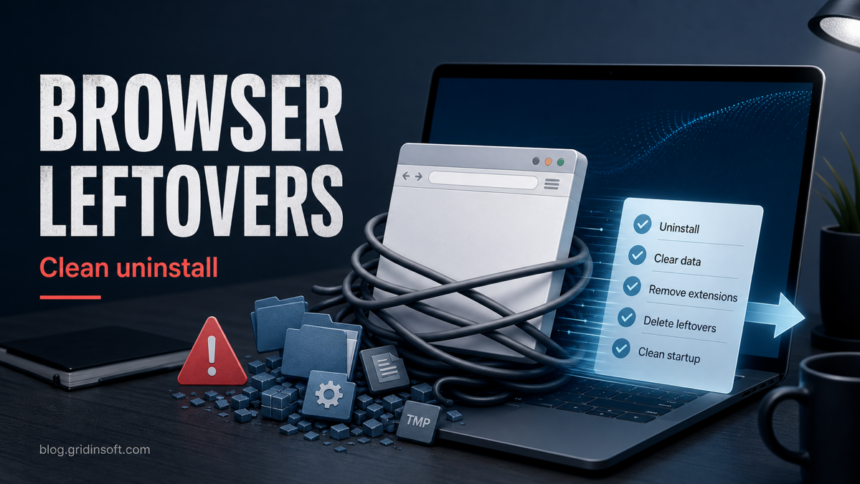
How To Remove 360 Extreme Browser From Windows
- Close the browser and related prompts. Open Task Manager, end visible 360 Extreme Browser windows, and close any installer or updater dialog that is blocking uninstall.
- Uninstall from Windows. Go to Settings > Apps > Installed apps on Windows 11, or Apps & features / Programs and Features on Windows 10. Remove 360 Extreme Browser first. If 360 Total Security or another 360 component appears and keeps reinstalling the browser, uninstall that related component after confirming you do not rely on it.
- Restart the PC. A restart releases locked browser files and lets Windows finish pending uninstall actions.
- Check startup apps. In Task Manager > Startup apps, disable entries clearly tied to 360 Extreme Browser, 360Chrome, 360se, or a 360 updater. Do not disable unknown security, audio, driver, or cloud-sync entries without checking them first.
- Inspect Task Scheduler. Open Task Scheduler and look for tasks with 360, 360Chrome, 360se, or 360extremebrowser naming. Disable first if you are unsure; delete only when the task clearly belongs to the removed browser.
- Remove leftover folders only after uninstall. Look for obvious 360 browser folders under
C:\Program Files,C:\Program Files (x86), and your user profile’sAppData\LocalorAppData\Roaming. Delete only folders that clearly belong to the removed browser and are not needed by software you still use. - Reset default browser and search settings. Set your preferred browser as default, then check the homepage, startup page, search engine, extensions, and notification permissions in Chrome, Edge, Firefox, or whichever browser you use.
- Scan if symptoms remain. If 360 Extreme Browser returns, redirects continue, pop-ups persist, or a security alert mentions the file, scan the system with Gridinsoft Anti-Malware or check the suspicious executable with the Gridinsoft online file scanner before deleting more items manually.
After uninstalling the suspicious app or deleting the visible threat, use Gridinsoft Anti-Malware to check hidden files, startup entries, scheduled tasks, bundled apps, browser changes, and other persistence points that can restore malware.
Download Anti-MalwareWhat Leftovers Are Safe To Remove?
After the normal uninstall and reboot, it is usually safe to remove clearly named browser leftovers such as a remaining 360extremebrowser application folder, a dead desktop shortcut, or an empty 360 browser folder. Be more careful with a broad 360 folder if you still have another 360 product installed, because the same parent folder can contain more than one application.
Do not remove random registry keys from internet comments unless they match the exact program path and you have a restore point. For Run keys and scheduled tasks, the safer first move is to export or note the entry, disable it, reboot, and confirm nothing legitimate broke. If the browser comes back after that, another installer or updater is still active.
How To Check If 360extremebrowser.exe Is Suspicious
Right-click the file, open Properties, and check the location, digital signature, and modified date. A signed file in the expected application folder is lower risk than an unsigned copy in a temporary directory. You can also upload the file hash or the file itself to the Gridinsoft Online Virus Scanner; for comparison, Gridinsoft has a public analysis page for a 360extremebrowser.exe sample that was assessed as clean at the time of scanning.
Scan the PC, not only the browser file, when the browser arrived with a cracked installer, fake update prompt, ad-heavy bundle, or a security warning. In those cases, 360 Extreme Browser may be only the visible symptom while another unwanted app controls startup, notifications, or browser settings.
Related Browser Cleanup
If the browser issue came with redirects or repeated tabs, use the broader checklist in Browser Opens Multiple Tabs by Itself?. If Windows shows other unwanted apps around the same date, compare the symptoms with PC App Store Virus Removal Guide and PUABundler:Win32/YandexBundled. These guides explain the bundle-and-default-change pattern that often makes a browser removal feel incomplete.
FAQ
Is 360 Extreme Browser a virus?
Not by default. It can be a legitimate 360 browser, but it is unwanted on many PCs because it arrives in bundles, changes defaults, shows prompts, or resists normal removal. Treat the behavior and file location as more important than the name alone.
Can I just delete the 360 folder?
Only after you uninstall the program and restart. Deleting folders first can leave broken uninstall entries, locked files, and startup tasks behind. If the folder is shared with another 360 product, confirm what is inside before removing it.
Why does 360 Extreme Browser come back after uninstalling?
A related updater, 360 Total Security component, scheduled task, startup entry, or bundled installer may still be present. Disable obvious 360 startup items, inspect scheduled tasks, then scan the system if the browser is reinstalled without your action.
Should I pay for a leftover-cleanup tool?
Usually no. Windows uninstall, a restart, startup checks, scheduled task review, and a reputable malware scan are enough for most cases. Pay attention to tools that exaggerate every leftover file as a crisis.
References
- Microsoft Support. “Uninstall or remove apps and programs in Windows.” Microsoft, accessed June 6, 2026. https://support.microsoft.com/en-au/windows/uninstall-or-remove-apps-and-programs-in-windows-4b55f974-2cc6-2d2b-d092-5905080eaf98
- Microsoft Support. “System Restore.” Microsoft, accessed June 6, 2026. https://support.microsoft.com/en-us/windows/system-restore-a5ae3ed9-07c4-fd56-45ee-096777ecd14e
- Microsoft Learn Answers. “Como desinstalar 360 EXTREME BROWSER?” Microsoft Learn, accessed June 6, 2026. https://learn.microsoft.com/es-es/answers/questions/3927145/c-mo-desinstalar-360-extreme-browser