An outbound alert for exo-api.tf should stay blocked. If Malwarebytes lists C:\Program Files (x86)\Microsoft\Edge\Application\msedge.exe as the application, that means an Edge process made the network request; it does not prove the Microsoft-signed browser file itself is infected. The trigger may be a tab, site permission, extension, synced profile setting, background Edge task, unwanted app, or Windows persistence. Do not add the domain to an allow list. Isolate the trigger, remove it, and confirm the alert does not return.
What the exo-api.tf Malwarebytes alert means
A web-protection alert has three different parts: the application that opened the connection, the destination it contacted, and the security product’s category. In this case, msedge.exe is the requesting application, exo-api.tf is the destination, and RiskWare is Malwarebytes’ warning category.
The distinction matters. A legitimate browser routinely creates many child processes for tabs, extensions, notifications, service workers, downloads, and background activity. When one of those components requests a blocked domain, the alert can name the normal Edge executable. Deleting or renaming msedge.exe is not the fix.
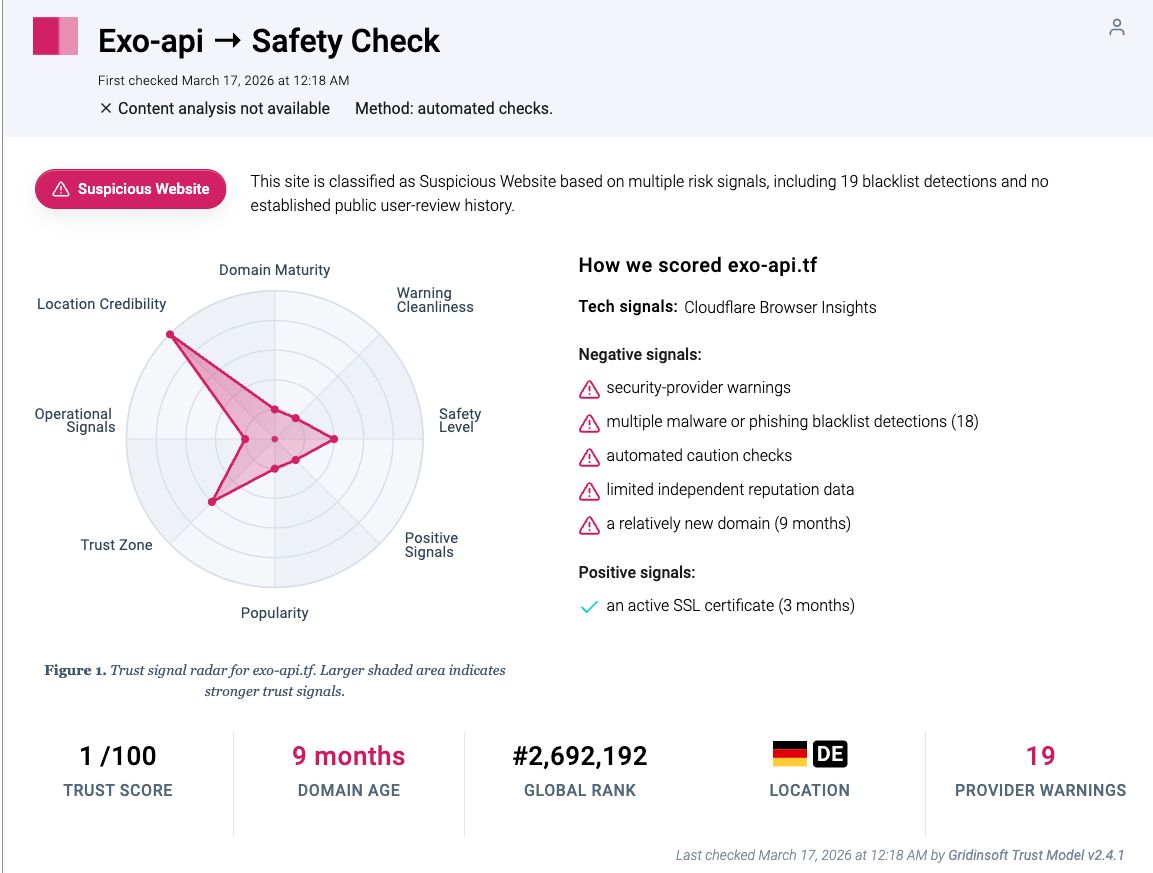
Current evidence supports treating the destination as untrusted. The Gridinsoft Website Reputation Checker report for exo-api.tf classifies it as suspicious and records 19 provider warnings. A public ANY.RUN task analyzed a specific exo-api.tf URL on May 15, 2026 and returned a malicious-activity verdict with loader behavior. That sandbox result applies to the analyzed path and session; it does not prove that every request to the domain delivers the same payload.
What to do first
- Keep the connection blocked. Do not click Allow, Restore, Exclude, or Ignore for the domain while you are still investigating it.
- Save the alert details. Record the time, full domain or URL, application path, category, and whether Edge was visibly open.
- Close Edge completely. Open Task Manager and end remaining Edge windows and processes only after saving work.
- Restart Windows. Note whether the alert returns before you deliberately open Edge, immediately after Edge starts, or only after visiting a particular page.
- Do not sign into sensitive accounts until recurring alerts, unexpected tabs, extensions, or downloads have been resolved.
| What you observed | Risk and next step |
|---|---|
| You visited a page once; the request was blocked and does not return | Lower exposure. Clear that site’s data, close the tab, and watch for recurrence. A blocked request alone does not prove code ran. |
| The alert returns while Edge is closed | Check Edge background mode, startup boost, notifications, Startup Apps, scheduled tasks, and recently installed software. |
| The alert stops in a clean profile or InPrivate window | The normal profile is the likely source. Review extensions, site permissions, startup pages, search settings, sync, and site data. |
| The alert continues with every extension disabled | Do not declare the extensions clean yet, but widen the check to notifications, service workers/site data, policy, shortcuts, proxy, DNS, apps, and Windows persistence. |
| You downloaded or ran a file before the alerts started | Treat it as a possible system compromise. Remove the download, scan the device, inspect persistence, and recover accounts only after cleanup. |
Isolate the trigger inside Microsoft Edge
1. Test a clean browser state
Start with an InPrivate window or a new local Edge profile that is not signed into sync. Do not revisit the page that preceded the alert. If the connection stays quiet in the clean state but returns in the usual profile, focus on that profile rather than reinstalling the whole browser.
If Edge is creating tabs or windows by itself, use the broader automatic tab troubleshooting flow to map the trigger to sign-in, reboot, a click, a notification, or a scheduled launch.
2. Disable every extension, then remove suspicious ones
Open edge://extensions, turn off every extension, restart Edge, and test again. Review extensions you do not recognize, items installed shortly before the first alert, add-ons with access to all sites, and anything marked as managed or installed by policy. Microsoft documents the normal disable and removal controls for Edge extensions; a managed item that cannot be removed needs a policy or companion-app check rather than repeated clicks.
- Launch Chrome.
- Click the three dots (...) in the top right corner.
- Select Extensions > Manage Extensions.
- Click Remove next to the extension you want to delete.
Quick Access: Type chrome://extensions/ in the address bar.
- Open Safari.
- In the menu bar, click Safari and select Settings (or Preferences).
- Click on the Extensions tab.
- Select the extension and click Uninstall.
- Click the menu button, select Add-ons and themes.
- Go to the Extensions tab.
- Click the three dots (...) next to the extension and select Remove.
Quick Access: Type about:addons in the address bar.
- Launch Microsoft Edge.
- Click the three dots (...) in the top right corner.
- Select Extensions.
- Find the extension and click Remove.
Quick Access: Type edge://extensions/ in the address bar.
- Launch Brave browser.
- Click the menu icon > Extensions.
- Find the extension and click Remove.
Quick Access: Type brave://extensions/ in the address bar.
- Launch Opera.
- Click the Opera logo in the top left corner.
- Select Extensions > Extensions.
- Click the X or Remove button next to the extension.
Quick Access: Type opera://extensions/ in the address bar.
Open Extensions/Add-ons again and remove any entry linked to exo-api.tf or clearly out of place.
If an extension disappears and then returns, pause browser sync and follow the extension reinstallation checklist. Sync, an enterprise-style policy, a scheduled task, or a bundled Windows app can restore it.
3. Revoke notifications and clear site data
Open edge://settings/content/notifications and remove or block unknown sites in the Allow list. Microsoft notes that website notifications can appear even when Edge is closed, so a background alert does not automatically mean a hidden browser window is open. Also review recent permissions for pop-ups, redirects, automatic downloads, and background sync.
If exo-api.tf keeps showing unwanted pop-ups, you likely granted it permission to send notifications. To stop them, you need to revoke that permission in your browser settings.
- Copy and paste this into the address bar:
chrome://settings/content/notifications - Scroll down to the Allowed to send notifications list.
- Find exo-api.tf.
- Click the three dots (...) next to it and select Remove (or Block).
- Open Safari and go to Settings (or Preferences).
- Click the Websites tab and select Notifications on the left.
- Find exo-api.tf in the list on the right.
- Select it and click Remove (or change "Allow" to "Deny").
- Copy and paste this into the address bar:
about:preferences#privacy - Scroll down to Permissions and click Settings... next to Notifications.
- Type exo-api.tf in the search bar or find it in the list.
- Select the site and click Remove Website.
- Copy and paste this into the address bar:
edge://settings/content/notifications - Look under the Allow section.
- Find exo-api.tf.
- Click the three dots (...) next to it and select Remove (or Block).
- Copy and paste this into the address bar:
brave://settings/content/notifications - Scroll to the Allowed to send notifications list.
- Find exo-api.tf.
- Click the three dots (...) and select Remove (or Block).
- Copy and paste this into the address bar:
opera://settings/content/notifications - Check the Allowed to send notifications list.
- Find exo-api.tf.
- Click the three dots next to it and select Remove.
Next, open edge://settings/content/all, search for the suspicious domain and any unfamiliar site seen at the same time, and delete its stored data. This can remove cookies, local storage, and registered site state. Do not clear everything immediately if preserving the exact trigger matters; start with the named site and recent unknown entries.
4. Check startup pages, shortcuts, sync, and policy
- Open
edge://settings/onStartupand remove pages you did not choose. - Check the default search engine, new-tab behavior, and homepage for changes.
- Open
edge://policy. On a personal PC, unexpected policies that force extensions, startup URLs, or proxy settings deserve investigation. Do not remove legitimate school or work policies. - Inspect desktop, Start-menu, and taskbar shortcuts. The Target field should end with the Edge executable, not an added URL after the closing quote.
- Temporarily turn off “Continue running background extensions and apps when Microsoft Edge is closed” and startup boost under
edge://settings/systemwhile testing. - If the problem returns only after signing into Edge, pause sync until the profile is clean.
If exo-api.tf keeps returning
When the alert survives a clean-profile test, returns before you open Edge, or reappears after a reboot, widen the investigation to Windows. The browser may only be the visible network client. A bundled app, startup entry, scheduled task, service, browser policy, or loader can launch Edge or feed it a URL again.
The same process-attribution rule applies when a different blocked destination appears. The Bacon-rumors.xyz malware alert guide shows how to separate a one-site request from a connection that continues with browsers closed.
- Review installed apps. In Settings → Apps → Installed apps, sort by install date and investigate software added just before the alert. Remove only software you can identify as unwanted.
- Review startup items. Check Task Manager → Startup apps and the suspicious startup-app checklist. Disable unknown launchers for testing before deleting files.
- Inspect Task Scheduler. Look for recent logon, startup, or repeating tasks that open Edge, a script, PowerShell, Command Prompt, or a URL. Record a task’s trigger, action, author, and file path before removing it.
- Check proxy and DNS settings. In Windows Settings → Network & internet → Proxy, disable an unknown manual proxy or setup script only if your organization or VPN did not configure it. Review the active adapter’s DNS servers for unexpected addresses.
- Scan the full device. A browser reset cannot remove a Windows task, companion app, loader, or policy writer.
If you see exo-api.tf or other suspicious applications that you don't remember installing, you should remove them as well.
- Right-click the Start button and select Installed Apps (or Apps & Features).
- Scroll through the list to find exo-api.tf or any other unfamiliar program.
- Click the three dots (...) next to it and select Uninstall.
- Open Finder and go to the Applications folder.
- Locate exo-api.tf or any app you don't recognize.
- Drag it to the Trash.
- Empty the trash to remove it permanently.
- Go to Settings > Apps > See all apps.
- Find exo-api.tf or any suspicious app in the list.
- Tap on it and select Uninstall.
After manual browser cleanup, run a full Gridinsoft Anti-Malware scan and remove confirmed detections. Reboot, then scan again if the connection returns. The scan is useful here because it checks beyond the visible tab for bundled apps, hidden files, startup entries, scheduled tasks, browser changes, and other persistence; it cannot prove that no exposure occurred or recover credentials already entered on an unsafe page.
How to confirm the cleanup worked
- Reboot Windows and wait a few minutes before opening Edge.
- Open Edge first in the clean profile, then the cleaned normal profile.
- Verify that no unknown extension, policy, notification permission, startup page, proxy, or scheduled task has returned.
- Keep the block in place and watch the security history through at least one normal browsing session and another reboot.
- If the alert returns, compare its time and full URL with Task Scheduler history, startup launches, and Edge activity instead of repeating the same reset.
Repairing Edge can help with damaged browser files, but it is not a substitute for finding the component that requested the domain. Resetting the entire PC is a last resort for confirmed or persistent compromise after backups and ordinary cleanup fail—not the first response to one blocked connection.
FAQ
Is msedge.exe a virus in this alert?
Not by itself. The normal path C:\Program Files (x86)\Microsoft\Edge\Application\msedge.exe is where Microsoft Edge is commonly installed. The alert says that an Edge process requested a blocked destination. Check the file’s Microsoft signature and path, but investigate the tab, profile, extension, permission, policy, app, or task that caused the request.
Is exo-api.tf a false positive?
The current evidence is strong enough to keep it blocked: Gridinsoft records multiple provider warnings, and a public sandbox observed malicious loader activity on a specific path at the domain. Those findings do not identify the trigger on your PC, so the right response is block plus source isolation—not an assumption that every request is identical.
Why does the alert appear when Edge is closed?
Edge can continue background activity for extensions and apps, and website notifications can appear after the window closes. Windows startup items, scheduled tasks, shortcuts, or unwanted software can also launch Edge without an obvious window.
Will resetting or reinstalling Edge remove exo-api.tf?
Only if the trigger is limited to browser state that the reset actually removes. Sync, policy, a companion app, startup entry, scheduled task, proxy, or loader can recreate the request after a reset or reinstall.
Should I change my passwords?
Change important passwords from a clean device if you entered credentials on a suspicious page, installed or ran a download, allowed a broad-access extension, or see account alerts. One blocked outbound request alone does not prove password theft.
References
- ANY.RUN. “Malware analysis: exo-api.tf/Stb/Retev.php.” ANY.RUN public sandbox report, analyzed May 15, 2026; accessed July 23, 2026. any.run report.
- Microsoft. “Manage website notifications in Microsoft Edge.” Microsoft Support, accessed July 23, 2026. support.microsoft.com.
- Microsoft. “Add, turn off, or remove extensions in Microsoft Edge.” Microsoft Support, accessed July 23, 2026. support.microsoft.com.