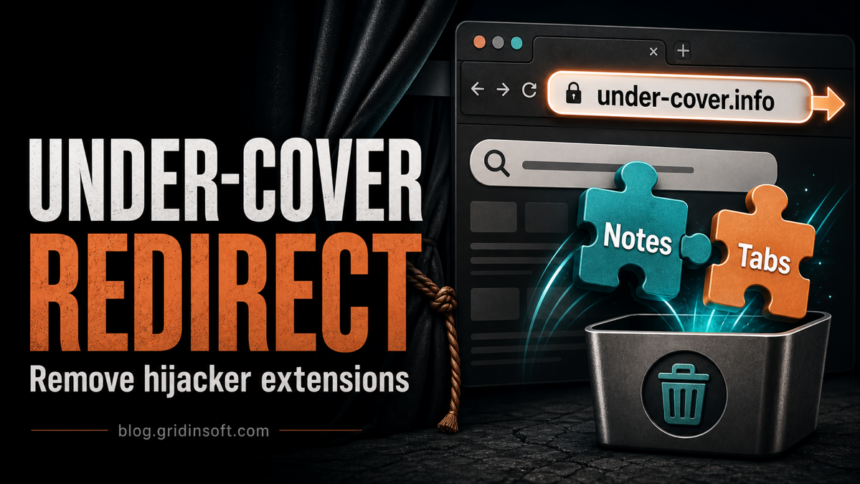
Under-cover.info is a browser redirect domain promoted by unwanted extensions such as Nautilus Notes and PerfecTab. If your searches, new tab page, or address-bar queries briefly pass through under-cover.info before landing on another search page, remove the extension that added the redirect and reset the affected browser settings. Do not treat the final search page as the source of the problem; the important clue is the under-cover.info hop.
This is best handled as a browser hijacker cleanup, not as a separate article for every extension name. Nautilus Notes and PerfecTab are different names, but the user problem is the same: an extension changes search or new-tab behavior and routes traffic through under-cover.info.
What is under-cover.info?
Under-cover.info is a promoted redirect domain associated with browser-hijacker extensions. A hijacker extension may advertise a simple browser feature, such as notes, tabs, shortcuts, wallpapers, or search tools, while quietly changing the browser’s search provider, new-tab page, startup page, or redirect chain.
In the current cluster, Nautilus Notes and PerfecTab are the important extension names to check first. If either appears in Chrome, Edge, Firefox, or another Chromium-based browser, remove it and then review the browser settings it may have changed.
Signs that under-cover.info is controlling the browser
- Searches briefly open
under-cover.infobefore another search page appears. - The new-tab page changes after installing a notes, tabs, search, or productivity extension.
- Nautilus Notes, PerfecTab, or another unfamiliar extension appears in the extensions list.
- The default search engine or startup page changes back after you edit it.
- The browser opens tabs by itself or shows more ads and redirects than usual.
A redirect alone does not prove that Windows has a destructive malware infection. It does mean the browser configuration is no longer trustworthy until the extension and related settings are removed.
Remove Nautilus Notes, PerfecTab, and related extensions
Start with the extensions list. Browser hijackers often keep their control there, and changing the search engine first may not last if the extension remains installed.
Google Chrome and Chromium browsers
- Open Extensions from the browser menu.
- Disable and remove Nautilus Notes, PerfecTab, or any extension you do not remember installing.
- Open Settings, then check Search engine, On startup, and Appearance.
- Remove under-cover.info and other unknown domains from startup or new-tab settings.
- Restart the browser and test a search from the address bar.
Microsoft Edge
- Open Extensions and choose Manage extensions.
- Remove Nautilus Notes, PerfecTab, or any unknown search/new-tab extension.
- Review Start, home, and new tabs plus Privacy, search, and services.
- Restore your preferred search provider and home/new-tab behavior.
Mozilla Firefox
- Open Add-ons and themes.
- Remove unfamiliar extensions related to notes, tabs, search, or homepage tools.
- Check Home and Search settings.
- Restart Firefox and confirm that under-cover.info no longer appears in the redirect chain.
- Launch Chrome.
- Click the three dots (...) in the top right corner.
- Select Extensions > Manage Extensions.
- Click Remove next to the extension you want to delete.
Quick Access: Type chrome://extensions/ in the address bar.
- Open Safari.
- In the menu bar, click Safari and select Settings (or Preferences).
- Click on the Extensions tab.
- Select the extension and click Uninstall.
- Click the menu button, select Add-ons and themes.
- Go to the Extensions tab.
- Click the three dots (...) next to the extension and select Remove.
Quick Access: Type about:addons in the address bar.
- Launch Microsoft Edge.
- Click the three dots (...) in the top right corner.
- Select Extensions.
- Find the extension and click Remove.
Quick Access: Type edge://extensions/ in the address bar.
- Launch Brave browser.
- Click the menu icon > Extensions.
- Find the extension and click Remove.
Quick Access: Type brave://extensions/ in the address bar.
- Launch Opera.
- Click the Opera logo in the top left corner.
- Select Extensions > Extensions.
- Click the X or Remove button next to the extension.
Quick Access: Type opera://extensions/ in the address bar.
Open Extensions/Add-ons again and remove any entry linked to under-cover.info or clearly out of place.
Reset search, new tab, and startup settings
After removing the extension, restore the browser settings it changed. Check these places carefully:
- Default search engine: choose the provider you actually use.
- Site search shortcuts: remove entries with under-cover.info or unknown domains.
- Startup pages: remove suspicious URLs that open when the browser starts.
- New-tab behavior: remove extension-controlled pages and return to the browser default.
- Notification permissions: remove unfamiliar sites if the redirect also caused pop-ups.
If the settings are marked as controlled by an organization on a personal computer, check browser policies next. Some hijackers add policies so the search provider or extension keeps returning.
- Tap on the three dots (...) in the top right corner and Choose Settings.

- Choose Reset and Clean up and Restore settings to their original defaults.

- Tap Reset settings.

Quick Access: Type chrome://settings/reset in the address bar.
- Open Safari.
- In the menu bar, click Safari > Clear History.
- Select all history and click Clear History.
- Go to Safari > Settings (or Preferences).
- Click the Privacy tab and select Manage Website Data... > Remove All.
- In the Advanced tab, check Show features for web developers.
- In the menu bar, select Develop > Empty Caches.
- Launch Brave browser.
- Click the menu icon in the top right corner and select Settings.
- Click Additional settings > Reset settings.
- Tap Restore settings to their original defaults.
- Confirm by clicking Reset settings.
Quick Access: Type brave://settings/reset in the address bar.
- In the upper right corner tap the three-line icon and Choose Help.

- Choose More Troubleshooting Information.

- Choose Refresh Firefox... then Refresh Firefox.

Quick Access: Type about:support and click Refresh Firefox.
- Tap the three dots.

- Choose Settings.

- Tap Reset Settings, then Click Restore settings to their default values.

Quick Access: Type edge://settings/reset in the address bar.
- Launch the Opera browser.
- Click the Opera menu button in the top left corner and select Settings.
- Scroll down to the Advanced section in the left sidebar and click Reset and clean up.
- Click Restore settings to their original defaults.
- Click Reset settings to confirm.
Quick Access: Type opera://settings/reset in the address bar.
After reset, verify that under-cover.info is no longer set as your default search engine or homepage.
Check Windows if the redirect comes back
If under-cover.info returns after extension removal and a browser reset, look beyond the browser. Bundled adware and potentially unwanted apps can reinstall extensions, change shortcuts, or relaunch tabs through scheduled tasks.
- Uninstall recently added apps that arrived with the extension.
- Check browser shortcuts for an added URL after the executable path.
- Review startup apps and scheduled tasks for unknown entries.
- Scan the system if several browsers are affected or the extension reinstalls itself.
Gridinsoft Anti-Malware can check for browser hijackers, adware, unwanted startup entries, suspicious scheduled tasks, and bundled programs that keep the redirect alive after manual browser cleanup.
After uninstalling the suspicious app or deleting the visible threat, use Gridinsoft Anti-Malware to check hidden files, startup entries, scheduled tasks, bundled apps, browser changes, and other persistence points that can restore malware.
Download Anti-MalwareWhat not to do
Do not install a second extension that promises to fix the redirect, and do not click ads or download prompts opened by under-cover.info. Avoid entering passwords or payment details on pages reached through the redirect. If the browser asks to sync extensions again after cleanup, review the synced extension list first so the unwanted extension does not come back from another device.
How to avoid similar hijackers
- Install browser extensions only when you trust the publisher and understand the permissions.
- Be cautious with extensions that request control over search, homepage, new tab, or all websites.
- Remove unused extensions regularly.
- Do not accept browser extension prompts from download portals, fake update pages, or redirect chains.
- Keep browser sync clean by removing unwanted extensions from every synced profile.
FAQ
Is under-cover.info a virus?
Under-cover.info is best treated as a browser redirect tied to unwanted extensions. The redirect itself is not proof of a destructive virus, but it is a sign that browser settings or extensions should be cleaned.
Are Nautilus Notes and PerfecTab the same threat?
They are different extension names, but they fit the same cleanup lane when they promote under-cover.info. Remove the extension, then reset search and new-tab settings.
Why does the redirect end on another search engine?
Browser hijackers often route queries through a promoted domain before landing on a normal-looking search page. The final page can distract from the real issue: the extension-controlled redirect in the middle.
Should I reinstall the browser?
Usually no. Remove the hijacker extension, reset search/new-tab settings, and scan for adware if the redirect returns. Reinstalling the browser may not help if sync or Windows persistence restores the same extension.
References
- Google Chrome Help. “Install and manage extensions.” Google Help, accessed June 11, 2026. https://support.google.com/chrome_webstore/answer/2664769
- Microsoft Support. “Add, turn off, or remove extensions in Microsoft Edge.” Microsoft, accessed June 11, 2026. https://support.microsoft.com/en-us/microsoft-edge/add-turn-off-or-remove-extensions-in-microsoft-edge-9c0ec68c-2fbc-2f2c-9ff0-bdc76f46b026
- Mozilla Support. “Disable or remove Add-ons.” Mozilla, accessed June 11, 2026. https://support.mozilla.org/en-US/kb/disable-or-remove-add-ons