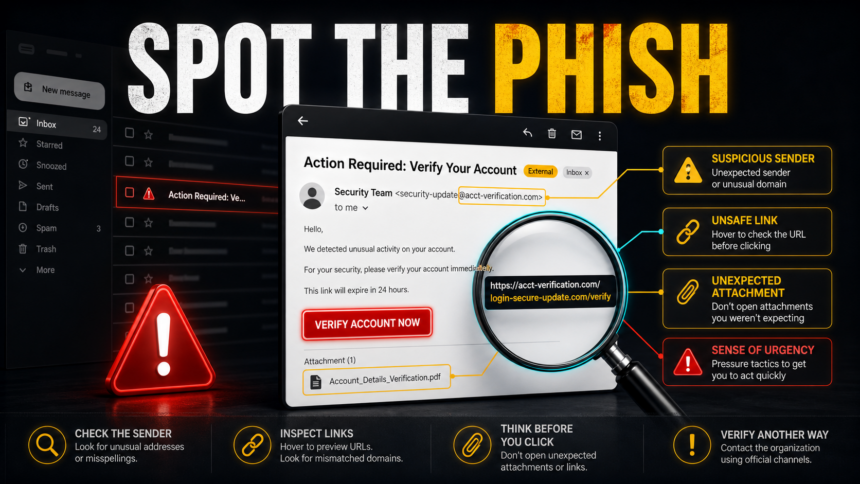
A phishing email is a message that tries to make you click, sign in, pay, download a file, scan a QR code, or share sensitive information by pretending to be someone trustworthy. The fastest way to spot one is to check four things before you touch anything: the real sender domain, the link destination, the request, and the pressure tactic. If one of those does not match the organization or conversation you expected, verify through the official website, app, phone number, or internal channel instead of using the email button.
One-minute phishing check: expand the sender, preview the link, question the request, inspect attachments or QR codes, and verify outside the email thread. If you already clicked, jump to the recovery steps below instead of rereading the message.
How to spot a phishing email quickly
- Open the sender details. The display name can say “Security Team,” “Payroll,” or “Microsoft,” while the real address uses a free mailbox, a lookalike domain, or a domain unrelated to the company.
- Compare the reply-to address. A sender from one domain and a reply-to address on another domain is a common clue, especially in invoice, HR, and account-warning emails.
- Preview links before clicking. On desktop, hover over the link. On mobile, long-press carefully or copy the link without opening it. The real domain matters more than the words on the button.
- Ask whether the request changes normal behavior. Password reset, payment, gift cards, new bank details, document review, QR login, remote-support install, or MFA approval pressure should be verified another way.
- Treat unexpected files as risky. PDFs, ZIPs, SVG files, ISO files, Excel sheets, and “secure document” attachments can lead to fake login pages or malware downloads.
- Slow down when the email creates a deadline. “Today only,” “final notice,” “account closure,” and “payment failed” wording is designed to make you skip the checks above.
How to check email headers for phishing
Email headers can reveal a sender or authentication mismatch, but no single field proves that a message is fake. A failure or an unexpected domain is a reason to stop and verify. Clean results only show that the sending domain or signature passed a check; a lookalike domain or a compromised real mailbox can still send phishing.
Open the full header in Gmail or Outlook
- Gmail in a desktop browser: open the message, select the three-dot More menu next to Reply, and choose Show original.
- Outlook on the web or Outlook.com: open the message, select More actions, then View > View message details.
- Classic Outlook for Windows: open the message in its own window, select File > Properties, and read the Internet headers box.
Read these fields first
| Header field | What should make you stop and verify |
|---|---|
| From and Reply-To | The visible brand or person does not match the actual address, or replies go to an unrelated domain. A mismatch is a clue, not automatic proof of fraud. |
| Return-Path | The envelope-sender domain is unexpected. Marketing and support services can legitimately use a different Return-Path, so compare it with the organization and message context. |
| Authentication-Results | Look for spf=, dkim=, and dmarc=. fail, softfail, or none can support suspicion, especially when the checked domains do not align with the visible From domain. Forwarding can sometimes affect SPF, so do not judge on SPF alone. |
| Received | The delivery path uses infrastructure or domains that do not fit the claimed sender. Read it as supporting context; lower lines can be added before the message reaches your provider and should not be trusted by themselves. |
| Message-ID and Date | The Message-ID domain, timestamps, or sequence conflict with the claimed sender or conversation. Missing or odd values are clues, but legitimate mail systems vary. |
Decision rule: if authentication fails, domains do not align, or the route looks unrelated, do not reply, click, or open the attachment. Verify the request through the official site, app, phone number, or a separate work channel. Even when SPF, DKIM, and DMARC pass, verify unexpected payment, password, MFA, document, or bank-detail requests outside the email thread.
Domain owners who need to configure these controls should use the separate SPF, DKIM, and DMARC spoofing guide. For recipients, a passing header does not rule out a business email compromise. Compare the request with common account-verification and mailbox-capacity lures before taking action.
What a phishing email can look like
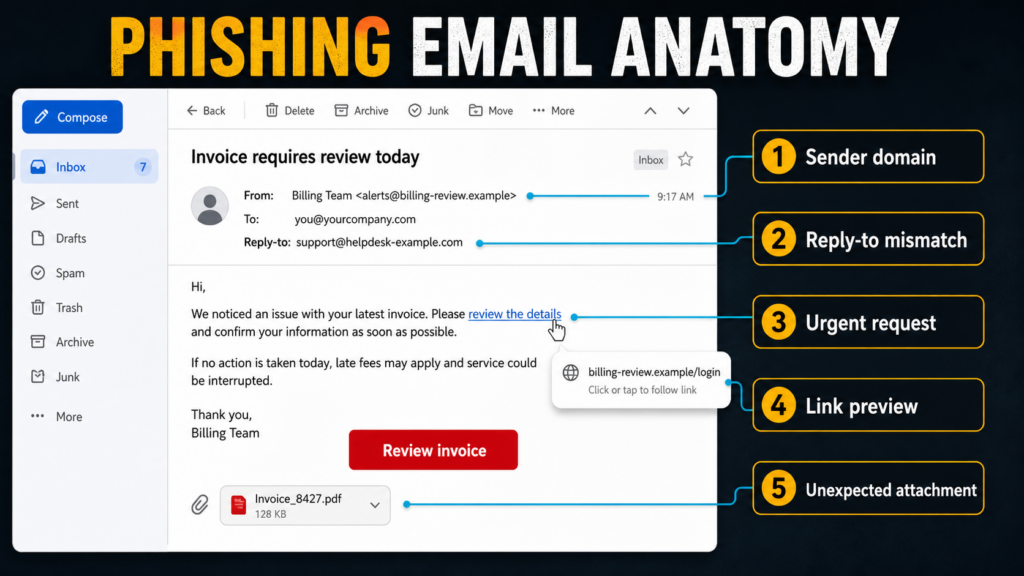
Example:
Subject: Invoice requires review today
From: Billing Team <[email protected]>
Reply-to: [email protected]
Hi,
We noticed an issue with your latest invoice. Please review the details and confirm your information as soon as possible. If no action is taken today, late fees may apply and service could be interrupted.
Button: Review invoice
Attachment: Invoice_8427.pdf
The message does not need obvious spelling mistakes to be dangerous. In this example, the suspicious parts are the unrelated sender domain, the different reply-to address, the urgent request, the login-style button, and the unexpected attachment.
Payroll-themed variants can look even more routine. The Selectfood Payroll email scam uses an “Official Notification” subject and an “Update My Payroll Now” button to push recipients toward a fake sign-in page.
Phishing email red flags that still matter in 2026
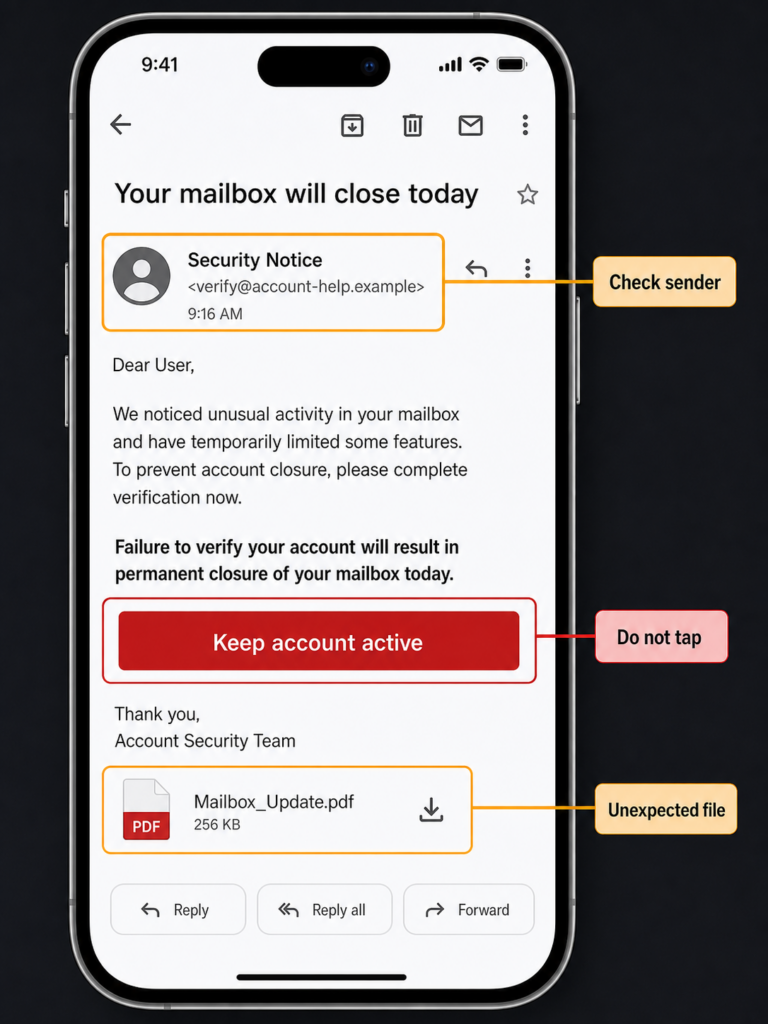
- Sender mismatch: the brand or coworker name looks familiar, but the domain is wrong, shortened, misspelled, or unrelated.
- Hidden destination: the button says “View document” or “Verify account,” but the URL points to a different domain, a tracking redirect, or a login page you did not request.
- Unusual payment instruction: the email asks for gift cards, crypto, wire transfer changes, refund calls, invoice payment, or bank-detail confirmation.
- Credential or MFA pressure: the message asks you to enter a password, approve a sign-in, share a one-time code, or scan a QR code to “keep” access.
- Unexpected attachment: the file claims to be a receipt, payslip, shipping label, voicemail, security report, or shared document you were not expecting.
- Overconfident branding: logos, banners, and polished language do not prove legitimacy. Scammers copy templates and can write clean emails.
- Wrong context: the email refers to a service, invoice, delivery, HR process, or account you do not use, or it arrives outside the normal process.
How to check links without clicking them
Read the registered domain, not the brand word inside the URL. A fake link can include the brand in a subdomain, path, or tracking parameter while the real site is somewhere else.
Looks official: https://accounts.example.com/security
Suspicious: https://accounts-example-security[.]com/login
Suspicious: https://example[.]com/login?brand=microsoft
If the email is about banking, payroll, taxes, delivery, a subscription, or a cloud account, open the official app or type the website address yourself. Do not use the email button as the source of truth.
For a message that specifically claims a ChatGPT subscription payment failed or is overdue, follow the ChatGPT payment reminder verification and card-response steps instead of the email button.
An invoice can also raise a separate contract question, not only a phishing question. If a message names Astrolonova, Fitnovaness, Novavitalia, or Bongochat and demands EUR299, use the Astrolonova invoice verification and dispute guide to separate the sender check from the payment, collection, and court-mail response.
Common phishing email examples
Use these examples to classify the message quickly. If the email matches one of them, verify outside the message before clicking.
- Account verification: “Your account will be suspended” or “confirm your mailbox.” This usually targets passwords or MFA codes.
- Fake invoice or refund: “You were charged” or “review attached invoice.” This can lead to callback scams, fake support numbers, or malicious files.
- Shared document: “Someone shared a secure file.” This often opens a fake Microsoft 365, Google, DocuSign, courier, or webmail login page.
- HR or payroll notice: “Benefits review,” “payslip available,” or “compensation update.” This targets work email credentials and employee portals.
- Security alert: “New sign-in,” “password expires,” or “unusual activity.” Real alerts exist, so check the account manually rather than using the email link.
- QR code email: “Scan to verify” or “scan to view document.” A QR code is just a link; treat it like one.
Check a suspicious message with Gridinsoft
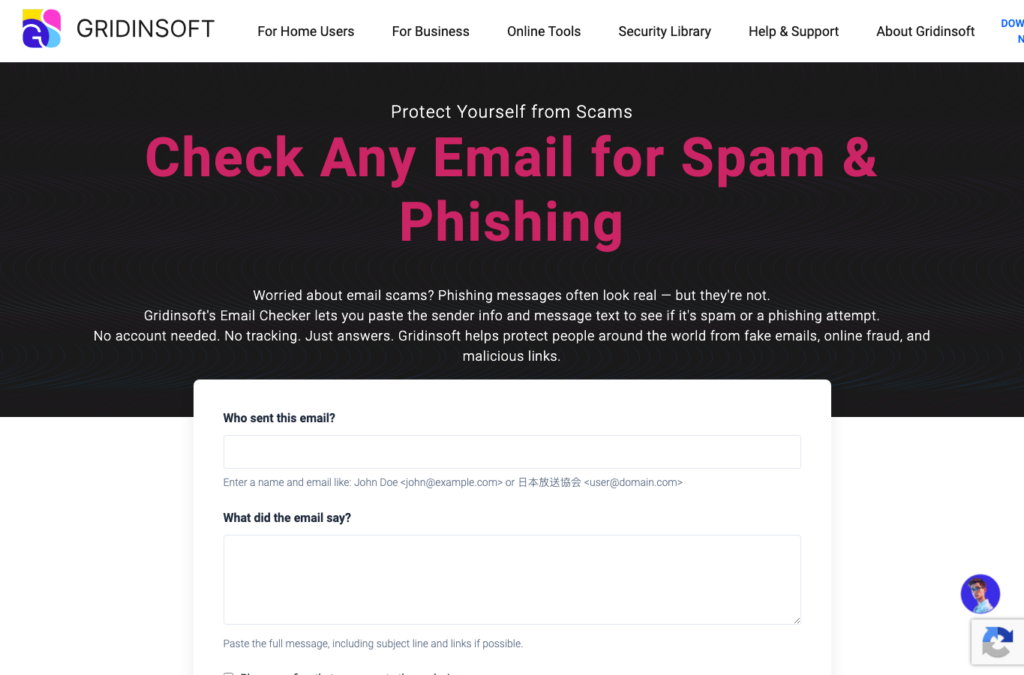
Manual checks are useful, but polished phishing can still be hard to judge. If you have a suspicious message, use Gridinsoft Email Checker to inspect the sender, message text, links, and phishing signals before you reply, pay, or open a file. For a closer tool walkthrough, see the Gridinsoft Email Scam Checker overview.
What to do if you clicked a phishing email
- If you only opened the email, close it and avoid links, QR codes, attachments, unsubscribe buttons, and replies.
- If you clicked a link but entered nothing, close the page, do not approve notifications, and delete any downloaded file. Use the clicked phishing link checklist if the browser opened a suspicious page.
- If you entered a password, change it from the official site on a clean device, sign out other sessions, and check recovery email, phone, and MFA settings.
- If you entered a one-time code or approved a sign-in, treat the account as compromised until sessions and app permissions are revoked.
- If you paid, entered card details, or called a fake support number, contact your bank or payment provider through the number on the card or official website.
- If you opened an attachment or ran a file, disconnect from sensitive accounts and scan the computer before continuing normal work.
A security tool may remove the visible attachment or downloaded file, but phishing downloads can leave a loader, scheduled task, browser change, startup entry, or bundled module that brings the warning back. After opening or running a suspicious email attachment, run a full Gridinsoft Anti-Malware scan, remove detections, reboot, and scan again if pop-ups, redirects, blocked connections, or new alerts return.
If the page or email made you download an invoice, coupon, tracking app, browser extension, or support tool, scan the PC before opening it again or logging into sensitive accounts.
Scan after a suspicious email downloadA newer webmail research case adds one exception to the usual “opening is low risk” rule: CSS email attacks can make message content imitate a trusted sign-in form. Viewing alone is not proof of password theft, but never enter credentials into a prompt that appears inside one message; close the tab and open the provider independently.
\n\n
Where to report phishing emails
Use your mail provider’s Report phishing option when it is available. If the message impersonates your employer, bank, marketplace, tax agency, school, delivery company, or software vendor, report it through that organization’s official channel. In the United States, the FTC accepts fraud reports at ReportFraud.ftc.gov, and CISA recommends reporting suspicious messages to the relevant organization or security team.
Related Gridinsoft guides
- Phishing vs spoofing: what is the difference?
- Spear phishing: targeted email attacks explained
- QR code phishing scams: how to check before scanning
- Legal Payroll & Tax Audit shared document email scam
- DocuSign Legal Department document email virus
- FedEx and DHL shipping document email scam
- Your Payslip Is Available email scam
- National Bank of Canada security update email scam
- Bittrex Account Verification balance-recovery email scam
- Company’s Annual Dinner hotel-inquiry malware — how to respond after reading, clicking, downloading, or running the file
FAQ
Can email headers prove a message is fake?
No single header proves fraud by itself. Authentication failures, unrelated domains, and an inconsistent route are strong reasons to stop and verify, but forwarded legitimate mail can fail some checks and a lookalike domain or compromised real account can pass them.
What is the easiest way to spot a phishing email?
Check the real sender domain, the link destination, the request, and the pressure tactic. If the email asks you to sign in, pay, download, scan, or share data, verify through the official site or app instead of the email link.
Can a phishing email come from a real account?
Yes. A compromised mailbox can send phishing from a real address. That is why context matters: verify unusual payment, document, password, or MFA requests through another trusted channel.
Is bad grammar still a reliable phishing sign?
No. Bad grammar can be a clue, but modern phishing emails can be well written and branded. Sender, link, request, attachment, and context are more reliable checks.
Should I click unsubscribe in a suspicious email?
No. A malicious unsubscribe link can confirm that your address is active or send you to another phishing page. Use the mail app’s spam or phishing controls instead.
Can opening a phishing email infect my device?
Usually the bigger risk is clicking, downloading, scanning a QR code, or entering data. Still, keep your browser and mail app updated, and do not load unknown attachments or remote content from suspicious messages.
References
- Google. “Trace an email with its full header.” Gmail Help, accessed July 14, 2026. https://support.google.com/mail/answer/29436?hl=en
- Microsoft. “View internet message headers in Outlook.” Microsoft Support, accessed July 14, 2026. https://support.microsoft.com/en-US/Outlook/view-internet-message-headers-in-outlook
- Microsoft. “Anti-spam message headers in cloud organizations.” Microsoft Learn, updated October 9, 2025; accessed July 14, 2026. https://learn.microsoft.com/en-us/defender-office-365/message-headers-eop-mdo
Password-manager users should also check the exact sender and destination in the fake LastPass and Bitwarden security email campaign, where lookalike compliance domains lead to a download.