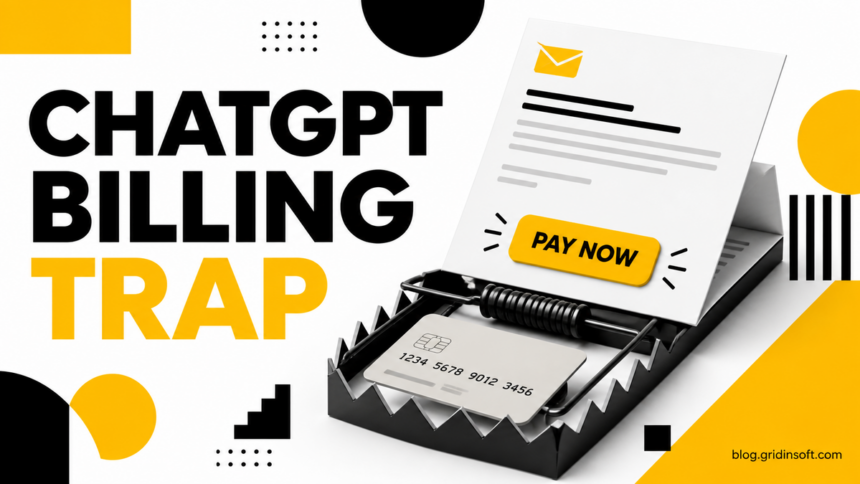
The ChatGPT Payment Reminder email is a phishing lure when its button opens an outside payment form and asks for card details. Do not use the email link to decide whether a payment is due. Open chatgpt.com yourself, sign in, and check Settings > Billing. If no failed payment or matching subscription appears there, treat the message as fraudulent. If you entered card details, contact the card issuer now rather than waiting for an unauthorized charge.
- You only opened the email: Delete or report it. Do not use its button, QR code, phone number, or reply address.
- You clicked but entered nothing: Close the page. Check billing from ChatGPT directly and clear any download the page started.
- You entered card or billing details: Call the issuer using the number on the card, lock or replace the card, and monitor transactions.
- You entered an OpenAI password: Change it from the real account, secure the email account, and review active sessions.
What is the ChatGPT Payment Reminder email scam?
This scam impersonates ChatGPT or OpenAI billing and claims that a subscription payment failed, remains unpaid, or must be updated before access is interrupted. The message uses an urgent payment button to move the recipient to a counterfeit checkout page. A July 2026 campaign documented by MailGuard used a failed-payment story and a page that imitated a familiar card checkout to collect email, card, and billing information.[3]
A real service can send billing messages, so the subject line alone does not prove fraud. The decisive check is whether the same subscription and payment state appears inside the account or app that actually manages the purchase. OpenAI says web subscriptions are managed under ChatGPT Settings > Billing, while Apple App Store and Google Play subscriptions are managed by their respective platforms.[1]
How to verify a ChatGPT billing message safely
- Do not press the payment button. Do not reply, call a number in the message, or scan a QR code.
- Open ChatGPT independently. Type
chatgpt.comin a new tab or open the official app from your device. - Check the correct billing platform. For a web subscription, open Settings and Billing. For an iPhone or Android purchase, check the subscription in the App Store or Google Play.
- Compare the account state. Look for the plan, renewal date, payment history, and any failed-payment notice. An email claim that does not exist in the account is not a reason to enter card details elsewhere.
- Inspect the sender and destination separately. A familiar display name or logo can be copied. The real destination domain matters more than the words printed on the button.
If the message still looks uncertain, use the Gridinsoft Email Checker to inspect its sender, text, and links without paying or replying. The broader phishing email checklist explains how to compare sender, reply-to, and link domains.
Example
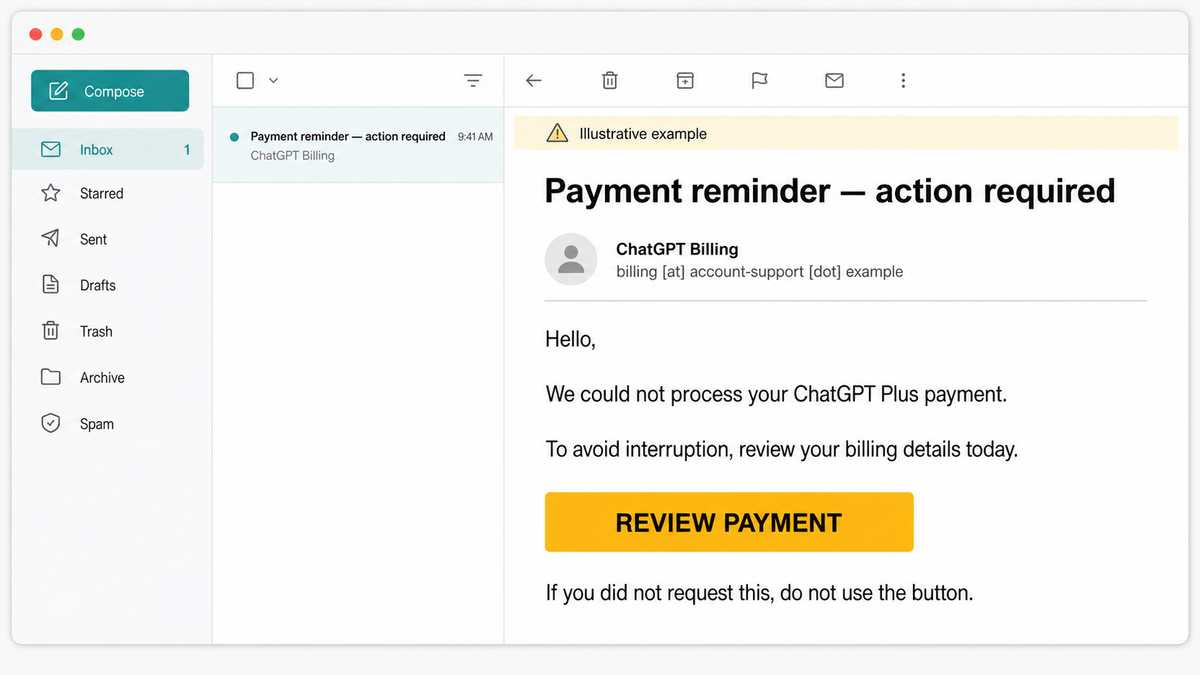
Subject: Payment reminder — action required
Display name: ChatGPT Billing
Sender: billing [at] account-support [dot] example
Hello,
We could not process your ChatGPT Plus payment.
To avoid interruption, review your billing details today.
Button: REVIEW PAYMENT
If you did not request this, do not use the button.
The example is intentionally generic. Real campaigns change sender domains, deadlines, amounts, and button wording. Do not turn those details into a checklist of what a “real” scam must contain; verify the billing state inside the account instead.
Red flags in a ChatGPT payment email
- The message creates a same-day deadline or threatens immediate loss of access.
- The button opens a domain unrelated to the service or app store that manages the subscription.
- A supposed support link and payment button lead to the same destination.
- The page asks you to retry different cards after an artificial error.
- The sender display name looks official, but the underlying address does not match the claimed organization.
- The message requests a password, full card details, one-time code, remote-access tool, or document upload that you did not initiate.
Branding is not authentication. Fake ChatGPT pages and apps have also been used for malware and payment theft; see the separate guide to malicious fake ChatGPT apps when the message led to a download rather than only a payment form.
What to do after clicking or entering information
You opened the email but did not click
Opening a normal message is not the same as submitting information. Mark it as phishing, delete it, and do not use unsubscribe or reply controls inside the message. No card replacement or malware scan is needed solely because the message was displayed.
You clicked but entered nothing
Close the page and check the account directly. Review the browser downloads list because a page can try to start a file download. If no information was submitted and no file, extension, app, or profile was installed, the main risk usually ends with the closed page.
You entered card details
- Call the card issuer using the number printed on the card or shown in the bank’s official app.
- Tell the issuer that card details were entered on a phishing page and ask whether the card should be locked or replaced.
- Review pending and posted transactions, then enable transaction alerts.
- If a charge is not yours, dispute it through the issuer. OpenAI also directs users with unauthorized ChatGPT charges to contact both OpenAI Support and their bank promptly.[2]
You entered an account password or verification code
Change the exposed password from the real service and change any other account that reused it. Secure the email account first if it can reset the affected accounts, then review sessions and recovery details. The account verification phishing recovery guide covers password and one-time-code exposure in more detail.
The page downloaded a file or asked you to install something
Do not run the file. You can submit a saved file to the Gridinsoft Online Virus Scanner without opening it. If you already ran a file, installed an extension, or gave a remote-access app permission, disconnect the device from the network, run a full malware scan, and change important passwords from a clean device.
How to avoid subscription-billing phishing
- Use a saved bookmark or the official app for billing and subscription changes.
- Keep separate passwords for the email account and ChatGPT account.
- Enable transaction alerts for the payment card used for subscriptions.
- Teach family members and staff to verify billing inside the service, not from an email button.
- Keep unexpected invoices, payment failures, and “account on hold” messages in the same high-risk category.
FAQ
Are all ChatGPT billing emails scams?
No. A legitimate service or app store can send subscription receipts and payment notices. Verify the message by opening the account or app independently and checking whether the same billing event appears there.
Can I be charged just for opening the email?
No. Displaying the message does not give the sender your card details. The financial risk begins when you submit payment information, approve a payment, or disclose a verification code.
What if the email button opens a page that looks like Stripe?
A copied checkout design does not prove the page is legitimate. Close it and check billing from ChatGPT, Apple, or Google Play directly, depending on where the subscription was purchased.
Should I cancel ChatGPT after receiving the scam?
Not because of the email alone. First verify whether you have an active subscription and whether its payment history is normal. Cancel only through the real billing platform if that is what you intend to do.
Do I need a malware scan after entering card details?
Card entry alone is primarily a financial-fraud problem. Scan the device when the page downloaded a file, installed an extension or app, requested remote access, or produced other signs of compromise.
References
- OpenAI. “Managing Billing Settings on ChatGPT Web and Platform.” OpenAI Help Center, updated July 29, 2026; accessed August 13, 2026. OpenAI billing settings guidance.
- OpenAI. “Unauthorized ChatGPT or API Credit Purchase Charges: How to Request a Refund.” OpenAI Help Center, updated August 1, 2026; accessed August 13, 2026. OpenAI unauthorized-charge guidance.
- MailGuard. “ChatGPT ‘Update your payment details’ phishing email leads to fake Stripe payment page.” MailGuard, July 10, 2026; accessed August 13, 2026. MailGuard campaign report.