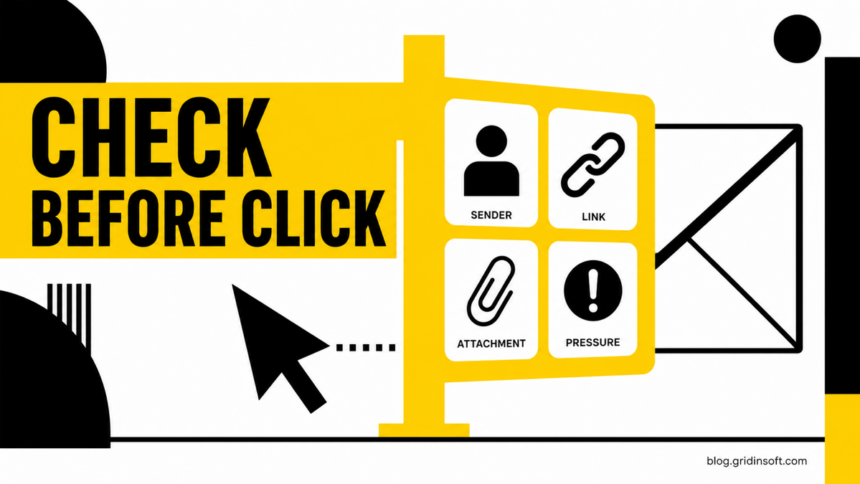
Gridinsoft Email Checker is a free online tool for assessing whether a suspicious email looks like a scam, spam, or phishing attempt before you click. Paste the sender information and message text, including the subject line and visible links when possible, and the checker returns a risk verdict based on sender signals, domain reputation, message wording, and phishing patterns. Use it when an email asks you to sign in, pay, approve MFA, open an attachment, scan a QR code, or act urgently.
For a common mailbox-quota lure, compare the message with our Insufficient Email Capacity scam checklist before using any login button in the email.
Use the Email Checker when a message feels plausible but risky.
- Paste the sender name, email address, subject, and message text into the free Gridinsoft Email Checker.
- Read the verdict, trust score, sender/domain checks, and content-risk notes before clicking links or opening files.
- If the email asks for money, passwords, MFA codes, payroll changes, invoices, or account recovery, verify through the real website or a known phone number.
- If you already downloaded or opened a file, scan the file and the device instead of relying only on email text analysis.
What the Email Checker does
The tool is built for the moment when a message is not obviously fake. Modern scam emails often copy real brand language, use compromised accounts, hide links behind buttons, or make a fake invoice look routine. Gridinsoft Email Checker gives you a second opinion before the message turns into a click, login, payment, or malware download.
It is not just a basic email-address verifier. The checker combines technical sender checks with content analysis so the result is closer to a scam assessment than a simple “does this mailbox exist?” test.
| Signal | Why it matters |
| Sender and domain | Scam emails often use lookalike domains, disposable senders, suspicious reply-to addresses, or mailboxes with weak reputation. |
| MX and mailbox checks | Technical checks help show whether the sender domain and mailbox infrastructure look real enough to trust for communication. |
| Message text | The checker looks for phishing language, urgent pressure, fake security warnings, payment requests, and social-engineering patterns. |
| Links and attachments mentioned in the message | Visible URLs, file names, invoice lures, archive names, and login prompts help explain whether the message is pushing you toward a risky action. |
| Trust score and verdict | The result translates several signals into a practical decision: safer to verify, suspicious, spam, or likely phishing. |
How to check a suspicious email safely
- Do not click first. Leave the email unopened beyond preview if possible, and do not use buttons, QR codes, attachments, unsubscribe links, or phone numbers inside the message.
- Copy only the useful evidence. Use the sender name, sender address, subject line, visible message text, and visible links. Do not paste passwords, one-time codes, card numbers, private documents, or full personal records.
- Open the checker directly. Go to Gridinsoft Email Checker from your browser, not through the suspicious email.
- Paste the sender and message. Include enough text for the tool to judge the tone, request, links, and context. Very short input can produce a lower-confidence result.
- Read the full result. Look at the verdict, trust score, domain details, spam/phishing indicators, and any low-signal warning.
- Verify outside the email. If the message might be legitimate, open the real service manually or contact the sender through a known channel.
- Compare a merchant alert example. A vague payment notice can still be a credential trap; our SumUp transaction problem email guide shows how to verify it through the real account instead of the message button.
How to read the verdict
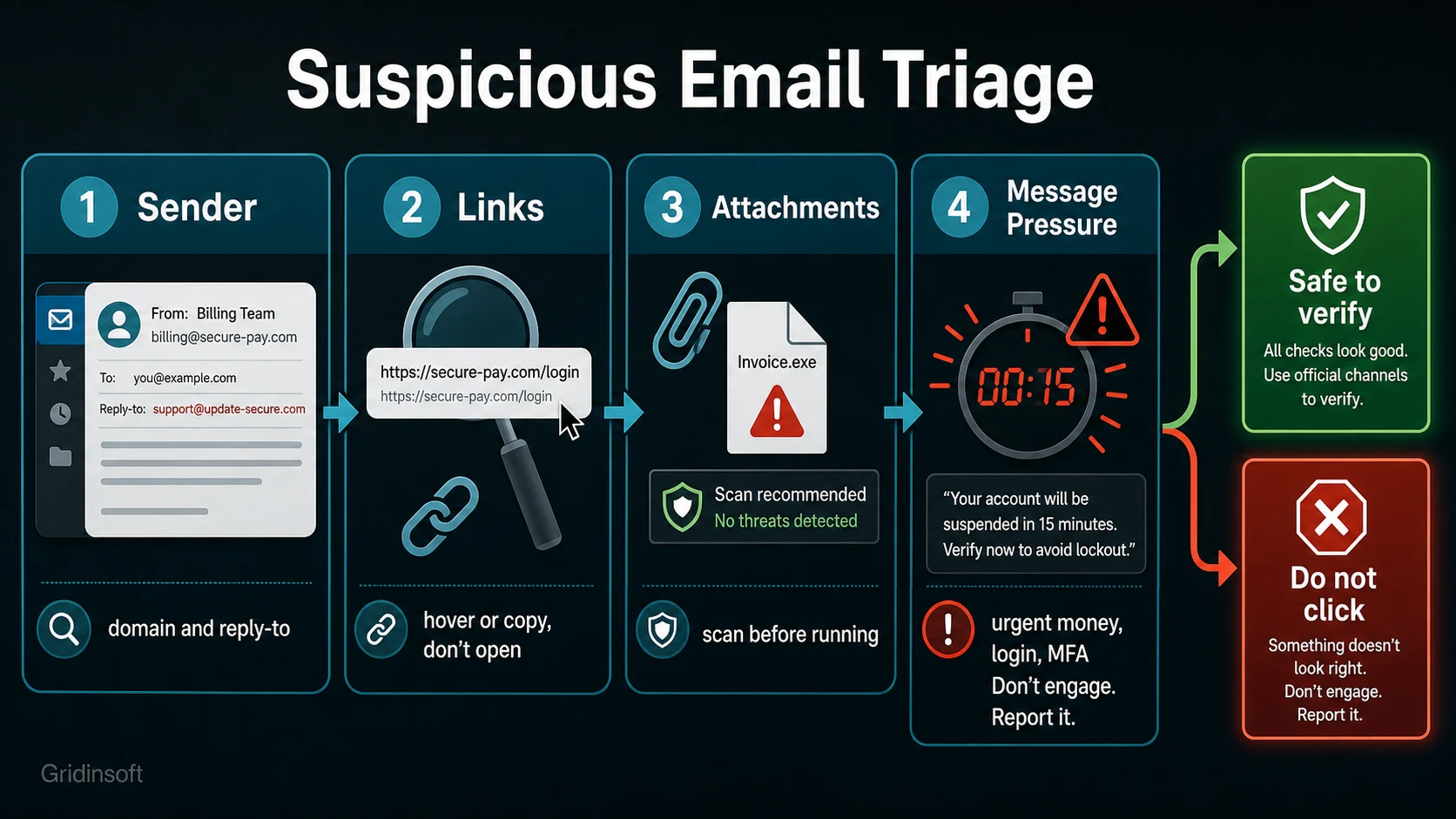
A clean result does not mean you should ignore normal security judgment. It means the sender and content did not show strong scam signals in the information you pasted. A suspicious or phishing result means you should not click, reply, scan the QR code, approve MFA, download the file, or send money from that email thread.
- High trust score: the message appears cleaner, but you should still verify sensitive requests through the real website or known contact.
- Low trust score: treat the email as risky, especially if it asks for login, payment, recovery codes, remote access, or urgent action.
- Low-signal warning: paste more of the original message, because a sender address alone is often not enough for a reliable verdict.
- Attachment risk: if the email includes an executable, archive, Office document, PDF, ISO, HTML file, or installer, scan the file separately before opening it.
Emails worth checking with the tool
Messages that include a saved .html attachment or trigger an HTML/Fraud Trojan warning deserve extra caution: check the visible link text, the real destination, and whether the file was only previewed or actually opened.
The strongest use case is a message that looks routine enough to tempt a click. Check it first when the email contains:
- an invoice, refund, shipment notice, tax document, voicemail, shared file, or payment confirmation you did not expect;
- a password reset, mailbox quota warning, account lock notice, or unusual sign-in alert;
- a QR code that sends you to a login page or payment page;
- a request to approve MFA, share a one-time code, install software, or move a conversation to another app;
- a payroll, bank-account, vendor, gift-card, or crypto-payment request;
- a message from a known contact that feels unusual, rushed, or out of character.
That flow matches official anti-phishing guidance: check whether the sender address and name match, inspect links before opening them, and verify requests outside the message when something looks wrong.[3]
For a deeper manual checklist, use our phishing email red flags guide. If you already clicked a link, switch to the clicked a phishing link response guide instead of continuing to test the email.
Privacy and safe input
The checker page is designed for anonymous, no-account checks and explains that submitted message text is processed for analysis rather than stored as a personal account history. Even so, safe input matters. Remove unnecessary secrets before pasting: passwords, one-time passcodes, full card numbers, medical details, private contracts, and documents that are not needed to judge the email.
Keep the evidence that helps the assessment: sender, subject, visible request, link text, domain names, file names, and the wording that creates urgency. Those details are usually enough to expose scam pressure without sharing sensitive private data.
What to do after a risky result
- Do not reply or unsubscribe. For suspicious mail, use your provider’s report phishing or report spam controls instead.
- Verify through a separate path. Microsoft recommends opening the organization’s real website or contacting it through known details instead of using links in suspicious messages.[1]
- Report phishing attempts. The FTC recommends forwarding phishing email to the Anti-Phishing Working Group and reporting fraud attempts to the FTC.[2]
- Check business requests twice. Payment changes, executive requests, vendor banking updates, and payroll changes should be confirmed through a documented process. For business context, read our Business Email Compromise guide.
- Scan downloads separately. Use Gridinsoft’s online virus scanner for a suspicious file, and run an anti-malware scan if the file was opened or executed.
Paste suspicious email text into Gridinsoft Email Checker to assess spam, phishing, sender reputation, and scam pressure before you open links or attachments.
Where this tool fits in email safety
Gridinsoft Email Checker is the fast assessment layer. It helps you decide whether a suspicious email deserves trust, reporting, or extra verification. It does not replace account recovery, file scanning, domain authentication, or user training.
- Use SPF, DKIM, and DMARC guidance when you manage a domain and want to reduce spoofing of your own mail.
- Use the spam email risk guide when your inbox is flooded and you need to separate nuisance mail from account-risk signals.
- Use the Microsoft unusual sign-in email guide when the message claims to be a Microsoft account alert.
- Use Gridinsoft Email Checker when you need a quick verdict on a specific suspicious email before acting.
FAQ
Is Gridinsoft Email Checker free?
Yes. The Email Checker is a free online tool for checking suspicious email text and sender information for spam, phishing, and scam indicators.
Can the checker tell me with 100% certainty that an email is safe?
No automated tool can make that promise. Use the verdict as a risk assessment, then verify sensitive requests through the real website, app, or a known contact channel.
Should I paste the whole email?
Paste enough to show the sender, subject, request, links, and wording. Remove passwords, one-time codes, payment card numbers, private documents, and other secrets that are not needed for the assessment.
Can it check attachments?
The email assessment can consider attachment names and message context, but downloaded files should be scanned separately. If you opened or ran an attachment, use a file scanner and check the device.
What should I do if the result says phishing or spam?
Do not click, reply, scan QR codes, or open attachments from that message. Report it through your mail provider, verify the request through a separate trusted channel if needed, and scan any files you already downloaded.
References
- Microsoft Support. “Protect yourself from phishing.” Microsoft, accessed June 11, 2026. https://support.microsoft.com/en-us/security/protect-yourself-from-phishing
- Federal Trade Commission. “How To Recognize and Avoid Phishing Scams.” Consumer Advice, accessed June 11, 2026. https://consumer.ftc.gov/articles/how-recognize-avoid-phishing-scams
- Cyber Centre Canada. “Spotting malicious email messages (ITSAP.00.100).” Canadian Centre for Cyber Security, updated February 2026, accessed June 11, 2026. https://www.cyber.gc.ca/en/guidance/spotting-malicious-email-messages-itsap00100