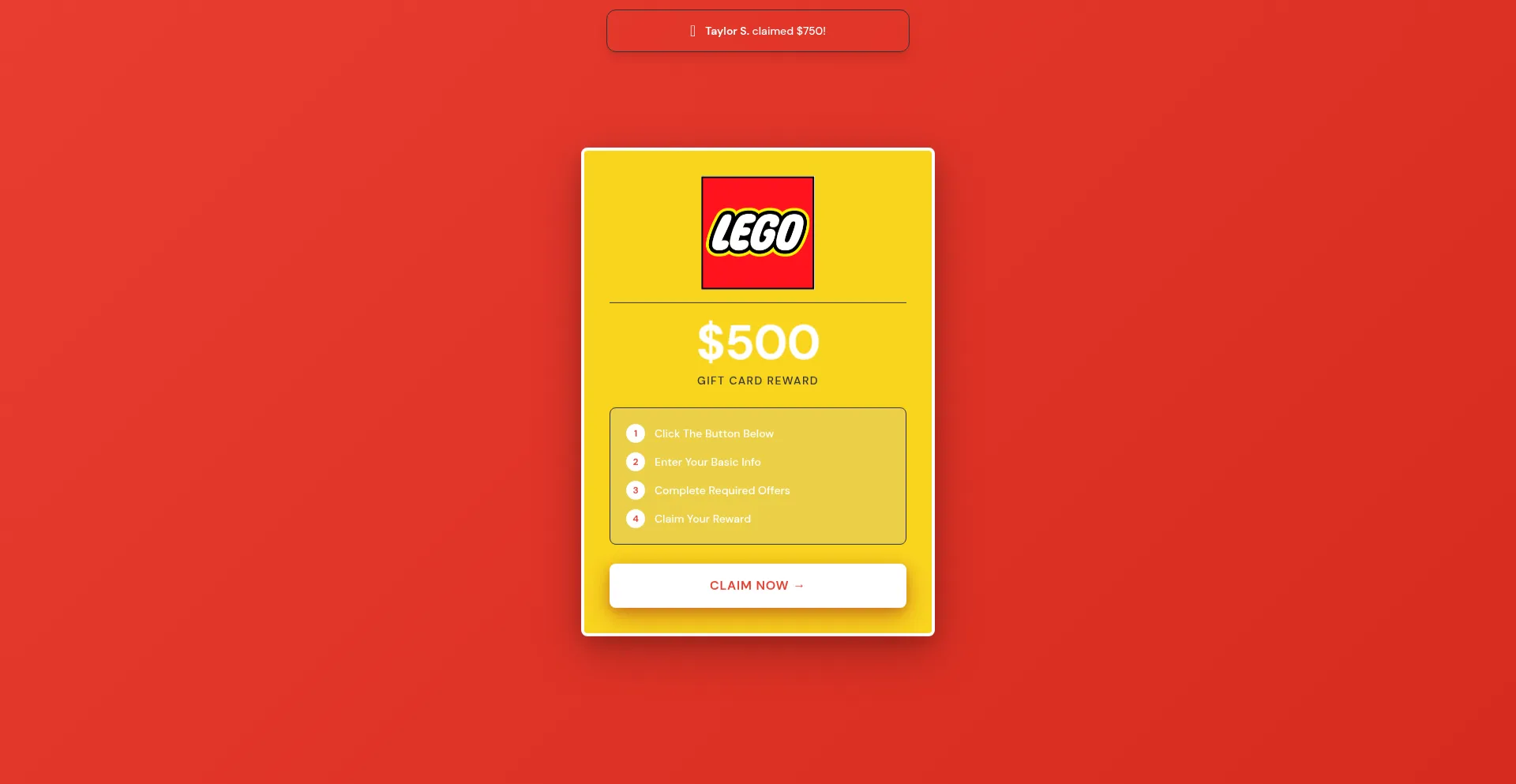
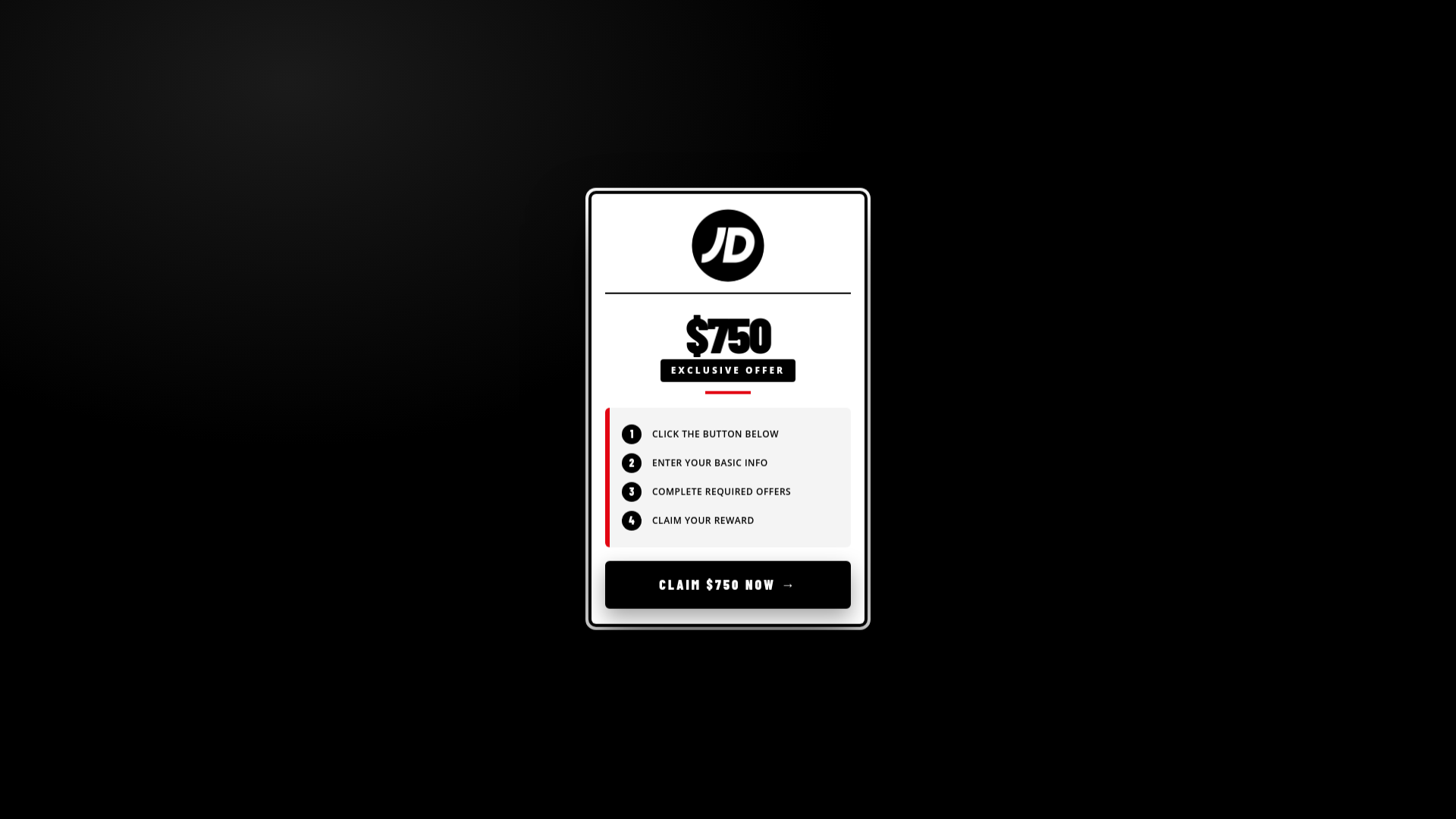
StudentDealHub.com should be treated as an untrusted reward funnel, not as an official gift-card page. On July 28, 2026, the same domain showed a $500 LEGO reward and then a $750 JD Sports offer less than an hour later. That fast brand and amount change is a stronger warning than either logo alone. Close the page, do not complete the “required offers,” and check what the browser was allowed to do.
Seeing the page once does not prove that Windows or Android is infected. The correct fix depends on what happened: a tab or redirect only, browser notifications after the tab closed, an unwanted extension, a downloaded file, or personal and payment details entered into the offer flow.
What to do now
- Close the offer and every tab it opened. Do not press the claim button again to “see where it goes.”
- Check notification permission for StudentDealHub.com. Revoke or block it if the domain appears in the browser’s allowed list.
- Remove unfamiliar extensions and clear this site’s data. A saved cookie is not malware, but it can preserve tracking or redirect state.
- Scan the device if redirects continue, a file ran, or an extension appeared. Browser cleanup alone will not remove a local adware component.
- Protect any information you submitted. Passwords, card details, and one-time codes require account or bank action, not only browser cleanup.
What StudentDealHub.com showed
A passive fetch on July 28 returned a page titled “Claim Your $750 JD Sports Exclusive Offer.” Its four visible steps told the visitor to click, enter basic information, complete required offers, and claim a reward. The claim button pointed away from StudentDealHub.com to a third-party offer domain.
An earlier Gridinsoft capture from the same day showed almost the same layout with a $500 LEGO reward. The card colors, brand, reward amount, and claim wording changed, but the underlying “enter info → complete offers → claim reward” funnel remained.
This rotation matters because a familiar logo is not proof that the named company runs the page. Verify a promotion through the company’s official website or app, not through the reward page or the contact details it provides.
Is StudentDealHub.com a scam?
The live behavior gives several reasons not to trust the offer: the domain is not owned by either brand shown in the captures, the reward identity changed quickly, the page sends the visitor to another offer domain, and the visitor must provide information and complete additional offers before any reward is described as claimable.
The current Gridinsoft Website Reputation Checker report also marks the domain as suspicious, with a 25/100 trust score and two provider warnings at the time checked. That automated score is supporting evidence, not proof that every visit caused malware or that browser notifications were granted. Several other providers listed on the same report were clean, so the practical decision should be based on the offer behavior and what the user actually did.
The FTC warns that a prize claim becomes especially dangerous when it asks for money, financial details, or unnecessary personal information. A real contest should make its rules, promoter, prize, odds, and redemption terms verifiable before collecting sensitive data.
Pop-up, notification, redirect, or malware?
- A new tab appeared only while browsing: likely a page redirect or pop-up. Close it, clear StudentDealHub.com site data, and keep pop-ups blocked.
- Alerts appear after the page is closed: check the browser’s allowed notification list. Website notifications can continue after the tab closes; revoke the domain permission.
- Homepage, search engine, or new tab changed: inspect extensions and browser policies. Use the browser hijacker removal guide if settings return after you fix them.
- Redirects affect several browsers or return after reboot: look for an unwanted app, scheduled startup item, or adware. A full device scan is appropriate.
- You downloaded or ran a file: disconnect from the offer, scan the file and device, and remove detections before signing in to important accounts.
- You entered a password or payment data: treat it as an account or financial exposure. Change reused passwords and contact the card issuer from an official channel.
Microsoft explicitly distinguishes website notifications from pop-up windows: a site notification can appear through the operating system even when Edge is closed, while a pop-up opens in a browser window or tab. This is why installing a generic “pop-up blocker” does not revoke a permission that was already allowed.
Remove StudentDealHub.com notifications
Google Chrome on Windows, macOS, or ChromeOS
- Open Chrome Settings.
- Go to Privacy and security → Site settings → Notifications.
- Find StudentDealHub.com under sites allowed to send notifications.
- Open its menu and choose Block or Remove.
- Review other recently allowed domains you do not recognize.
Microsoft Edge
- Open Settings → Privacy, search, and services → Site permissions → All sites.
- Select StudentDealHub.com.
- Set Notifications to Block.
- Also check Pop-ups and redirects and remove any exception you did not add deliberately.
Mozilla Firefox
- Open Settings → Privacy & Security.
- Scroll to Permissions and select Settings beside Notifications.
- Select StudentDealHub.com and change its status to Block, or remove the saved permission.
- Save the changes.
Chrome on Android
- Open Chrome and go to Settings → Site settings → Notifications.
- Find StudentDealHub.com in the allowed list and block or clear it.
- Return to Site settings and keep Pop-ups and redirects blocked.
- If a notification is still visible, press and hold it to identify which app or browser sent it before disabling anything.
Do not re-open the reward page merely to reach its permission icon. The browser’s central site-permission list is safer and shows other domains that may have been allowed in the same session.
Clear site data and check extensions
After revoking notifications, clear cookies and stored site data for StudentDealHub.com. You do not need to erase the entire browser history unless you want to. Then open the extension manager and remove anything installed around the time the redirects began, especially extensions that claim to provide coupons, search enhancement, shopping rewards, document viewing, or browser protection without a publisher you recognize.
If the homepage, search provider, managed-browser message, or redirects return after the extension is removed, follow the deeper checks in our adware symptoms guide. Persistent behavior is more important evidence of a local problem than the fact that one suspicious page loaded.
When to scan the device
A scan is warranted when an offered file was downloaded or opened, redirects affect unrelated websites, an unknown extension returns, browser settings change again after restart, or security tools show a detection. In those cases, the visible page may be only one part of the problem: an unwanted app, startup entry, extension, or scheduled task can reopen ads after browser permissions are fixed.
On a Windows PC, keep suspicious downloads closed, remove unknown applications and extensions, then run a full Gridinsoft Anti-Malware scan. Remove detections, reboot, and repeat the scan if the redirects or alerts return. The scan checks for local leftovers; it does not revoke a browser permission or recover information already submitted to an offer.
If you ran software offered by the reward page, or its ads reopen after permission cleanup on Windows, scan the PC. Check for unwanted software behind the recurring page rather than repeatedly dismissing the offer.
Scan this Windows PCOn Android, remove the site’s notification permission first. If you installed its APK or unfamiliar apps open ads outside the browser, scan with Trojan Scanner for Android, review the findings and confirm unwanted-app removal. The Android cleanup guide shows the controls.
If you entered information or completed offers
- Email or phone only: expect more promotional messages and prize-themed phishing. Do not use unsubscribe links in messages you do not trust.
- A reused password: change it on the real service first, then anywhere else it was reused. Turn on multi-factor authentication and review recent sessions.
- Card or bank information: contact the issuer using the number on the card or official banking app. Ask about blocking the card and monitoring small test charges.
- A one-time code: contact the affected service immediately and review account recovery details and active sessions.
- An installed app or browser extension: uninstall it, check its permissions, and scan the device.
If an account already shows unknown logins or profile changes, use the account recovery checklist. If you want to compare this rotating offer with another $750 reward funnel, see our DealsLedger reward-page analysis.
How to avoid the next rotating reward page
- Type the retailer’s official domain yourself instead of using the offer’s claim button.
- Do not allow notifications to continue a survey, prove you are human, watch a video, or unlock a reward.
- Treat “complete required offers” as a separate transaction, not as a free prize.
- Check the address bar before entering personal information. A logo can be copied; domain ownership cannot.
- Stop when the brand, prize amount, or destination changes between visits.
FAQ
Can StudentDealHub.com send notifications after I close it?
Only if the browser granted notification permission to that domain or another domain in the redirect chain. Check the browser’s allowed-notification list instead of assuming the whole device is infected.
Did StudentDealHub.com install malware just because I opened it?
Opening the page alone does not prove an installation. Risk rises if you downloaded or ran a file, installed an extension, allowed a permission, or redirects continue on unrelated sites.
Is the $500 LEGO gift card still the current offer?
Not reliably. Gridinsoft captured the LEGO offer, but the same domain later showed a $750 JD Sports reward on July 28, 2026. The changing reward identity is itself a reason not to trust the page.
Should I call StudentDealHub.com a browser hijacker?
Not based on the reward page alone. Use that label only when an extension, managed policy, search-provider change, homepage change, or persistent redirect controls the browser.
Will clearing cookies stop browser notifications?
Not necessarily. Clear site data for tracking and saved state, but separately revoke notification permission in browser settings.
References
- Federal Trade Commission. “Fake Prize, Sweepstakes, and Lottery Scams.” Consumer Advice, updated September 2025, accessed July 28, 2026. consumer.ftc.gov.
- Google. “Use Notifications to Get Alerts.” Google Chrome Help, accessed July 28, 2026. support.google.com.
- Mozilla. “Web Push Notifications in Firefox.” Firefox Help, updated June 15, 2026, accessed July 28, 2026. support.mozilla.org.