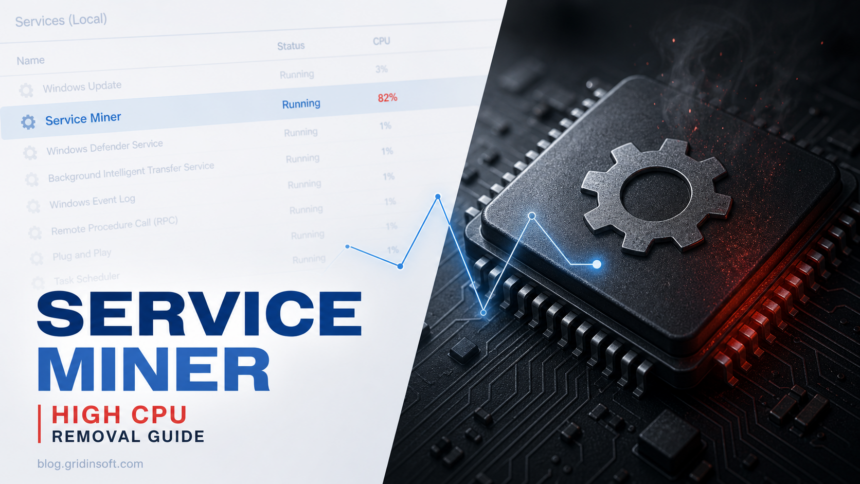
A suspicious Windows service miner is malware or unwanted software that installs as a Windows service, scheduled task, or startup entry, then uses CPU/GPU resources in the background. A Microsoft-looking service name or a task stored under a familiar Windows folder proves neither safety nor malware by itself. Verify the executable path, digital signature, command line, task action, creation time, and related CPU/GPU or network activity. If the process returns after you end it, treat the case as persistence cleanup: identify the file path, remove the service or task that restarts it, delete the installer source, and scan the system before restoring normal browsing or gaming.
First checks for a suspicious service miner
- Task Manager: sort by CPU/GPU, right-click the process, and open its file location before ending it.
- Services: open the service properties and compare its display name with the internal service name, executable path, startup type, publisher, and install time. A generic name such as Microsoft Update, Windows Host, or System Service is not proof that Microsoft created it.
- Task Scheduler: inspect the task action, arguments, trigger, author, and creation time, not only the folder or task name. Look for PowerShell commands or paths in
AppData,Temp,ProgramData, Downloads, or a crack/mod folder. If the path isC:\ProgramData\RealtekHD\taskhostw.exe, follow the RealtekHD AutoIt Line 21219 cleanup guide. - Startup Apps: disable suspicious entries tied to the same folder, then verify they do not reappear.
- Downloads and Temp: remove the installer, archive, crack, game mod, fake update, or bundle that introduced the miner.
Service miner and high CPU guides
| Guide | Best first action |
|---|---|
| Altisik Service | Check AltisikService.exe, helper DLLs, service persistence, and high CPU usage. |
| AlrustiqApp.exe / Alrustiq Service | Remove the miner-like app and check service/startup entries. |
| Aluc Service and Aluc App | Uninstall suspicious app entries and scan for persistence. |
| Almoristics Application | Check for miner symptoms, unwanted install source, and startup restoration. |
| Bitfiat process | Remove high-CPU miner components and verify after reboot. |
| MicrosoftHost.exe | Confirm it is not a fake Microsoft-named miner and scan the source folder. |
| RuntimeBroker.exe | Verify the signed System32 process against a wrong-path copy and inspect any Microsoft-looking task that launches it. |
| svchost.exe | Distinguish signed System32 or SysWOW64 Service Host from an AppData or Temp copy and remove the launcher that recreates it. |
| PerfMonHost.exe | Check a Windows-looking high-CPU process, Notepad relaunches, and miner persistence. |
| Hellminer.exe | Clean the miner and check whether another loader installed it. |
Why ending the task often fails
Miner malware often has more than one moving part. The visible process may be only the worker. A Windows service, scheduled task, helper executable, Run key, or installer folder can restart it. Microsoft documented a recent cryptojacking chain that combined scheduled tasks and startup entries with abused remote-access software, while Sysinternals Autoruns helps expose startup locations that normal Task Manager does not show.
Do not delete random services by name alone. First compare the service name, executable path, publisher, install date, and parent folder. A fake system name in a user-writable folder is much more suspicious than a signed Microsoft component in C:\Windows\System32. Treat the signature as one clue, not a verdict: the service action, source installer, persistence entries, and observed behavior must agree.
Fake Microsoft service or scheduled task: verify it before removal
Malware can borrow a trustworthy display name while running from an unrelated folder. Legitimate software can also create a custom service or task, so a familiar or unfamiliar name alone is a weak signal. Use several clues together before you disable or remove anything.
| Check | Safer interpretation |
|---|---|
| Display name and internal service name | Names such as Microsoft Update or Windows Host are easy to imitate. Match the name to the executable and installed product. |
| Executable path and task action | A signed component in its expected Windows or vendor folder is less suspicious than an unsigned executable or script launched from a user-writable folder. |
| Digital signature and publisher | Check the file signature directly. Do not trust the publisher text shown only in an installer window or file name. |
| Command line, arguments, and parent installer | Hidden PowerShell, encoded commands, download URLs, or a crack/mod/fake-update source can reveal the loader even when the service name looks normal. |
| Creation time and related behavior | Compare the service or task timestamp with the first high-CPU event, suspicious download, new remote-access client, Defender exclusion, or outbound connection. |
| What returns after reboot | If the worker, task, service, or exclusion reappears, remove the coordinated chain rather than repeatedly deleting only the visible miner. |
Use the suspicious Startup Apps checklist for adjacent Run-key and startup entries. If a task launches a script or download command, follow the PowerShell outbound-connection investigation. An unexpected remote-management client belongs in the ScreenConnect compromise cleanup flow, because remote access should be contained before miner removal.
For a recent multi-component example, see Gridinsoft’s polymorphic CoinMiner cluster analysis, where changing payload hashes were supported by a stable signed launcher, Run entries, and scheduled tasks.
Recommended cleanup order
- Disconnect from suspicious downloads and close unknown installers, cracks, mods, or fake updates.
- Open the process file location and write down the folder path before ending the task.
- Boot Safe Mode with Networking if the process keeps returning or blocks cleanup tools.
- Run a full Gridinsoft Anti-Malware scan and remove detected miner, loader, PUA, and persistence entries.
- Check Services, Task Scheduler, Startup Apps, and browser extensions for entries that point to the same folder.
- Delete the original installer, archive, crack, or mod folder, then empty temporary folders tied to the same timestamp.
- Restart and leave the PC idle for five minutes. If CPU usage jumps again, repeat the persistence check before assuming cleanup is complete.
Loaders, trainers, and game hack tools can fetch extra code after launch. Deleting the visible file may not remove helpers, scheduled tasks, Defender exclusions, or account-stealing components.
Scan for miner persistenceWhat to check before deleting a service
| Signal | Why it matters |
|---|---|
| Unknown publisher or unsigned file | Common for dropped miners and loaders, especially from cracks or fake installers. |
Path in AppData, Temp, ProgramData, Downloads, or a game/mod folder |
Legitimate Windows services rarely run from these user-writable locations. |
| Recently created task or service | Miners often arrive with a task or service that re-launches the worker after reboot. |
| CPU/GPU usage falls when the process is stopped, then returns | This points to persistence rather than a one-time runaway process. |
| Same folder contains an installer, script, DLL, or random EXE | Remove the whole infection chain, not only the visible worker. |
Related miner symptoms
If you are not sure whether the issue is service-based, compare it with the broader coin miner malware symptoms and removal guide. Service miners are one persistence pattern inside the larger cryptomining malware problem: constant fan noise, idle CPU/GPU load, overheating, suspicious outbound connections, and processes that hide behind familiar Windows-like names.
FAQ
Is every high-CPU service malware?
No. Some legitimate services use CPU during updates, indexing, backups, or security scans. The warning signs are unknown publisher, suspicious path, recent unwanted install, and a process that returns after you stop it.
Can a miner steal passwords too?
Some miners arrive with loaders, stealers, or bundled adware. If the infection came from a crack, fake installer, or unknown browser extension, protect important accounts after cleanup and change passwords from a clean device when needed.
Should I delete services manually?
Only if you clearly identify the malicious service and its executable path. Removing the wrong Windows service can break normal system behavior. When in doubt, disable the suspicious entry, scan, and verify before deleting.
References
- Microsoft Threat Intelligence, From poisoned search results to GPU mining: a cryptojacking campaign abusing ScreenConnect and Microsoft .NET utilities, Microsoft Security Blog, May 26, 2026.
- MITRE, Create or Modify System Process: Windows Service (T1543.003), MITRE ATT&CK, accessed July 11, 2026.
- Microsoft, Autoruns for Windows, Microsoft Learn / Sysinternals, accessed July 11, 2026.
For a current browser-supply-chain example with the same Windows service-miner pattern, see the Hola Browser me.exe miner warning, which lists the HolaMonitorService.exe and hola_monitor_svc indicators.