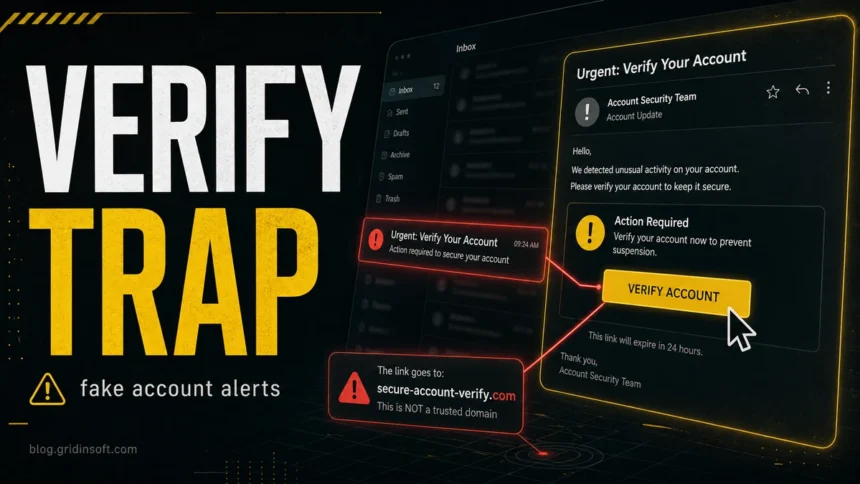
A fake account verification scam tries to make you confirm a password, one-time code, payment card, or identity details through a link the sender controls. Treat unexpected messages such as Account Verification Alert, Password Expiry Notification, or Update Related To Account Verification as suspicious until you check the account from the official website or app. This guide shows the red flags, how to verify the alert safely, and what to do if you already clicked or entered information.
| Name | “Account Verification Alert” phishing email |
| Threat Type | Phishing, Scam, Social Engineering, Fraud |
| Fake Claim | Email account must be verified to avoid service problems and account deletion |
| Disguise | Email service provider security alert |
| Detection Names | Email.Phishing.Verification, Scam.Email.Auth, Fraud.Credential.Theft |
| Symptoms | Unwanted online purchases, changed account passwords, identity theft, someone using your account |
| Distribution Methods | Fake emails, spam campaigns, stolen email lists |
| Damage | Loss of private information, money loss, identity theft, account takeovers |
What is the “Account Verification Alert” Email Scam?
The “Account Verification Alert” email is a clever phishing trick that pretends to be from real email providers. These fake messages claim that your email account needs checking due to strange activity or system updates. The email warns that if you don’t complete the verification, your service might stop working or your account could be deleted.
These phishing emails usually include:
- Subject lines creating urgency (e.g., “Account Verification,” “Action Required,” “Security Alert”)
- Official-looking logos and branding stolen from real email providers
- Vague mentions of “strange activity” or “security measures”
- A countdown or deadline (usually 3 days) to make you rush
- A big “Verify email address” button that leads to a fake website
The email typically follows this format:
Subject: Account Verification

Account Verification Alert!

Hello [user],

You're receiving this mail because your email account ([user email]) requires verification. Please verify this email address to avoid stopping your service or account deletion.

[Verify email address button]

This link will expire in 3 days. If verification is not complete, you might lose your account. Please wait while your request is being verified...

For help, contact us through our Help center.
Important: All claims in these emails are completely false. The messages are not sent by real email providers and only aim to steal your login details.
How the Account Verification Scam Works
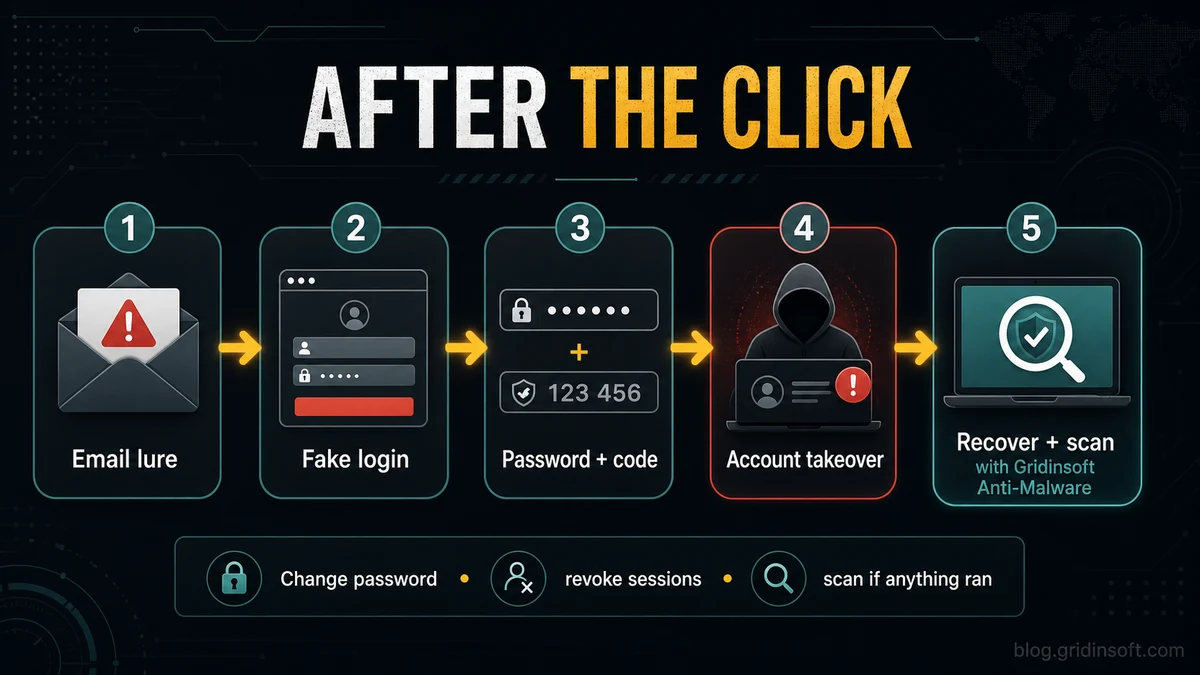
The “Account Verification Alert” scam follows these steps:
- First Contact: The scammer sends mass emails to thousands of people, hoping some will click on the link.
- Creating Urgency: The email makes you worry by saying your account might be shut down.
- Getting You to Click: When you click the “Verify email address” button, you’re sent to a fake login page that looks like a real email service.
- Stealing Your Password: Any login info (email and password) you enter on this fake page is grabbed and sent to the scammers.
- Using Your Account: With your stolen login details, scammers can get into your email account and maybe other linked accounts too.
Once scammers have access to your email account, they can:
- See private information stored in your emails
- Reset passwords for your other online accounts (banking, social media, etc.)
- Send scam emails to your contacts, spreading the scam further
- Pretend to be you to ask your contacts for money or information
- Send harmful attachments to your contacts
- Use your account for other scams
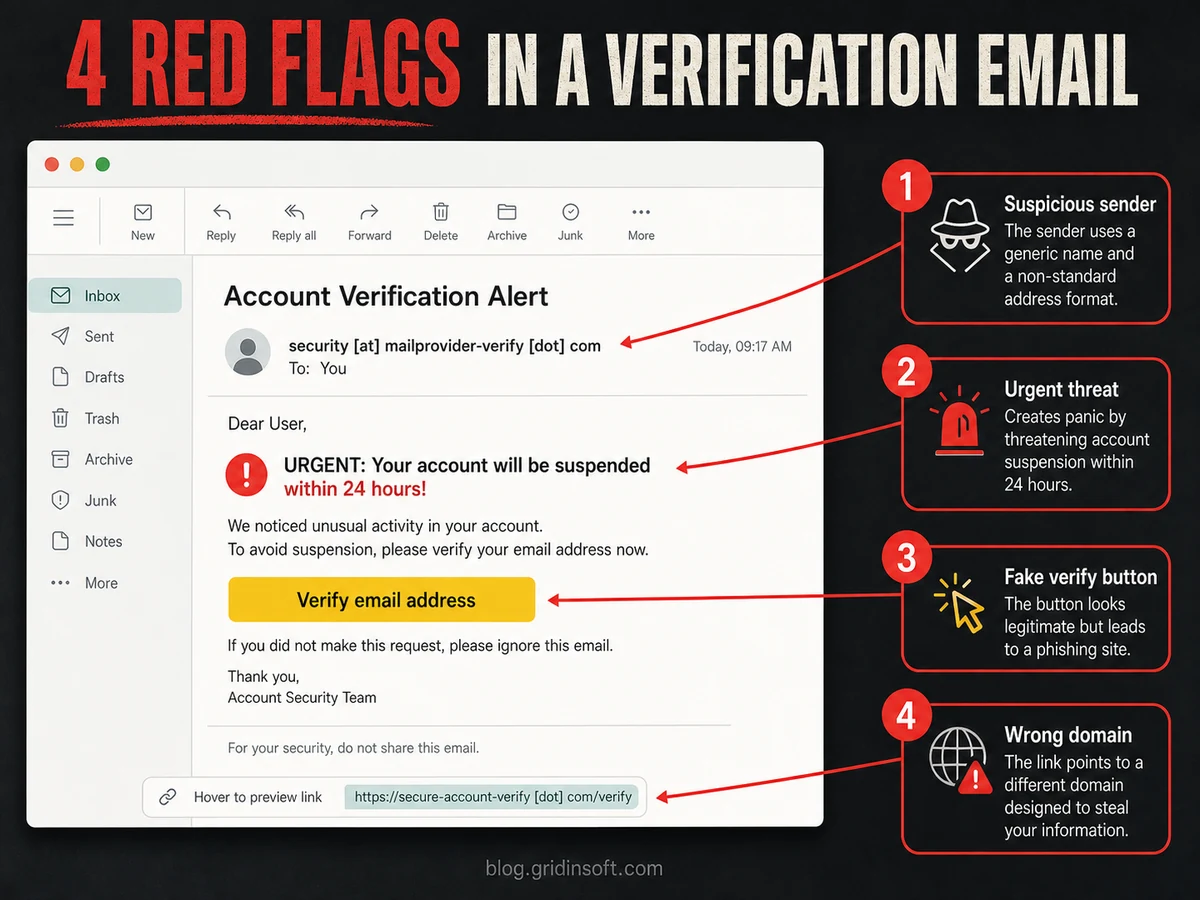
Warning Signs That Show This is a Scam
Even though these “Account Verification Alert” emails are getting better at looking real, they still have clear warning signs:
- Strange sender address: The email seems to come from an official source, but looking closely at the actual sender address shows it’s not from a real domain. Look for small spelling mistakes or added words (e.g., security-mail.outlook.com-verify.net instead of outlook.com).
- General greeting: Real service providers usually use your actual name, not vague terms like “user” or “customer.”
- Rush tactics and threats: Real emails rarely threaten to delete your account or stop service without giving clear details about the problem.
- Spelling and grammar mistakes: Many fake emails contain spelling errors or strange wording that you wouldn’t see in real company emails.
- Fishy links: Hovering (without clicking) over the verification button or link will show you where it really goes, which is usually not the real service’s website.
- Asking for your password: Real email providers rarely ask you to verify your account by typing your password through an email link.
Similar Email Scams to Watch For
The “Account Verification Alert” scam is part of a bigger group of password-stealing phishing attacks. Similar types include:
- Server (IMAP) Session Authentication Email Scam – Technical-sounding emails claiming your email account needs checking due to strange activity
- Microsoft Account Unusual Sign-in Activity Phishing – Alerts about account activity requiring immediate verification
- Avoid Getting Locked Out Scam – Warnings about account access issues that need immediate attention
- Chase – Transfer Is Processing Scam – Bank notices that look like real banks to steal your login details
- Bank Details Email Scam – Financial institution emails demanding immediate verification of account details
- Meta Security Email Phishing Scams – Fake Facebook or Instagram verification and account-support lures
- PayPal Scams – Fake account, invoice, payment, and support messages that pressure users to verify details
- Fake CAPTCHA Sites – Verification pages that ask users to run commands or install malware instead of proving they are human
These scams all use the same tricks: creating rush feelings, using fear, pretending to be trusted companies, and asking for quick action through fake links.
Account Security Notice password-expiry variant
One current version uses the subject Password Expiry Notification or an Account Security Notice heading. It says the mailbox password will expire within two days, warns that the account may be locked, and shows a status such as Action Required Immediately. The buttons often say Keep Current Password and Manage settings, but both are meant to send the reader to a fake login page.
| Message clue | How to handle it |
|---|---|
| Password expires in 24 or 48 hours | Open the email provider or workplace portal yourself. Do not use the message button to keep, verify, or reset the password. |
| Keep Current Password or Manage settings button | Treat it as a phishing link unless the same notice appears after you sign in through the official site or app. |
| Fake login page adapts to Gmail, Outlook, or webmail branding | Check the full domain, your password manager fill behavior, and the account security page reached from a typed address. |
| You entered the email password | Change it from a clean session, sign out other devices, check forwarding rules, and review recovery email, app passwords, and MFA settings. |
Example body text to watch for: Current Status: Action Required Immediately. Your email password is scheduled to expire within two days. Select Keep Current Password or Manage settings to avoid account lock. Real providers and IT teams may send policy reminders, but they should not require an unexpected login through a button in an email. For more checks, compare the sender, domain, greeting, and button URL with our phishing email red flags guide; if the message is framed as mailbox space or quota pressure, also see the Insufficient Email Capacity scam.
Update Related To Account Verification variant
Another current version uses a subject such as Urgent Action Required!!! and claims there is an Update Related To Account Verification. The message may say a compliance team needs users to confirm details to maintain uninterrupted mailbox access, then place a View button in front of a generic email login page. In the reported variant, the destination domain was ikcontech.cam, which is not a normal mailbox or identity-provider domain.
| Message clue | What to do |
|---|---|
| Compliance-team wording with urgent punctuation | Do not treat the sender display name as proof. Open your mail provider or workplace portal from a typed address or official app. |
| Button says View, Verify, or Maintain access | Hover or copy the link without opening it. A random domain, tracking redirect, or unrelated hosting domain is enough to stop. |
| Generic login page borrows Google or webmail imagery | Use a password manager check: if it will not fill the saved password on that page, assume the login form is not the real service. |
| You entered your mailbox password or 2FA code | Change the password from a clean session, revoke other sessions, remove suspicious forwarding rules, rotate reused passwords, and scan the device if the page pushed a download or browser prompt. |
This variant is still the same account-verification phishing pattern. The safest answer is not to debate the email wording, but to verify the account state inside the real service and recover the mailbox quickly if any credentials were submitted.
How to Verify an Account Alert Safely
The safest response is to separate the alert from the link that delivered it. If a message says your email, PayPal, Microsoft, Google, bank, Facebook, Instagram, or other account needs verification, use this order:
- Do not use the message button: Close the email, SMS, ad, or pop-up and type the official address yourself, or open the service’s official app.
- Check account notices inside the service: Look for login activity, security alerts, messages, invoices, subscriptions, or verification requests after signing in directly.
- Compare the requested action: A real service may ask you to confirm an email address or enter a code during a login you started. A scam often asks for a password, payment card, 2FA code, recovery email, remote-access app, or document upload from an unexpected link.
- Inspect the destination domain: Look for misspellings, extra words, shortened links, tracking redirects, or domains that are close to the brand but not owned by it.
- Use your password manager as a warning: If your password manager will not fill the saved login on the page, treat that as a strong sign that the site is not the real login page.
Do not assume the brand named in the message is malicious. Scammers impersonate trusted services because users already recognize them.
How to Protect Yourself
To defend against the “Account Verification Alert” scam and similar phishing attempts, follow these safety steps:
- Check the official website: Never click links in suspicious verification messages. Open your browser and go directly to your email provider, bank, social network, payment app, or store account.
- Look at the sender address and reply path: Check the full address, not only the display name. Be careful with look-alike domains, free-mail senders, and mismatched reply-to addresses.
- Turn on multi-factor authentication: Use an authenticator app or security key where possible. SMS codes are better than no 2FA, but scammers often try to trick users into reading or entering those codes.
- Use different, strong passwords: Create different passwords for different accounts and store them in a reputable password manager. Follow our guide on securely storing passwords.
- Keep your browser and phone updated: Updates reduce the chance that a phishing page, attachment, or fake verification prompt can abuse an old browser or app weakness.
- Do not install verification tools: Real account verification does not require a remote-access app, a browser extension, a command in PowerShell or Terminal, or a random security download.
- Use security software: Keep reliable security software enabled so downloaded attachments, fake installers, and suspicious local activity can be detected quickly.
If the verification page made you download a file, install a browser extension, allow notifications, open a remote-access tool, enable macros, or run a PowerShell/Terminal command, treat the incident as a device-risk event as well as an account-risk event. Gridinsoft Anti-Malware can check for malicious files, startup entries, scheduled tasks, bundled apps, browser changes, and persistence that may remain after the phishing step. Read our email security tactics guide for more prevention strategies.
If the page or email made you download an invoice, coupon, tracking app, browser extension, or support tool, scan the PC before opening it again or logging into sensitive accounts.
Scan the device with GridinsoftWhat to Do If You’ve Been Tricked
If you entered information on a fake verification page, act from a clean browser session or another trusted device. Prioritize the account that controls your email, password resets, payments, or social profiles.
- Change the account password: Type the official website address yourself and set a new, unique password. If the email account was exposed, secure it before resetting other accounts.
- Sign out other sessions: Use the service’s security settings to log out unknown devices, revoke active sessions, and remove unfamiliar trusted devices or app passwords.
- Replace exposed 2FA and recovery details: If you gave a one-time code, recovery code, backup email, phone number, or authenticator prompt, review account recovery settings immediately.
- Check forwarding and filters: For email accounts, inspect mail forwarding, rules, filters, connected apps, and delegated access. Attackers often keep access even after the password changes.
- Review payment and profile changes: Check saved cards, subscriptions, invoices, marketplace listings, ad accounts, and recent login activity.
- Scan only when the message touched the device: Run a full scan with Gridinsoft Anti-Malware if you downloaded a file, installed an extension, allowed notifications, ran a command, opened a macro document, or allowed remote access.
- Warn contacts if the account sent messages: Tell contacts not to open recent links or attachments from the compromised account.
- Report the scam: Report the message to the service being impersonated, your email provider, and the FTC if personal or financial information was exposed.
FAQ
Is every account verification email a scam?
No. Real services may send verification emails when you create an account, change a password, add a device, or request a code. The risk is an unexpected message that pushes you to a login page, payment form, remote-access app, or document upload that you did not start.
What if I clicked the verification link but did not type anything?
Close the page, do not grant notification or extension permissions, and check the account from the official website. A click alone usually does not give away your password, but scan the device if the page downloaded a file, asked you to run a command, or installed anything.
What should I do if I entered my password?
Change that password from the official site, sign out other sessions, review recovery details, and change the same password anywhere else it was reused. If the exposed account is your email account, secure it before resetting banking, social, or store accounts.
Can scammers steal a 2FA code with a fake verification page?
Yes. Some pages ask for a one-time code, backup code, or push approval immediately after the password. If that happened, change the password, remove unknown devices, regenerate backup codes if the service allows it, and watch for new login activity.
When should I scan my computer?
Scan when the scam involved a downloaded attachment, fake security tool, browser extension, notification permission, remote-access app, macro document, or PowerShell/Terminal command. If you only read the message and did not interact, account-side checks are usually more important than malware cleanup.
Is a Password Expiry Notification email always fake?
Not always, especially in workplaces that enforce password rotation, but the safe path is the same: do not use the email button. Sign in through the official website, app, or company portal, then check whether a password-expiry notice appears inside the account. If you already typed your password into the linked page, treat it as exposed.
Is an Update Related To Account Verification email real?
Treat it as suspicious unless the same notice appears after you sign in through the official mail provider or company portal. Do not use the View button from the message. If the linked page asks for your email password, recovery details, or one-time code, close it and check the account directly.
References
- Federal Trade Commission. “How To Recognize and Avoid Phishing Scams.” FTC Consumer Advice, accessed June 2, 2026. https://consumer.ftc.gov/articles/how-recognize-avoid-phishing-scams
- Microsoft Support. “Protect yourself from phishing.” Microsoft, accessed June 2, 2026. https://support.microsoft.com/en-US/security/protect-yourself-from-phishing
Conclusion
The “Account Verification Alert” scam works because the request sounds routine: verify an email, confirm a payment account, approve a login, or keep a social profile active. The safe habit is simple: do not trust the link that brought the warning to you. Open the real service yourself and check the account there. For a bank-specific example, the Wells Fargo Account Security Update lure uses a fake Secure Message Center, an access-limit warning, and an account-confirmation button. The Truist Security Alert email scam uses a similar unusual-activity and verification warning, but requires Truist-specific reporting and fraud-recovery steps.
If you already entered information, focus on account recovery first: change the password, remove unknown sessions, review recovery settings, and protect linked payment or social accounts. Use Gridinsoft Anti-Malware when the scam also involved a download, extension, remote-access request, command prompt, or suspicious local activity. For more tips, read our guides on recognizing phishing scams and protecting your personal data.