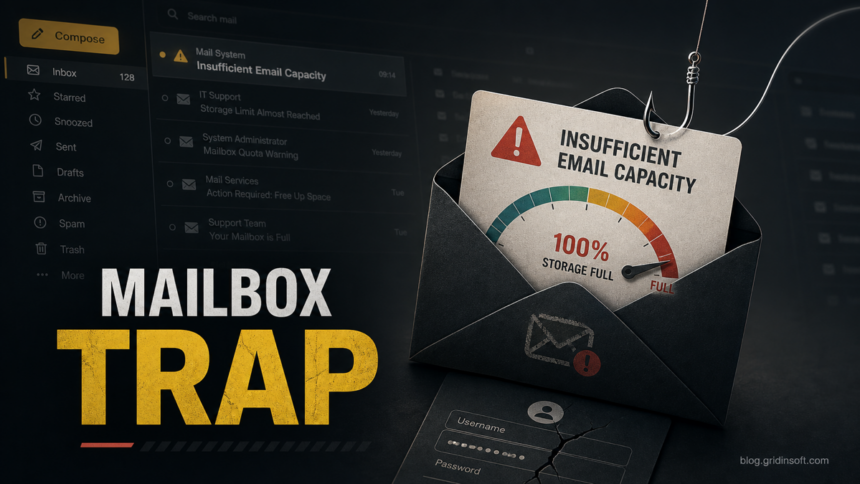
An “Insufficient Email Capacity” message is a mailbox quota phishing lure, not a reliable storage warning. The scam usually claims that your mailbox has exceeded a storage limit, often around 90 percent, and pushes you to click a button to keep receiving mail. Related versions use subjects such as “Storage & Security Check,” “Messages Are On Hold,” “Cloud Services Alert,” or “Your Account Violated Terms Of Service” and pretend to be a routine IT or account-protection notice. The goal is to send you to a fake sign-in page and steal your email password, recovery data, or one-time code.
If you received this message, do not use the link in the email. Open your mail provider or company mail portal from a saved bookmark or typed address, check storage there, and report or delete the message if the warning does not appear inside the real account.
What Is the Insufficient Email Capacity Scam?
The phrase “Insufficient Email Capacity” is designed to sound like a routine mailbox storage notice. A typical version says the mailbox is almost full, over quota, or unable to receive new messages unless the user signs in through an attached button. That pressure is the trap: scammers want you to authenticate on their page before you pause and verify the account directly.
This scam fits the same pattern the FTC warns about in fake cloud-storage messages: an email or text says you are out of storage, looks plausible, and asks you to act through the message link instead of logging into the real service yourself [1]. Microsoft gives the same core advice for phishing: do not use links or attachments in suspicious messages; open the organization’s real site separately [2].
Red Flags in the Email
- Generic mailbox wording. The email says “Insufficient Email Capacity,” “Storage & Security Check,” “mailbox quota exceeded,” or “storage almost full” without matching your real provider’s normal notification style.
- Urgent delivery threat. It claims new emails will be blocked, deleted, or delayed unless you verify immediately.
- Login button inside the message. Real storage checks should be done inside the provider’s official app, admin portal, or webmail settings.
- Sender and link mismatch. The visible sender may look like mail support, but the link points to an unrelated domain or a recently abused site.
- Fake trust labels. A Message ID, “TLS Secure” note, or “IT & Systems Team” signature can be invented and does not prove that the email came from your company.
- Credential or MFA request. Any page that asks for password, recovery email, phone number, or one-time code after a quota warning should be treated as hostile until proven otherwise.
What These Scam Emails Usually Say
The useful clue is the wording, not the logo. “Insufficient Email Capacity” emails usually imitate a routine webmail or IT storage notice, then push the reader toward a fake sign-in button. The same scam pattern can say that messages are on hold, cloud services are outdated, or the account violated terms of service. Real providers may warn about storage limits or policy issues, but they do not need you to verify a mailbox through a random email link.
Example 1: mailbox over quota warning
Subject: Insufficient Email Capacity
Sender display name: Mailbox Storage Team, Webmail Administrator, Mail Support, or IT Help Desk
Your mailbox has exceeded 90% of its storage capacity. Incoming messages may be delayed or returned to sender. To continue receiving mail, verify and increase your mailbox storage now.
[Update Mailbox Storage]
Why it is suspicious: the message creates storage panic and sends you to a button instead of telling you to check storage inside the real mailbox settings.
Example 2: incoming mail blocked
Subject: Mail Delivery Suspended Due to Low Capacity
Sender display name: Mail Administrator or Email Security Notice
Several incoming messages are pending because your email account has insufficient capacity. Confirm your account details to restore normal delivery and prevent mailbox suspension.
[Restore Email Access]
Why it is suspicious: the wording turns a storage issue into an account-verification demand. A real quota warning should be visible when you open webmail directly.
Example 3: fake upgrade or validation request
Subject: Final Notice: Email Capacity Upgrade Required
Sender display name: Account Validation, Server Admin, or Support Desk
Your account has not been upgraded to the latest mailbox capacity. Failure to validate may result in loss of new incoming messages. Sign in below to keep your mailbox active.
[Validate Account]
Why it is suspicious: quota, upgrade, and validation language are mixed together to justify a login page. That is a credential-theft pattern, not a normal storage notice.
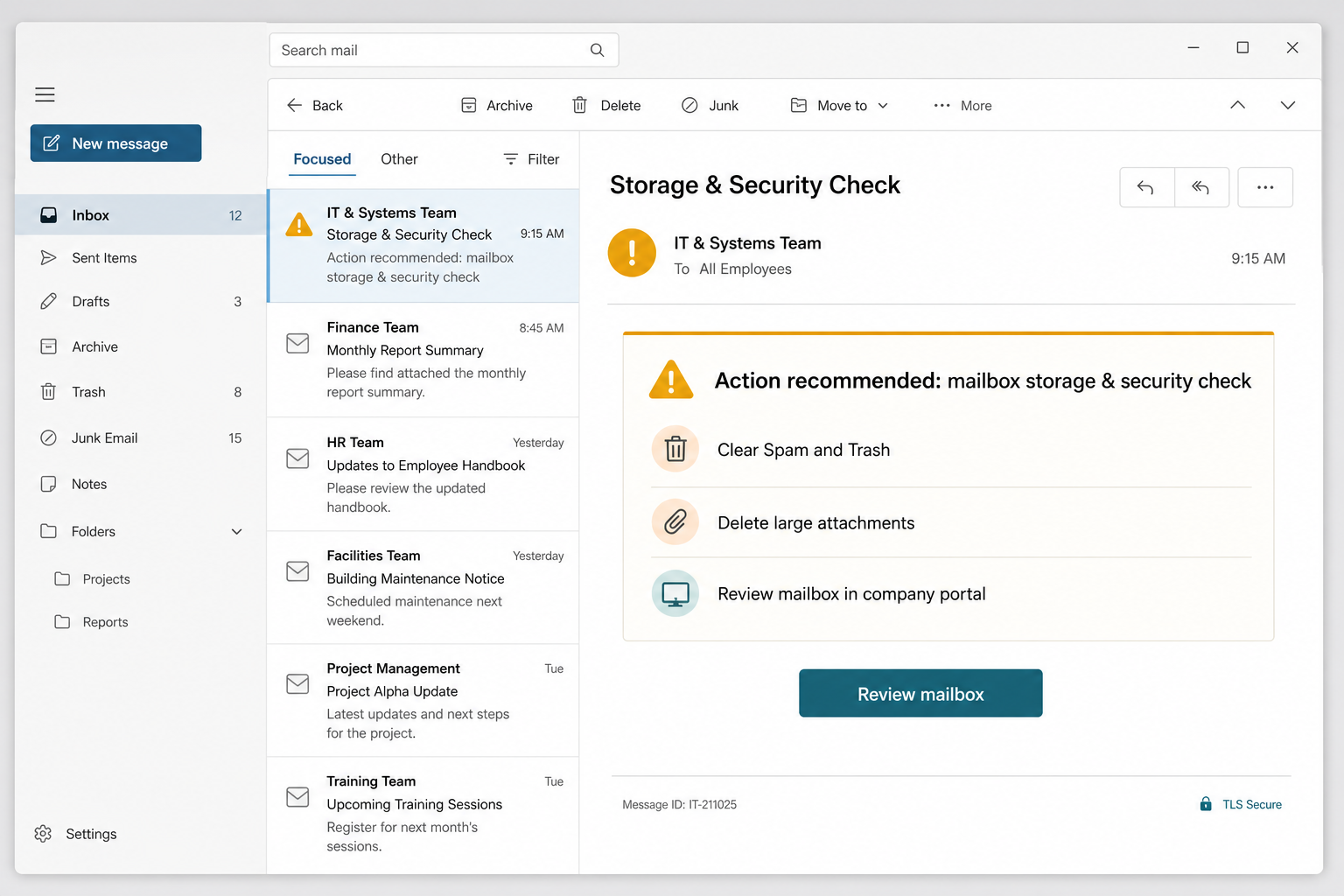
Example 4: Storage & Security Check maintenance notice
Subject: Storage & Security Check
Sender display name: IT & Systems Team, Mailbox Maintenance, or System Notification
Action recommended: mailbox storage & security check. Clear messages from Spam and Trash, remove large attachments, and review your mailbox activity and settings through the company portal.
[Review mailbox in company portal] TLS Secure
Why it is suspicious: the cleanup advice sounds routine, but the button turns maintenance into a credential check. Fake Message IDs, “TLS Secure” labels, and help-desk signatures are easy to add to a phishing email.
Example 5: Messages Are On Hold
Subject: Messages Are On Hold, New Incoming Messages Placed On Hold, or Incoming Mail On Hold
Sender display name: Mail Delivery System, Cloud Mail Support, or Webmail Notification
Five incoming messages are waiting because routine mailbox verification could not be completed. Recover the messages within three days or they may be deleted from the server.
[Recover Messages]
Why it is suspicious: the email turns normal message delivery into an urgent login test. A real held-message notice should be visible after you open the mail account directly, not only through a button in the email.
Example 6: Cloud Services Alert
Subject: Cloud Services Alert or Undelivered Messages Notice
Sender display name: Cloud Services, Mail Server Admin, or Email Administrator
Seven messages could not be delivered because the server configuration is outdated. Update your mailbox settings within 48 hours to prevent permanent message loss.
[Recover Messages]
Why it is suspicious: the sender uses cloud-service language to make a generic webmail login page feel official. If the warning is real, the provider or IT admin can confirm it inside the real portal.
Example 7: account terms violation notice
Subject: Your Account Violated Terms Of Service
Sender display name: Account Protection, Security Desk, or Mail Support Team
Your account has violated terms of service and incoming mail has been placed on hold. Use the ticket ID below and resolve the issue within 24 hours to restore full mailbox access.
[Resolve Issue]
Why it is suspicious: policy language, fake ticket numbers, and short deadlines are used to make credential theft feel like an account appeal. Open the real provider separately and check account status there.
How to Check the Link Without Opening It
Hover over the button or copy the link address without visiting it. The destination should match your real provider or company mail portal exactly. A quota, held-message, cloud-services, or terms-of-service email that points to an unrelated domain, shortened link, parked site, form builder, file-sharing page, or newly created login page should be treated as phishing.
In the “Storage & Security Check” variant, the linked domain observed in the campaign was ndptech.cam. The Gridinsoft URL Scanner report for ndptech.cam shows a severe trust warning, so it should not be used as a mailbox sign-in destination. Similar held-message variants have used unrelated destinations such as darqsyu675-serve.triumphantgate.su and above-amethyst-rbit9e8y.edgeone.dev. Those examples are recognition clues; the main test is still the email wording, the sender, and whether the link belongs to the real provider.
What to Do If You Received It
- Do not click the button or attachment. Close the message preview if it tries to load external content.
- Open the real mail account manually. Type the provider URL, use the official app, or ask your IT team through a known channel. Do this before using buttons such as “Recover Messages,” “Resolve Issue,” or “Update Mailbox Storage.”
- Check storage inside the real account. If the mailbox is truly near a limit, the alert will appear in account settings or the admin portal.
- Report the message. Gmail users can report phishing from the message menu; workplace users should follow their organization’s phishing-reporting process.
- Scan the URL before visiting. If you need to inspect the domain, use the Gridinsoft URL Scanner instead of opening it in your normal browser session.
For broader message checks, compare the email with our phishing email red flags and use Gridinsoft Email Scam Checker when you want a safer read on the sender, subject, and message body before clicking.
For a cPanel-specific version of the same mailbox pressure tactic, use the cPanel Final Account Upgrade State email scam checklist; it focuses on Webmail closure wording, stolen mailbox credentials, and hosting-panel recovery checks.
If You Entered Your Password
Treat the account as compromised if you typed a password, approved an MFA prompt, or entered a one-time code on the linked page. Email accounts are high-value targets because attackers can use them to reset other services, read invoices, hijack conversations, or hide forwarding rules.
- Change the email password from a clean device. Do this through the real provider URL or official app, not through the phishing email.
- Sign out other sessions. Revoke active webmail sessions, unknown devices, app passwords, and connected mail clients where the provider allows it.
- Check forwarding and filter rules. The FTC recommends checking email settings for forwarding rules you did not create after an account compromise [3].
- Review recovery details and MFA. Remove unknown recovery email addresses, phone numbers, security keys, authenticator apps, or backup codes.
- Warn contacts if mail was sent from your account. Look in Sent, Deleted, and forwarding logs for suspicious activity.
- Scan the device if a file ran. If the email included an attachment, helper, browser extension, or “mailbox repair” download, run a full security scan before changing more passwords on that computer.
After uninstalling the suspicious app or deleting the visible threat, use Gridinsoft Anti-Malware to check hidden files, startup entries, scheduled tasks, bundled apps, browser changes, and other persistence points that can restore malware.
Download Anti-MalwareFor Work or Microsoft 365 Mailboxes
If the mailbox belongs to a business, do not handle it as a private one-off mistake. Report the message to IT or security, especially if the page asked for Microsoft 365, Outlook, Exchange, webmail, cPanel, or admin credentials. Terms-of-service and held-message notices can also be phishing drills or real policy alerts, so administrators should verify the message in the tenant/admin center, then check sign-in logs, mailbox forwarding, inbox rules, MFA methods, OAuth apps, and recent password resets.
A legitimate mailbox quota warning should be traceable inside the real admin center, webmail settings, or provider billing/storage area. A warning that only exists in the email is not enough evidence to sign in through the message. The same rule applies to subscription notices such as the Zoho Workplace payment method update scam: verify billing from the official portal, not from the email button.
How to Avoid Mailbox Quota Phishing
- Use bookmarks or password-manager entries for webmail instead of email buttons.
- Enable MFA, preferably with an authenticator app or security key rather than SMS alone.
- Train users to verify quota warnings in the real portal before clicking.
- Keep mailbox recovery details current and remove old app passwords.
- Scan suspicious domains with the Gridinsoft URL Scanner before opening them.
- Use a consistent reporting workflow so users forward suspicious messages safely instead of replying to them.
Bank-transfer lures can use the same fake-login pattern. If the message pretends to be a completed HSBC transfer, use the HSBC Money Transfer Completed email scam guide to compare the receipt wording, currency mismatch, and credential-theft step.
FAQ
Is the Insufficient Email Capacity email real?
Treat it as phishing unless the same warning appears after you open the real mail provider or company portal manually. Do not trust the button inside the email.
What happens if I click the link but do not sign in?
Close the page, do not download anything, and check whether the browser saved a file or asked for permission. If you did not enter data or run a file, the main risk is lower, but the URL should still be reported and blocked.
Can a mailbox quota scam steal MFA codes?
Yes. Some phishing pages ask for a one-time code after the password. If you entered a code or approved a prompt, change the password, revoke sessions, and review MFA methods immediately.
Is “Storage & Security Check” a real IT mailbox notice?
Treat it as suspicious unless the same request appears inside your real company mail portal or your IT team confirms it through a known channel. A fake Message ID or “TLS Secure” label in the email is not proof.
Should I delete emails to fix the warning?
Only after checking storage inside the real mailbox. If storage is actually full, manage it through the provider’s settings. Do not use links from the suspicious message.
Are “Messages Are On Hold” or “Cloud Services Alert” emails the same scam?
Usually, yes. They use a different subject line, but the pattern is the same: a fake delivery or account-protection problem, a short deadline, and a button that asks you to sign in on a site that is not the real mail provider.
Do I need a malware scan?
Scan the device if you downloaded or ran an attachment, installed a helper, allowed a browser extension, or saw new pop-ups after the email. If you only read the message, account-safety steps are usually more important than malware cleanup.
References
- Federal Trade Commission. “Are you really out of Cloud storage or is that message a scam?” FTC Consumer Advice, July 2, 2025, accessed June 12, 2026. https://consumer.ftc.gov/consumer-alerts/2025/07/are-you-really-out-cloud-storage-or-message-scam
- Microsoft Support. “Protect yourself from phishing.” Microsoft, accessed June 12, 2026. https://support.microsoft.com/en-us/security/protect-yourself-from-phishing
- Federal Trade Commission. “How To Recover Your Hacked Email or Social Media Account.” FTC Consumer Advice, August 10, 2023, accessed July 9, 2026. https://consumer.ftc.gov/articles/how-recover-your-hacked-email-or-social-media-account