To check whether an EXE file is safe, do not run it just to see what happens. Verify where it came from, which folder it is in, who signed it, which application launched it, and what a local security scan says. A familiar filename is only a label: a legitimate Windows or vendor process and a malicious copy can use the same name.
The right next step depends on what has already happened. A file that is still sitting in Downloads is a different problem from a process already running in Task Manager or an entry that returns every time Windows starts. Start with your situation below, then use the detailed checks only where you need them.
Start with what happened
- Downloaded but never opened: Do not launch it. Verify the source, path, signature, and scan result. If you are unsure whether another app processed it, use the downloaded-but-not-opened decision guide.
- Blocked by Windows before launch: Keep it blocked while you investigate. For a blue SmartScreen dialog, follow the Windows protected your PC checklist. A red administrator-policy warning is different; do not disable UAC to bypass it.
- Already running in Task Manager: Open its file location and record the full path, signer, command line, parent application, and resource use before ending it.
- Starts whenever you sign in: Identify the exact startup command. Disable the entry for a reversible test instead of deleting the executable. The Startup Applications guide covers Task Manager, Run keys, Startup folders, scheduled tasks, and Autoruns.
- You already ran it: Stop using sensitive accounts on that PC, scan the system, and check what changed. Use the post-run response later in this article.
- Microsoft Defender quarantined it: Leave it quarantined until the source, affected path, signature, and detection context all make sense. Do not restore it merely because the filename looks familiar.
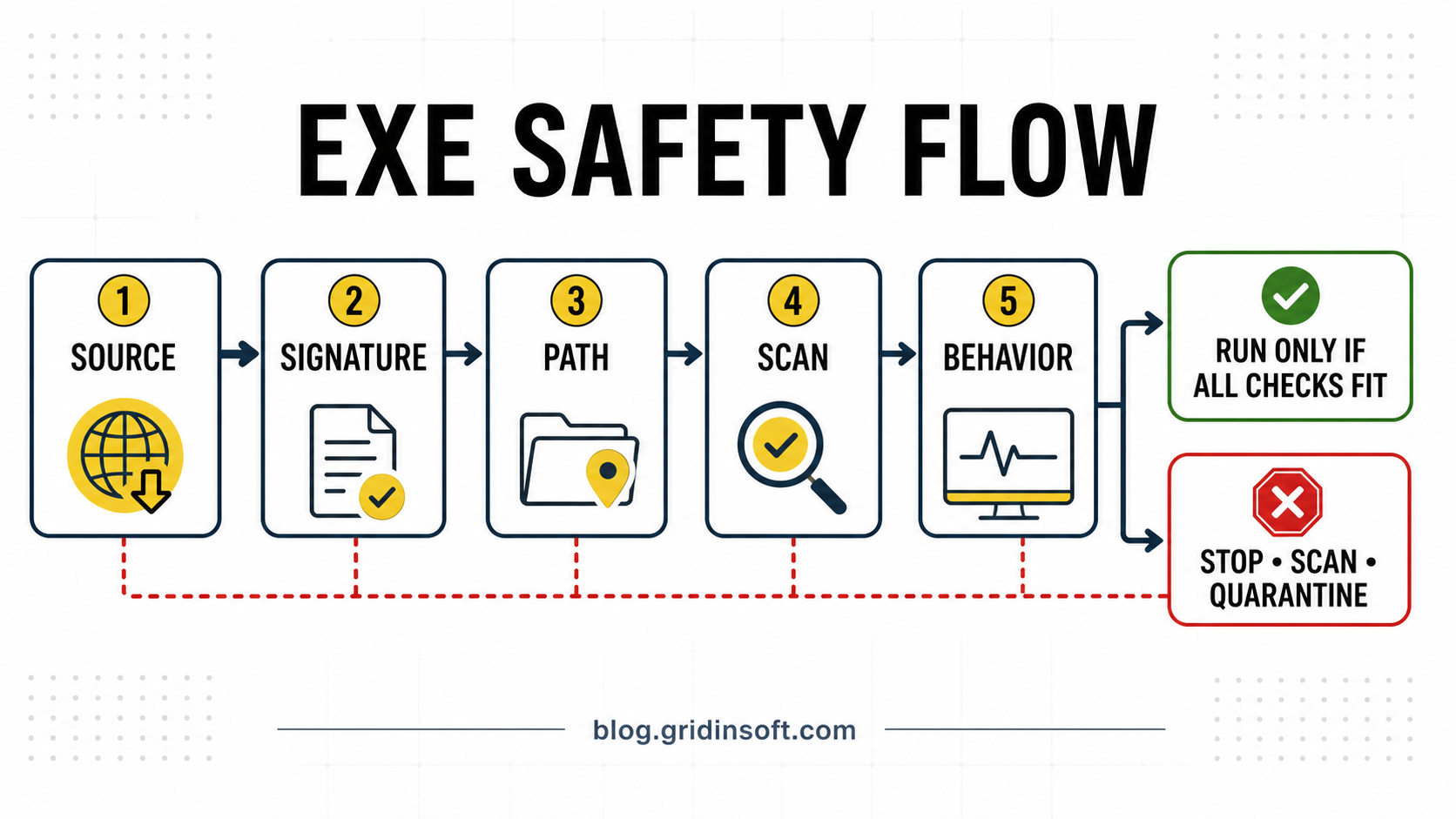
How to verify an EXE without guessing
1. Check where the file came from
The source is your first trust boundary. An installer obtained from the vendor’s official domain, a verified Microsoft Store listing, or an updater inside software you already use has a traceable origin. The same installer name from a sponsored search result, random mirror, cracked-software site, Discord attachment, fake CAPTCHA, or browser update prompt does not.
Ask whether you intended to obtain this exact program and whether the download route belongs to its publisher. If you cannot explain how the file arrived, do not let a clean-looking icon or filename answer the question for you.
2. Read the full name, path, and parent application
Turn on File name extensions in File Explorer so a file such as Invoice.pdf.exe cannot hide behind an innocent-looking ending. Then inspect the complete path. A Windows-looking name in Downloads, %TEMP%, %APPDATA%, a browser cache, or an unrelated game-mod folder deserves more scrutiny than the signed copy in its documented system or vendor directory.
Location is context, not proof. Some legitimate installers and uninstallers work from Temp. For example, Un_A.exe can be a short-lived NSIS uninstaller copy under a ~nsuA.tmp folder. What makes that case understandable is the active uninstall, its parent process, creation time, and disappearance afterward. The same name returning at startup would be a different situation.
For a running process, Task Manager or Process Explorer can reveal the application that launched it. A crash reporter inside Chrome, Discord, or a game folder should be evaluated as part of that parent app; an identically named process launched by an unknown scheduled task should not.
3. Verify the digital signature
Right-click the file, open Properties, and inspect Digital Signatures. The signature should be valid and the signer should match the Windows component or application you expected. A valid signature is strong evidence of origin, but it is not a guarantee of harmless behavior. Signed unwanted software and abused certificates exist.
An unsigned EXE is not automatically malware either. Small utilities and internal builds may be unsigned, but they need a stronger trust chain: an official source, a known developer, an expected path, understandable behavior, and clean scans. If the publisher and product do not match, stop before running the file. For a named-tool example, see how to verify whether Can You Run It’s Detection.exe is the official copy or a lookalike.
Packaged Windows applications also have a package-level trust context. If a warning names WindowsPackageManagerServer.exe, compare its App Installer package and file path before treating an empty EXE signature display as a malware verdict or allowing its network traffic.
4. Scan the file locally
On supported Windows versions, right-click the file, choose Show more options, and select Scan with Microsoft Defender.1 Keep a detected file blocked or quarantined while you investigate. You can also use the Gridinsoft Online Virus Scanner for a file check or run Gridinsoft Anti-Malware when the file has already run or the system shows persistence.
A clean result reduces risk; it does not prove safety. New or targeted malware can be undetected, and a legitimate installer can still bundle software you did not want. Combine the result with the source, path, signer, and purpose.
5. Do not expose private files to public scanners
Public multi-scanner services can share submitted samples and analysis with security partners.2 Their separate private-scanning products exist for files that cannot be shared outside an organization.3 Do not publicly upload internal installers, customer files, unreleased software, license packages, or anything containing credentials. The private-file scanning guide explains when to use a local scan, a trusted vendor hash, or a private service instead.
If a game installer or update triggers an alert for GameAssembly.dll or lib_burst_generated.dll, use the Unity game DLL quarantine and review guide. Those generated libraries need a file-and-build check before repair or restoration; a familiar filename is not a safety verdict.
Use the process family, not just the filename
When the EXE is already installed, the useful question is often not “Is this name safe?” but “Which component owns it, and what will stop working if I disable it?” These four routes keep different decisions separate.
Windows system processes
Microsoft components should match a documented Windows location and carry a valid Microsoft signature. The tray-icon route illustrates how versions change: SecurityHealthSystray.exe is the current Windows Security notification process, while MSASCuiL.exe belongs to an older Defender-era startup experience. If the files are genuine but protection or scans still look wrong, continue with the Windows Security audit rather than deleting system components.
If the warning names SecurityHealthHost.exe rather than the tray process, check the host-specific alert and Windows Security update route. Versioned SecurityHealth folders need different interpretation from an unfamiliar copy in a user folder.
Startup applications
A startup entry is not automatically malicious, and “not required by Windows” does not mean “safe to delete.” First identify its command and parent package, then disable it temporarily and test the feature it supports. Older helpers such as ALCMTR.EXE may be optional for modern systems but still belong to a legitimate Realtek package. A wrong path, unknown launcher, or entry that recreates itself changes the decision from optimization to persistence investigation.
The same rule applies to camera browser components. LocalServiceControl.exe can be a legitimate Hikvision helper that is safe to disable at startup when browser live view is not needed, while a wrong-path or unrelated-signer copy requires security triage.
Driver and vendor processes
Build tools have their own lifecycle too. If VBCSCompiler.exe stays running or uses high CPU, distinguish an idle Roslyn compiler server from a stalled build or an unexplained copy before stopping or deleting anything.
VR software can split one feature between a desktop client and a supervised runtime service too. The OVRServer_x64.exe Meta Quest Link guide shows why ending only the visible process is temporary, how to verify its Oculus runtime path, and when stopping OVRService is a safe reversible test.
If a Dell support component shows an application error, verify the file and then match the failure to the feature you used. The Dell TechHub UserProcess.exe error guide shows which Windows event to keep before repairing SupportAssist.
Vendor software often divides one visible feature among a service, a background helper, and a user interface. For Realtek audio, follow the relationship from RtkAudUService64.exe to RAVBg64.exe, RtkNGUI64.exe, and the older ALCMTR startup component. One handles service functions, another background audio work, and another the optional control interface; deleting one file is not a driver repair.
Adobe uses the same layered pattern. CCXProcess.exe supplies Creative Cloud experience content, CoreSync.exe synchronizes cloud assets, Adobe CEF Helper.exe renders interface components, and AcroTray.exe supports Acrobat and Distiller workflows. Diagnose the feature that is failing before disabling the process that happens to be visible.
Legitimate process versus same-name malware
A threat actor can copy a trusted name but cannot make the surrounding context match automatically. Compare the full path, signer, parent process, command line, nearby files, startup source, network behavior, and persistence. The WavesSvc64.exe case is a useful example: a normal OEM MaxxAudio service and a documented ValleyRAT loader require different decisions even though the visible name can be identical. The same rule applies to AgentActivationRuntimeStarter.exe and its C/PC lookalikes: verify the Microsoft signature, full path, and scheduled-task action before removing a Windows-looking file.
If several trusted programs open in Notepad or an app chooser instead of starting, follow the EXE association diagnosis and recovery guide. That symptom needs a launch-setting check; it does not by itself establish that the files are malicious.
What to do if you already ran the EXE
Once the file has executed, checking the file alone is no longer enough. The question becomes: what did it change, download, or expose?
- Stop sensitive activity. Do not sign in to email, banking, work, game, or cryptocurrency accounts on the suspect PC.
- Preserve the basic evidence. Record the filename, path, download source, time it ran, security alerts, and any new process or window. Do not keep reopening it to reproduce the symptom.
- Run a full local scan. Remove confirmed detections, restart, and scan again if the process, popup, or startup entry returns.
- Check persistence. Review newly installed apps, startup entries, scheduled tasks, services, browser extensions, proxy or DNS changes, and unfamiliar remote-access tools.
- Protect accounts from a clean device. If an infostealer is plausible, change affected passwords and revoke active sessions after containing the computer.
- Escalate when trust cannot be restored. Repeated security-tool tampering, unknown administrator access, widespread credential exposure, or persistent detections can make a clean Windows reinstall safer than endless manual cleanup.
The post-malware Windows audit provides the full verification sequence after the first scan.
Scan your PC for hidden malware and unwanted startup components linked to suspicious executables.
If an unfamiliar download leaves a locked file or a startup error naming DecoDigi32, the DecoDigi32.exe troubleshooting guide explains how to distinguish a returning executable, an old detection record, and a leftover startup reference before removing anything else.
When you should not run the EXE
- It came from a crack, keygen, fake update, fake CAPTCHA, random mirror, or message attachment you did not verify.
- The visible name uses a double extension or imitates a Windows component from a user-writable folder.
- The signature is invalid, the signer does not match the product, or the installer cannot explain why it needs administrator rights.
- It asks you to disable antivirus protection, add a broad exclusion, paste a command, or turn off SmartScreen before installation.
- A security tool detected it and the publisher cannot provide a credible false-positive explanation.
Should you use Windows Sandbox?
Windows Sandbox gives advanced users an isolated place to observe a file, but it is not a safety certificate. Malware can stay quiet in virtual environments, and a short test can miss delayed behavior, account theft, or a feature triggered only on the real PC. Do not move a file into Sandbox until its source and signature make it worth investigating.
If you need this extra layer, use the Windows Sandbox safety and hardened configuration guide. Keep host folders, clipboard sharing, credentials, and sensitive accounts out of the test. A quiet run means only that you did not observe malicious behavior in that session.
FAQ
Can an EXE infect the PC if I only downloaded it?
Usually its code must be executed by you or another program. Do not open it casually, and verify whether a browser, installer, archive tool, or automation already launched it.
Does a clean scan prove an EXE is safe?
No. A clean result lowers risk but does not replace source, signature, path, parent-application, and behavior checks.
Is an unsigned EXE always malware?
No. Some legitimate tools are unsigned, but they need a stronger trust chain: an official source, known developer, expected purpose, and clean local scans.
Should I delete a suspicious Windows-looking EXE?
Not before verifying it. Deleting a genuine Windows component can break the system, while deleting only a malicious copy may leave the task or service that recreates it.
References
- Microsoft Support. “Scan an item with Windows Security.” Microsoft, accessed August 4, 2026. Microsoft Windows Security file-scan instructions.
- VirusTotal Documentation. “How it works.” VirusTotal, accessed August 4, 2026. How submitted files and URLs are analyzed.
- VirusTotal Documentation. “Private Scanning.” VirusTotal, accessed August 4, 2026. Private scanning documentation.