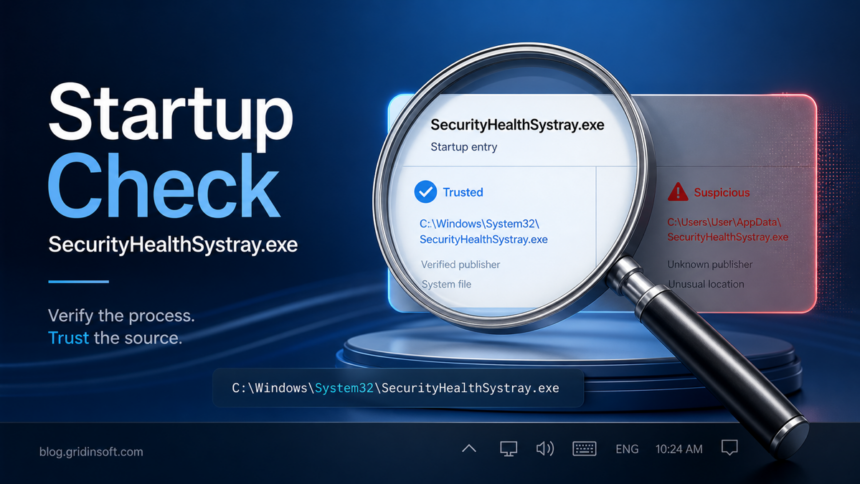
SecurityHealthSystray.exe is normally the signed Windows Security notification icon and is safe to leave in Startup apps. A legitimate copy runs from C:\Windows\System32. Task Manager may show a blank publisher for the startup entry, so use the file location and the file's Digital Signatures tab—not the empty publisher field alone—to decide whether it is genuine.
Investigate a copy that starts from AppData, Temp, Downloads, or another user-writable folder. If the Windows Security tray icon is missing, or startup shows a SecurityHealthSSO.dll Bad Image message with status 0xc000012f, repair the Windows component instead of deleting the executable or downloading a replacement DLL from a third-party site.
What Is SecurityHealthSystray.exe?
SecurityHealthSystray.exe belongs to the Windows Security notification area experience. In practice, users usually notice it because it appears in Startup apps, briefly runs after sign-in, or keeps the Windows Security tray icon available for security notifications.
That behavior is not automatically malware. Microsoft documents Windows notifications and Windows Security app settings as normal parts of Windows, including security-provider status and notification controls. The security question is not whether the name exists, but whether the file on your PC is the real Microsoft component.
SecurityHealthSystray.exe: Safe vs Suspicious
| What you see | Risk and what to do |
|---|---|
SecurityHealthSystray.exe starts with Windows and points to C:\Windows\System32 or the expected Windows Security app location. |
Usually normal. Check the signature if you are worried, but do not remove the file just because it is enabled at startup. |
The file is in AppData, Temp, Downloads, Desktop, or a random folder with a Microsoft-looking name. |
Suspicious. Treat it as a possible masquerade and scan the file before running or deleting anything. |
| Startup apps show a blank publisher, broken icon, or a command line that points to a script, archive, or user-writable folder. | A blank publisher alone is not proof of malware. Open the file location and verify the Microsoft signature; disable and investigate the entry when its path or launcher is wrong. |
| You also see pop-ups, blocked outbound connections, browser redirects, new scheduled tasks, or security tools closing unexpectedly. | High risk. Disconnect from sensitive accounts, scan the system, and review persistence locations. |
If the startup item you are checking is MSASCuiL.exe rather than SecurityHealthSystray.exe, use the same path-and-signature logic but expect the older Windows Defender location under %ProgramFiles%\Windows Defender.
How To Check SecurityHealthSystray.exe
- Open the file location. In Task Manager, right-click
SecurityHealthSystray.exeand choose Open file location. A suspicious copy often sits under the user profile, Downloads, Temp, or a fake vendor folder. - Check the signature. Right-click the file, open Properties, and inspect the Digital Signatures tab. A legitimate Windows file should be signed by Microsoft. For a stronger check, use Microsoft Sysinternals Process Explorer and enable image-signature verification.
- Review the startup command. Open Settings > Apps > Startup, then compare what Windows shows with Task Manager and the file path. If the entry launches from a user-writable folder, disable it until you verify it.
- Look for companion persistence. Check Task Scheduler, Startup folders, and recently installed apps. Malware rarely relies on one visible executable only.
- Repair Windows only when the real component is broken. If Windows Security will not open or the tray icon throws a bad-image error, use Microsoft's DISM and System File Checker workflow instead of deleting system files manually.
Why The Publisher Or Tray Icon May Be Missing
Task Manager's Startup apps list can leave the Publisher column blank even when the underlying file is signed. Treat that field as a clue, not a verdict. The safer check is Open file location, followed by Properties > Digital Signatures. For a broader review of unclear launchers and duplicated entries, use the Suspicious Startup Apps checklist.
- Confirm the startup entry is enabled. Open Settings > Apps > Startup and find the Windows Security notification icon. Disabling it usually removes the tray entry and makes protection status easier to miss; it is not a repair for a broken Windows Security app.
- Open Windows Security from Start. If the app opens and shows the protection providers normally, the missing icon is more likely a startup or notification-area issue than disabled antivirus protection.
- Repair the app when it will not open. Search for Windows Security, open App settings, and choose Repair. If Repair is available but does not help, use Reset. Windows versions and managed devices may not expose both options.
- Install pending Windows updates and restart. Recheck the app, the tray icon, and the exact startup path after the reboot.
Fix SecurityHealthSystray.exe Bad Image 0xc000012f
A Bad Image message that names SecurityHealthSSO.dll means Windows could not load that Windows Security component. Corruption or a version mismatch after an incomplete update can cause the symptom; the error alone does not prove malware. Do not download a DLL archive, take ownership of the system folder, or register a DLL copied from an unknown computer.
- Install available Windows updates, restart, and note whether the error still names
SecurityHealthSSO.dllunderC:\Windows\System32\SecurityHealth. - Use the Windows Security Repair option and then Reset when those controls are available.
- Open Command Prompt or Terminal as administrator. Run
DISM.exe /Online /Cleanup-image /Restorehealthfirst. After it completes successfully, runsfc /scannow. - Restart and test Windows Security again. If SFC says it could not repair files or the same error returns, use Microsoft's Windows recovery or repair-install options rather than manually replacing the DLL.
When The Same Name Can Be Malware
Malware often borrows trusted Windows-style names because users hesitate to remove them. A fake SecurityHealthSystray.exe may appear after a cracked installer, fake update, malicious game mod, browser hijacker, or bundled app. The warning signs are the location, signature, startup command, and surrounding symptoms, not the filename by itself.
If the file is suspicious, avoid double-clicking it for a test. Use the file's path, signature, source, and hash to decide whether an EXE file is safe, then run a full system scan. When a wrong-path or unsigned copy already ran, the visible executable may be launched by a separate startup entry, scheduled task, service, or bundled module. Gridinsoft Anti-Malware can check those persistence locations and remove detected components; it cannot prove that no account or data exposure occurred.
If the process path is wrong, the name imitates a Windows component, or high CPU started after an unknown installer, scan for hidden miners, services, startup entries, and bundled components.
Scan a suspicious copyShould You Disable SecurityHealthSystray.exe At Startup?
Disabling the legitimate startup entry may hide the tray icon, but it does not make Windows safer and can make protection status easier to miss. If the file is genuine and Windows Security is working, leave it enabled. If the entry is duplicated, unsigned, or launched from the wrong location, disable only the suspicious startup entry and scan the system.
For related Windows process checks, see our guides to wslservice.exe, pythonw.exe, TextInputHost.exe, UserOOBEBroker.exe, and MoUsoCoreWorker.exe. If the startup entry appeared after a suspicious download or mod, also review the infostealer after game or mod checklist.
If you are comparing Windows Security startup entries with vendor tray helpers, the igfxtray.exe startup check shows the same path/signature logic for an Intel graphics process.
FAQ
Is SecurityHealthSystray.exe a virus?
Usually no. SecurityHealthSystray.exe is normally tied to Windows Security notifications. It becomes suspicious when the file is unsigned, duplicated, or running from a user-writable folder such as AppData or Temp.
Why is SecurityHealthSystray.exe in Startup apps?
It can start with Windows so the Windows Security notification icon and protection status are available after sign-in. Startup presence alone is not enough to call it malware.
Can I delete SecurityHealthSystray.exe?
Do not delete a legitimate Windows copy. If Windows Security is broken, repair Windows with DISM and System File Checker. If a suspicious copy is outside the Windows system path, scan it and remove the malware-related startup entry.
What path is suspicious for SecurityHealthSystray.exe?
Copies under AppData, Temp, Downloads, Desktop, ProgramData subfolders with random names, or fake Microsoft folders should be treated as suspicious until verified.
Why does SecurityHealthSystray.exe show no publisher in Startup apps?
Task Manager may not display a publisher for the startup entry even when the file is legitimate. Open the file location and check the Digital Signatures tab. A Microsoft-signed copy in C:\Windows\System32 is stronger evidence than the blank Publisher column.
How do I fix SecurityHealthSystray.exe Bad Image error 0xc000012f?
Install Windows updates and restart, repair or reset Windows Security when the option is available, then run DISM followed by sfc /scannow. Do not download a replacement SecurityHealthSSO.dll from a third-party DLL site.
For another process-name masquerading case, Servicehost.exe in a Windows folder shows why path and digital signature matter before you trust a familiar-looking process name.
References
- Microsoft Support. "Windows Security App Settings." Microsoft, accessed July 14, 2026. https://support.microsoft.com/en-us/windows/security/windows-security/windows-security-app-settings
- Microsoft Support. "Repair Apps and Programs in Windows." Microsoft, accessed July 14, 2026. https://support.microsoft.com/en-us/windows/apps/repair-apps-and-programs-in-windows
- Microsoft Support. "Using System File Checker in Windows." Microsoft, accessed July 14, 2026. https://support.microsoft.com/en-us/windows/experience/backup-recovery/using-system-file-checker-in-windows