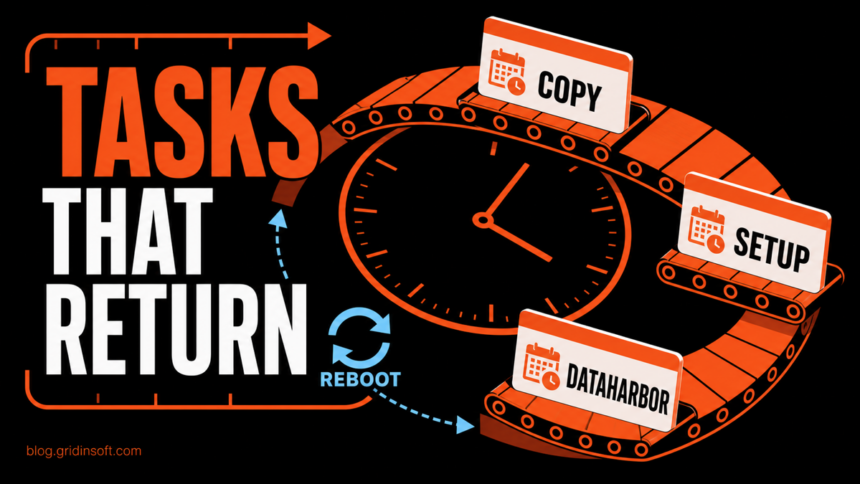
A QuantumMindCopy scheduled task is not a standard Windows or Obsidian task. In the malware chain where researchers documented this name, PowerShell registered it to run after logon and look for QuantumMind.exe. The analyzed build did not drop that file, so this particular task remained dormant. The same infection still had active persistence through a separate DataHarbor task, while QuantumMindSetup was a conditional follow-up that researchers did not observe being created [1].
If you find any of these exact names, do not run the task or paste its encoded PowerShell into a decoder. Disconnect the PC from the network, preserve the task action and trigger, disable the suspicious tasks, and scan for the files and other persistence that created them.
QuantumMindCopy was registered and dormant in the observed build; QuantumMindSetup was planned but not observed; DataHarbor was the active logon persistence. Do not call all three active without checking the task definitions on the affected PC.What QuantumMindCopy, QuantumMindSetup, and DataHarbor mean
The initial lure was a trojanized installer pretending to deliver Obsidian. A signed Python executable loaded a malicious neighboring DLL, which then downloaded additional stages. One PowerShell stage changed security settings and registered QuantumMindCopy. A later AutoIt-based stage established the persistence that actually worked in the research environment [1].
| Task | Observed role and decision |
|---|---|
QuantumMindCopy |
Registered to run five minutes after logon and search %LocalAppData% for QuantumMind.exe. The analyzed chain never dropped that file, so the task fired but did not complete its next step. Finding the task still indicates that malicious PowerShell reached the system. |
QuantumMindSetup |
The code was designed to create this second task after locating QuantumMind.exe, then relaunch a renamed and padded loader seven minutes after logon. Researchers did not observe this task being created in their tested build. If it exists on your PC, preserve its action because it may represent a different or completed variant. |
DataHarbor |
The active persistence observed in the same chain. It ran at logon with highest privileges and pointed to a loader under %LocalAppData%\SecureData Dynamics\. Treat a matching task and file path as high-risk evidence. |
A dormant task is not harmless evidence. It shows that part of the chain executed, and deleting only that object can leave the active loader, browser changes, exclusions, remote-access components, or another task untouched.
If the task is named OneChecker and launches hidden PowerShell from %LOCALAPPDATA%\reserve\red\ or an unfamiliar Web Genius folder, follow the OneChecker scheduled task removal guide for the exact Action, path, and cleanup checks.
How to inspect the tasks without running them
Open Task Scheduler with taskschd.msc, select Task Scheduler Library, and inspect the task properties. Do not click Run. Record the following before changing anything:
- Actions: the executable, script host, PowerShell arguments, URL, and working directory.
- Triggers: logon trigger, delay, repeat interval, and the user account that activates it.
- General: author, creation time, hidden flag, stored account, and whether it runs with highest privileges.
- History: last run time, result, and events around the first suspicious download or installer launch.
PowerShell can display the task definitions without starting their actions. The ScheduledTasks module provides the official cmdlets for retrieving, exporting, disabling, and removing registered tasks [2].
$taskNames = "QuantumMindCopy", "QuantumMindSetup", "DataHarbor"
Get-ScheduledTask -TaskName $taskNames -ErrorAction SilentlyContinue |
  Select-Object TaskName, TaskPath, State, Author, Actions, Triggers, Principal
Export each task you actually find before removal. Create C:\TaskEvidence first, then export the definition to XML:
Export-ScheduledTask -TaskName "QuantumMindCopy" |
  Set-Content -Encoding UTF8 "C:\TaskEvidence\QuantumMindCopy.xml"
Inspect the exported XML as text. A hidden PowerShell window, encoded command, download instruction, unexpected path under AppData, or a loader that has no clear vendor relationship is more important than a polished task description. Our report on a PowerShell chain hidden under vendor-like task identities shows why the complete action and process relationship matters more than the name alone.
Is QuantumMindCopy a false positive or legitimate task?
Windows does not install a default task named QuantumMindCopy, QuantumMindSetup, or DataHarbor. The official Obsidian installer also has no reason to create a hidden delayed task that searches for QuantumMind.exe or launches an encoded PowerShell chain. Exact-name matches therefore deserve incident-response treatment, especially when the action points into %LocalAppData%, runs with high privileges, or appeared after software from an unofficial download site.
A task name by itself is not a complete verdict because anyone can reuse a label. If a managed business application created a same-named task, confirm the executable path, Authenticode signature, software owner, deployment record, and task XML with the administrator. Do not restore or allow an unknown file merely because the task description looks professional. The same principle applies when checking whether an unfamiliar executable is a signed system file or a lookalike.
Remove QuantumMindCopy, QuantumMindSetup, and DataHarbor safely
- Disconnect the PC from the network. Turn off Wi-Fi or unplug Ethernet. The documented chain included credential and browser-data theft plus remote-access capabilities, so containment should come before extended inspection [1].
- Preserve the task evidence. Save the XML definitions, actions, paths, hashes, timestamps, and Task Scheduler history. Do not visit domains from the action or submit private files to public sandboxes.
- Disable the suspicious tasks. Disabling stops the next scheduled launch while keeping the definitions available for review. Use only the names that exist on the PC:
"QuantumMindCopy", "QuantumMindSetup", "DataHarbor" |
  ForEach-Object {
    Disable-ScheduledTask -TaskName $_ -ErrorAction SilentlyContinue
  }
- Quarantine related files instead of executing them. Check the paths recorded in each task. In the analyzed chain, the active loader was stored under
%LocalAppData%\SecureData Dynamics\. Preserve a hash and signature result before quarantine; do not double-click the file to see what it does. - Check adjacent persistence. Review other newly created tasks, Startup entries, Run keys, services, browser policies and extensions, remote-access software, and security-tool exclusions. If outbound PowerShell alerts continue, follow the process and task backward with our PowerShell outbound-connection triage.
- Run a full malware scan. Use Gridinsoft Anti-Malware to scan for the loader, hidden files, scheduled tasks, startup entries, browser changes, and other components related to the visible task. Remove confirmed detections, then reboot.
- Scan and inspect again after reboot. Confirm that the tasks have not returned, the suspicious paths stay absent, and no related network alerts recur. Microsoft also recommends an offline scan when malware keeps returning because a hidden component may reinstall the visible detection after restart [3].
- Remove disabled task definitions after evidence and cleanup are complete. On a personal PC, remove only the confirmed malicious tasks. On a managed device, coordinate with the administrator before deleting task objects.
Disabling a task stops its next trigger, but it does not prove that the PC is clean. A loader, service, browser extension, altered security setting, or separate scheduled task may remain and recreate the activity after logon.
Account recovery and reinstall decisions
If the suspicious installer or loader ran, assume browser sessions and stored credentials may have been exposed until investigation shows otherwise. After endpoint containment and cleanup, use a different clean device to revoke active sessions and change passwords for email, password managers, financial accounts, developer services, and other high-value accounts. Prioritize accounts that were signed in on the affected browser. The sequence in our stealer account-recovery guide explains why session revocation should accompany password changes.
Consider a clean Windows reinstall when the malware had administrator rights, remote-access components are found, security settings cannot be restored reliably, or the tasks keep returning after a full and offline scan. Back up documents rather than executables and scripts, reinstall from trusted Microsoft media, update Windows, and restore files only after scanning them.
How to prevent another trojanized installer
- Download Obsidian and other software only from the developer’s official domain or a trusted managed repository.
- Check the final hostname before downloading; a product name inside a different domain is not proof of ownership.
- Verify the installer’s digital signature and publisher before running it.
- Keep potentially unwanted app blocking, sample submission, and real-time protection enabled unless an administrator has a documented reason to change them.
- Investigate a new delayed-logon task as a persistence event, not as routine clutter.
FAQ
Can I delete QuantumMindCopy immediately?
Disable it first and export its XML so you preserve the action, trigger, and file path. Then scan and quarantine related components. Delete the confirmed malicious task after evidence collection and cleanup; removing only the task may leave the active loader behind.
Why is QuantumMindSetup missing?
In the analyzed build, the code intended to create QuantumMindSetup only after finding QuantumMind.exe. That file was not dropped in the observed chain, so researchers did not see the second task created. Its absence does not make QuantumMindCopy legitimate.
Why did QuantumMindCopy return after reboot?
Another component probably recreated it, or the active persistence was a different object such as DataHarbor. Check services, startup entries, other tasks, browser changes, and the files referenced by every action, then scan again after reboot.
Does finding the task prove my passwords were stolen?
No. The task proves that a persistence stage reached the PC, not that every later command succeeded. Because the documented final payload supported browser-data and credential theft, take account precautions if the installer or loader ran, especially when you find active C2 traffic, injected browser extensions, or unexplained sessions.
References
- hackback.zip. “Reversing a Trojanized Obsidian Installer.” hackback.zip, June 2, 2026, accessed August 12, 2026. https://hackback.zip/2026/06/02/Obsidian-Trojanized-Installer-Malware-Analysis.html
- Microsoft Learn. “ScheduledTasks Module.” Microsoft, Windows Server 2025 PowerShell documentation, accessed August 12, 2026. https://learn.microsoft.com/en-us/powershell/module/scheduledtasks/
- Microsoft Support. “Troubleshoot problems with detecting and removing malware.” Microsoft, accessed August 12, 2026. https://support.microsoft.com/en-US/defender/troubleshoot-problems-with-detecting-and-removing-malware