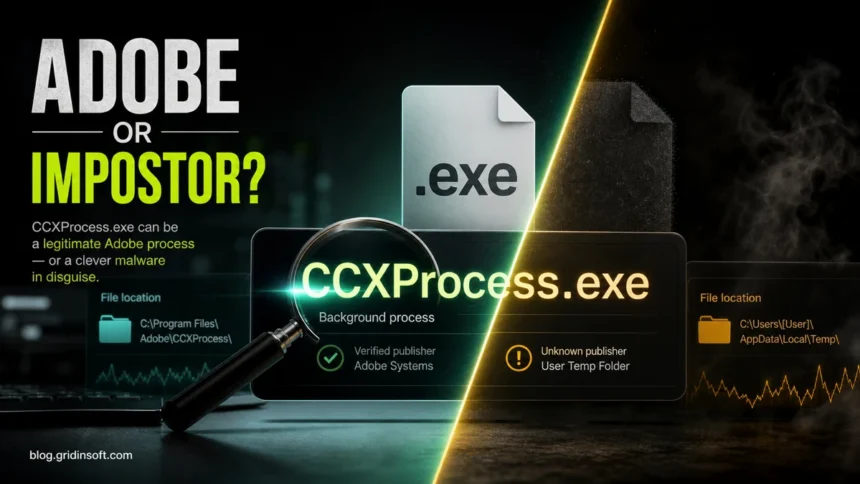
CCXProcess.exe usually belongs to Adobe Creative Cloud Content Manager, which supplies tutorials, templates, and other app content. It is not required by Windows. If your question is whether to disable it at startup, verify the Adobe file first, then test Creative Cloud’s launch-at-login setting. Disabling startup does not uninstall Adobe, and its apps or scheduled task may launch the helper again. A familiar filename alone cannot establish that a particular copy is safe.
Is CCXProcess.exe safe?
- Consistent with Adobe: it is in an Adobe or Creative Cloud folder, has a valid Adobe signature, and matches the software you installed.
- Usually optional at startup: you can disable Creative Cloud startup if you do not need Adobe services ready at boot.
- Suspicious: it appears in
AppData,Temp,Downloads, Startup folders, or returns from an unknown scheduled task. - Do not just delete it: first check the path and signature, then update, repair, disable startup, uninstall Creative Cloud, or scan the exact file depending on what you find.
What should you do with CCXProcess.exe?
- Adobe folder, valid Adobe signature, and you use Creative Cloud content or libraries: Keep it. This is normal Creative Cloud Content Manager activity.
- Legitimate Adobe file, but you rarely need background Creative Cloud features: Disable startup and test. Re-enable it if fonts, libraries, templates, or other Creative Cloud resources stop being ready when needed.
- Correct path and signature, but sustained CPU, memory, or repeated error pop-ups: Repair Creative Cloud. Update it, sign out and back in, then reinstall the desktop app if the problem continues. Do not delete only the executable.
- Wrong path, missing Adobe signature, no Adobe software installed, or an unknown task relaunches it: Scan the copy. Keep it disabled, check the installer and persistence source, and remove only confirmed threats.
What is CCXProcess.exe?
Adobe’s current background-process documentation describes Creative Cloud Content Manager as a Creative Cloud helper that supports dynamic content such as tutorials, stock templates, and filters, and it references CCXProcess OS Scheduler. In plain terms, CCXProcess.exe belongs to the Adobe Creative Cloud ecosystem. It is not part of Windows itself.
You may see it in Task Manager even when no Adobe editor is open because Creative Cloud keeps some account, update, sync, library, and app-experience services ready in the background. That is normal on a computer that actively uses Adobe apps. It is less normal on a computer where Adobe software was never installed, was removed long ago, or came from a cracked/bundled installer.
Do not confuse this role with AdobeARM.exe, which checks for and installs Acrobat or Reader updates, or AcroTray.exe, which supports Acrobat and Distiller workflows. They are separate Adobe processes, so review each startup entry by its own path, signer, purpose, and feature tradeoff.
If the problem is cloud documents, fonts, or Creative Cloud Libraries rather than tutorials and interface content, continue with the CoreSync.exe synchronization and high-CPU guide.
Why are there two CCXProcess.exe processes?
Creative Cloud can run more than one CCXProcess.exe instance while its background components and app interfaces are active. Two entries alone are not a malware signal. In Task Manager, open the file location for each entry and check both signatures: each legitimate copy should stay inside an Adobe or Creative Cloud installation folder and be signed by Adobe.
Investigate when one copy uses a different path, has no Adobe signature, launches from an unknown scheduled task, or consumes resources while the signed Adobe copy is idle. Disable only the suspicious startup source and scan that exact file; do not delete the signed Adobe copy merely because two processes are visible.
Is CCXProcess.exe a virus?
The legitimate Adobe process is not a virus. The name can still be abused by malware because it looks familiar in Task Manager. The fastest way to separate the two is to check where the file lives and who signed it.
| Likely normal | C:\Program Files\Adobe, C:\Program Files (x86)\Adobe, an Adobe digital signature, Creative Cloud installed. |
| Needs checking | %AppData%, %LocalAppData%\Temp, Downloads, desktop folders, random user-profile folders, no signature, or an unknown publisher. |
| Performance issue | Brief CPU/network use during sync or updates can be normal. Constant high CPU, memory, disk, or battery drain while idle is not something to ignore. |
How to check the real file
- Open Task Manager. Right-click
CCXProcess.exeand choose Open file location. - Check the folder. A real Adobe copy should point to an Adobe or Creative Cloud installation folder, not a temporary or user-writable folder.
- Check the signature. Right-click the file, open Properties, then Digital Signatures. The signer should be Adobe. If there is no signature tab or the publisher is unfamiliar, use the EXE safety checklist before allowing or deleting it.
- Check the parent startup item. In Task Manager → Startup apps, Windows Settings → Startup, or Task Scheduler, look for Adobe Creative Cloud entries. Use the suspicious startup apps checklist when an unknown publisher, path, or scheduled task launches the same name.
If the path and signature are correct, the problem is usually startup clutter or Creative Cloud behavior. If the path is wrong, scan the exact file and review recent installers, browser extensions, cracked Adobe downloads, and scheduled tasks.
Can I disable CCXProcess.exe at startup?
Yes. Disabling startup is usually safe when the file is legitimate. It does not uninstall Adobe apps; it only stops the background component from launching automatically at boot. Adobe apps may start Creative Cloud helpers again when you open them.
- Use Creative Cloud desktop first. Open Creative Cloud, go to Preferences, and turn off launch-at-login or automatic startup options you do not need.
- Use Windows Startup apps. Open Settings → Apps → Startup, or Task Manager → Startup apps, and disable Adobe Creative Cloud startup entries.
- Restart and test. If Photoshop, Illustrator, Premiere Pro, Acrobat, fonts, libraries, and updates still work for your workflow, leave startup disabled.
- Re-enable it if needed. If Creative Cloud sync, fonts, or library features stop working until you open Creative Cloud manually, decide whether the startup convenience is worth the background activity.
How to fix CCXProcess.exe high CPU or memory
- Wait a few minutes after boot or an Adobe update. Short bursts can happen while Creative Cloud checks updates, syncs libraries, or prepares app content.
- Update Creative Cloud and Adobe apps. A stuck helper is often fixed by the current Creative Cloud desktop build.
- Sign out, restart, and sign back in. This can reset account, library, and sync state without deleting Adobe files manually.
- Disable startup and test a clean boot. If the spike disappears, the issue is likely Creative Cloud startup behavior rather than malware.
- Repair or reinstall Creative Cloud desktop. Use Adobe’s official installer/uninstaller path instead of deleting one executable from the program folder.
- Scan if the behavior is abnormal. Constant CPU, a non-Adobe path, missing signature, unknown scheduled task, or a copy that returns after deletion should be treated as a security warning.
If the resource spike belongs to Adobe Desktop Service.exe rather than CCXProcess.exe, use the core-service quit, startup-test, and Repair sequence instead of disabling the UI helper. If Task Manager shows several interface renderers instead, the Adobe CEF Helper.exe high-CPU guide explains the normal process count and a separate idle-load test.
What if CCXProcess.exe remains after uninstalling Adobe?
If you removed Adobe apps but still see CCXProcess.exe, check whether Creative Cloud desktop, Adobe update services, or leftover startup entries remain installed. Use Apps & Features to remove Creative Cloud properly, then restart and check Task Manager again.
If the process is still present after Adobe cleanup, open its file location. A leftover Adobe folder is usually a cleanup issue. A copy in AppData, Temp, or a random startup folder is a stronger malware indicator and should be scanned before you trust it.
If a wrong-path or unsigned copy already ran, checking one filename is not enough. Review recent downloads, startup entries, scheduled tasks, browser changes, and other persistence that could recreate the process. Run a full Gridinsoft Anti-Malware scan, remove confirmed detections, reboot, and scan again if CCXProcess.exe returns.
If the process path is wrong, the name imitates a Windows component, or high CPU started after an unknown installer, scan for hidden miners, services, startup entries, and bundled components.
Scan suspicious process activityFAQ
Do I need CCXProcess.exe?
You do not need it for Windows. You may need it for some Creative Cloud experience features, fonts, libraries, templates, notifications, or update workflows. If you rarely use Adobe apps, disabling startup is usually fine.
Why does CCXProcess run after I close Photoshop?
Creative Cloud background processes can continue running for sync, account state, updates, libraries, and app services even after the visible Adobe app is closed.
Why does CCXProcess.exe keep coming back?
If it is legitimate, Creative Cloud may recreate startup entries during updates or when automatic launch is enabled. If it returns from a non-Adobe folder or an unknown scheduled task, check the file path and scan it.
Can malware pretend to be CCXProcess.exe?
Yes. A familiar process name is easy to copy. Trust the folder path, digital signature, parent startup entry, and recent install history more than the name alone.
References
- Adobe. “CCXProcess OS Scheduler.” Adobe Help Center, updated April 4, 2024, accessed July 13, 2026. https://helpx.adobe.com/x-productkb/global/ccxprocess-os-scheduler.html
- Microsoft. “Configure Startup Applications in Windows.” Microsoft Support, accessed July 13, 2026. https://support.microsoft.com/en-us/windows/experience/startup-boot/configure-startup-applications-in-windows